Archive for the ‘Others’ category

Using Windows Firewall to Block A Program from Accessing The Internet

May 6th, 2015 by Admin

Have you ever installed a program that you only needed for offline use, but it kept on trying to connect to the Internet? Or need to stop a program from gathering your personal information and sending them out to the Internet? With Windows Firewall you can easily block any program of your choice from connecting to the Internet.

How to Block A Program from Accessing The Internet?

  1. To get started we need to open up Windows Firewall. One quick way to do this is from the Control Panel. Just click the Windows Firewall icon.
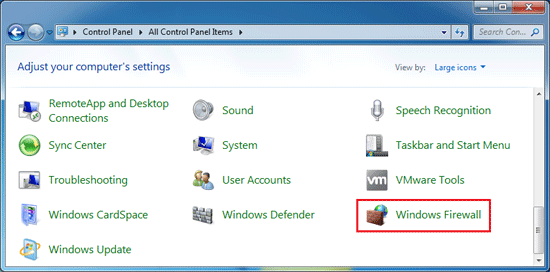
    control-panel-items

  2. On Windows Firewall window, click on the Advanced settings link.
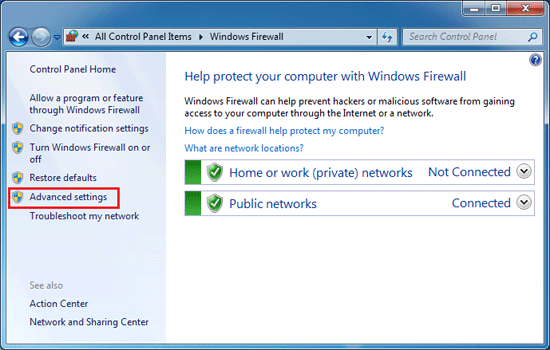
    windows-firewall

  3. Here you can see all your Firewall rules: Inbound or Outbound. When it comes down to it I think Outbound rules are usually enough for most applications. When Outbound connections are blocked, this means that the application can’t send any of your data to the Internet.
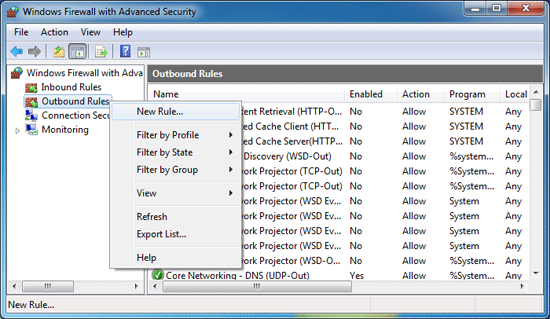
  4. Right-click on Outbound Rules from the tree at the left, and then select “New Rule…

    new-outbound-rule

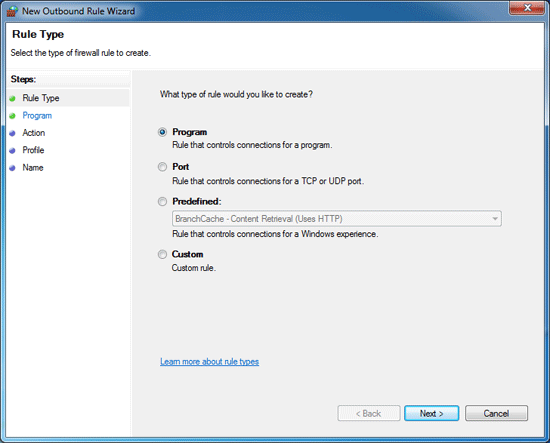
  5. Select the Program as the rule type and click Next.
    rule-type

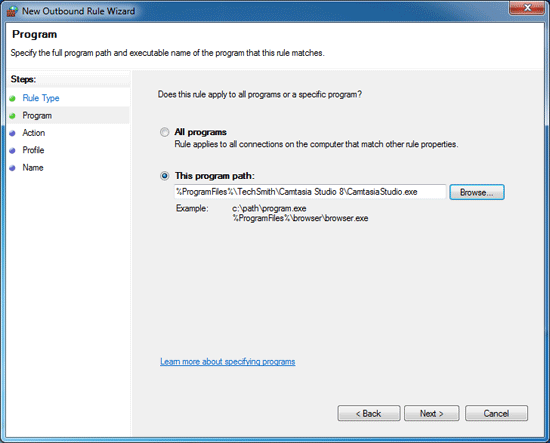
  6. Select the “This program path:” option and then click on Browse to locate the program which you want to stop from accessing the Internet.
    apply-rule-to-specific-app

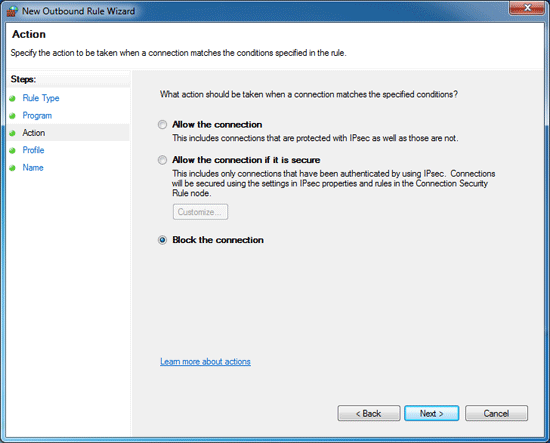
  7. Select the “Block the connection” option and click Next.
    block-connection

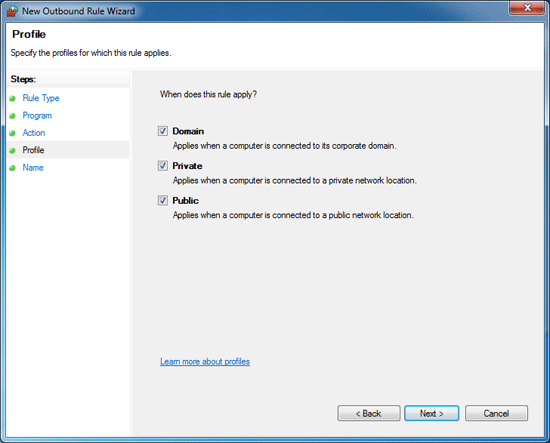
  8. When comes to the Profile tab, select all of the available boxes: Domain, Private, and Public.
    when-rule-apply

  9. Give your new rule a name whatever you like. Click on Finish.
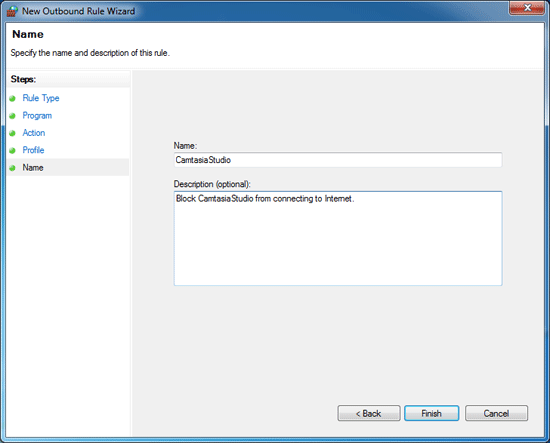
    set-firewall-rule-name

  10. In the Name column, your newly blocked program will be listed. In the Action column, you’ll see that your newly created rule is set to Block.
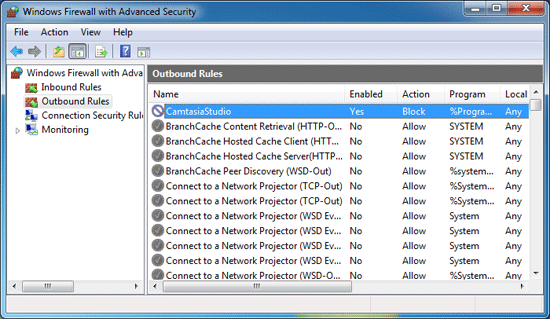
    firewall-rules

    Repeat the same steps to block as many programs as you want from accessing the Internet.
How to Fix IE Issue “This program couldn’t be downloaded”

May 4th, 2015 by Admin

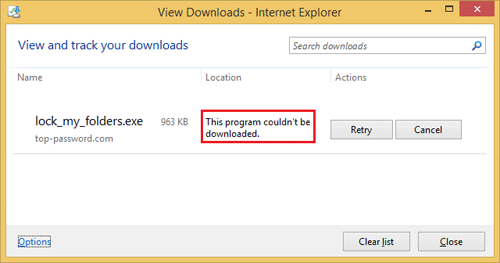
If you’re using Internet Explorer, you might frequently experience an issue with your download: “This program couldn’t be downloaded”. The file would appear to download but then after the last bit was done, it would fail and no further indicators of what the problem was.

couldnt-be-downloaded

I contacted Microsoft support and they suggested me to install the most recent cumulative security update for Internet Explorer. But it also doesn’t solve the problem. Eventually I figured out a way to fix the problem. Here’s how:

  1. From Internet Explorer main menu, click on Tools and choose Internet Options.
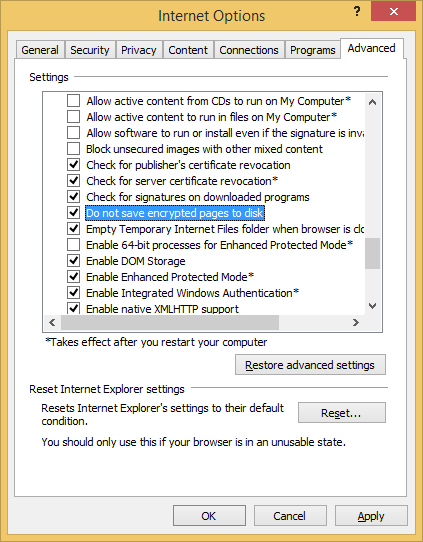
  2. Click the Advanced tab.

    don't-save-encrypted-pages

  3. Check the “Do not save encrypted files to disk” option, and then click OK.

Restart your Internet Explorer and you should then be able to download your application without any issue.

Can’t Delete Files Containing Special Characters in Windows

March 16th, 2015 by Admin

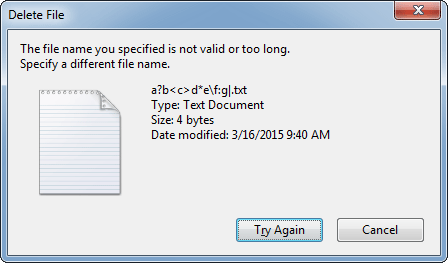
There might be situations where you need to delete some folders or files contains special characters in the filenames. When you try to delete, move or rename such a folder/file from Windows Explorer, you’ll receive the error message “The file name you specified is not valid or too long“.

unable-delete-file

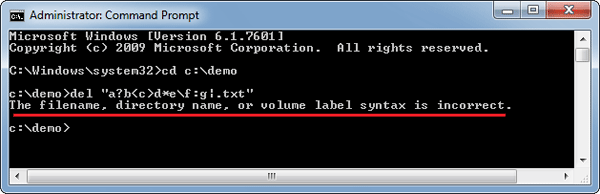
Or get a similar error message “The filename, directory name, or volume label syntax is incorrect” when you try to delete the folders/files from Command Prompt.

filename-syntax-incorrect

I have tried many third-party softwares such as unlocker, 7-Zip File Manager, and other tricks discussed in various forums. But none of them work. This problem is very tricky because a set of special characters can’t be used in filenames, such as
\ / : * ? " < > |

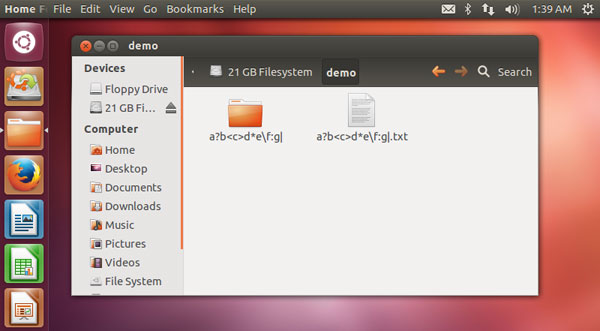
Almost all Windows apps are unable to process these stubborn files. To get around this problem, you need to use a Ubuntu Live CD or Linux distribution. In my example, I boot my computer from Ubuntu Live CD and I can then easily create, open, rename or delete any folders or files with special characters.

ubuntu

Almost anything (only the / character is not allowed) will be allowed in the filename after booting to Linux or Ubuntu. Using this method, you can delete or rename any Windows folders/files located in your hard drive.

How to Create Multiple Profiles in Firefox

February 23rd, 2015 by Admin

Firefox stores your personal data – bookmarks, cookies, passwords, user preferences, and everything else – in a directory known as a profile. Each profile stores separate set of user information. You can set up separate profiles for work use, personal use, extension testing, secure browsing – anything you like. In this article we’ll show you how to create multiple profiles in Firefox.

Part 1: Launch The Profile Manager

The built-in Profile Manager can’t be accessed from within Firefox’s GUI interface. To launch the Profile Manager, you need to close Firefox completely if it’s running, and then follow the steps below:

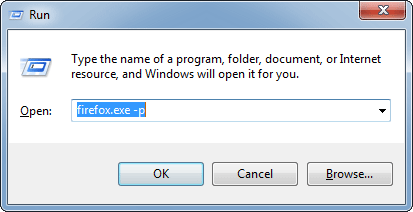
  1. Press the Windows key + R to bring up the Run box.
  2. Type firefox.exe -p and hit Enter.

    start-firefox

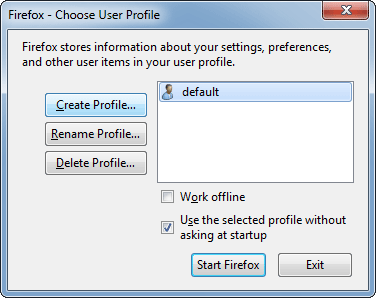
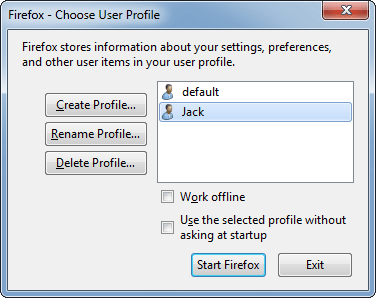
  3. You’ll see the Choose User Profile dialog window. By default, you’ll have a single user profile named “default”. From this window you can create a new profile, rename existing ones, and delete them.

    firefox-profile-manager

Part 2: Create New Profile

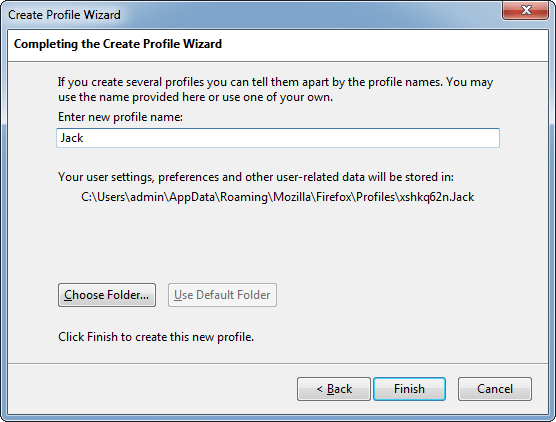
To create a new profile, click the Create Profile button and go through the wizard. The only important option is the profile name – you can use the default folder location unless you want to store your profile folder elsewhere.

create-firefox-profile

If you don’t want a profile anymore, you can delete it by clicking the Delete Profile button. This wipes all browsing data associated with a specific profile, including its bookmarks, saved passwords and other settings.

Part 3: Switch Between Multiple Profiles

To switch between multiple profiles, just launch the Profile Manager and choose which profile you want to load. If you uncheck the “Use the selected profile without asking at startup” box, Firefox will load the selected profile by default without prompting each time you start it.

choose-firefox-profile

Normally, if you start Firefox when a copy is already running, it’ll just open a new browser window using the current profile. To start a completely separate instance of Firefox, press the Windows key + R, type the following command into the Run dialog that appears, and press Enter.

firefox.exe -profilemanager -no-remote

Windows 10 to Add Native Support for FLAC and MKV

February 10th, 2015 by Admin

Microsoft has already confirmed that Windows 10 will come with native support for MKV (Matrsoka Video) and FLAC. FLAC (Free Lossless Audio Codec) is a commonly used lossless audio format that provides a more accurate reproduction of recordings. In other words, it sounds better than other formats, such as MP3, which compress recordings down to a more manageable size but lose quality in the process.

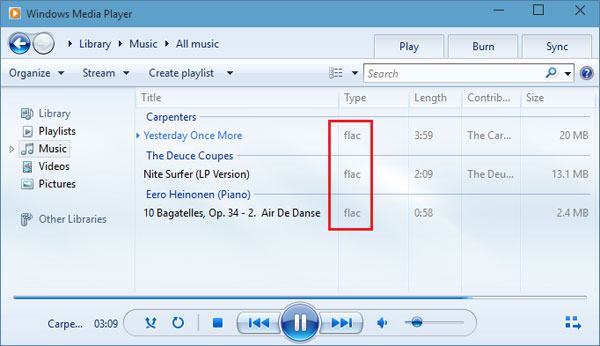
It’s also worth mentioning that MKV and FLAC are currently supported in Windows 10 Technical Preview and that file support will continue on to the final version when it hits the market. Here’s a look at playing some .flac audio files with Windows Media Player on Windows 10 build 9901 (The download is available through the Windows Insider Program website).

windows-media-player

MKV and FLAC are two file formats that have been increasing in popularity over the years. They produce great quality audio and video, are compressed so the files aren’t too large and are feature rich. Windows 8.1 and prior did not provide any supporting software out of the box, requiring end users to download third party apps to convert FLAC/MKV formats, such as the Video Converter Assist. With Windows 10, Windows Media Player will be able to handle those duties.

How to Convert DMG Image to ISO format in Windows

February 8th, 2015 by Admin

Most software on Mac OS X is distributed as a DMG image format. The Mac users can open .dmg files on Mac OS X without using third-party software. But if you are a Windows user, you will be in trouble, since Windows can not recognize dmg format by default. In this article we’ll show you how to convert DMG files to ISO format in Windows using the freeware dmg2img.

How to Convert DMG Image to ISO format in Windows?

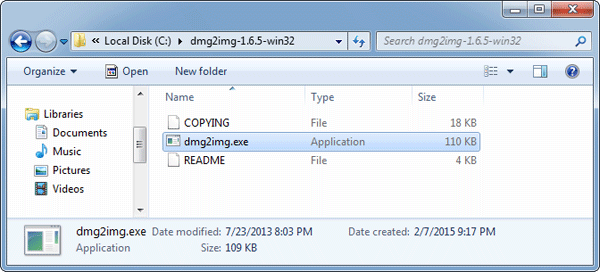
  1. First head over to this website and grab yourself a copy of dmg2img by clicking on the win32 binary link. Extract the contents of the downloaded dmg2img-1.6.5-win32.zip file to a new folder.

    dmg2img

  2. Open a Command Prompt and then use the cd command to navigate to the folder where you extracted the dmg2img file.
  3. Now use the following command syntax to convert your DMG file:

    dmg2img.exe {source file.dmg} {destination file.iso}

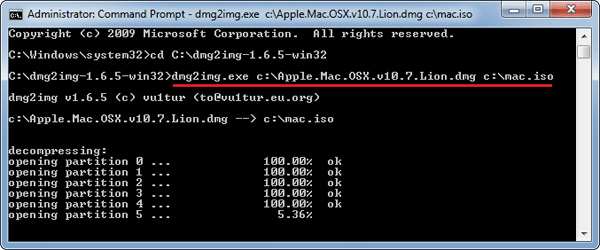
    In my example I want to convert a Mac installer image called Apple.Mac.OSX.v10.7.Lion.dmg, and save the converted ISO as mac.iso, so my command would be:

    dmg2img.exe c:\Apple.Mac.OSX.v10.7.Lion.dmg c:\mac.iso

    convert-dmg-to-iso

  4. After a few minutes of processing, your DMG will be converted to ISO format. You can then burn the ISO image to your disc or mount it to CD drive for your own purpose in Windows.

Disable Command Prompt Using Group Policy or Registry Trick

February 2nd, 2015 by Admin

Command Prompt is a built-in tool in Windows that is rarely used by the average user. It’s not so user-friendly but advanced computer users with malicious intent can use the Command Prompt to bypass most restrictions that are enforced on the Windows Explorer based GUI. In this post, we will explain how to disable Command Prompt in Windows 11/10/8/7.

Note: If you need to use the Command Prompt frequently, or run batch scripts or use the Terminal Services, disabling Command Prompt is not recommended.

Option 1: Disable Command Prompt Using Group Policy

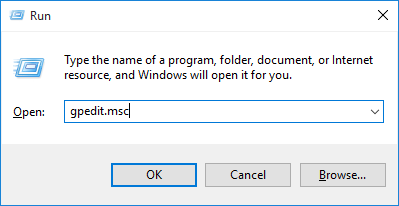
  1. Press the Windows key + R to bring up the Run box, type gpedit.msc and hit Enter.

  2. This will open the Local Group Policy Editor. Now, go to the following location in the left pane:
    User Configuration/Administrative Templates/System

    Make sure click on the System node rather than expanding it. In the right side pane you will see the “Prevent access to the command prompt” policy. Double-click it to modify.

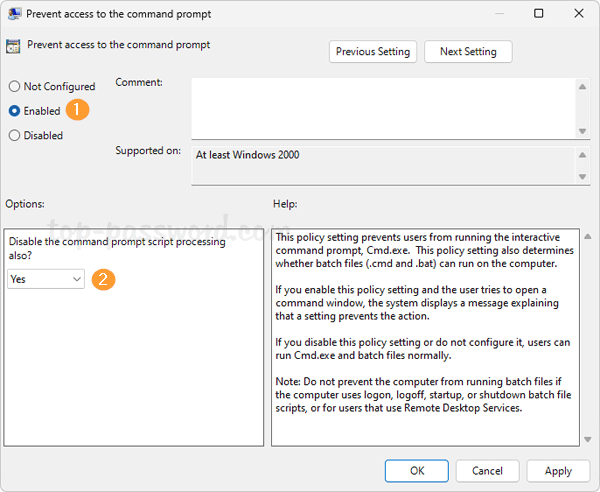
  3. In the pop-up window, select Enabled. If you also want to prevent running .bat or .cmd script files, select Yes from the dropdown under the Options section. Click Apply/OK and you are done.

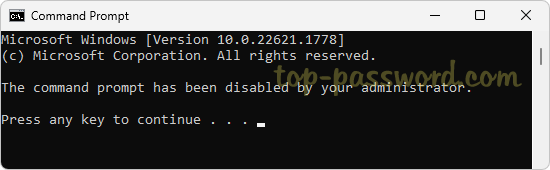
  4. You do not have to restart your computer for the setting to take effect. If you try to launch the Command Prompt, you’ll see the message “The command prompt has been disabled by your administrator.

Option 2: Disable Command Prompt with Registry Trick

Unfortunately, the Local Group Policy (gpedit.msc) is not available in all editions of Windows. For those users running the Home edition of Windows, you can still disable Command Prompt with this registry tweak:

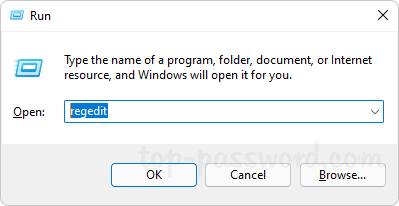
  1. Press the Windows key + R to bring up the Run box, type regedit and hit Enter.

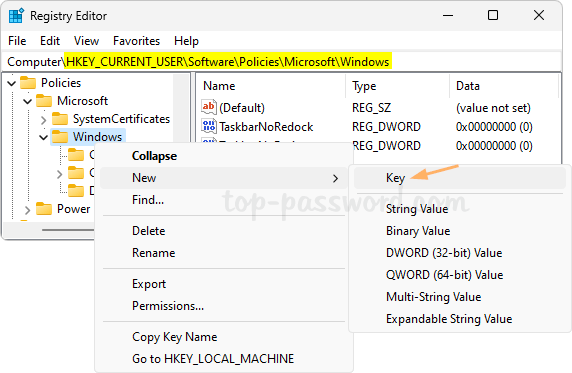
  2. This will open the Registry Editor. Navigate to the registry key: HKEY_CURRENT_USER\Software\Policies\Microsoft\Windows. Right-click the Windows key in the left sidebar and choose New -> Key.

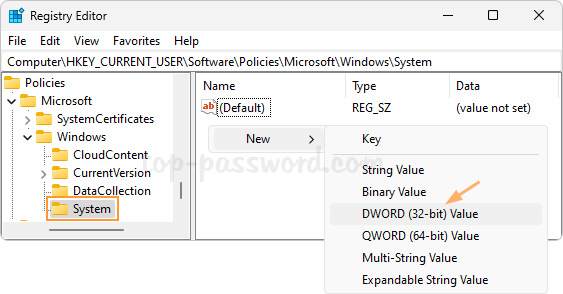
  3. Name the newly-created as System. When the System key is selected, right-click the blank area in the right pane and select New -> DWORD (32-bit) Value.

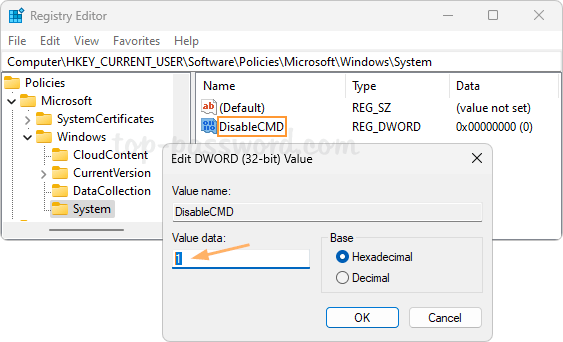
  4. Name the DWORD as DisableCMD and then give it a value 1 for disabling the Command Prompt and preventing batch files from running. If you want to disable the Command Prompt but allow batch files, set the value to 2. This change will take effect immediately.

    To enable the Command Prompt again, just change the value to 0.

Conclusion

So this is how you can disable the Command Prompt in all versions of Windows. If you need a more secure method to lock the Command Prompt, you can use the third-party software – Protect My Folders, which allows you to protect c:\windows\system32\cmd.exe with a password.

How to Boot An Existing VirtualBox VM from USB Drive

January 23rd, 2015 by Admin

How can I get a VirtualBox virtual machine to boot from a physical USB drive? The problem is that the GUI of Oracle VirtualBox does not have an option to set boot from USB. Luckily there is a workaround to boot a VirtualBox virtual machine from USB drive.

Just create a new virtual hard disk (VMDK) file and use it as a raw disk that VirtualBox maps to your USB drive. When you boot your virtual machine from the newly-created virtual hard drive, it will load the operating system on your USB stick. Here’s how.

How to Boot An Existing VirtualBox VM from USB Drive?

  1. Before doing anything, make sure you’ve created a bootable USB drive and plugged it into your computer. Now we need to find the disk number of your physical USB drive.
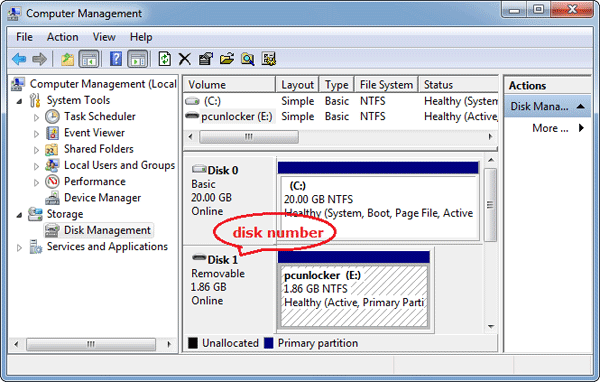
  2. Press Windows Key + R to bring up the Run box, type diskmgmt.msc and press Enter to open the Disk Management window. Locate your USB drive and note its disk number. In my case, the USB drive is listed as “Disk 1“, so the disk number is 1.

    disk-management

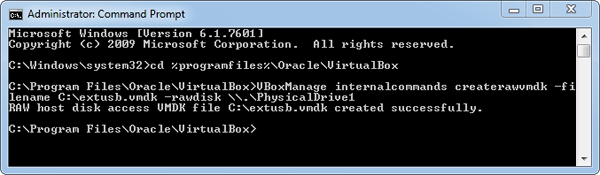
  3. Once you have the disk number, open up the Command Prompt as administrator. Use the cd command to navigate to VirtualBox’s installation directory. If you have installed VirtualBox in any other directory or drive, then change the command accordingly.

    cd %programfiles%\Oracle\VirtualBox

  4. Enter the following command while replacing # with the actual disk number you found above.

    VBoxManage internalcommands createrawvmdk -filename C:\exusb.vmdk -rawdisk \\.\PhysicalDrive#

    create-virtual-hard-drive

    You can replace C:\extusb.vmdk with any file path you want. This command creates a virtual machine disk (VMDK) file that points to the physical USB drive.

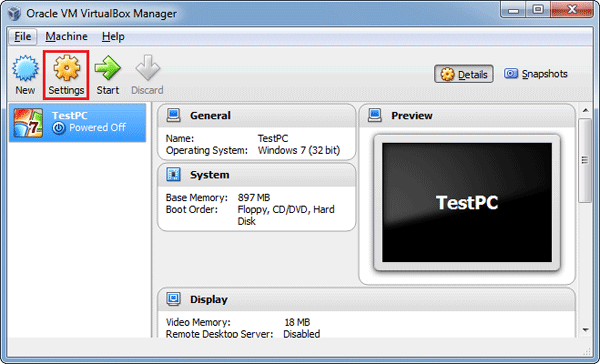
  5. Now open up the VirtualBox with administrative rights. If not, VirtualBox will fail to boot from the USB drive. In the VirtualBox main window, select your target virtual machine and click Settings.

    virtualbox-manager

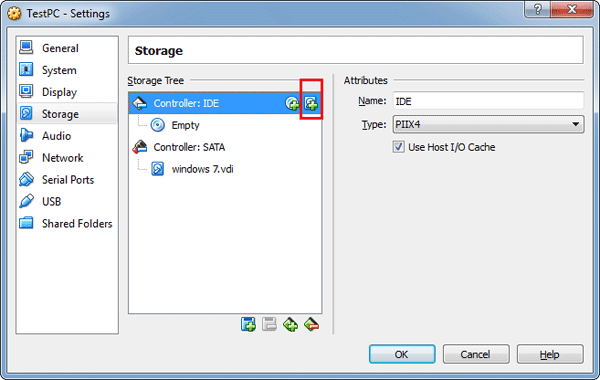
  6. Click on the Storage tab. Under the Storage Tree section, highlight Controller:IDE and then click on the “Add Hard Disk” icon to the right.

    virtualbox-settings

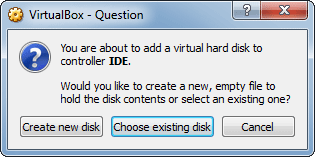
  7. In the popup box, click Choose existing disk and then choose the VDMK file (C:\exusb.vdmk in the example) you created in step 4. When this is done, click OK to save your changes.

    add-virtual-hard-drive

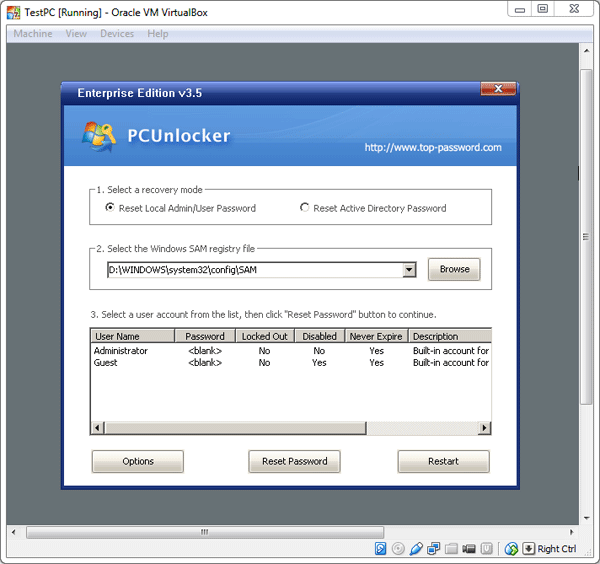
  8. Now starts Virtual machine and you’ll see that it starts booting from your physical USB drive. As you can see from the image below, I’ve successfully booted into my PCUnlocker Live USB drive.

    pcunlocker

With this method you can install the operating system from the USB stick, or boot your existing VirtualBox virtual machine from other third-party rescure & recovery USB drives.

How to Reset Windows 7 to Factory Settings without Install Disc

January 23rd, 2015 by Admin

How do I reset or restore a Windows 7 PC to factory settings? As we all know, Windows 7 doesn’t have the built-in refresh and reset options like Windows 8/8.1 and you have no other way to restore your computer to factory settings unless you have a manufacturer-provided install media or recovery disc.

Many computer manufacturers are pre-installing Windows without giving you the actual installation media to go with it. Instead, they create a hidden recovery partition for users to perform a factory reset. If your hard drive has such a recovery partition, you can then reset your Windows 7 system to factory settings without needing any discs or external drives. Here’s how.

How to Reset Windows 7 to Factory Settings without Install Disc?

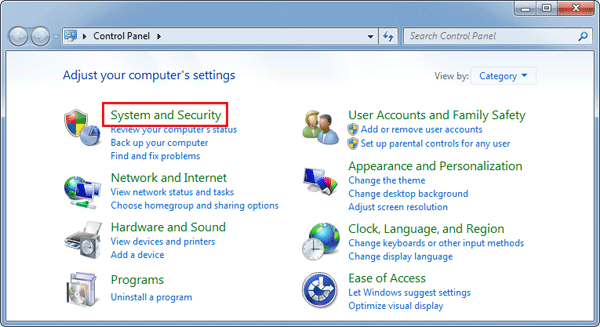
  1. Click Start, then choose Control Panel. Click System and Security.

    control-panel

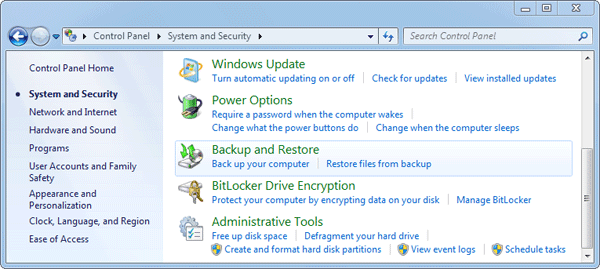
  2. Next choose Backup and Restore.

    system-and-security

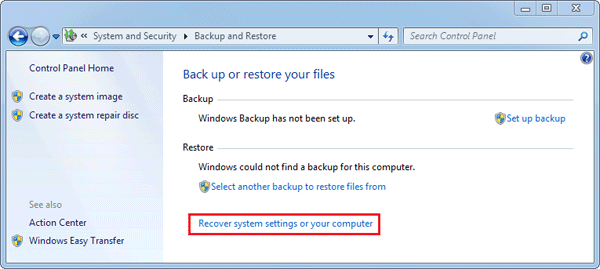
  3. In the Backup and Restore window, click on the Recover system settings or your computer link.

    backup-and-restore

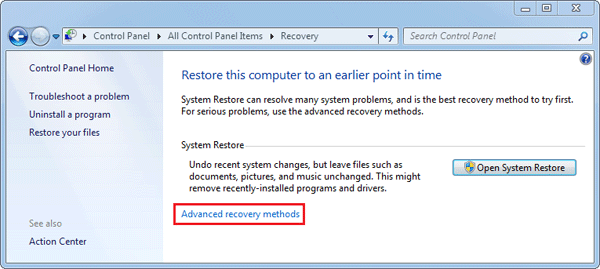
  4. Next, choose Advanced recovery methods.

    recovery

  5. Now you’ll be presented with two options: “Restore files from a system image backup” and “Return Your Computer to Factory Condition“. Click on “Return Your Computer to Factory Condition”.

    Note: If your computer doesn’t have a recovery partition, then the factory reset option is not available and you’ll see the “Reinstall Windows (requires Windows installation disc)” option instead.

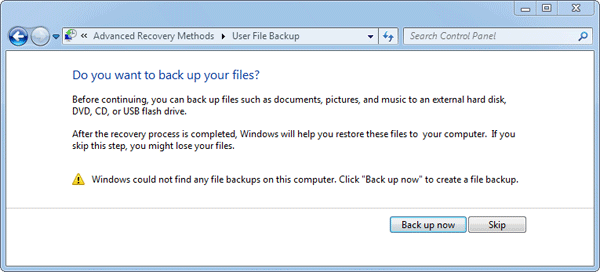
  6. Select to either create a Back up now, or to Skip it and continue the factory reset without backing up any of your current files.

    user-file-backup

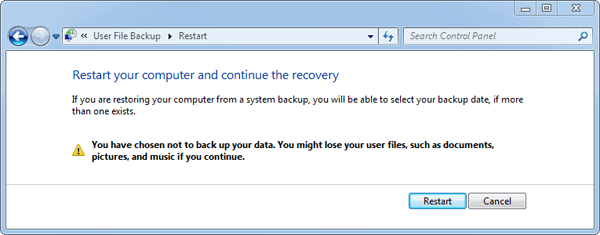
  7. Click the Restart button to reboot your computer and to start the factory reset process.

    restart