Archive for the ‘Others’ category

How to Recover Opera Mail Password Easily

July 16th, 2013 by Admin

My Gmail account is working fine with Opera Mail. But I forgot the email password as I haven’t used the web mail for a long time. How to extract the password saved in Opera mail client?

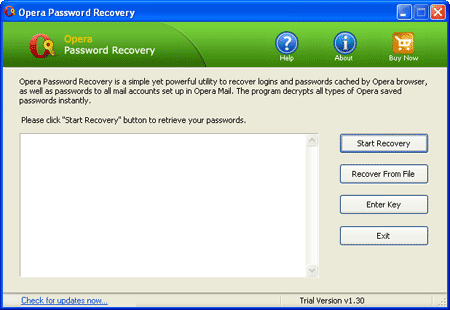
Have you lost or forgotten Opera Mail password? How to recover email account passwords from Opera mail client? With Opera Password Recovery program you can recover all types of saved passwords from Opera’s Wand password manager, including Opera mail passwords. Just a few simple steps you can retrieve lost Opera mail password immediately.

How to Recover Opera Mail Password Easily?

  1. Download and install Opera Password Recovery program.
  2. Launch the program and click on Start Recovery button.

  3. The program will automatically locate the Wand.dat (Opera’s built-in password manager) file. Decrypt and recover your Opera mail passwords, as well as passwords to web sites saved in Opera web browser.

Opera Password Recovery program supports all versions of Opera and Opera mail client. It could be useful when you forgot your Opera mail password or need to migrate email account passwords from Opera Mail to other email client.

How to Reset Windows 8 Password on HP ElitePad Tablet

July 15th, 2013 by Admin

Forgot Windows 8 password on your HP ElitePad tablet? Are you stuck at the login screen and can’t do anything to get into desktop? What can you do in such a situation? The easiest way is to restore your tablet to factory settings. But what if you have some very important files on the tablet? In this tutorial we’ll show you how to reset lost Windows 8 password on HP ElitePad tablet.

How to Reset Windows 8 Password on HP ElitePad Tablet?

Before we begin, take note you need to have a 2GB or larger USB drive (also known as USB flash/thumb drive). Once you have one, do the following:

  1. Download the zipped ISO image of PCUnlocker Enterprise (trial version) and save it on an alternate PC. After you’ve downloaded it, unzip the downloaded file which contains a bootable ISO image file: pcunlocker.iso.
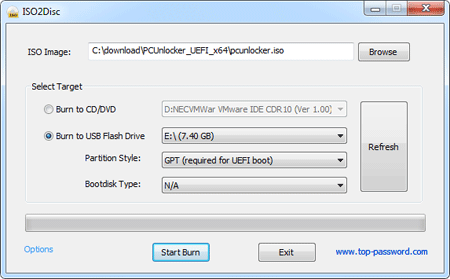
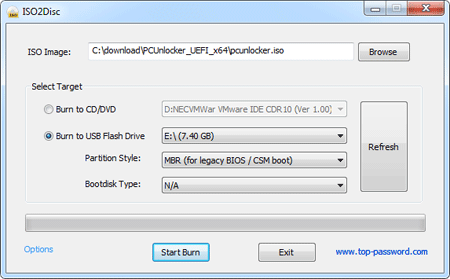
  2. Insert a USB drive to the computer. Burn the ISO image file to your USB drive using ISO2Disc program. Because HP ElitePad tablet comes with 64-bit UEFI firmware, you need to check the GPT (required for UEFI boot) option.

  3. After your USB driver is burned successfully, plug it into your HP ElitePad tablet. Press and hold the volume down button and the power button simultaneously to turn on the tablet and display the Startup menu.
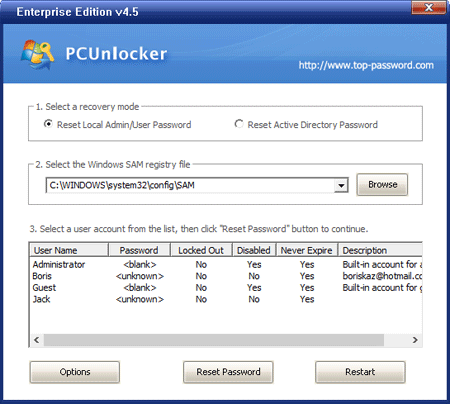
  4. Choose F9 Boot options and select the external USB flash drive as the boot device. Your Elitepad will start the WinPE operating system. After a while you’ll see the PCUnlocker program, which locates all your Windows 8 user accounts.
  5. Choose a user account and click on Reset Password button. The program will reset your forgotten Windows 8 password in no time. Restart the machine and remove the USB drive. You can then log into your Windows 8 ElitePad tablet without a password!

How to Unprotect A Password Protected Excel 2007 or Excel 2010 Worksheet

July 12th, 2013 by Admin

I have a large Excel worksheet that is password protected and I’ve forgotten the password. How can I unprotect the worksheet?

How to remove Excel worksheet protection when your password is lost or forgotten? If you need to modify a password protected Excel worksheet but lost the password, you’re required to unprotect the worksheet before editing it. Is there a way to remove Excel worksheet password without knowing the original password?

At this situation, the freeware Excel Password Remover comes in handy. It’s a Excel Add-In that is able to remove and unprotect the Excel workbooks and worksheets password. It can remove passwords of any length, also passwords containing special characters.

How to Unprotect A Password Protected Excel 2007 or Excel 2010 Worksheet?

  1. First of all, open your Excel worksheet with Microsoft Excel application.
  2. Download the Excel Password Remover program. After the download is complete, Unzip the download file and there are two files: password.xla and password_2007_2010.xlam. password.xla is designed to remove MS Excel 97/2000/XP/2003 passwords while password_2007_2010.xlam is for removing Excel 2007/2010 passwords.
  3. Double-click the password_2007_2010.xlam file. The Excel application will ask if you want to enable or disable Macros. After you click on Enable Macros, you will get a pop-up saying the Excel Password Remover program is loaded.
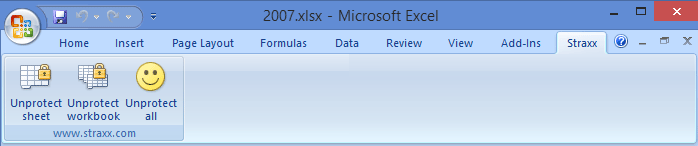
  4. Now click on the Straxx menu, you’ll see three options: Unprotect sheet, Unprotect workbook and Unprotect all. Simply click on Unprotect sheet, you’ll get a message saying your worksheet password removed in less than one minute.

    remove-excel-password

  5. Save your worksheet and exit Microsoft Excel application. Next time when you open the Excel worksheet, you are able to edit it without limitations. Done!

Updated: We’ve recently developed a professional password cracking software which lets you quickly recover Excel password with GPU acceleration technology. You can check it via this page.

How to Export Windows Registry without Using Third-Party Software

July 10th, 2013 by Admin

Windows Registry stores all the information, options and settings about the operating system. It is possible to open the registry and edit the registry settings through the built-in Registry Editor. In this tutorial we’ll show you how to export Windows Registry to a .reg file.

How to Export Windows Registry without Using Third-Party Software?

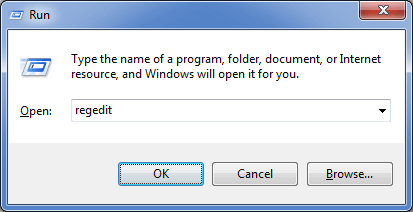
  1. Press Windows + R key combination to bring up the Run box.
  2. Type regedit and press Enter.

    run-box

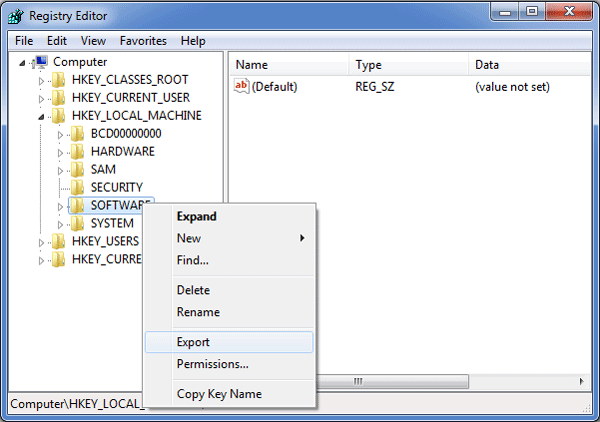
  3. In the Registry Editor, navigate to the registry key that you want to export. For example, If you want to export the HKEY_LOCAL_MACHINE\SOFTWARE branch, right-click on the SOFTWARE node, then select Export.

    export-windows-registry

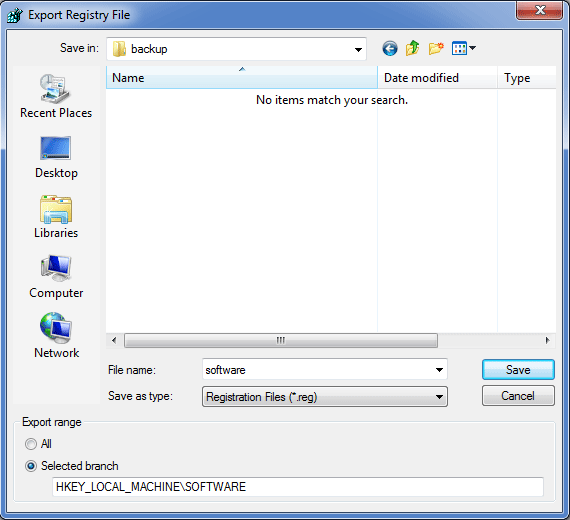
  4. In the Export Registry File dialog box, choose a location to save your .reg file.

    export-registry-file

  5. That’s it. You have successfully exported your Windows registry.

Beginner: How to Unzip A File in Windows 8/7/Vista/XP

July 9th, 2013 by Admin

A .zip file may contain one or multiple files or folders that have been compressed. All versions of Windows 8/7/Vista/XP natively supports .zip file format, so you can extract all files from a .zip file without using any third-party software. In this article we’ll show you how to unzip a .zip file in Windows 8, 7, Vista and XP.

How to Unzip A File in Windows 8/7/Vista/XP?

Here we’ll take the PCUnlocker program for example. PCUnlocker is the most popular Windows password recovery software, which comes as a bootable ISO image file and it is distributed as a .zip format.

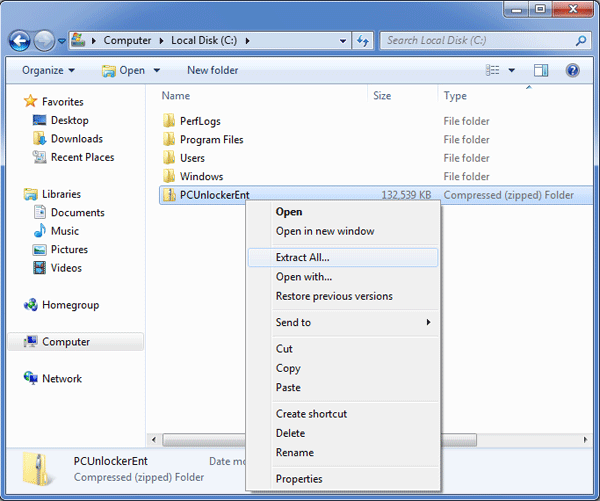
  1. Once you’ve downloaded the software, right-click on the PCUnlockerEnt.zip file. Select the Extract All from the context menu.

    extract-all

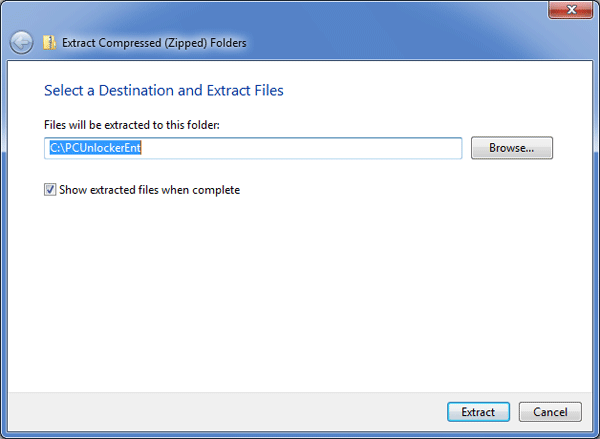
  2. It will bring up a self-extraction program that is built into all versions of Windows. Just keep the setting as what it is, simply click the Extract button.

    select-dest-folder

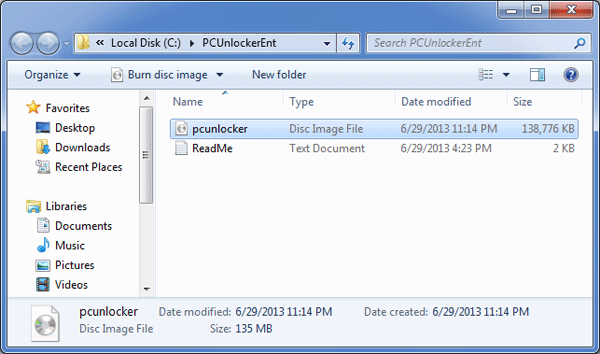
  3. After a while, the unzipped files will appear in a new window. From the picture shown as follow, we can see two files: ReadMe.txt and pcunlocker.iso. By default, Windows will not display the file extensions. To fix it, please refer to this article: How to Show File Extensions in Windows 8/7/Vista/XP.

    output-folder

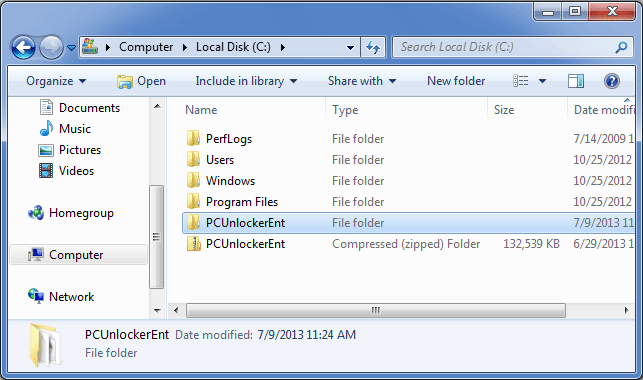
  4. If you browse to the location of the PCUnlockerEnt.zip file, you’ll find that there is a newly created folder called PCUnlockerEnt, which contains all extracted files.

    overview

How to Reset Lost Admin Password for Windows Server Core

July 8th, 2013 by Admin

Windows Server Core does not include the traditional full graphical user interface (GUI), which provides you with the minimum set of tools to run Windows. You are provided with only a command prompt to manage the server. Once you have configured the server, you may don’t need to log on the server core for a long time. But what if you forgot the administrator password? How to recover or reset the password without rebuilding your server core from scratch?

It seems like a quite difficult task. But if you have a powerful Windows password recovery software, you can reset lost Windows Server Core password in minutes. PCUnlocker is a simple yet effective Live CD that could be used to reset lost admin password for Windows Server 2012 / 2008 / 2003 Core.

How to Reset Lost Admin Password for Windows Server Core?

  1. Download the zipped ISO image of PCUnlocker and save it on another PC you can log on. After the download is complete, extract the pcunlocker.iso file from the ZIP archive.
  2. Burn the ISO image file to a blank CD using any disc burning software, such as BurnCDCC, ImgBurn etc. If you don’t have a blank CD or CD burner at your hand, you can opt to burn the ISO image to a USB flash drive using ISO2Disc program.
  3. Pop the Live CD in the CD drive of your Windows Server Core machine that you want to reset lost admin password for. When the computer is booting, you will need to press the correct key to get into the Boot Menu. It is usually F12 or Del key. Once in the Boot Menu, select the CD/DVD Drive that you just created and press Enter.
  4. The computer will load the WinPE operating system from the Live CD. After a while, you’ll see the PCUnlocker program. It will read the Security Accounts Manager (SAM) files in Windows Server Core and show you a list of local user accounts. If your server is a domain controller, you can click on Reset Active Directory Password option to view the Active Directory user accounts on your machine.

  5. Choose your administrator account and click on Reset Password. The program will reset your lost admin password immediately, as well as unlocking your administrator account if it is already disabled, locked out or expired.
  6. Click on Restart button and remove the Live CD. The computer will then boot normally to the Windows login screen. Just leave the password box as blank and you can log back into Windows Server Core immediately.

Forgot Windows Password for Windows Server VM in Microsoft Hyper-V

July 8th, 2013 by Admin

I installed Windows Server 2008 R2 with Hyper-V. I left the machine standing for a couple of days. After a week I got back to the machine I couldn’t remember the password. Is there a way to recover or reset the administrator password on a Hyper-V virtualized 2008 AD server?

Forgot Windows password for Hyper-V virtualized server? How to reset local / domain administrator password on a virtual machine running in Microsoft Hyper-V? There is a simple way to reset your lost Hyper-V server password without data loss. Just boot your Hyper-V virtual machine from PCUnlocker ISO image which contains a password reset utility, and it enables you to reset both local administrator password and domain administrator password easily!

How to Reset Windows Password for Hyper-V Server?

  1. Download the zipped ISO image of PCUnlocker and save it on your host operating system. Unzipped the download file and you’ll find a bootable ISO image file: pcunlocker.iso.
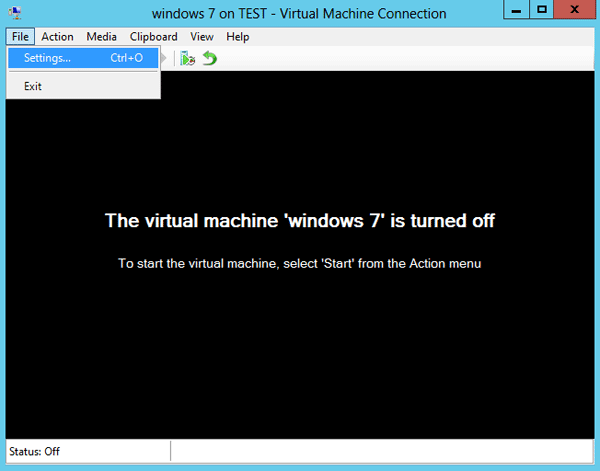
  2. Open your virtual machine from Hyper-V Manager. Click on the File menu and select Settings….

    hyper-v-vm

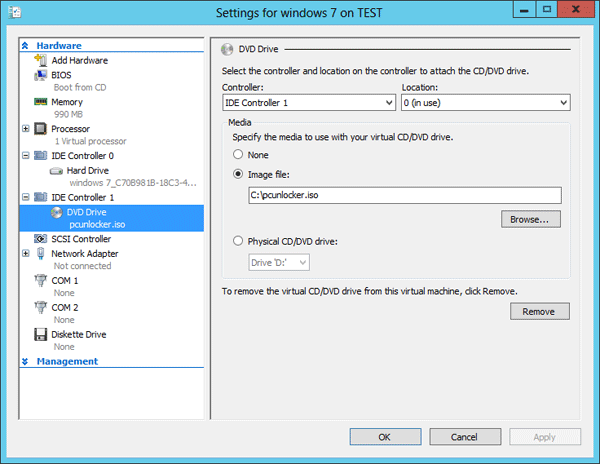
  3. In the Settings of the VM, select the DVD Drive under IDE Controller 1 tab. In the right panel, specify the DVD drive to use the ISO image file (pcunlocker.iso) you just downloaded.

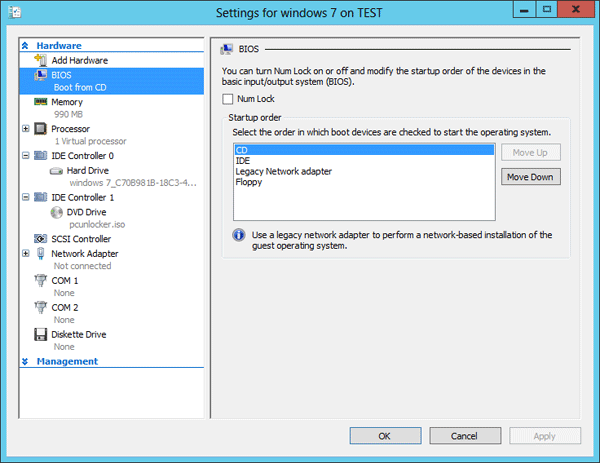
  4. Go to the BIOS tab in the left panel, move CD to the top of all available boot devices.

  5. Click Apply to save your changes.
  6. Power on your virtual machine. This time it will boot from the PCUnlocker ISO image.
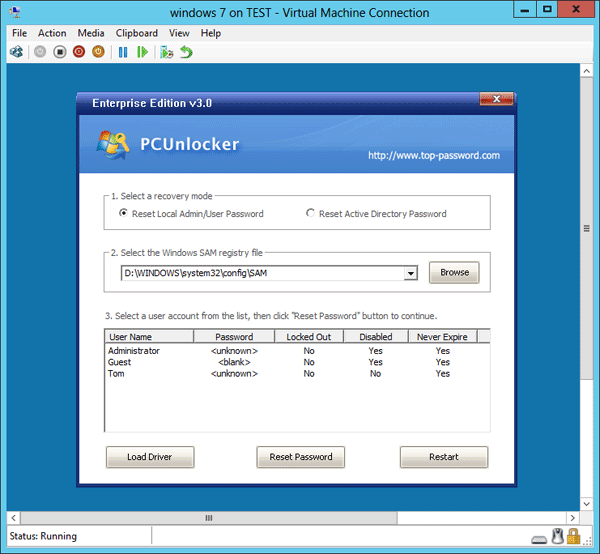
  7. After a while, you’ll see the PCUnlocker program which displays a list of local user accounts existing on your Hyper-V server. If you need to reset domain admin/user password, you need to click on the Reset Active Directory Password option. It will then display Active Directory user accounts.

  8. Choose a user account and click on Reset Password button. The program will unlock/reset your Windows password in no time.

Now you’ve successfully reset your lost Windows password for Hyper-V server. Unmount the PCUnlocker ISO image from the virtual machine’s DVD drive and restart the virtual machine. You can then log back into your Hyper-V server without a password! This method works with all versions of Windows virtual machine running in Microsoft Hyper-V, including Windows 8/7/Vista/XP and Windows Server 2012/2008/2003/2000.

Can’t Remember Password to Login Windows XP on Old Laptop

July 5th, 2013 by Admin

I have an old Windows XP laptop that’s not been used for 5 years, problem is I had a password set up on it and can’t remember what it was, I’ve tried many different passwords that it could possibly be without any luck, is there anyway I can reset or bypass the login password? I have some important documents and pictures on there that I really don’t want to lose with a brand new Windows install.

Forgot Windows XP password on your old laptop? Is there any way to unlock a password protected laptop without data loss? Fortunately, with the help of PCUnlocker Live CD, you can reset lost Windows XP password for your user account, allowing you access back into the operating system.

PCUnlocker Live CD boots up before Windows does, thus allowing it to access the SAM database of your Windows XP installation and reset your lost admin/user password. This makes sense because without your password you are completely locked out of your old computer. Follow this tutorial and you can reset Windows XP password easily!

How to Reset Windows XP Password on Your Old Laptop?

  1. First download the zipped ISO image of PCUnlocker Live CD. After you’ve downloaded it, decompress the ZIP archive and you’ll have a bootable ISO image file: pcunlocker. Burn it on to a blank CD using ISO2Disc, ImgBurn or other CD burning program.
  2. Insert the boot CD into your old Windows XP laptop and restart the computer. Go into the boot menu when the computer starts up (press the F12, Esc, or other key to enter the boot menu) and choose to boot from the CD.
  3. Just one or two minutes later you’ll see the PCUnlocker program. It displays a list of Windows local accounts of your old Windows XP laptop.
  4. Select the user account whose password you want to reset and click on Reset Password button. The program will remove your forgotten Windows XP password and unlock the user account when it is disabled, locked out or expired.
  5. Click on Restart button and remove the boot CD. The laptop will restart and it will automatically login to your Windows XP system without requiring you to enter a password.

Can’t remember Windows XP password for your old laptop? Using PCUnlocker Live CD you can get past Windows XP login screen easily. Quickly unlock your old laptop by resetting your lost or forgotten Windows XP password.