Archive for the ‘Others’ category

How to Disable or Turn Off Notification Sounds in Windows 10

October 25th, 2016 by Admin

Keep hearing the annoying notification sound? Windows 10 notification sounds might drive you crazy. In this tutorial we’ll show you 2 simple ways to disable or turn off notification sounds in Windows 10.

Method 1: Turn Off Windows 10 Notification Sounds from Settings App

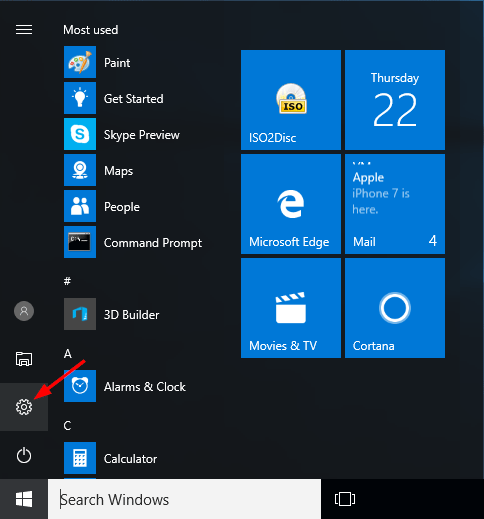
  1. Click the Start button and then click the Settings icon, or press Windows key + I to open the Settings app.
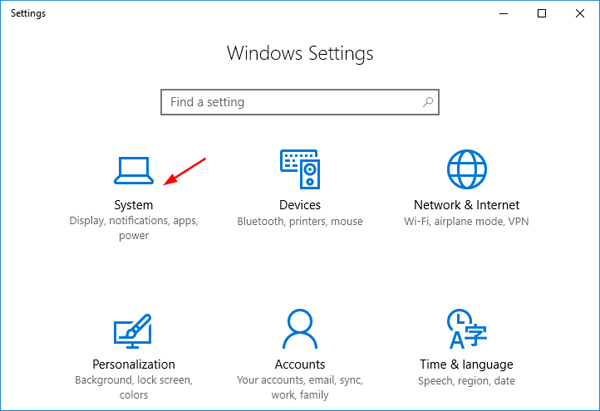
  2. On the main settings screen, click System.
    system-settings

  3. On the left side of the window, click on Notifications & actions. Then, on the right side, scroll down to the “Get notifications from these senders” section, and click on the app that you want to block from playing notification sound.
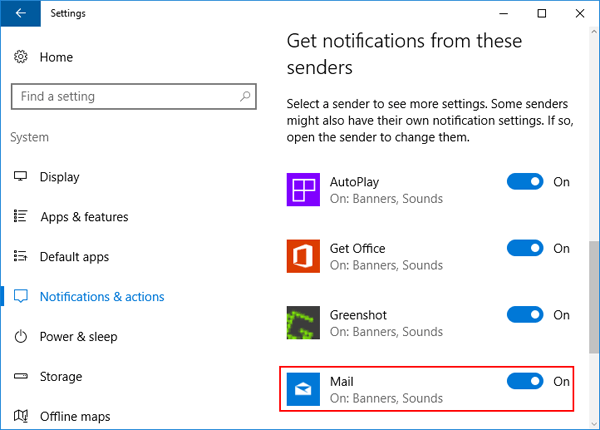
    notifications-actions

  4. Turn off the option named “Play a sound when a notification arrives“. Repeat these steps and you can disable notification sounds from other apps.
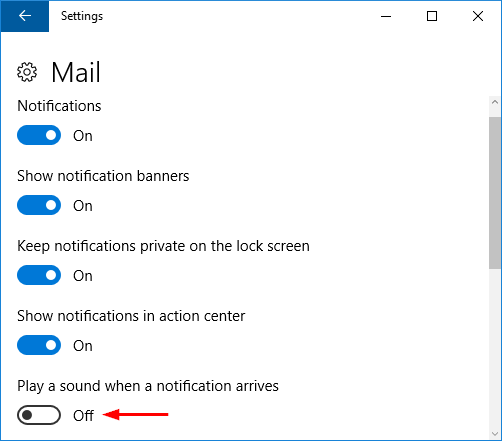
    not-play-sound-for-notification

Method 2: Turn Off Windows 10 Notification Sounds from Control Panel

  1. Open the Control Panel in Large or Small icons view. Click the Sound option.
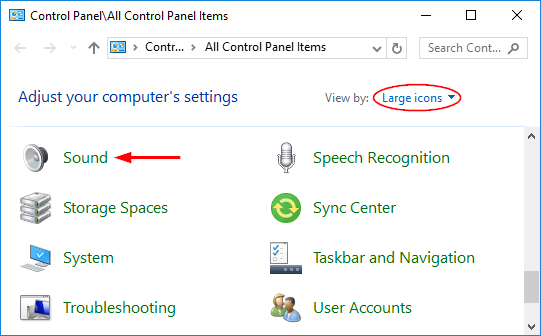
    control-panel

  2. When the Sound Settings dialog opens, click the Sounds tab.
  3. Select the Notification option under the Program Events section. Click the Sounds drop-down list at the bottom and select None. Click OK to save your change.
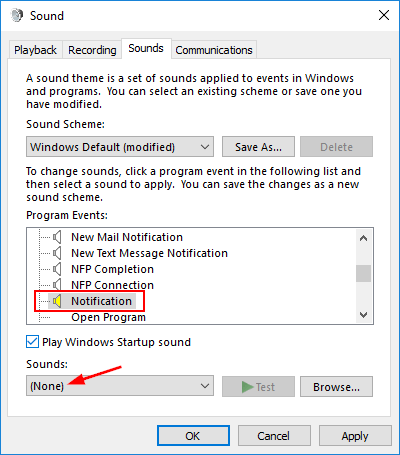
    sound-settings

  4. Now your Windows 10 system will still be able to receive all the notifications, but it won’t play sounds any longer.
How to Export and Copy Local Group Policy Settings to Another PC

October 14th, 2016 by Admin

“I am editing local group policies here and would prefer not to edit each machine manually. How do I export the policy, and then import it to other machines? Please help!”

LGPO.exe (Local Group Policy Object Utility) is a small command-line utility released by Microsoft, which allows you to export and import local group policy easily. It’s really convenient if you want to make a backup of local group policy, or import it later on another computer.

This tutorial shows you how to use Microsoft’s command line tool LGPO to export / backup local group policy settings, and import them into another computer.

Download LGPO from Microsoft

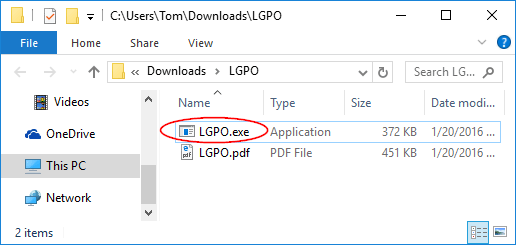
Download the LGPO zip archive from Microsoft’s website. Unpack it locally and copy the resulting LGPO.exe file to C:\Windows\System32. Afterwards you can open an elevated Command Prompt for running the LGPO command to automate the management of local group policy.

LGPO

Export Local Group Policy Settings

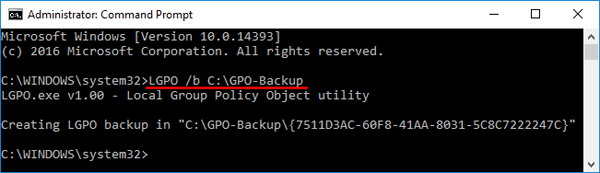
To create a backup for local policy policy settings on your local PC, run this command at Command Prompt:
LGPO.exe /b backup_path

backup-local-group-policy-via-cmd

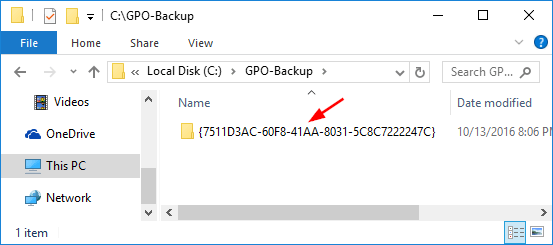
A new folder with GPO GUID appears in the target directory. It will contain all local policy settings for this computer. You can restore this backup to your local machine at any time you need it, or import it later into another computer.

group-policy-backup

Import GPO into Another PC

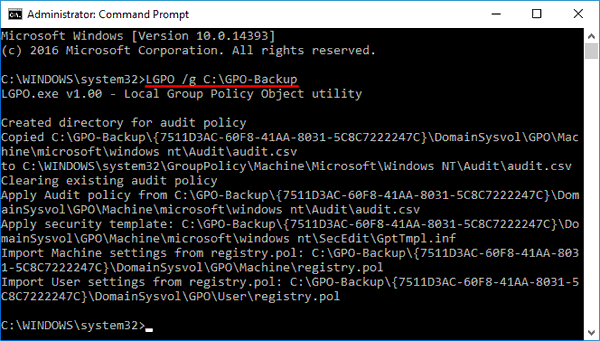
To restore Local Group Policy settings from the backup, import them by running the following command:
LGPO.exe /g backup_path

import-group-policy-via-cmd

Once imported, restart your computer for the local group policy settings to take effect.

Conclusion

This method can help you easily deploy local group policy settings to other computers. As we all know, the Local Group Policy Editor is not present in Windows Home edition so you’re unable to edit the group policy locally. The LGPO utility makes it possible to copy the group policy settings from Windows Pro/Enterprise to Windows Home.

Fix: Sound Icon Missing from Taskbar in Windows 10

October 13th, 2016 by Admin

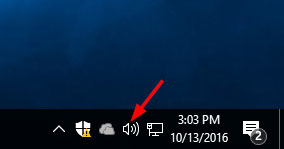
The sound / volume icon is missing from the taskbar….how do you get it back? With the sound icon disappeared, it’s extremely inconvenient to adjust the sound volume on your PC. In this tutorial we’ll show you 3 ways to fix the issue: sound icon missing from taskbar in Windows 10.

sound-icon-at-taskbar

Method 1: Restore Windows 10 Sound Icon from Settings

  1. Open Settings app by clicking its icon in Start menu or pressing Windows logo + I hotkey.

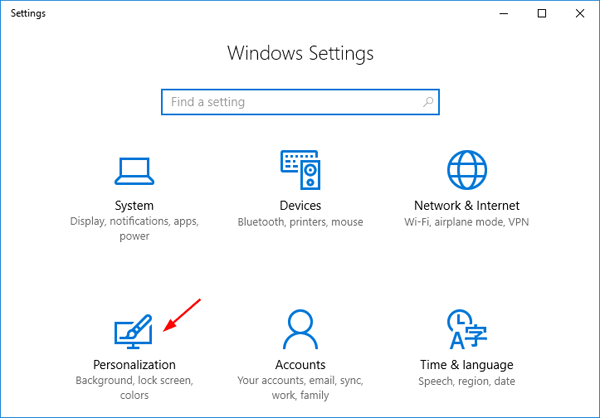
  2. Click on Personalization.

    personalization

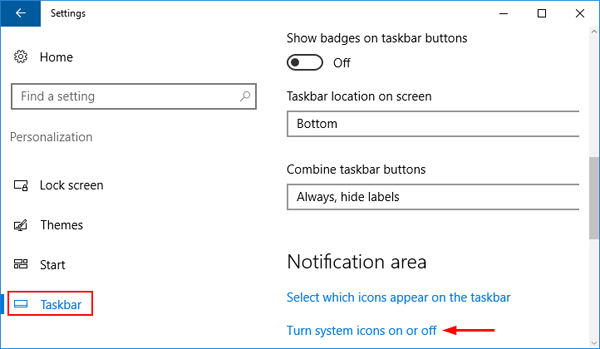
  3. Select Taskbar from the left-hand navigation, then click the Turn system icons on or off link.

    taskbar-settings

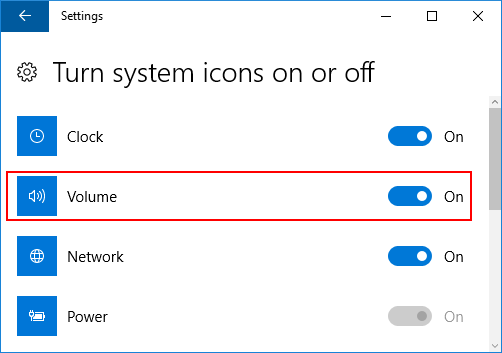
  4. Make sure that the Volume is set to On.

    turn-volume-system-icon-on

    If it’s greyed out, you need to turn on Windows 10 Sound Icon using the following group policy or registry hack.

Method 2: Restore Windows 10 Sound Icon Using Group Policy

  1. Press Windows Key + R and enter gpedit.msc. Press OK to open Local Group Policy Editor.
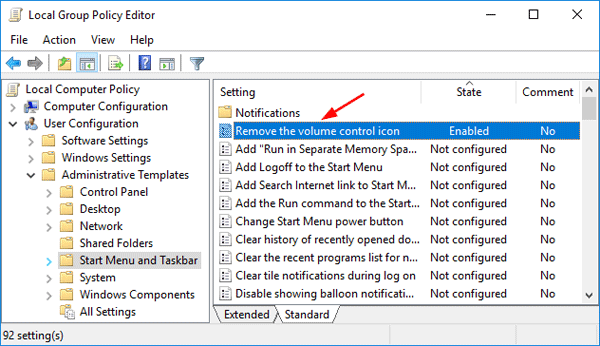
  2. In the left pane navigate to User Configuration > Administrative Templates > Start Menu and Taskbar. In the right pane locate “Remove the volume control icon” and double-click it.

    remove-volume-control-icon

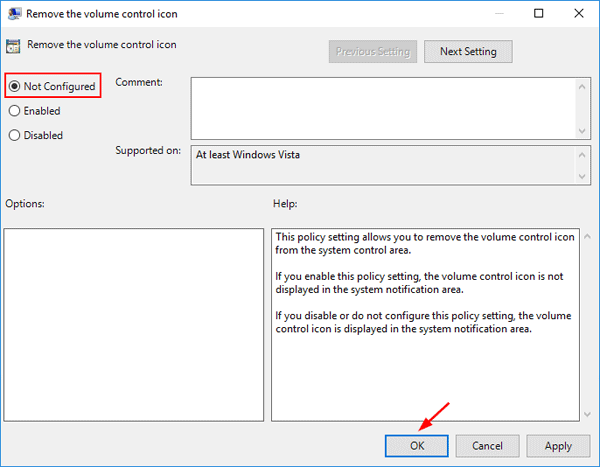
  3. Make sure that Not Configured or Disabled option is selected. Click Apply and then OK.

    enable-volume-icon

    Restore your computer and the sound icon should be back at Windows 10 taskbar.

Method 3: Restore Windows 10 Sound Icon Using Registry Editor

If Local Group Policy Editor is not available in your PC, try this registry hack to restore the sound icon in Windows 10. Follow these steps:

  1. Press Windows Key + R and enter regedit. Press OK to launch Registry Editor.
  2. In the left pane, navigate to the following key:
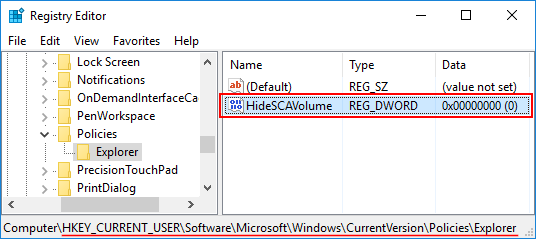
    HKEY_CURRENT_USER\SOFTWARE\Microsoft\ Windows\CurrentVersion\Policies\Explorer
  3. On the right-side, look for the HideSCAVolume entry, double-click on it, change value date to 0 and then click OK.

    HideSCAVolume

  4. Restart your computer and you should see the Volume / Sound icon at the taskbar in Windows 10.

Reset Windows 10 Password for HP Spectre x360 Laptop

October 12th, 2016 by Admin

Forgot Windows 10 password on your HP Spectre x360 laptop? How can you unlock the computer without a factory reset? If you don’t know how to reset Windows 10 forgotten password, then you’re at very right post. The following is a complete guide on how to reset lost Windows 10 password for HP Spectre x360 laptop when you get locked out.

Part 1: Create a Bootable USB Drive

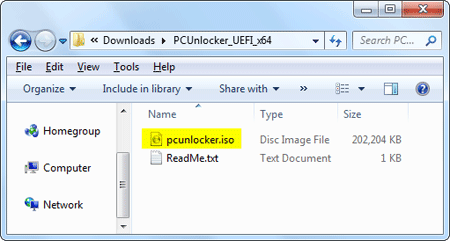
When you’re locked out of HP Spectre x360 laptop, you need to use another PC for creating a bootable USB drive. Begin by download the PCUnlocker Enterprise (trial version), and then extract the ISO file from the downloaded file (in .zip format).

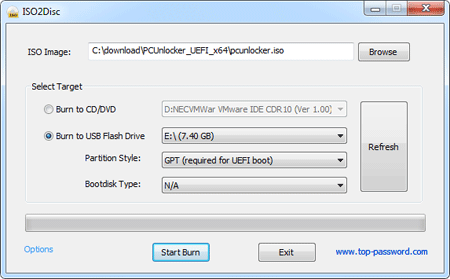
Download and install the free USB creator software ISO2Disc. Launch ISO2Disc and select the PCUnlocker ISO file you’ve extracted. Select the “GPT (required for UEFI boot)” option and click Start Burn.

Part 2: Boot HP Spectre x360 with USB

Insert the bootable USB drive into your HP Spectre x360 laptop. While turning on the machine, quickly and repeatedly press a key (might be F9 or ESC + F9) to access the Boot Options. Select your USB drive and let your laptop boot from it.

If you still couldn’t access the Boot Options, you can press F10 key to enter into BIOS and change the boot order to USB. Additionally, you can also access BIOS/UEFI from Windows 10 login screen: 2 Options to Access UEFI BIOS Setup in Windows 8 / 10

Part 3: Reset Windows 10 Password

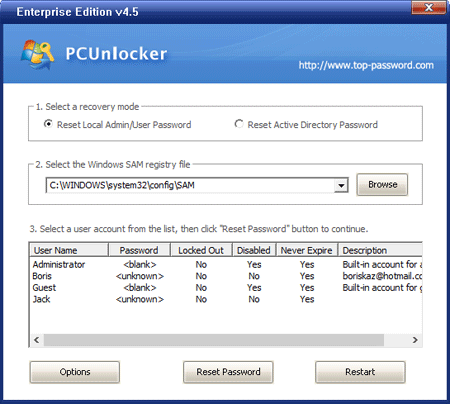
Once the laptop successfully boots from USB drive, you’ll see the PCUnlocker program and it lists all user accounts detected in your Windows 10 SAM file. Select a user and click on “Reset Password” button.

A pop-up window will appear, asking to confirm you are ready to reset the password. Click Yes. Reboot your laptop and unplug the USB drive. You can then log on to your HP Spectre x360 laptop without a password!

5 Ways to Stop or Start SQL Server Service

October 11th, 2016 by Admin

How to stop a local SQL Server instance from command line or PowerShell? In this tutorial we’ll show you 5 simple ways to stop or start SQL Server service in SQL Server 2016/2014/2012/2005.

Method 1: Stop / Start SQL Server Service from Microsoft Services Console

  1. Press the Windows + R keys to open the Run box. Type services.msc and press Enter.
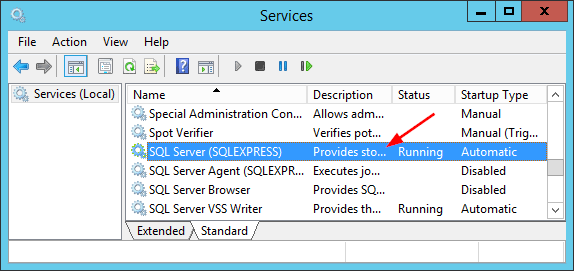
  2. This will open the Microsoft Services console. Find the service called SQL Server (instant name) and then double-click on it.

    sql-server-service

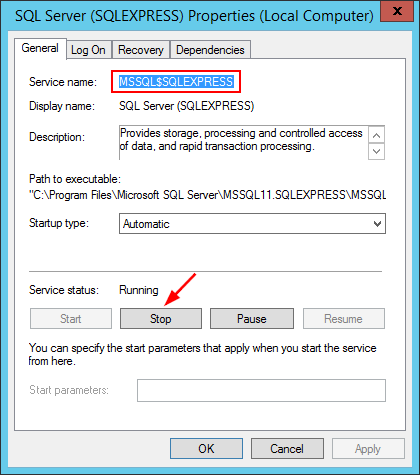
  3. In the Properties dialog box, you can see that the service name of my SQL Server instance is MSSQL$SQLEXPRESS. From there you can click the Stop button if your SQL Server service is running, or click the Start button to get the service up and running.

    stop-sql-server-service

Method 2: Stop / Start SQL Server Service from Command Line

  1. Open an elevated Command Prompt.
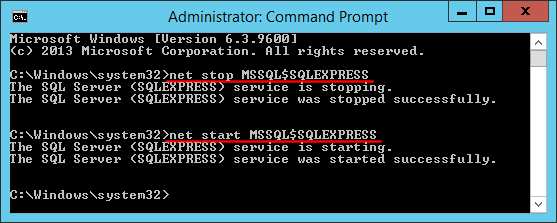
  2. To stop a named SQL Server instance, type the following command. Replace SQLEXPRESS with the instance name.
    net stop MSSQL$SQLEXPRESS

    start-sql-server-command-line

    To start a named SQL Server instance, type:
    net start MSSQL$SQLEXPRESS

Method 3: Stop / Start SQL Server Service from SQL Server Configuration Manager

  1. To get started, you need to open SQL Server Configuration Manager. In Windows Server 2008 or 2003, you can click Start > Programs -> Microsoft SQL Server > Configuration Tools > SQL Server Configuration Manager.
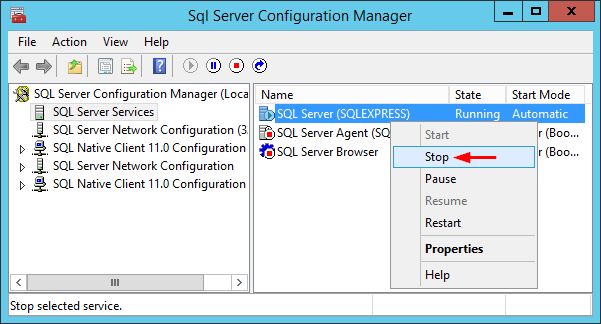
  2. In the left pane of SQL Server Configuration Manager, click SQL Server Services. We can see all services in right pane. Right-click on SQL Server service and you can then select Stop or Start from the context menu.

    sql-server-configuration-manager

Method 4: Stop / Start SQL Server Service from PowerShell

  1. Open the PowerShell as administrator.
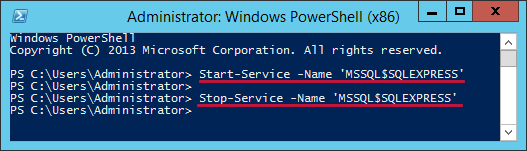
  2. You can use the Start-Service cmdlet to stop your SQL Server service. Replace SQLEXPRESS with the instance name.
    Start-Service -Name 'MSSQL$SQLEXPRESS'

    start-sql-server-powershell

    Or use the Stop-Service cmdlet to start your SQL Server service.
    Stop-Service -Name 'MSSQL$SQLEXPRESS'

Method 5: Stop / Start SQL Server Service from SQL server Management Studio

  1. Open SQL server Management Studio and connect to your SQL Server instance.
  2. Right-click on the server in Object Explorer, you’ll have options to Stop, Start, Pause, Resume and Restart your SQL Server service. If we are not already connected, we can’t start a stopped instance.

    stop-sql-server-via-ssms

How to Add Missing Disk Cleanup in Windows Server 2012

October 8th, 2016 by Admin

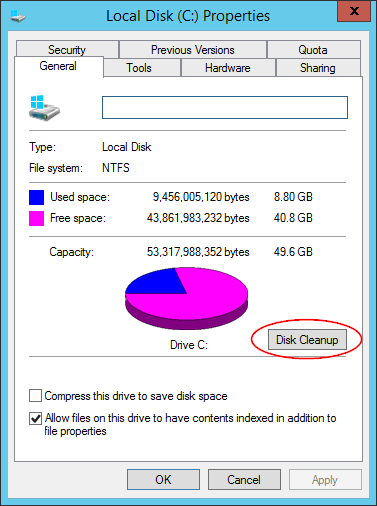
With the release of Windows Server 2008, the disk cleanup utility is no longer installed by default for Windows Server OS. Microsoft placed disk cleanup within an optional feature called “Desktop Experience”. In this tutorial we’ll walk you through the steps to add missing disk cleanup in Windows Server 2012.

disk cleanup

How to Add Missing Disk Cleanup in Windows Server 2012?

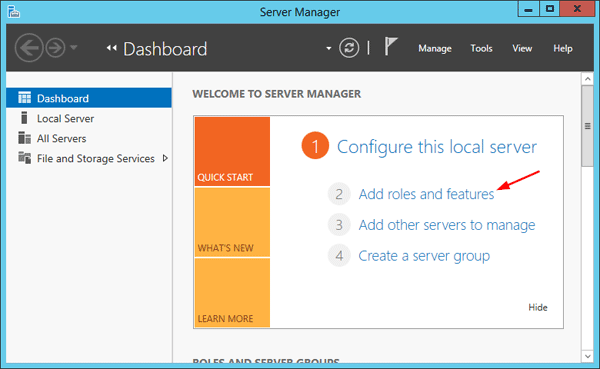
  1. Launch Server Manager by clicking its icon on the taskbar. From the Server Manager Dashboard, select Add roles and features.

    add-roles-and-features

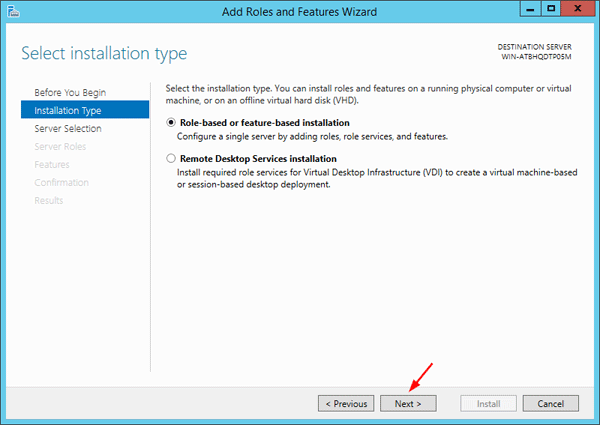
  2. Select Role-based or features-based installation from the Installation Type screen and click Next.

    select-installation-type

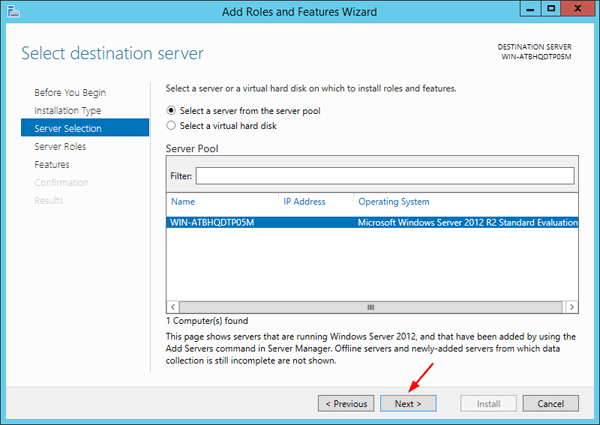
  3. The current server is selected by default. Click Next.

    select-destination-server

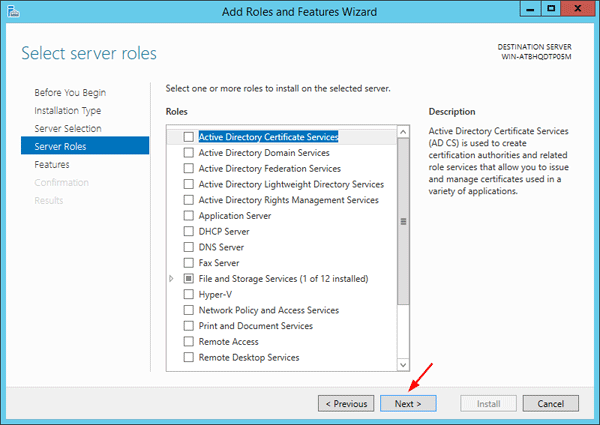
  4. Ignore the Server Roles page by clicking Next.

    select-server-roles

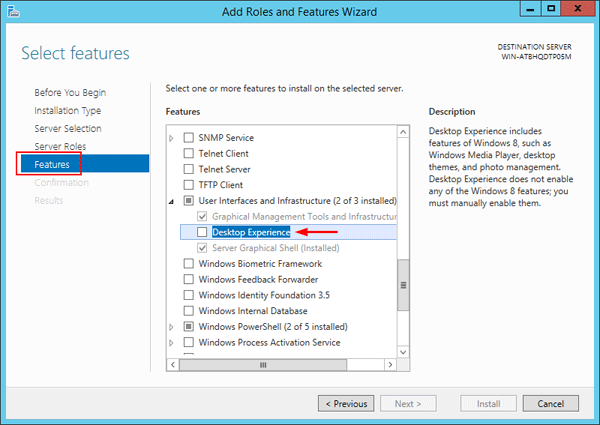
  5. From the Features page, expand the “User Interfaces and Infrastructure” feature and select the “Desktop Experience” component.

    desktop-experience

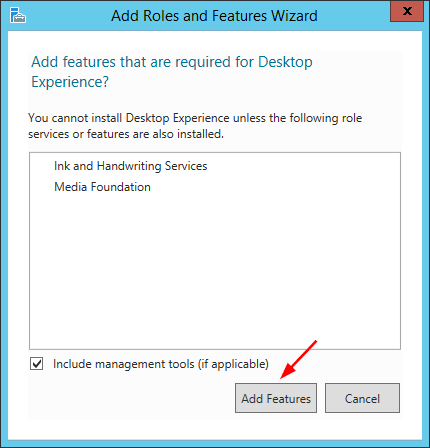
    A popup window will appear explaining additional roles services or features are also required to install Desktop Experience, click Add Features.

    add-required-features

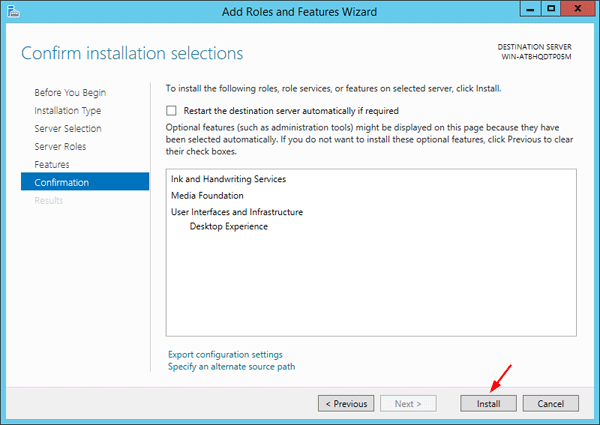
  6. Review the installation and then click Install.

    confirm-installation

  7. After installing, reboot your computer. You can then open the disk cleanup utility from the Command Prompt or Control Panel.

How to Enable USB Write Protection in Windows 10, 8 and 7

October 1st, 2016 by Admin

Worry about someone copying files off your PC via USB drive? The most common solution is to disable or restrict the usage of USB ports. In this tutorial we’ll show you another way to enable write protection of all USB drives that are connected to your Windows operating system.

How to Enable USB Write Protection in Windows 10, 8 and 7?

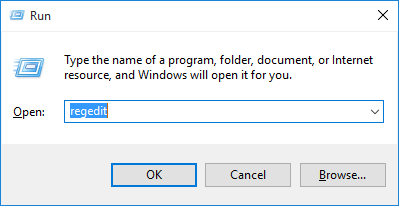
  1. Press the Windows key + R to open the Run box. Type regedit and press Enter.

    regedit-via-run

  2. This will open the Registry Editor. Navigate to the following key:
    HKEY_LOCAL_MACHINE\SYSTEM\CurrentControlSet\Control
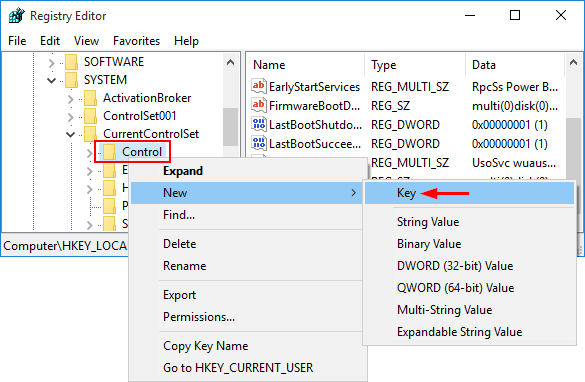
  3. Right-click on the Control key in the left pane, select New -> Key. Name it as StorageDevicePolicies.

    new-registry-key

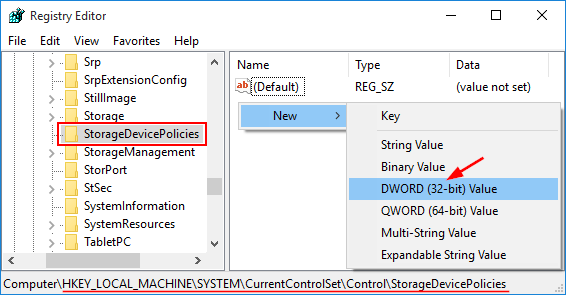
  4. Select the StorageDevicePolicies key in the left pane, then right-click on any empty space in the right pane and select New -> DWORD (32-bit) Value. Name it WriteProtect.

    new-dword-value

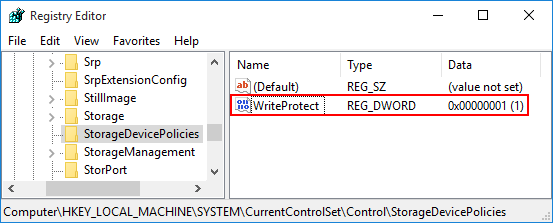
  5. Double-click on WriteProtect and then change the value data from 0 to 1.

    usb-write-protect

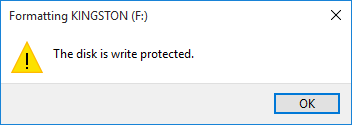
  6. The new setting takes effect immediately. Every user who tries to copy / move data to USB devices or format USB drive will get the error message “The disk is write-protected“. We can only open the file in the USB drive for reading, but it’s not allowed to modify and save the changes back to USB drive.

    disk-is-write-protected

So this is how you can enable write protection to all connected USB drives. If you want to disable write protection at a later time, just open Registry Editor and set the WriteProtect value to 0.

7 Ways to Open Disk Cleanup in Windows 10

September 30th, 2016 by Admin

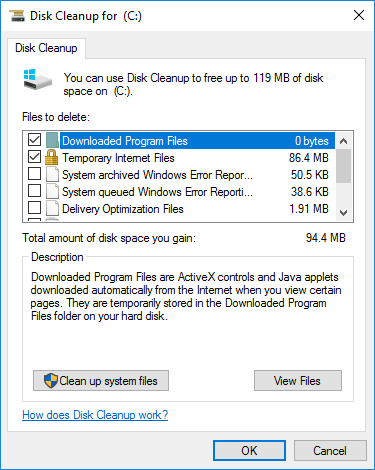
Windows includes a disk-cleanup utility that’s helpful for freeing your computer from temporary and unnecessary files. In this tutorial we’ll show you 7 ways to open Disk Cleanup in Windows 10.

disk-cleanup

Method 1: Open Disk Cleanup in Windows 10 from Run

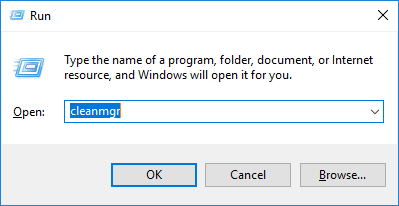
Press the Windows key + R to open the Run box. Type cleanmgr and press Enter. This should be the quickest way to open Disk Cleanup utility in Windows 10, 8 and 7.

cleanmgr-via-run

Method 2: Open Disk Cleanup in Windows 10 Using Cortana Search

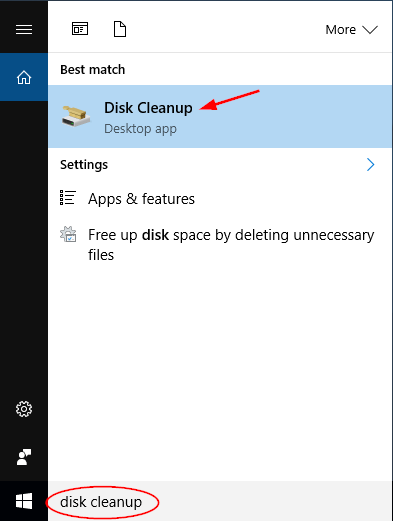
Just click the Cortana Search icon in the Windows 10 taskbar and type disk cleanup. Click the Disk Cleanup shortcut appeared at the top of the list.

disk-cleanup-via-cortana-search

Method 3: Open Disk Cleanup in Windows 10 from Control Panel

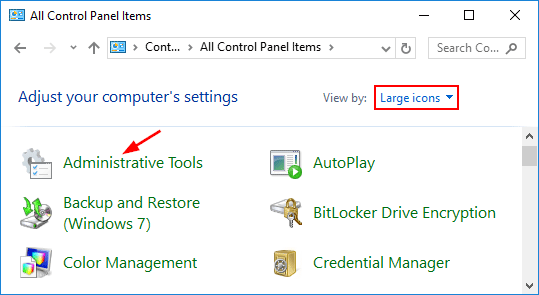
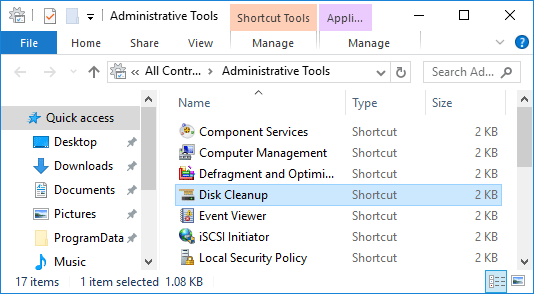
Open Control Panel in Large icons view in Windows 10. Click Administrative Tools.

administrative-tools

From there you can then see the Disk Cleanup shortcut.

disk-cleanup-in-control-panel

Method 4: Open Disk Cleanup in Windows 10 from Command Prompt

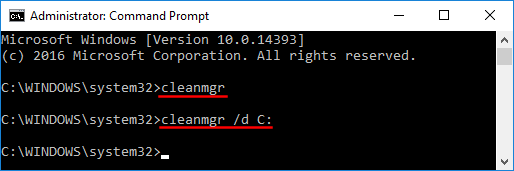
Open the Command Prompt in Windows 10. At the Command Prompt, type cleanmgr and press Enter to launch Disk Cleanup.

disk-cleanup-via-cmd

By default the cleanmgr command will clean your system drive only. If you want to run disk cleanup for your other partition, type:
cleanmgr.exe /d D:

Note: Replace D: with the drive you want to clean up.

Method 5: Open Disk Cleanup in Windows 10 from Drive Properties

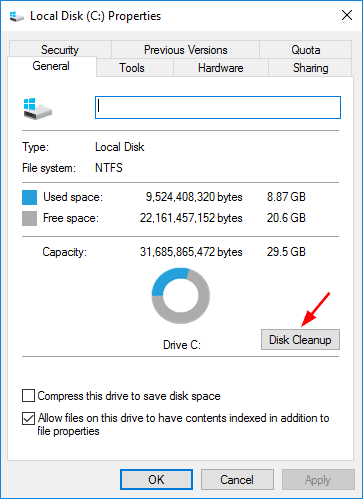
Open File Explorer in Windows 10. Right-click on the drive (or partition) that you want to regain hard drive space, select Properties from the drop-down menu.

When the Drive Properties dialog opens, click the General tab. From there you can click the Disk Cleanup button to free up space on your drive.

drive properties

Method 6: Open Disk Cleanup in Windows 10 Using File Search

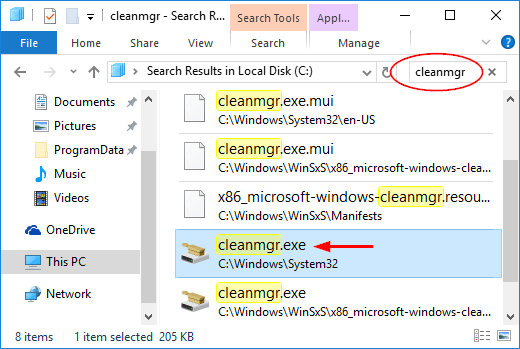
Open File Explorer and browse to the root directory of your Windows partition. Type cleanmgr in the search box at the top-right of the window.

search-cleanmgr-app

Double-click on the cleanmgr.exe program from the search result.

Method 7: Open Disk Cleanup in Windows 10 from PowerShell

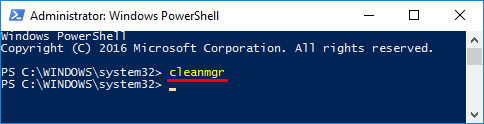
Open the PowerShell in Windows 10. Type cleanmgr and press Enter.

cleanmgr-powershell

That’s it!

5 Ways to Remove the Administrator Password in Windows 10

September 27th, 2016 by Admin

Do you want to clear the administrator password and let Windows boot directly into the desktop? How to remove Windows 10 password if you’ve forgotten it? In this tutorial we’ll show you 5 ways to remove the administrator password in Windows 10.

Option 1: Remove Windows 10 Administrator Password from Control Panel

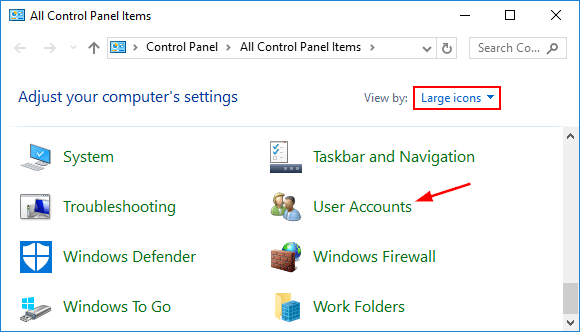
  1. Open the Control Panel in Large icons view. Click on User Accounts.

    user-accounts

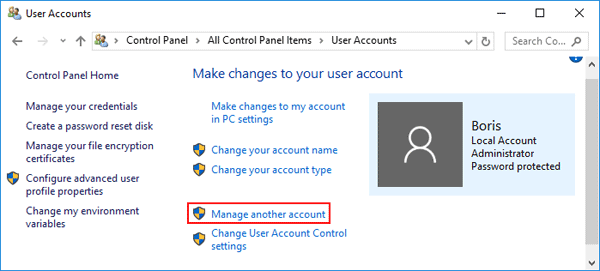
  2. Under the “Make changes to your user account” section, click Manage another account.

    manage-another-account

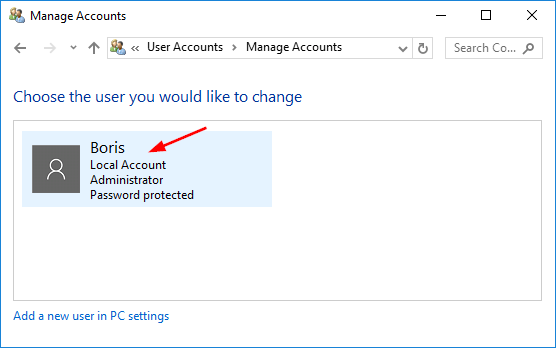
  3. You’ll see all the accounts on your computer. Click the account you’d like to remove the password for.

    choose-user-you-want-change

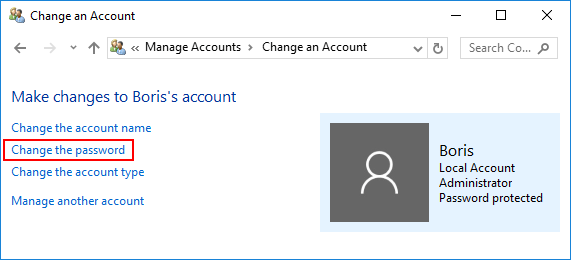
  4. Click the “Change the password” link.

    change-the-password

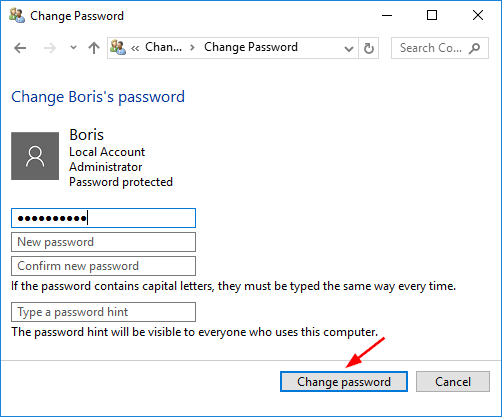
  5. Enter your original password and leave the new password boxes blank, click on Change password button. It will remove your administrator password immediately.

    remove-local-password

Option 2: Remove Windows 10 Administrator Password from Settings

  1. Open the Settings app by clicking its shortcut from the Start Menu, or pressing Windows key + I shortcut on your keyboard.
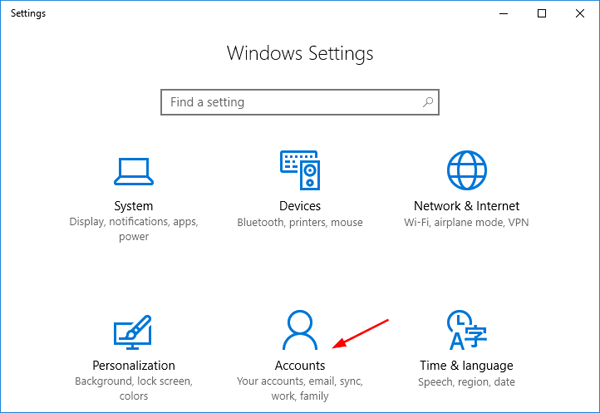
  2. Click on Accounts.

    accounts

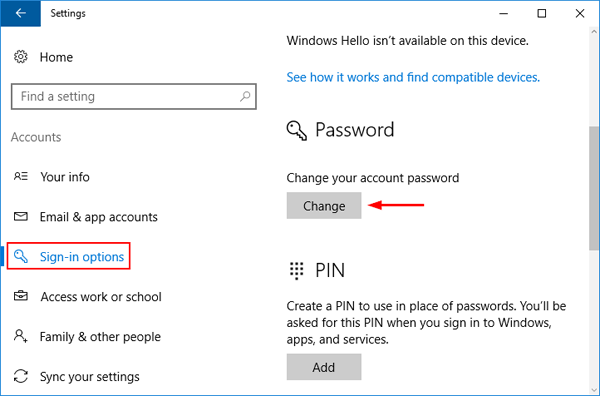
  3. Select Sign-in options tab in the left pane, and then click the Change button under the “Password” section.

    sign-in-options

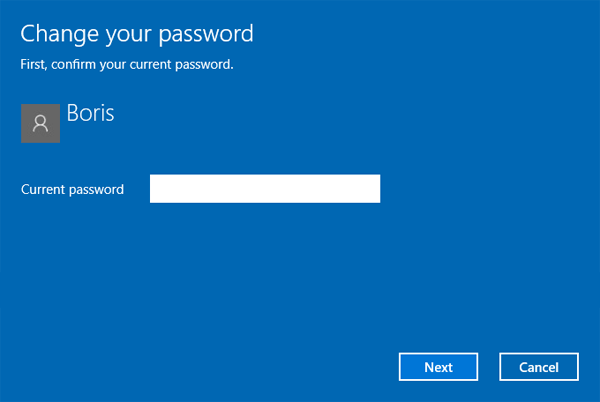
  4. Next, enter your current password and click Next.

    confirm-current-password

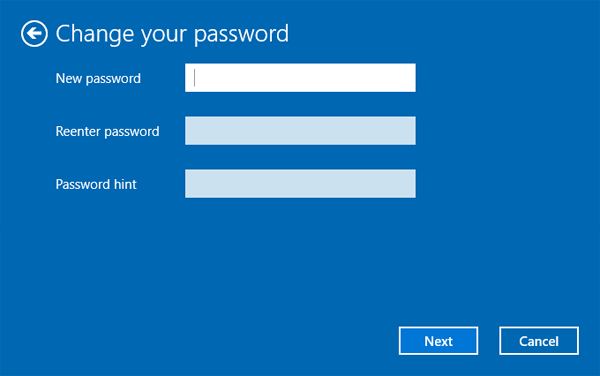
  5. To remove your password, leave the password boxes blank and click Next.

    change-windows-password

Option 3: Remove Windows 10 Administrator Password from Command Prompt

  1. Open up an elevated Command Prompt.
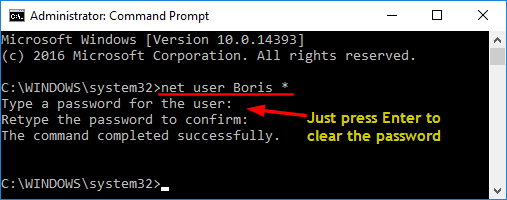
  2. At the Command Prompt, type the below command and press Enter.
    net user Administrator *
  3. When you’re prompted to type new password, just press Enter twice and it will remove your Windows administrator password.

    remove-windows-password-via-cmd

Option 4: Remove Windows 10 Administrator Password Using Local Users and Groups snap-in

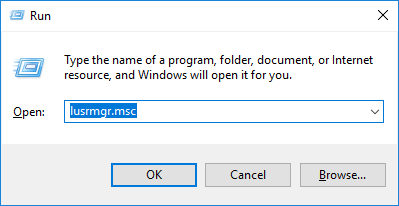
  1. Press Windows key + R to launch Run, type lusrmgr.msc and click OK.

    lusrmgr

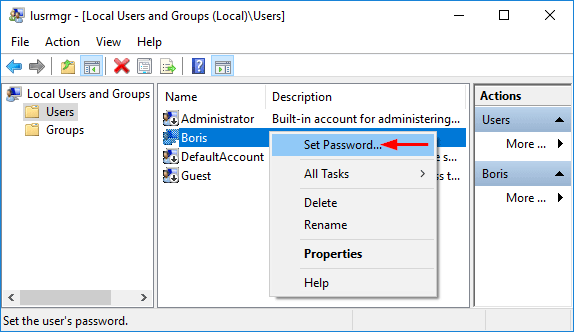
  2. When the Local Users and Groups snap-in opens, click Users from the left pane, then right-click the Administrator in the center pane. Select Set Password.

    set-password

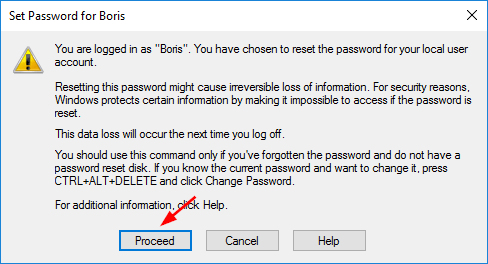
  3. Now click Proceed in the following window.

    proceed-to-change-password

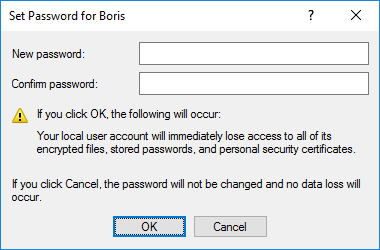
  4. Leave the New password and Confirm password boxes empty and click OK. This will remove your Windows user password instantly.

    clear-windows-password

Option 5: Remove Windows 10 Administrator Password Using PCUnlocker

PCUnlocker is a handy Windows password removal tool that runs from a boot disk. It allows you to remove forgotten Administrator password for any Windows-based PC you can get physical access to.

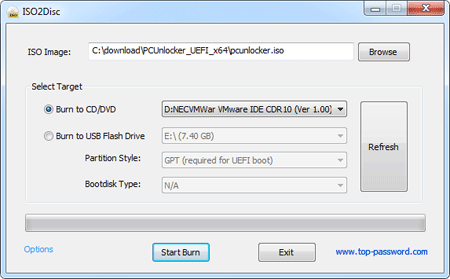
  1. Start by burning the PCUnlocker ISO file onto a CD (or USB flash drive) using the freeware ISO2Disc.

  2. Boot your locked computer from the CD.
  3. Once booted to the PCUnlocker program, select the Administrator account and click on “Reset Password” button.

  4. This will remove your forgotten Windows administrator password quickly. Reboot your computer without CD, you can then log into your Windows 10 administrator account without a password.

How to Reset Installed Apps to Default in Windows 10

September 26th, 2016 by Admin

If an app crashes repeatedly, freezes or doesn’t work properly on your PC, Windows 10 allows you to reset the app to the default settings. Although you’ll lose your preferences and sign-in details from the app that causes problem, resetting it can be helpful in certain situation. In this tutorial we’ll show you to reset your installed or built-in apps to default in Windows 10.

How to Reset Installed Apps to Default in Windows 10?

  1. Open the Settings app by clicking its shortcut from the Start Menu, or pressing Windows key + I shortcut on your keyboard.

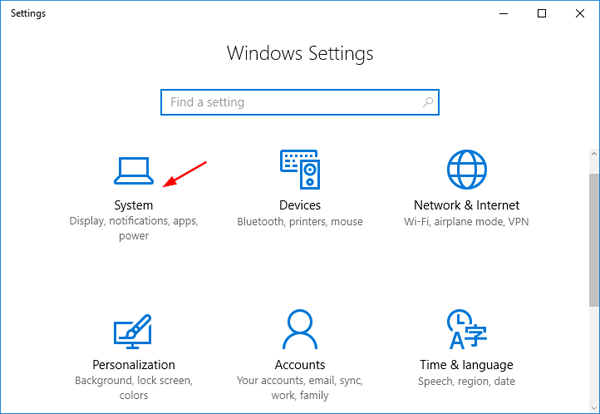
  2. Click on System.

    system

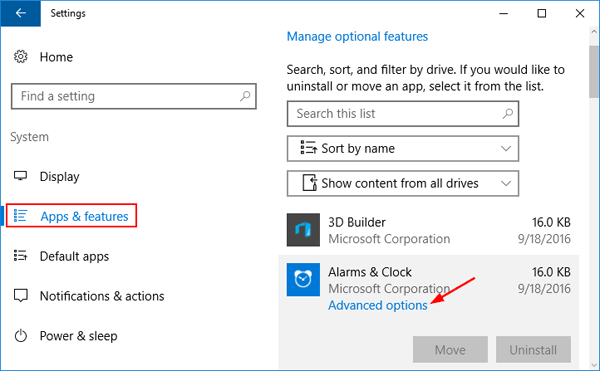
  3. On the left side of the window, click on Apps & features. You’ll see all the apps and programs you’ve installed on your computer. Find an app you want to reset, and click on it. Then click the “Advanced options” link under the app’s name.

    app-and-features

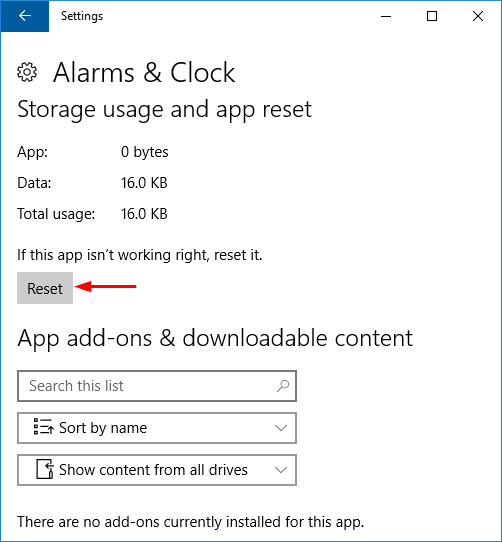
  4. Click the Reset button to reset an app’s settings.

    reset-windows-10-app

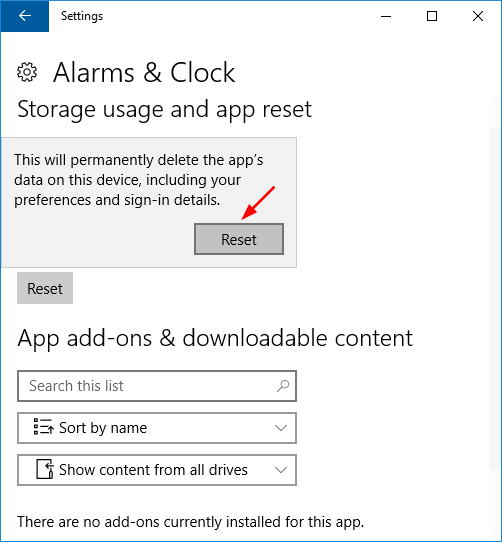
  5. You’ll have to click the Reset button to confirm you want to clear the app’s data and sign-in details. After a while you’ll be told that the app has been reset.

    confirm-app-reset