Archive for the ‘Others’ category

How to Install Windows XP from USB Flash Drive

May 27th, 2013 by Admin

Windows XP is an old yet one of the most preferred operating systems. Recently I got an email from one of our customers who wanted some help in installing Windows XP from USB flash drive. If your computer doesn’t come with a CD drive or the CD drive is not in a working condition, the only alternative to install Windows XP is by using a USB flash drive. In this tutorial we’ll walk you through how to install Windows XP from USB flash drive.

How to Install Windows XP from USB Flash Drive?

This procedure allows you to create a bootable USB flash drive which acts exactly same with the XP installation CD. After a bootable Windows XP installation USB drive is ready, you can plug it into any computer and start the installation of Windows XP immediately.

1. Firstly, download the software Win to Flash from here. Just double-click the setup file to install it. During installation, when asked for licence key, press ‘exit’ to use this tool for free.

2. After installing, run this tool and select ‘Windows Setup Transfer Wizard’, then click Next.
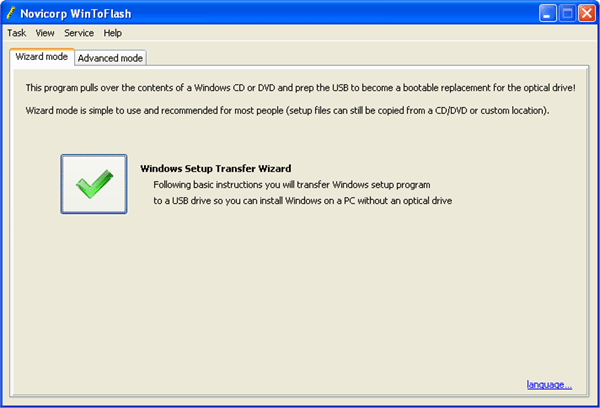
wintoflash

3. In this step, you have to select the source of Windows XP installation disk and the destination USB flash drive that you want to use for installing Windows XP. If you have only a Windows XP ISO image, you could uncompress the ISO image and then specify the output folder as the Windows files path. Click Next.
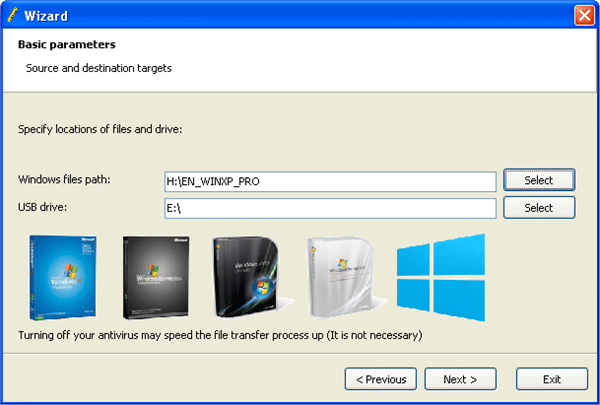
make-xp-installation-usb

4. The tool will then start formatting your USB drive and transfer your Windows XP installation files into the USB flash drive. After the process gets completed, your USB flash drive is ready to install Windows XP!

5. Now bring the USB flash drive to the computer that you want to do a clean install of Windows XP on. Turn on the computer and get it to boot from your USB flash drive. If you don’t know how to do this, please refer to this article: How to Set Your Computer to Boot from CD or USB Drive.

6. Once the system boots from the USB flash drive, you’ll see a list of boot options: one is Text mode setup, while another is GUI mode setup + 1st start of windows. Here, you must select the first option. During the installation process, the computer will restart itself and then, you have to select the second option as the booting medium.

7. Follow the on-screen instructions to complete the installation. Install Windows XP from that USB flash drive same as you install from an optical CD drive.
Forgot Windows 7 Password on Your HP Laptop

May 26th, 2013 by Admin

I bought A Windows 7 HP laptop about a year ago. It has a finger swipe to gain access to your account just the same as using a password. Using the finger swipe so much I have forgot my password, is there a way to reset it without knowing your current password?

Forgot Windows 7 password on your HP laptop? Is there any way to bypass or reset the login password when you are locked out of Windows 7? When you come here, you might have tried everything to get into your HP laptop but still to no avail. In this article we’ll explain how to reset forgotten Windows 7 password on any HP laptop. This also works with both HP desktop and netbook computers.

How to Reset Forgotten Windows 7 Password on Your HP Laptop?

Before resetting HP password, you need to make a password recovery boot disc on another computer that you can access to. Simply boot your locked HP laptop from the boot disc and it enables you to reset forgotten Windows 7 password in no time. The whole recovery procedure can be divided into two steps. Let’s proceed.

Part 1: Create a Password Recovery Boot Disc

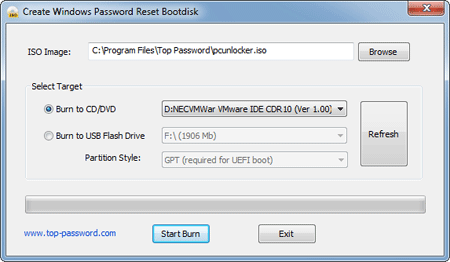
  1. Download Password Recovery Bundle and save it to any computer with internet access. After installing, launch the program and click on Windows Password button, and you’ll get the interface as follow.

    Create a Windows Password Reset Disk

  2. Place a blank CD on the CD tray, and then click on Refresh button and select the device you just plug in. Click on Start Burn button to begin the burning process. A password recovery boot disc will be ready after a few minutes.

Part 2: Reset Forgotten Windows 7 Password on HP Laptop

  1. Insert the password recovery boot disc into your locked HP laptop.
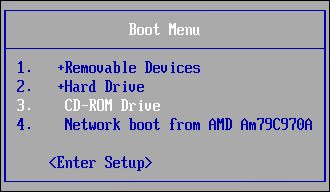
  2. To access the Boot Device Options window, turn on the computer and immediately press the Esc key to display the Boot Menu. Use the arrow key to select CD-ROM drive and press Enter.

    Boot Menu

  3. The computer begins to boot from the CD, and after a few minutes you’ll reach the main window of Reset Windows Password program.

    Reset Windows Password

  4. Choose the user account you would like to reset the password for and then click on Reset button. The program will unlock/remove your forgotten HP login password immediately

Now you’ve successfully reset your forgotten Windows 7 password. Restart the computer and remove the password recovery boot disc. When you reach the Windows 7 login screen, you can then log in to your user account using a blank/empty password.

How to Show File Name Extensions in Windows 11 / 10 / 8 / 7

May 22nd, 2013 by Admin

By default all Windows versions such as Windows 7, Vista, Windows 8 or Windows 10 don’t show file name extensions for known file types. This means that as long as a file type is associated with a program, Windows will show only a file name and not its extension. But sometimes this may cause unnecessary confusion. For example, if there are two files with the same file name but a different extension, it’s difficult to distinguish one file from another. In this tutorial we’ll explain how to show file name extensions in Windows 11, 10, 8 and 7.

Part 1: How to Show File Name Extensions in Windows 11

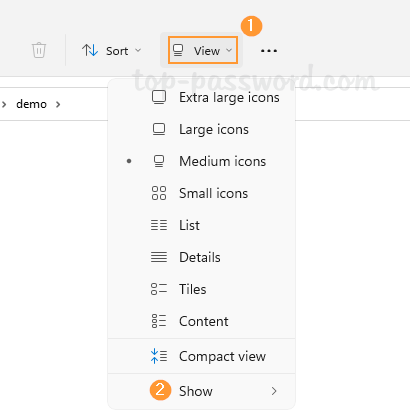
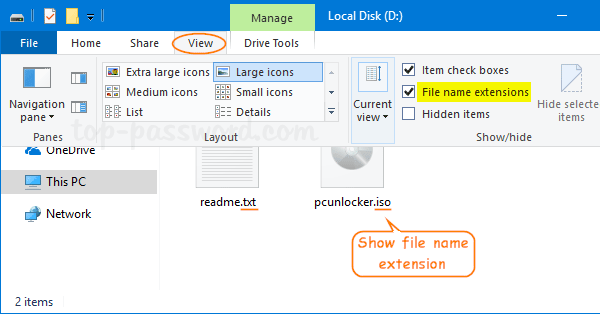
  1. Open File Explorer, click on View at the top and then select Show from the drop-down menu.

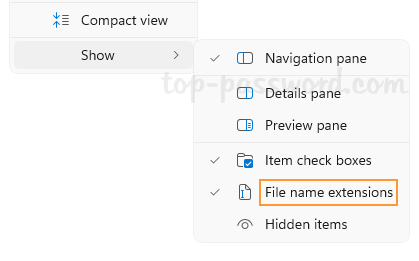
  2. Next, choose “File name extensions” so that there’s a tick next to it. The extensions of all your files will become visible.

Part 2: How to Show File Name Extensions in Windows 10 / 8

  1. Open up File Explorer.
  2. When the File Explorer window opens, click on the View tab at the top. Check the box next to “File name extensions“.

  3. Now, you should be able to see file name extensions for every file on your computer.

Part 3: How to Show File Name Extensions in Windows 7

  1. Open up Windows Explorer.
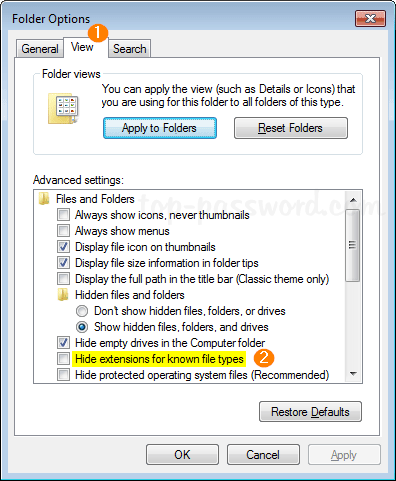
  2. click Organize in the toolbar on the top, and then select Folder and search options.

  3. Click the View tab in the Folder Options dialog box. Deselect Hide extensions for known file types and click OK.

  4. This will make Windows 7 show file name extensions immediately.

How to Reset Forgotten XPMUser Password in Windows XP Mode?

May 21st, 2013 by Admin

I have Virtual PC setup running Windows XP Mode with default logon of XPMUser but I have no idea what my password is. How can I reset or remove the XPMuser password without reinstall XP Mode?

During initial setup of Windows XP Mode, you are required to set a password for default XPMUser account. What to do if you forgot the XPMUser password? Or you are not aware of password been created for XPMUser during initial configuration of XP Mode? Here is a solution for you to reset forgotten XPMUser password in Windows XP Mode. Quickly resolve the problem of being unable to log in to Windows XP Mode due to wrong or incorrect password.

How to Reset Forgotten XPMUser Password in Windows XP Mode?

Reset Windows Password utility is a Windows PE boot disk that we’ll used in this guide. It comes as a bootable ISO image that could be used to boot off your Windows XP Mode virtual machine and then reset your forgotten XPMUser password. Let’s proceed.

Step #1: Download the Reset Windows Password utility and save it to your host operating system. After the download is complete, unzip the download file and you’ll find the ResetWindowsPwd.iso file.

Step #2: Next, mount the ISO image to your Windows XP Mode virtual machine and get it to boot from CD-ROM. To achieve this, follow this step-by-step guide: How to Boot from CD or ISO Image in Windows XP Mode.

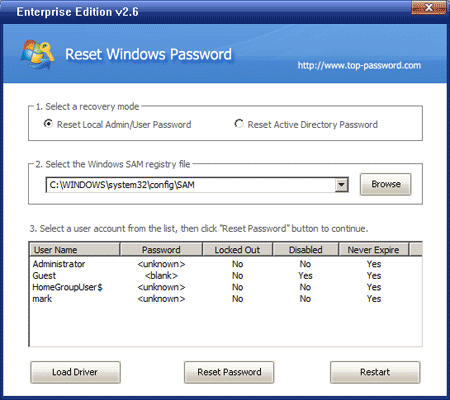
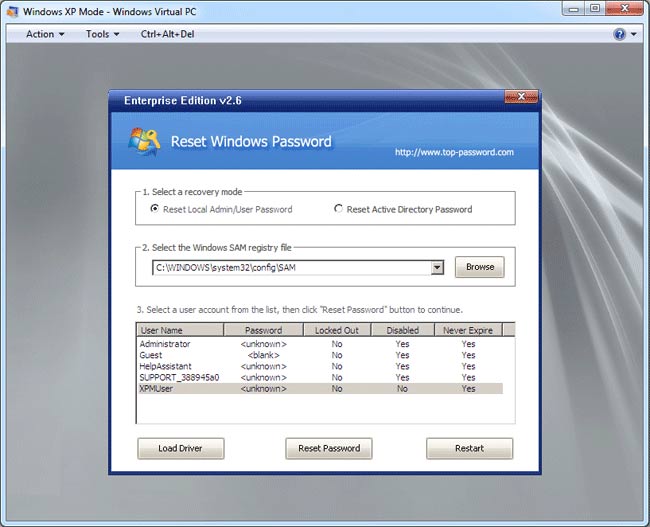
Step #3: Once the virtual machine successfully boots from the ISO image, you’ll see the Reset Windows Password program after a few minutes.

reset-windows-xp-mode-password

Step #4: Choose the XPMUser account and then click on “Reset Password” button. It will unlock/reset your forgotten Windows XP Mode password immediately.

Step #5: After resetting the password, restart the virtual machine and revert your changes in BIOS so it will boot from your hard drive instead of ISO image.

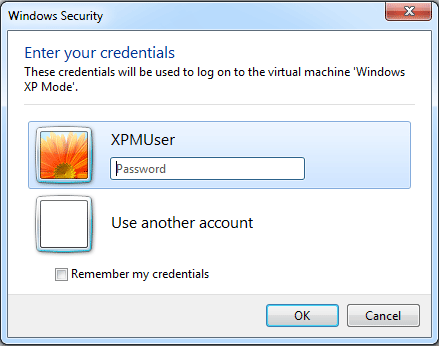
Step #6: During the booting screen, if you are prompt to enter the login password in a dialog which opens up in your host operating system, just click Cancel. That is because this logon dialog won’t accept blank/empty password.

login

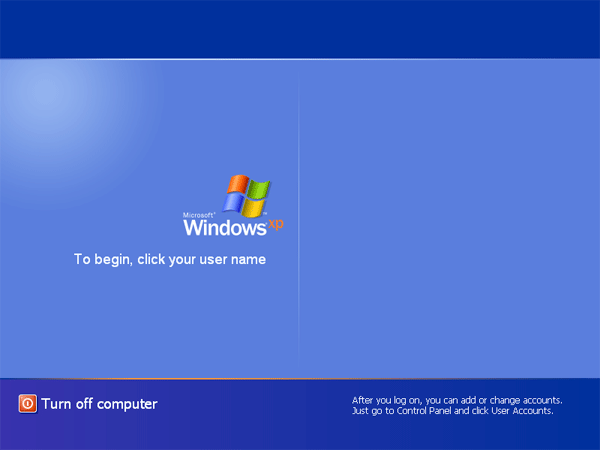
Step #7: When your virtual machine boots to the Windows XP login screen, choose the default user XPMUser and left the password blank, then press Enter and you can quickly log back into the virtual machine. Done!

Conclusion

After reset the forgotten Windows XP Mode password and get into the virtual machine, you can set a new password for the XPMUser account. If you are prompted to enter logon information next time you start the Windows XP Mode, type your new password and check the “Remember my credentials” option. Your Windows XP mode should logon automatically for you from now on.

How to Boot from CD or ISO Image in Windows XP Mode

May 21st, 2013 by Admin

Unable to boot from CD or ISO image in XP Mode? Sometimes we may need to boot from a boot disk in order to fix the virtual machine, but Windows XP Mode doesn’t provide a straightforward option to either change the boot order or get into BIOS. In this article we’ll walk you through how to get your Windows XP Mode virtual machine to boot from CD or ISO image.

How to Boot from CD or ISO Image in Windows XP Mode?

  1. From the Windows XP Mode window, click the Tools menu, and then click Settings.
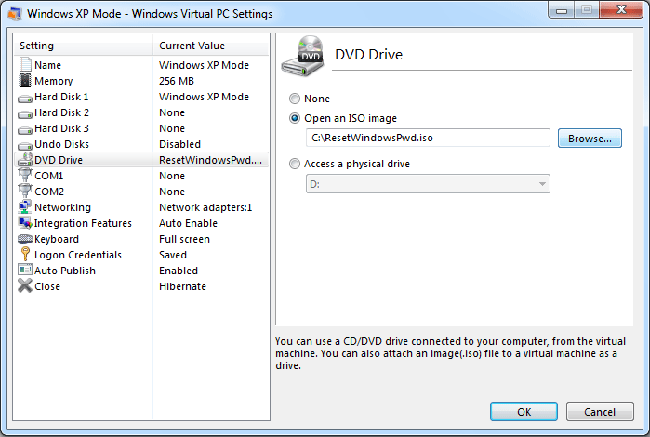
  2. In the left panel, click on DVD Drive. In the right panel, you can specify a bootable ISO image or a physical drive existing in your physical machine. Click OK to save your changes.

    mount-iso

  3. Now turn on or restart your Windows XP Mode virtual machine.
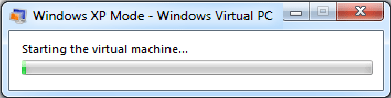
  4. Once the virtual machine starts booting, you’ll see a progress bar window shown as follow.

    starting-xp-mode

  5. Press SHIFT + ESC and you’ll see a blank booting screen instead of a progress bar. Next, quickly hit Del to get into the BIOS of your virtual machine. You have to be pretty quick the with the SHIFT + ESC if you want to get into the BIOS.
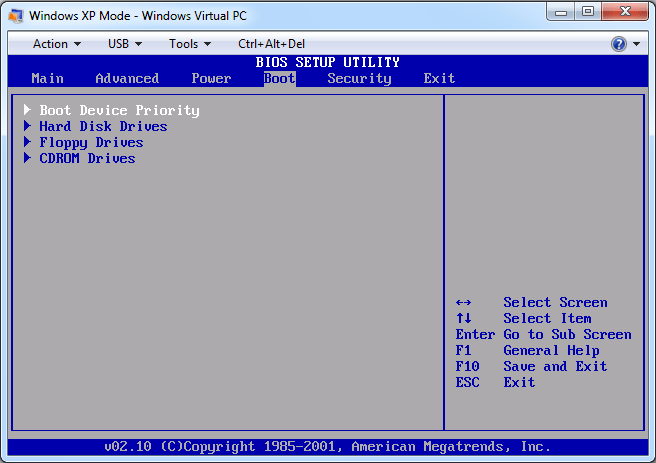
  6. After getting into BIOS, use the arrow keys to select the Boot menu, then select Boot Device Priority and press Enter.

    boot-device-priority

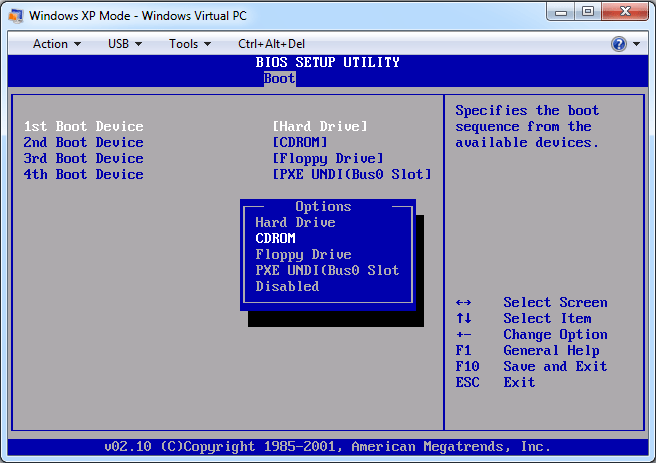
  7. Select 1st Boot Device and press Enter to change it to CDROM.

    change-boot-order

  8. Press F10 to save your changes. The virtual machine will automatically restart and boot from your physical CD or ISO image.

Best Windows Key Finder to Find Your Lost Windows Product Key Easily

May 20th, 2013 by Admin

Normally, Windows product key will either be displayed on the Windows installation CD sleeve or on the top/bottom of your desktop tower or laptop. However, over time these either get lost or become unreadable. What to do if you lost your Windows product key but have to do a reinstall? This is where 3rd party Windows key finder programs come in.

Product Key Finder is the best Windows key finder program which can help you find lost Windows 8/7/Vista/XP product key easily. It’s a well-known fact that Windows product key is stored in the registry, but it is encrypted for security reasons, so it won’t be of any use to you. With Product Key Finder you can get back your lost product key in just a few simple steps!

How to Find Lost Windows Product Key Using Windows Key Finder program?

Download Product Key Finder and save it on your computer. After the download is complete, double-click on the download file and install it. Next launch the application. Click on the “Start Recovery” button and then choose the “From current system” option. The program will go through the registry on your computer and locate your Windows product key and some keys for other software installed on your machine.

Write down the product keys and then you can reinstall Windows, or place the key in a database where you won’t lose it. Product Key Finder is a handy recovery tool to keep in your software utility toolbox.

That’s all there is to it. The use of this type of Windows key finder program is not illegal, because it is simply locating and providing the product key that you purchased.

How to Fix the Logon Error: The local policy of this system does not permit you to logon interactively

May 16th, 2013 by Admin

Problem

Apart from the obvious logon error of typing in a wrong username or password, there exists another common problem that users come across when logging on: When you try to log on to a Windows machine and you may receive the error message “The local policy of this system does not permit you to log on interactively.” This can happen in a number of scenarios, and the way to resolve the issue depends on the cause of the problem.

Solution A

If the Local Security Policy is set to disallow local logons to Everyone, then the error message will pop up for any user who tries to log on, including an administrator. This can be fixed in just a few steps, if you can still get into Windows:

  1. Press Windows + R to bring up the Run box. Type in gpedit.msc and press Enter.
  2. When the Group Policy Object Editor appears, navigate to: Computer Configuration > Windows Settings > Security Settings > Local Policies > User Rights Assignment.
  3. In the right-hand panel, locate the entry named “Deny Log on locally” and double-click on it.
  4. Highlight your user account and click Remove.

If you can’t log on your computer using any administrator account, you are unable to edit any settings of your local policy. In this situation, you need to use a third-party software – Reset Windows Password utility. This software comes as a bootable CD image which need to be burned onto a blank CD or USB drive. Just boot your problematic computer from the CD or USB drive. When the Reset Windows Password program opens up, select your user account and click on “Reset Password” button, the program will delete the existing Windows password and also tweak the improper local security policy which prevents you from logging on locally. That’s it!

Solution B

If the logon error message pops up when you are trying to connect via Remote Desktop or a Terminal Services connection, you will need to take a different set of actions.

To resolve this issue, add allowed users to the Remote Desktop Users list:

  1. Click Start, point to Settings, and then click Control Panel.
  2. Double-click System, and then on the Remote tab, click Select Remote Users.
  3. Click Add type in the user account name, and then click OK.
    If you are adding more than one user name, use a semicolon to separate the names.

Note: Adding users to the Remote Desktop Group requires that you are logged on through an administrator account.

Also, make sure that the Remote Desktop Users group has sufficient permissions to log on through Terminal Services. To do this, follow these steps:

  1. Click Start, click Run, type secpol.msc, and then click OK.
  2. Expand Local Policies, and then click User Rights Assignment.
  3. In the right pane, double-click the “Allow logon through Terminal Services” option. Make sure that the Remote Desktop Users group is listed. Click OK.
  4. In the right pane, double-click the “Deny logon through Terminal Services” option. Make sure that the Remote Desktop Users group is not listed, and then click OK.
  5. Close the Local Security Settings snap-in.