Author Archive

5 Ways to Remove the Administrator Password in Windows 10

September 27th, 2016 by Admin

Do you want to clear the administrator password and let Windows boot directly into the desktop? How to remove Windows 10 password if you’ve forgotten it? In this tutorial we’ll show you 5 ways to remove the administrator password in Windows 10.

Option 1: Remove Windows 10 Administrator Password from Control Panel

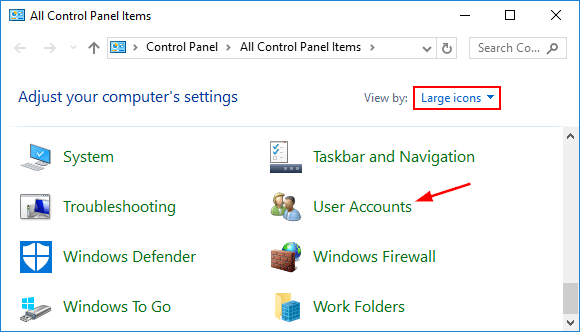
  1. Open the Control Panel in Large icons view. Click on User Accounts.
    user-accounts

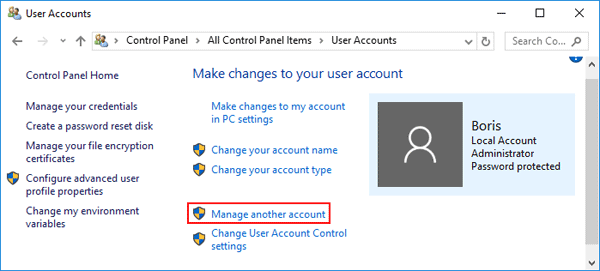
  2. Under the “Make changes to your user account” section, click Manage another account.
    manage-another-account

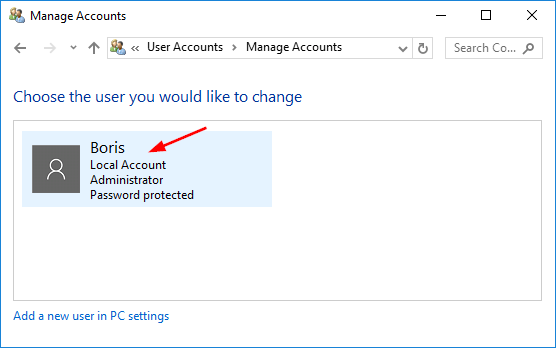
  3. You’ll see all the accounts on your computer. Click the account you’d like to remove the password for.
    choose-user-you-want-change

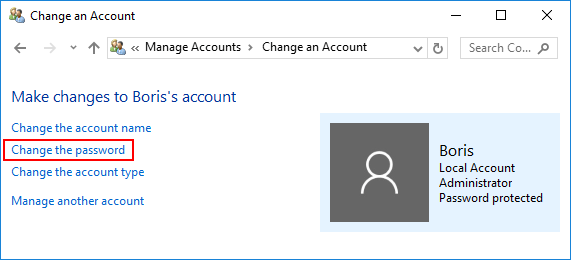
  4. Click the “Change the password” link.

    change-the-password

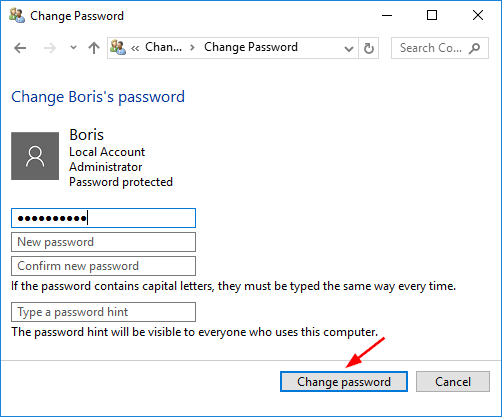
  5. Enter your original password and leave the new password boxes blank, click on Change password button. It will remove your administrator password immediately.
    remove-local-password

Option 2: Remove Windows 10 Administrator Password from Settings

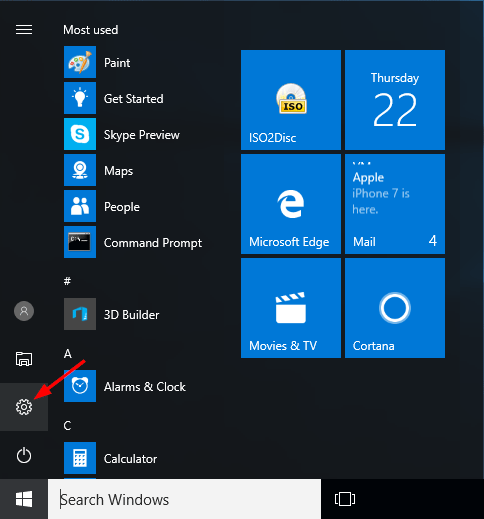
  1. Open the Settings app by clicking its shortcut from the Start Menu, or pressing Windows key + I shortcut on your keyboard.
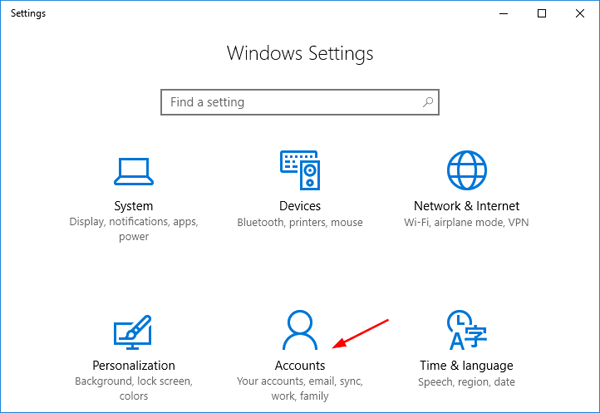
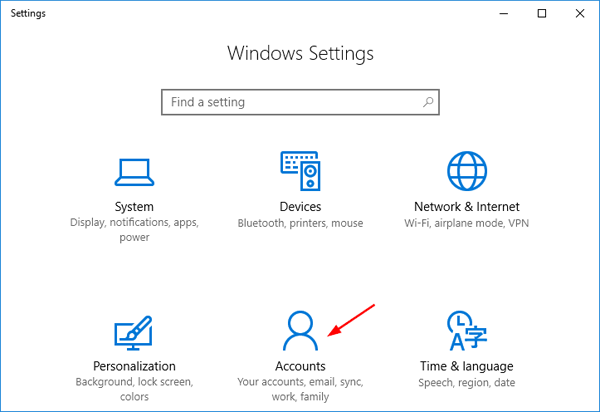
  2. Click on Accounts.

    accounts

  3. Select Sign-in options tab in the left pane, and then click the Change button under the “Password” section.
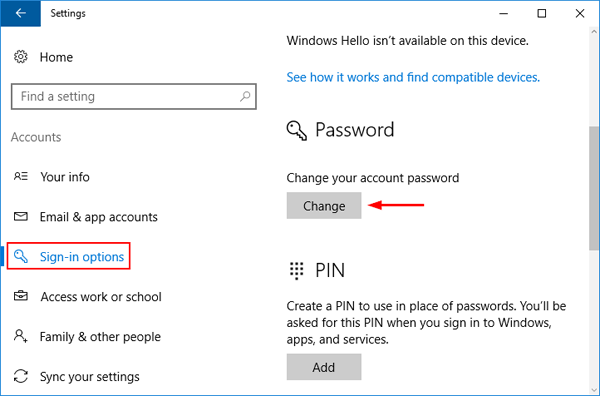
    sign-in-options

  4. Next, enter your current password and click Next.
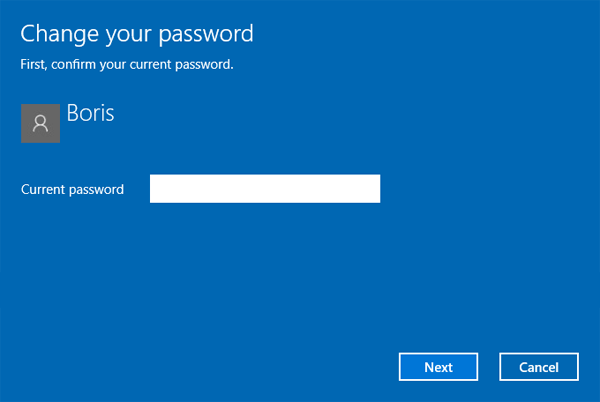
    confirm-current-password

  5. To remove your password, leave the password boxes blank and click Next.
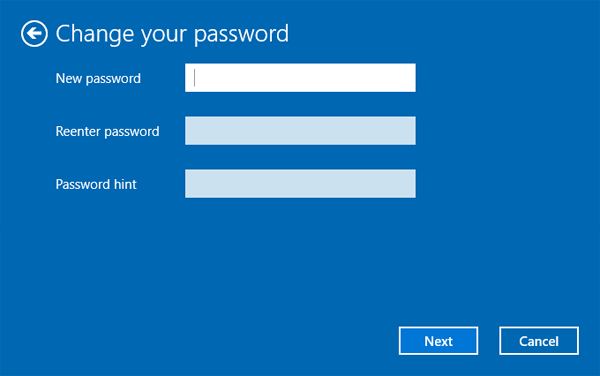
    change-windows-password

Option 3: Remove Windows 10 Administrator Password from Command Prompt

  1. Open up an elevated Command Prompt.
  2. At the Command Prompt, type the below command and press Enter.
    net user Administrator *
  3. When you’re prompted to type new password, just press Enter twice and it will remove your Windows administrator password.
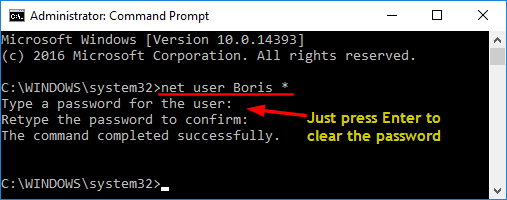
    remove-windows-password-via-cmd

Option 4: Remove Windows 10 Administrator Password Using Local Users and Groups snap-in

  1. Press Windows key + R to launch Run, type lusrmgr.msc and click OK.
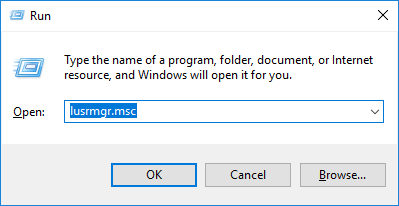
    lusrmgr

  2. When the Local Users and Groups snap-in opens, click Users from the left pane, then right-click the Administrator in the center pane. Select Set Password.
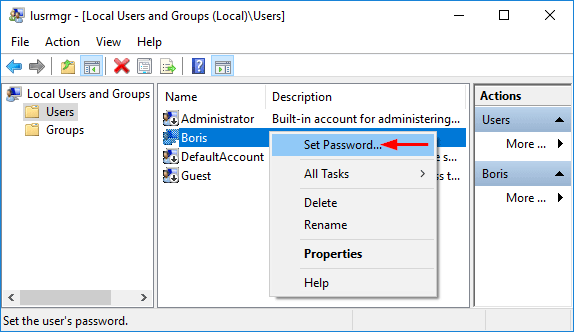
    set-password

  3. Now click Proceed in the following window.
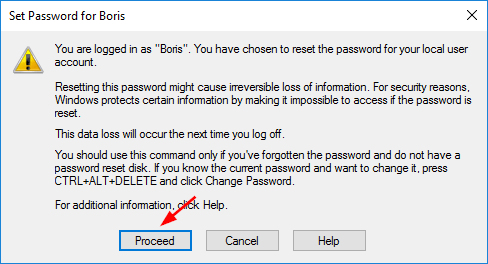
    proceed-to-change-password

  4. Leave the New password and Confirm password boxes empty and click OK. This will remove your Windows user password instantly.
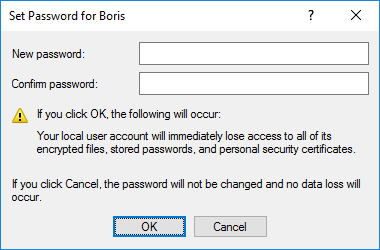
    clear-windows-password

Option 5: Remove Windows 10 Administrator Password Using PCUnlocker

PCUnlocker is a handy Windows password removal tool that runs from a boot disk. It allows you to remove forgotten Administrator password for any Windows-based PC you can get physical access to.

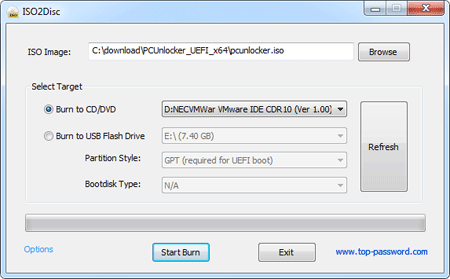
  1. Start by burning the PCUnlocker ISO file onto a CD (or USB flash drive) using the freeware ISO2Disc.
  2. Boot your locked computer from the CD.
  3. Once booted to the PCUnlocker program, select the Administrator account and click on “Reset Password” button.
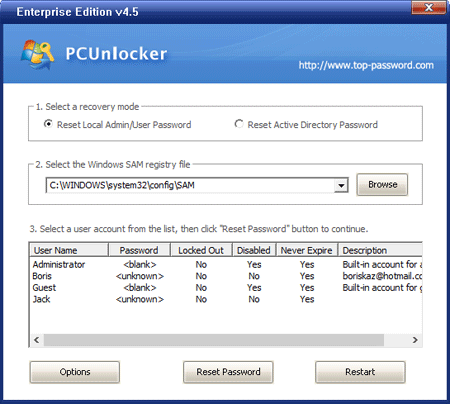
  4. This will remove your forgotten Windows administrator password quickly. Reboot your computer without CD, you can then log into your Windows 10 administrator account without a password.
How to Reset Installed Apps to Default in Windows 10

September 26th, 2016 by Admin

If an app crashes repeatedly, freezes or doesn’t work properly on your PC, Windows 10 allows you to reset the app to the default settings. Although you’ll lose your preferences and sign-in details from the app that causes problem, resetting it can be helpful in certain situation. In this tutorial we’ll show you to reset your installed or built-in apps to default in Windows 10.

How to Reset Installed Apps to Default in Windows 10?

  1. Open the Settings app by clicking its shortcut from the Start Menu, or pressing Windows key + I shortcut on your keyboard.
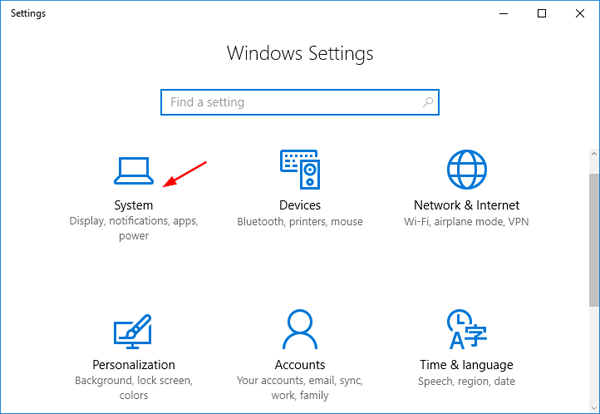
  2. Click on System.

    system

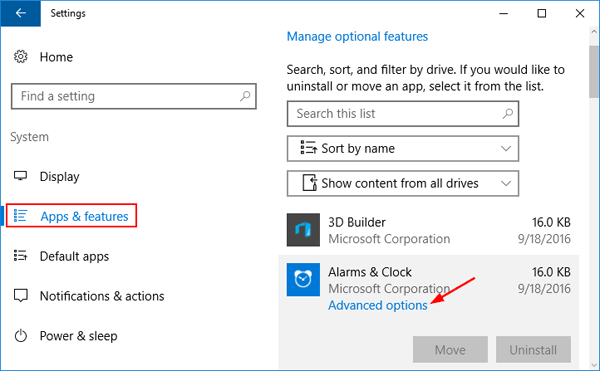
  3. On the left side of the window, click on Apps & features. You’ll see all the apps and programs you’ve installed on your computer. Find an app you want to reset, and click on it. Then click the “Advanced options” link under the app’s name.

    app-and-features

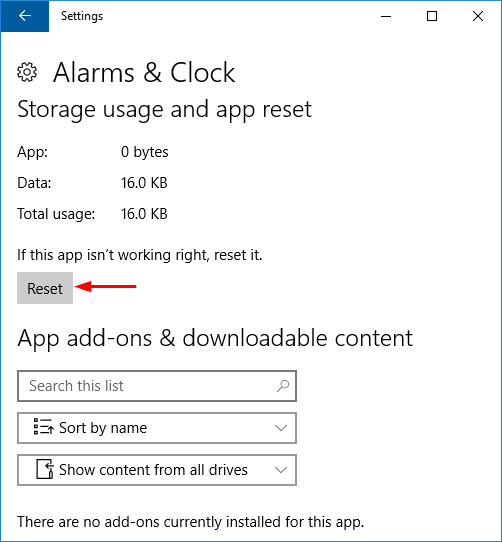
  4. Click the Reset button to reset an app’s settings.

    reset-windows-10-app

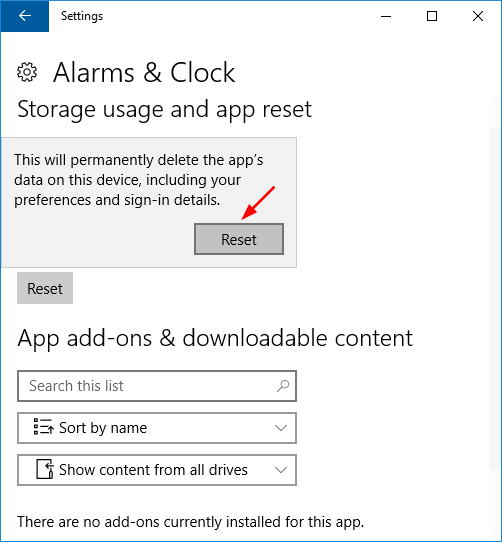
  5. You’ll have to click the Reset button to confirm you want to clear the app’s data and sign-in details. After a while you’ll be told that the app has been reset.

    confirm-app-reset

3 Ways to Remove / Disable Action Center in Windows 10

September 24th, 2016 by Admin

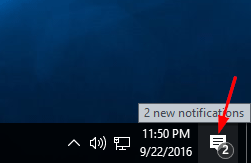
In Windows 10, Action Center can be accessed by clicking the square speech bubble icon located on the right-hand side of the taskbar. Action Center shows you your latest notifications, emails, updates and app messages all appear in a drawer that pulls out from the right hand side of the screen.

action-center-icon

If you hate having to clear annoying notifications all the time, or you feel like the Action Center is useless, you can get rid of it. In this tutorial we’ll show you 3 ways to remove / disable Action Center from the taskbar in Windows 10.

Method 1: Disable Windows 10 Action Center Using the Settings app

  1. Open the Settings app either by clicking its icon in the Start Menu or pressing Windows + I keyboard shortcut.

    open-settings-app

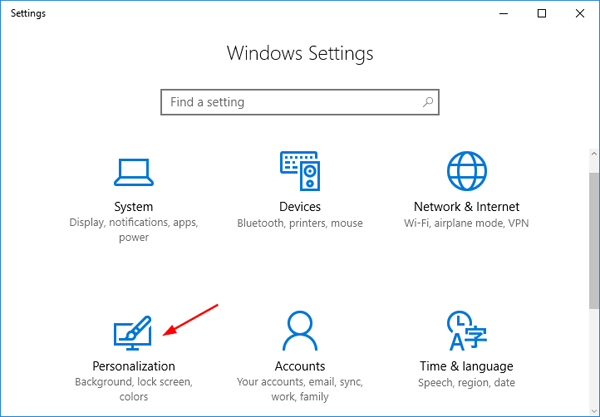
  2. Click on Personalization.

    personalization

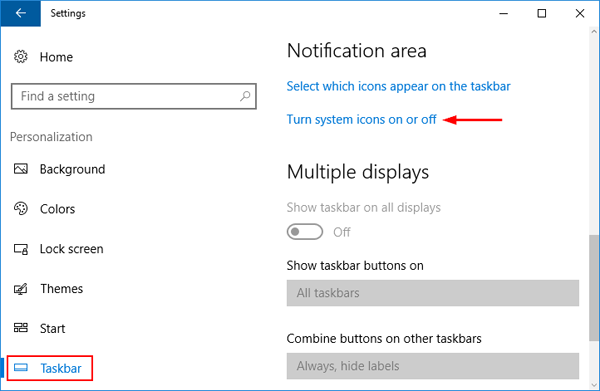
  3. Select Taskbar from the left-hand navigation, and then click the link titled “Turn system icons on or off“.

    turn-system-icons-on-off

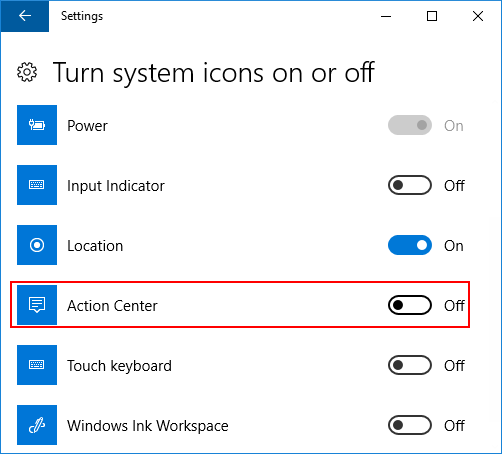
  4. Toggle the switch against Action Center to the Off position. This will remove & disable the Action Center icon right away.

    turn-off-action-center

If you’re running an old build of Windows 10, follow these steps:

  1. Open the Settings app.
  2. Click on System.
  3. Click the “Notifications & actions” category on the left. On the right, click the “Turn system icons on or off” link.
  4. To remove Action Center icon from taskbar, toggle Action Center to Off.

Method 2: Disable Windows 10 Action Center Using Group Policy

  1. Open the Local Group Policy Editor. Navigate to: User Configuration > Administrative Templates > Start Menu and Taskbar.
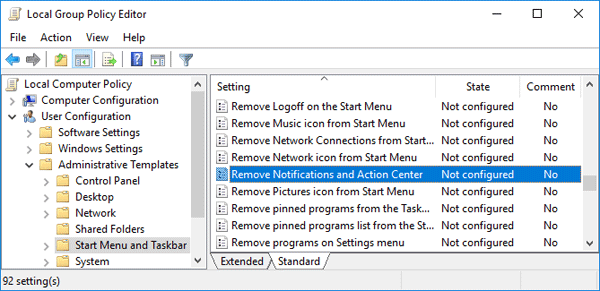
  2. On the right-hand pane, find the “Remove Notifications and Action Center” policy and double-click it.

    remove-action-center-gpo

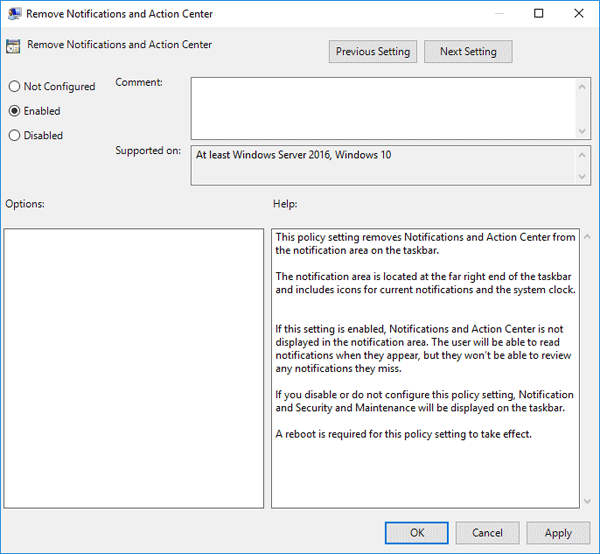
  3. Select the Enabled radio button, and click OK to disable the Action Center.

    remove-notification-action-center

    Just restart your system to make the changes take effect.

Method 3: Disable Windows 10 Action Center Using Registry Editor

  1. Open the Registry Editor. Navigate to the following key:
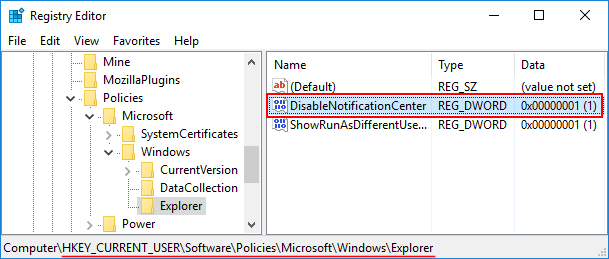
    HKEY_CURRENT_USER\SOFTWARE\Policies\Microsoft\Windows\Explorer
  2. Right-click any empty space on the right pane and select New > DWORD (32-bit) Value. Name it DisableNotificationCenter. Next double-click on it and give it a value of 1.

    disable-notification-center

  3. Exit Registry Editor and restart your computer. The Action Center icon has completely disappeared from the taskbar. If you want to bring it back in future, follow the same instructions but set the DisableNotificationCenter value to 0.

How to Remove Shortcut Arrow from Desktop Icons in Windows 10 / 8 /7

September 23rd, 2016 by Admin

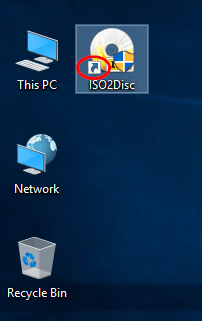
By default, Windows places a small arrow in the bottom left corner of the desktop shortcut icon. The arrow can help you distinguish a shortcut from an application or file. If you are not happy to see the shortcut overlay icon, you can get rid of it completely. In this tutorial we’ll show you how to hide / remove shortcut arrow from desktop icons in Windows 10/8/7.

desktop-shortcut-arrow

How to Remove Shortcut Arrow from Desktop Icons in Windows 10 / 8 /7?

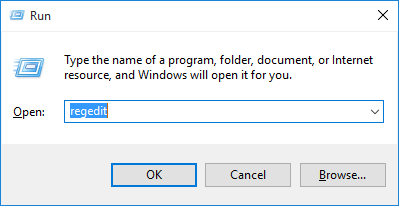
  1. Open the Registry Editor. When prompted Do you want to allow this app to make changes to your PC? Choose Yes.

    regedit-via-run

  2. In the Registry Editor, navigate to the following key:
    HKEY_LOCAL_MACHINE\SOFTWARE\Microsoft\Windows\CurrentVersion\Explorer\Shell Icons

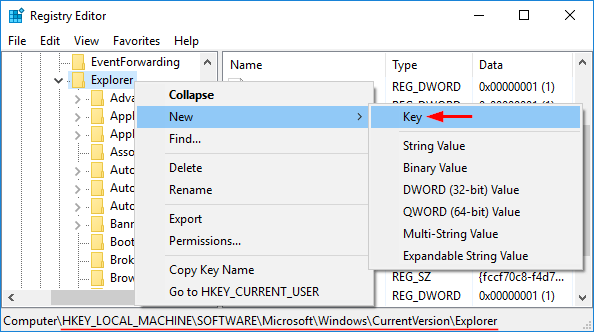
    If the Shell Icons key does not exist you’ll need to create it. To do so right-click the Explorer key in the left pane, then select New > Key and name it Shell Icons.

    create-shell-icons-key

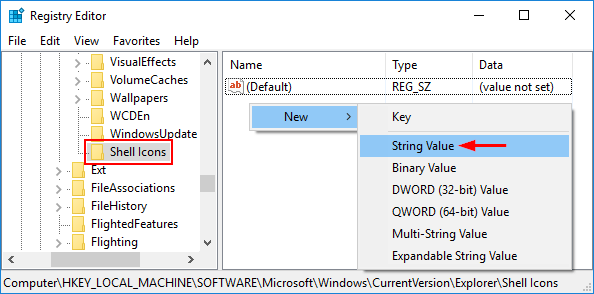
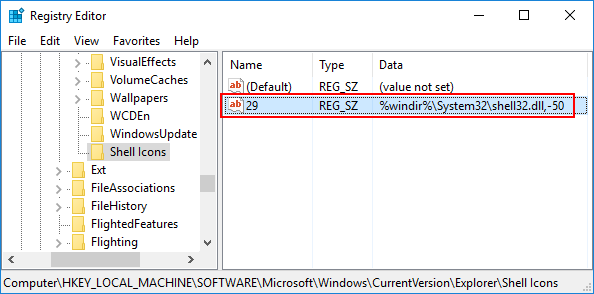
  3. In the right pane of the Shell Icons key, right-click on any empty area, and select New > String Value. Name it 29.

    add-string-value

  4. Double-click the 29 entry to modify it. In the Value Data box, copy and paste the following:
    %windir%\System32\shell32.dll,-50

    remove-shortcut-arrow

  5. Click OK and exit Registry Editor. Reboot your computer and you should no longer see the little arrow in your desktop shortcuts. That’s it!

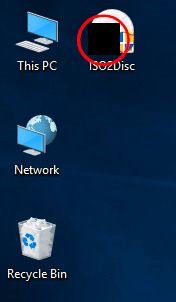
Problem of Black Square:

Everything worked just fine but after a second shut down, all shortcut icons have a blank square superimposed over the lower left side.

shortcut-black square

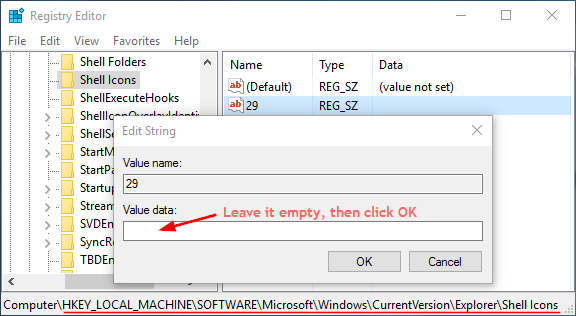
To fix this issue, just open the Registry Editor and navigate to KEY_LOCAL_MACHINE\SOFTWARE\Microsoft\Windows\CurrentVersion\Explorer\Shell Icons. Double-click the 29 entry in the right pane, leave Value Data empty and click OK.

shell-icons-shortcut

Reboot your computer and it should work now!

Add “Copy To” & “Move To” Shortcut to Windows Right-Click Menu

September 21st, 2016 by Admin

How do you copy or move a file to another location in Windows? Most of us use the Copy or Cut command from the Context Menu, and then paste the file in the destination location. To speed up the file copying / moving operations, you can add the “Copy To” or “Move To” shortcuts to Windows right-click context menu. This is a hidden feature available in Windows 11/10/8/7, which can be enabled using a registry hack.

How to Add “Copy To” & “Move To” Shortcut to Windows Right-Click Menu?

  1. Open Registry Editor and navigate to the following key:

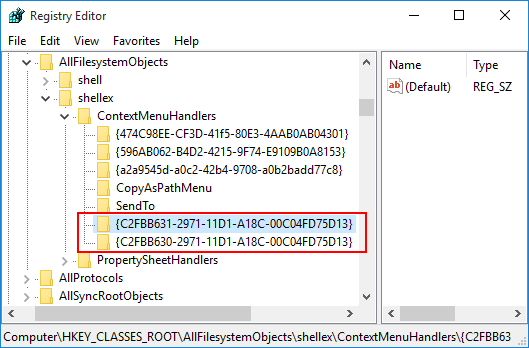
    HKEY_CLASSES_ROOT\AllFilesystemObjects\shellex\ContextMenuHandlers

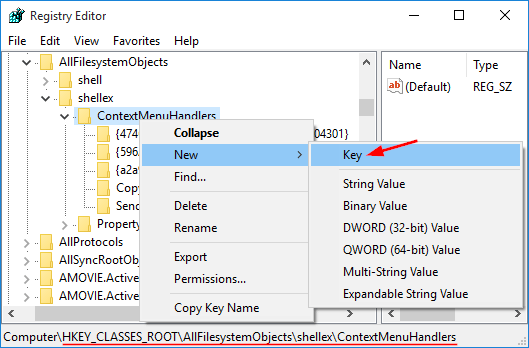
  2. Right-click on the ContextMenuHandlers key in the left pane, and then select New -> Key.

    1

    Rename the new subkey from “New Key #1” to {C2FBB630-2971-11D1-A18C-00C04FD75D13}. This will immediately add the “Copy To folder” shortcut to Explorer context menu.

  3. If you want to add the “Move To folder” shortcut to Explorer context menu as well, repeat the same steps to create a new subkey named {C2FBB631-2971-11D1-A18C-00C04FD75D13}.

    2

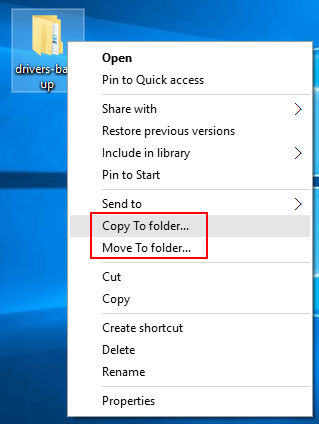
  4. Now right-click on any folder or file on your computer, you’ll see two extra options (“Copy To folder” and “Move To folder“) have been added to the context menu.

    3

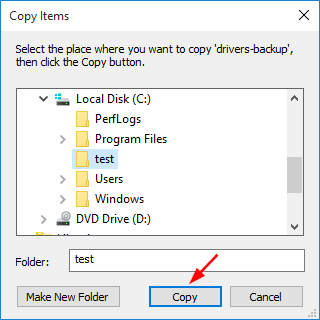
  5. After selecting either “Copy To folder” or “Move To folder” from Windows right-click menu, a browse window will open. From there you can select your destination folder, click either the Copy or Move button (depending on your chosen action) and you’re done!

    4

How to Backup and Restore Device Drivers in Windows 10 / 8 / 7

September 21st, 2016 by Admin

Every time you reinstall Windows, you have to download and install drivers again. But what to do if you don’t remember where you downloaded all your individual drivers from, or you lost the disc provided by your computer vendor? Luckily Windows comes with a built-in command line tool – DISM, which can make a backup of all installed drivers from a working PC.

In this tutorial we’ll show you how to use the DISM command to backup your device drivers and then restore them in Windows 10, 8 and 7, no need to use any third-party software.

Part 1: Backup Third Party Device Drivers

  1. Open the Command Prompt as administrator.
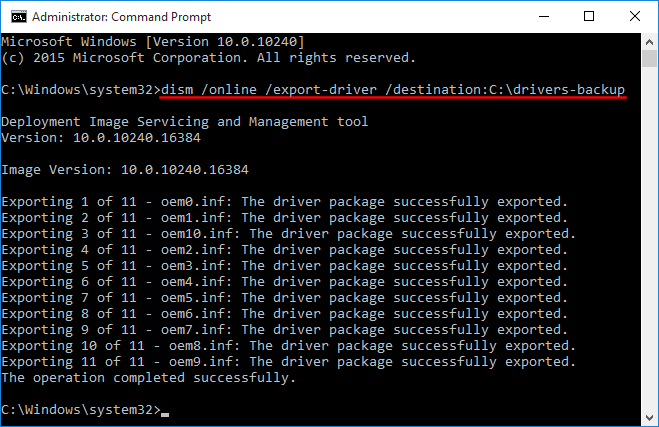
  2. Type the following command at the Command Prompt and press Enter.

    dism /online /export-driver /destination:C:\drivers-backup

    backup-driver-with-dism

    Replace the destination path (“C:\drivers-backup“) with the actual folder where you will store the drivers. It can be a folder on a separate partition or USB thumb drive. Make sure that folder is created before you run the above command.
  3. It begins to grab the drivers from your system drive and store them in your destination location. When it’s done, your destination folder will be filled with the driver files (.inf, .cat, .sys).
Part 2: Restore & Install Device Drivers

Once you’ve reinstalled Windows, you can manually restore and install the driver from your previous backup. Follow these steps:

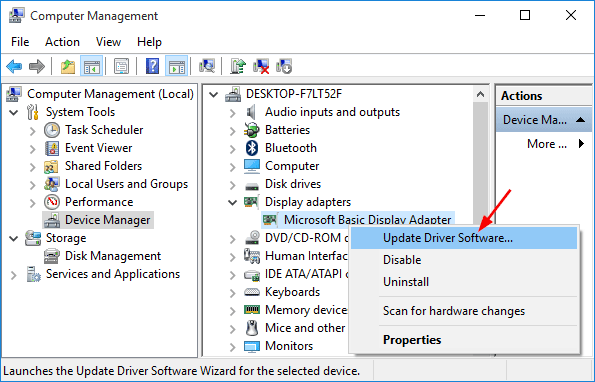
  1. Open Device Manager. Due to lack of driver installation, some devices have a little yellow question mark over its icon, and they should have more descriptive names.
  2. Select a device from the device tree, right-click on it and select “Update Driver Software” from the drop-down menu.

    update-driver-software

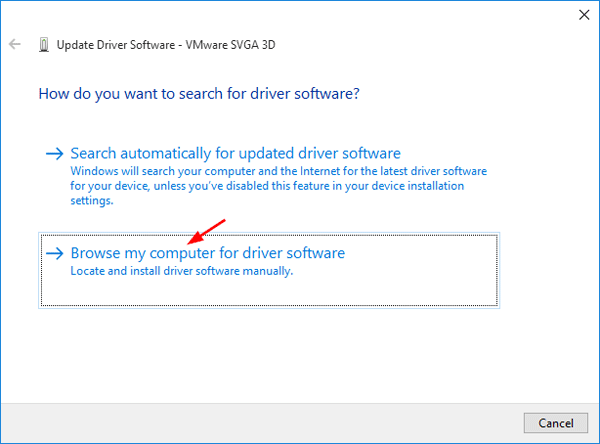
  3. In the pop-up window, you will see two options. Click Browse my computer for driver software.

    search-for-device-driver

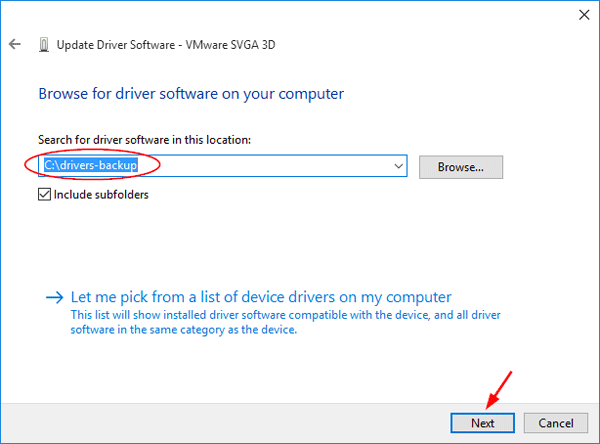
  4. Click on Browse to find the location of the driver files you backed up previously and click Next. Make sure the “Include subfolders” option is checked.

    browse-driver-backup

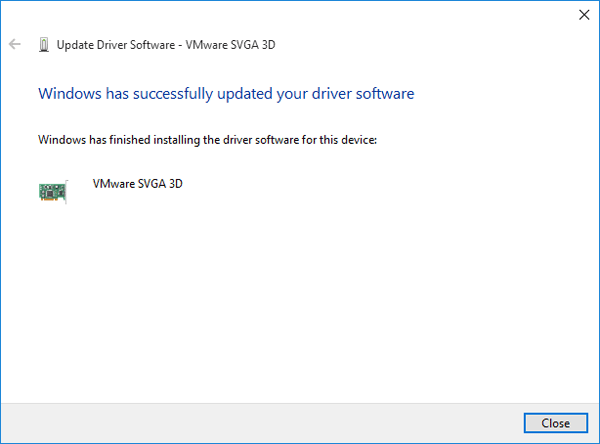
  5. After a while you’ll see the message saying “Windows has successfully updated your driver software” and now the device name should be displayed correctly.

    successfully-installed-driver

Updated: This method also works with Windows 11. However, there are other ways available for you to restore Windows device drivers from Command Prompt rather than Device Manager.

Fix: Battery Icon Missing from Windows 10 Taskbar

September 21st, 2016 by Admin

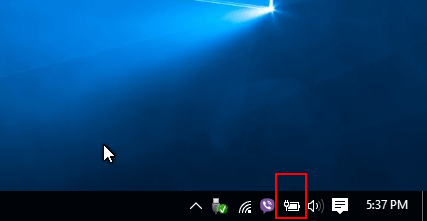
“After I applied the recent updates and reboot my Windows 10 laptop, I noticed that the battery icon at the bottom right of desktop screen disappeared and became apparently inactive. How can I get it back? Please help!”

The battery status icon is very handy for laptop/notebook/tablet users to see how much time is left charging, or remaining percentage of battery life. By default, the battery icon is shown in notification area of the taskbar. If your battery icon is missing or disappeared from Windows 10 taskbar, try the following methods to get it back.

battery-icon-on-windows-taskbar

Method 1: Restore Missing Battery Icon Using Settings

  1. Open the Settings app either by clicking its icon in the Start Menu or pressing Windows logo key + I keyboard shortcut.
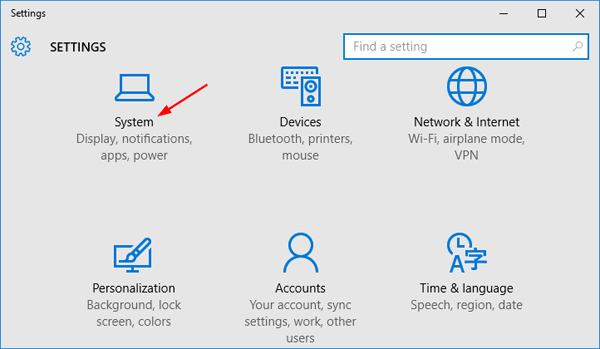
  2. Click on System.

    settings

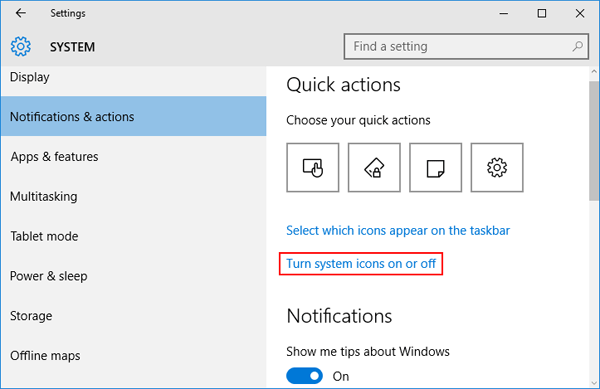
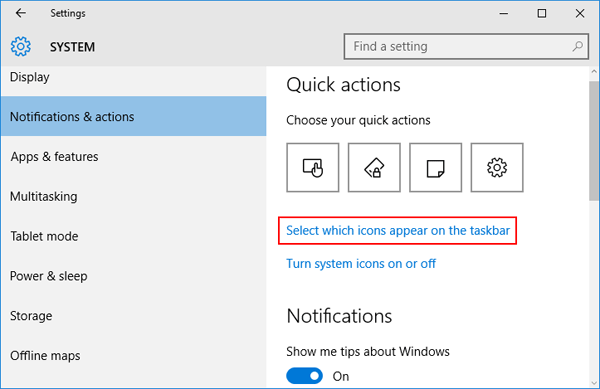
  3. Select the Notifications & actions tab on the left side, and then click the Turn system icons on or off link on the right pane.

    turn-system-icons-on

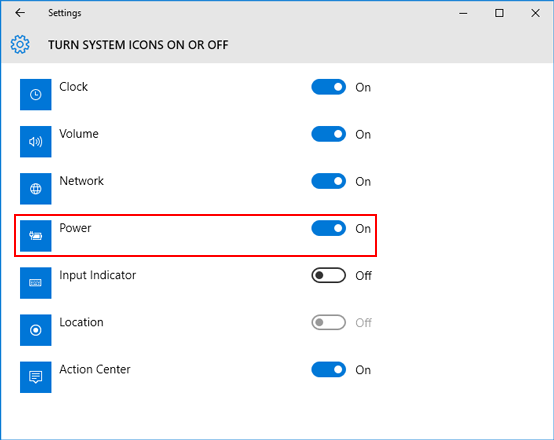
  4. Just toggle the slider for Power to the On position.

    turn-power-icon-on

  5. Go back to the previous System Settings window and this time click the Select which icons appear on the taskbar link.

    choose-icon-appear-on-taskbar

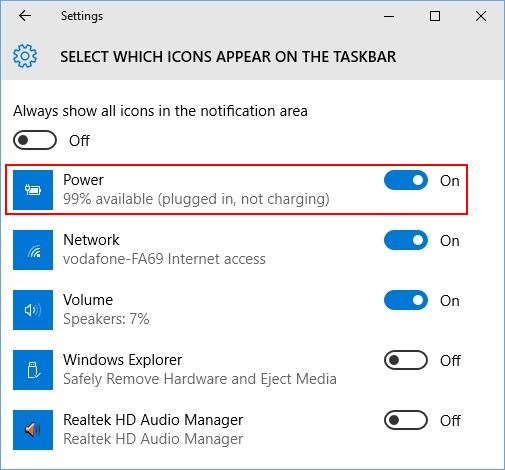
  6. Look for the Power icon and turn it on.

    show-power-icon-in-taskbar

    Now reboot your computer and check if the battery status icon comes back.

Method 2: Restore Missing Battery Icon Using Group Policy

For Windows 10 Enterprise or Pro, you can tweak the group policy to make Windows 10 show the battery icon in system tray notification area:

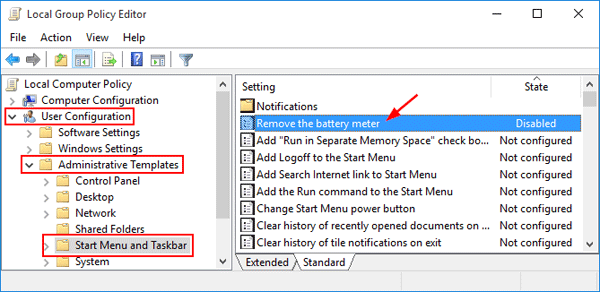
  1. Open the Local Group Policy Editor and navigate to:
    User Configuration -> Administrative Templates -> Start Menu and Taskbar
  2. Double-click the “Remove the battery meter” policy on the right pane and set it to Disabled. Restart your computer to apply your changes.

    remove-battery-meter

For Windows 10 Home, you might need to use the following registry hack because the Local Group Policy Editor is not available in your system.

  1. Open the Registry Editor and navigate to the following key:
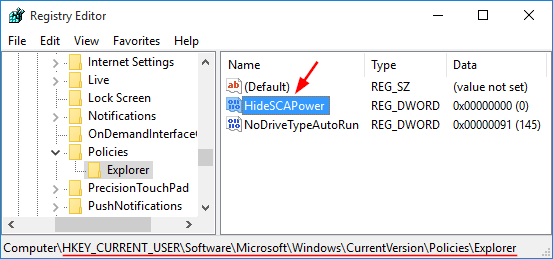
    HKEY_CURRENT_USER\Software\Microsoft\Windows\CurrentVersion\Policies\Explorer
  2. Look for the HideSCAPower entry on the right pane of Registry Editor. If it doesn’t exist, right-click on the empty space and select New -> DWORD (32-bit) Value, then name it as HideSCAPower.
  3. Double-click on HideSCAPower, and set the value to 0. (1: Hide the battery status icon, 0: Show the battery status icon)

    HideSCAPower

  4. Restart your computer and hopefully the battery icon is now back to your Windows 10 taskbar.

Conclusion

If you still have no luck with the solutions above, try to open the Device Manager and uninstall both “Microsoft AC Adapter” and “Microsoft ACPI-Compliant Control Method Battery“, and then click on Action menu -> Scan for hardware changes option. It will restore the battery icon in Windows 10.

How to Take Ownership (Permission) of Protected Registry Key in Windows 10

September 20th, 2016 by Admin

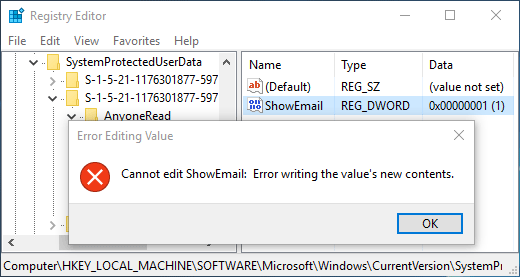
Sometimes you might encounter some registry keys that are protected by Windows. When you try to edit, rename or delete a protected registry key or value, you’ll get one of the following errors:

“Cannot edit {value_name}: Error writing the value’s new contents.”

“The Registry Editor cannot rename {key_name}. Error while renaming key.”

“Unable to delete all specified values.”

“Cannot delete {key_name}: Error while deleting key.”

error-edit-registry-value

Even you’re logged in as Administrator, you might still lack permissions to edit a protected registry key. In such cases, you need to take ownership of that particular key and grant full permissions to your signed-in account. This step-by-step tutorial will guide you how to take full ownership of protected registry key in Windows 10.

How to Take Full Ownership of Protected Registry Key?

  1. To start, press the Windows logo key + R on your physical keyboard, type regedit and press Enter to open the Windows Registry.

    regedit-via-run

  2. Navigate to the protected key you want to take ownership of. For this example, we chose the following key:

    HKEY_LOCAL_MACHINE\SOFTWARE\Microsoft\Windows\CurrentVersion\SystemProtectedUserData\S-1-5-21-1176301877-597599738-4051979053-1001\AnyoneRead\Logon

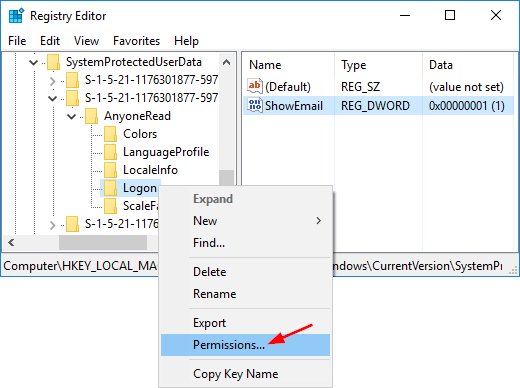
  3. Right-click on the protected key, and select Permissions from the context menu that appears.

    edit-registry-permissions

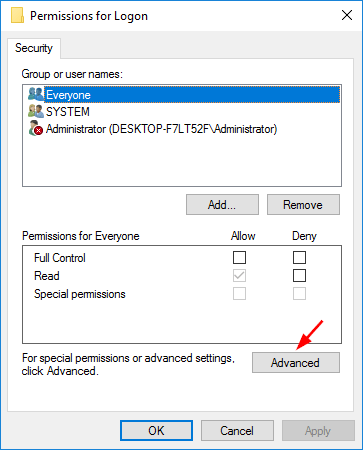
  4. In the Permissions window that appears, Click Advanced.

    registry-key-permissons

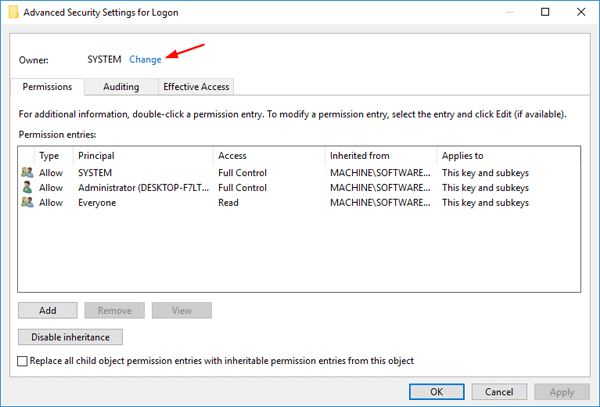
  5. In the Advanced Security Settings dialog, you can see the current owner (SYSTEM or “TrustedInstaller“) of your selected key. Click on Change button.

    change-registry-owner

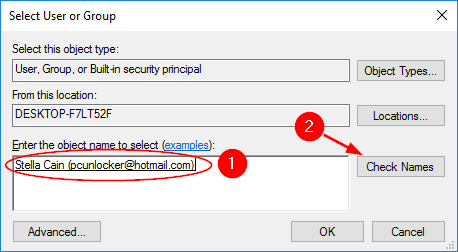
  6. This will open a new dialog box. Now type your user account name, and then click on “Check Names” button to convert the username to correct format. Click OK.

    select-registry-owner

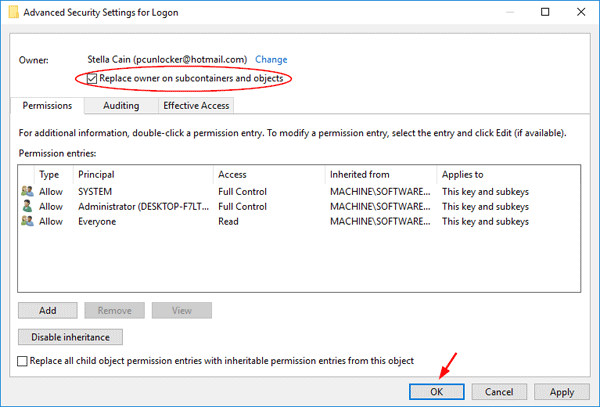
  7. Now you’ll see that your user account is showing up as the owner. Check the “Replace owner on subcontainers and objects” option if you also want to take ownership of the subkeys. Click OK.

    replace-owner-on-subkeys

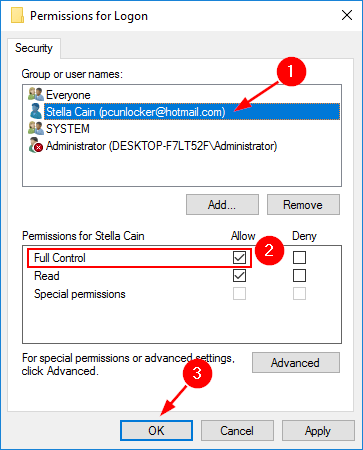
  8. When back to the Permissions window, select the desired user name and then check Allow checkbox under the Full Control row, and click OK.

    modify-registry-permissions

    If your user account is not shown under the Group and user names list, click on Add button.

  9. Close Registry Editor. Now you’ve taken ownership of a protected registry key and grant your account full permissions. That’s it!

8 Ways to Open Computer Management in Windows 10

September 19th, 2016 by Admin

Computer Management is a handy console included in Windows that allows you to view event logs, partition your hard drive, manage the devices and services, etc. In this article we’ll show you 8 ways to open Computer Management in Windows 10.

Option 1: Open Computer Management from Start Menu

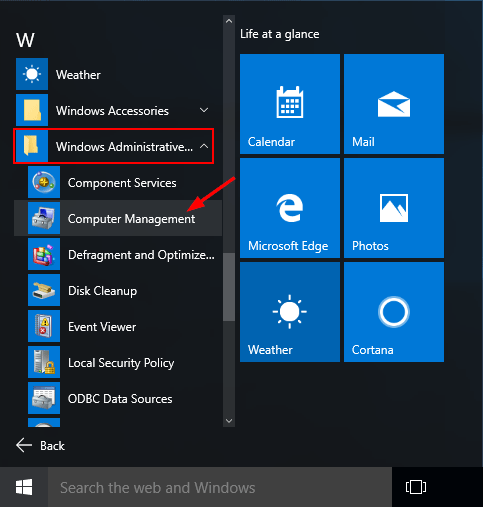
Click the Start button, select All Programs -> Windows Administrative Tools, and then click on the Computer Management shortcut.

open-compmgmt-via-start-menu

Option 2: Open Computer Management by Right-clicking My Computer

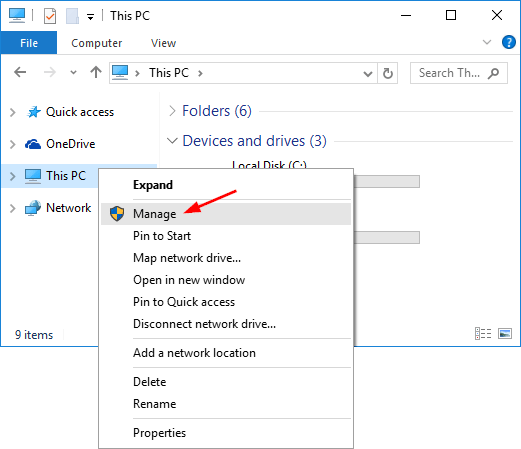
Right-click on This PC icon on your desktop (or on the left pane of File Explorer), select Manage from the context menu. This will launch Computer Management in Windows 10.

right-click-this-pc

Option 3: Open Computer Management from Run

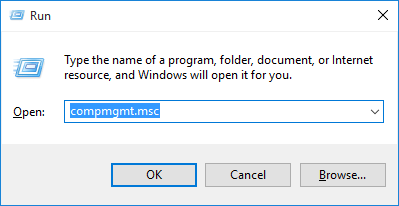
Press the Windows logo key + R to open the Run box. Type compmgmt.msc and press Enter to open the Computer Management console.

compmgmt

Option 4: Open Computer Management by Pressing Win + X Keys

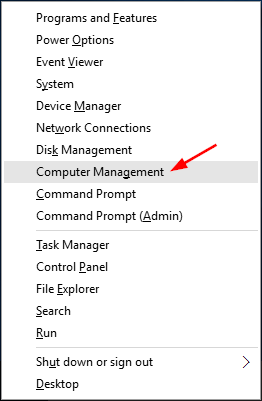
Press the Windows logo key + X to open the power user menu. Then click the Computer Management shortcut.

power-user-menu

Option 5: Open Computer Management from Command Prompt

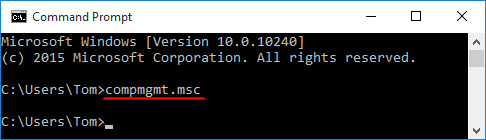
Open the Command Prompt in Windows 10, type compmgmt.msc and hit Enter.

open-compmgmt-via-cmd

The Computer Management console will start immediately.

Option 6: Open Computer Management Using Cortana Search

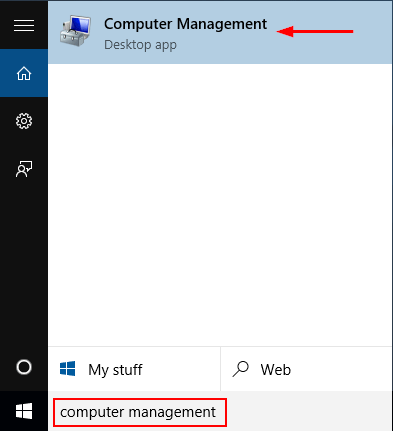
The fastest way to open Computer Management in Windows 10 is to use the Cortana Search. Click on Cortana Search box from the taskbar, enter the words “computer management” and then click the Computer Management shortcut.

search-computer-management

Option 7: Open Computer Management from Control Panel

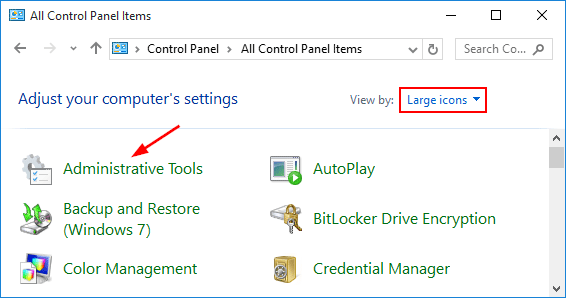
Open Control Panel in Large or Small icons view. Click Administrative Tools.

administrative-tools

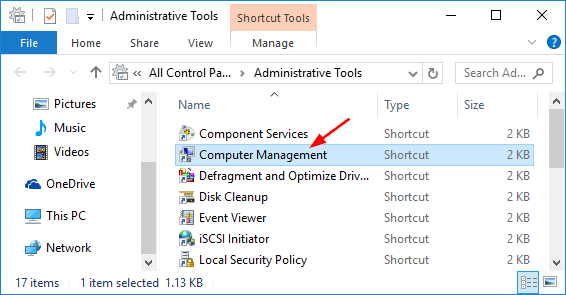
A new window will open. From there you can click on the Computer Management shortcut.

computer-management-shortcut

Option 8: Create a Computer Management shortcut on Your Desktop

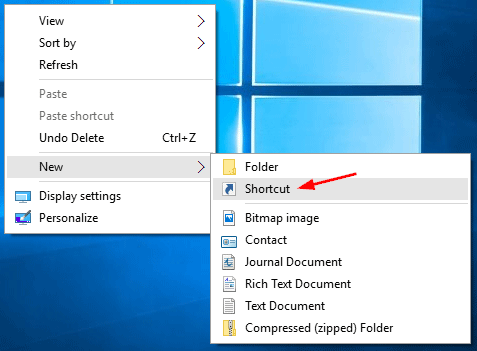
Right-click on any empty space on your Windows 10 desktop. Select New -> Shortcut from the right-click context menu.

new-shortcut

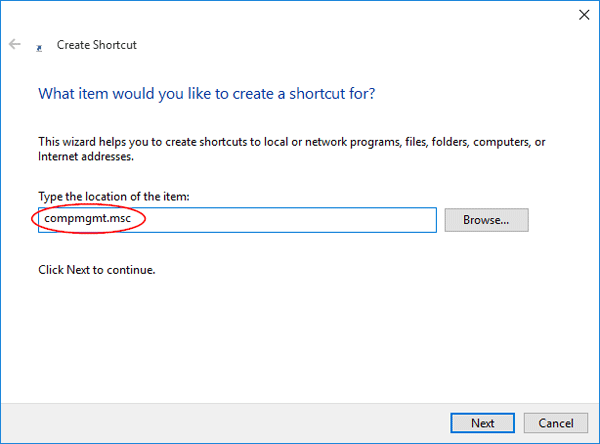
When the Create Shortcut wizard opens, type compmgmt.msc in the shortcut location box and click Next.

shotcut-location

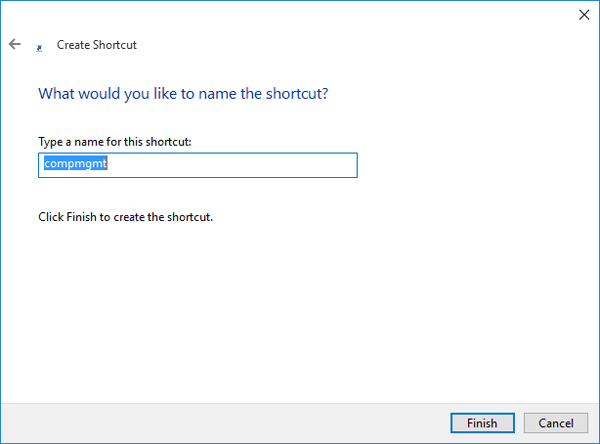
Next just type any name for your created shortcut and click Finish.

name-the-shortcut

You’ll see the Computer Management short on your desktop.