Archive for the ‘Others’ category

3 Ways to Turn On / Off ClearType Text in Windows 10

March 9th, 2016 by Admin

ClearType is a font technology that makes the text on your screen almost as sharp and clear as text that’s printed on paper. ClearType is designed for LCD screens, so if you’re still using an old CRT monitor you will likely get best results from turning ClearType off. In this tutorial we’ll show you 3 ways to turn on or off ClearType Text in Windows 10.

Method 1: Turn On / Off ClearType Using Search

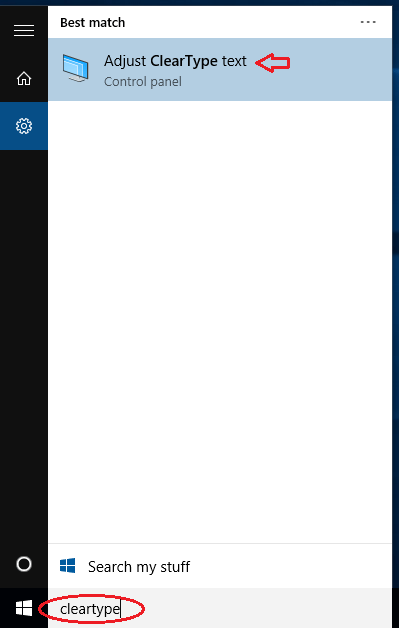
  1. Click the Cortana search box on the taskbar, type cleartype.

    cleartype

  2. Click Adjust ClearType text from the search results.
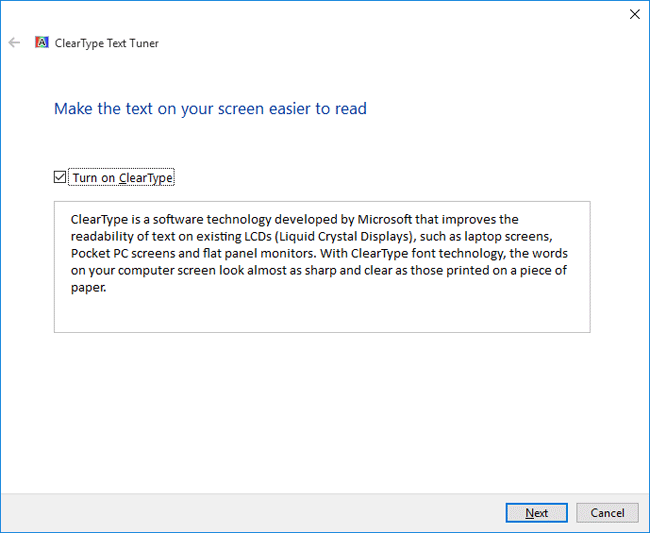
  3. The ClearType Text Tuner should open. Select the “Turn on ClearType” check box to enable ClearType, or deselect it if you want to turn off ClearType. Click Next.

    turn-on-cleartype

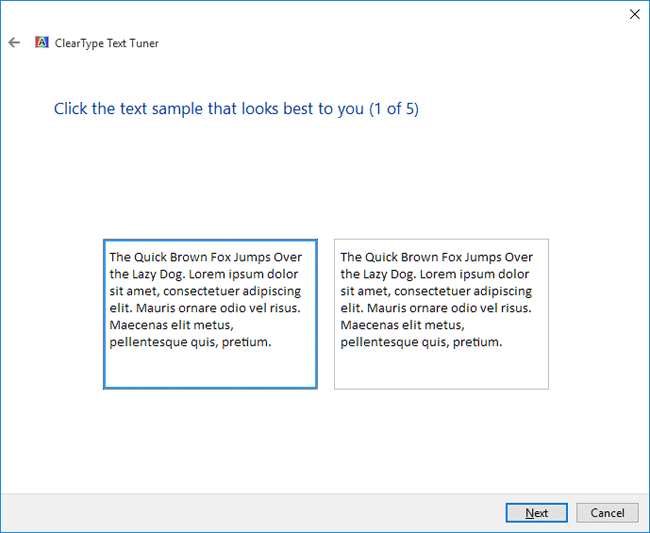
  4. Select the text that looks better to you and click Next, The ClearType Text Tuner will ask you to repeat this step four times with different blocks of text.

    cleartype-text-tuner

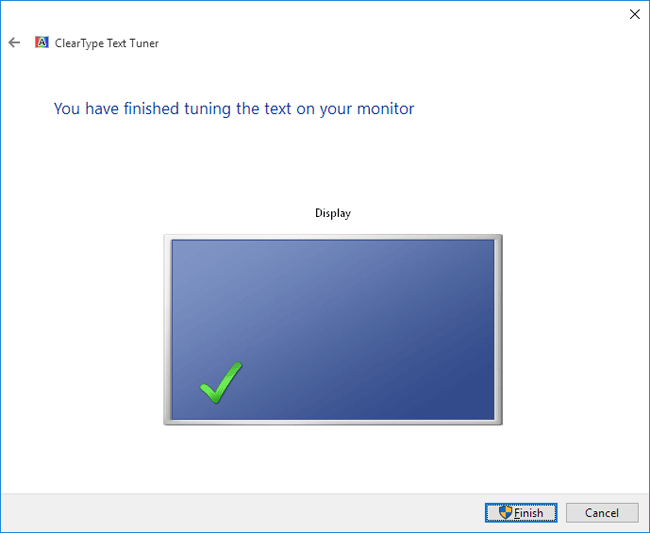
  5. On the appearance of last window click Finish after completing the tuning of the text for your monitor.

    finish-tuning-text

Method 2: Turn On / Off ClearType from Settings Charm

  1. Click the Start button and select Settings from the Start Menu.
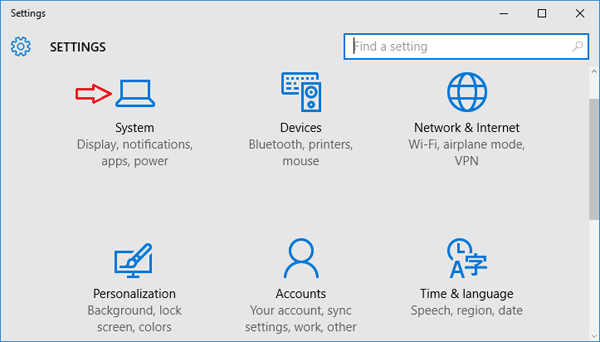
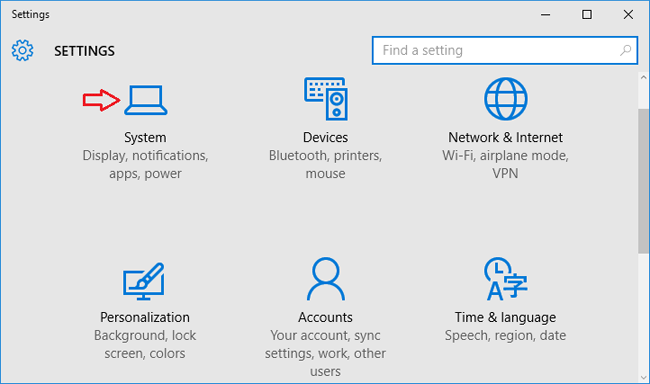
  2. When the Settings app opens, click System.

    settings-charm

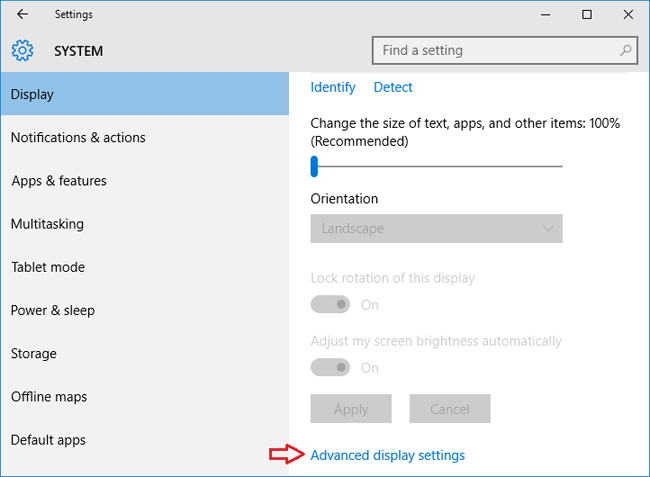
  3. From the Display settings, select Advanced display settings.

    display-settings

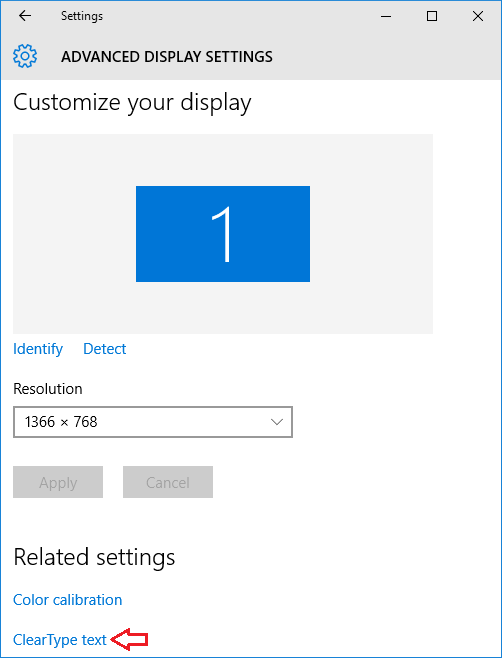
  4. Choose ClearType text below Related Settings. The ClearType Text Tuner window will appear. It lets you to turn on / off ClearType, and fine tune how the text on your computer looks.

    cleartype-text

Method 3: Turn On / Off ClearType from Control Panel

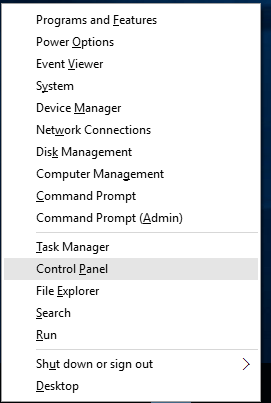
  1. To get started, you need to access the Control Panel. In Windows 10, just press the Windows key + X to open the WinX menu and click Control Panel.
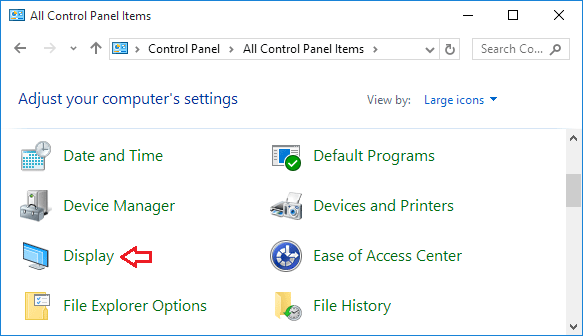
  2. When you see the Control Panel, set the View by option to Large icons. Click on Display.

    control-panel

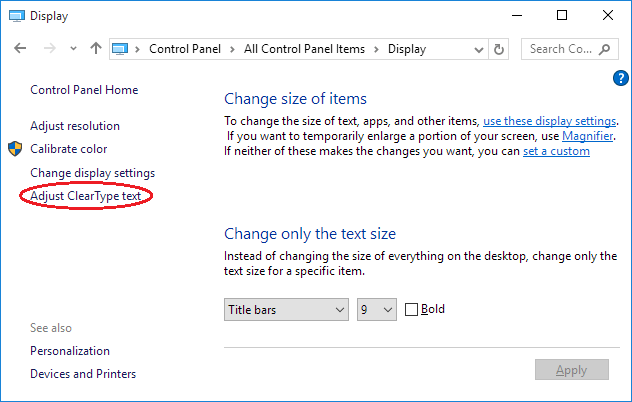
  3. On the right pane of the Display window click on Adjust ClearType Text link.

    adjust-cleartype

  4. A ClearType Text Tuner window will appear on your screen. Check or uncheck the checkbox Turn on ClearType and click Next button to begin tuning the text on your monitor.

How to Stream Video / Audio from PC to Sony TV Wirelessly

March 8th, 2016 by Admin

Like many people, you probably have lots of music, video and photo files stored on your computer. There might be times when you want to play them on your TV. In this tutorial we’ll walk you through the steps of streaming video / audio from a Windows PC to Sony TV wirelessly. No need to install any third-party software.

You’ll need:

  • A computer running with Windows 10, 8 or 7
  • Sony TV with built-in WiFi and DLNA support
  • Wireless network with DHCP enabled (WiFi)

How to Stream Video / Audio from PC to Sony TV Wirelessly

There’s actually an open standard for sharing media files across a home network. It’s called the Digital Living Network Alliance (DLNA), and you probably already have everything you need to use it. Here we’ll set up your PC as a DLNA media server, and the TV will work as a DLNA renderer to receive stream over the LAN.

Part 1: Connect Your TV to A Network Using Wireless Connection

It’s pretty easy to configure your Sony TV to connect to wireless LAN. Follow these steps:

tv-settings

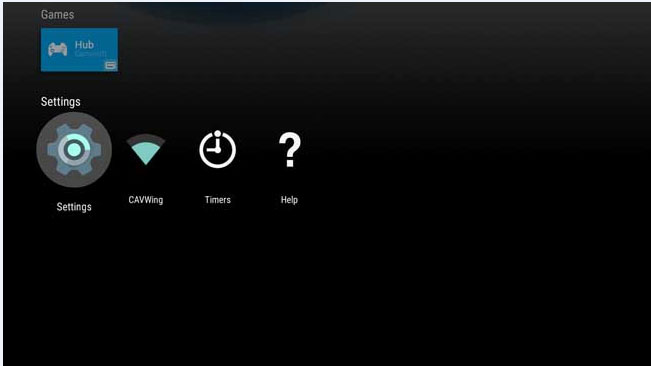
Press the HOME button, then select [Settings] > [Network] > [Network setup] > [Easy].
Choose Wi-Fi and follow the on-screen instructions to complete the set-up.

Note: When entering Wi-Fi passwords, press OK to bring up the virtual keyboard. Click NEXT key on the virtual keyboard when it’s done.

Part 2: Set Up Your Computer as a Media Server

Windows Media Player is the built-in software available in Windows 10/8/7 that you can use to share your media over the network to DLNA-compliant devices. Before getting started, you need to turn on media streaming options in Windows.

media-sharing-options

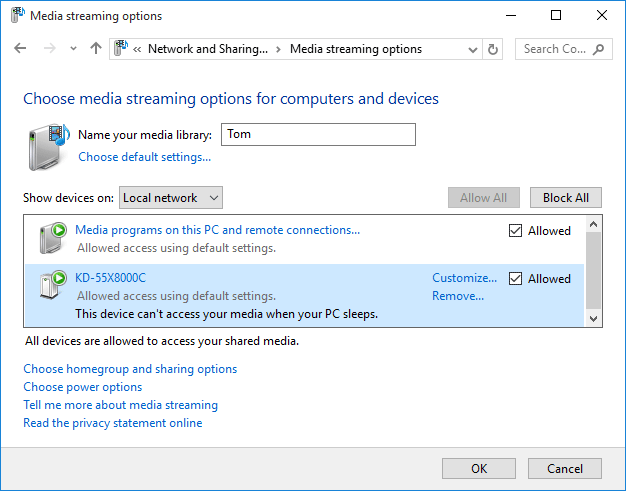
You will then be prompted with a list of DLNA-compliant devices that Windows has found on your wireless network. Select the Sony TV you want to share with and then OK. In my example, my Sony TV is shown with its model KD-55X8000C.

Now open Windows Media Player. Drag your favorite movies, musics or photos stored on your computer, then drop them into Windows Media Player’s library.

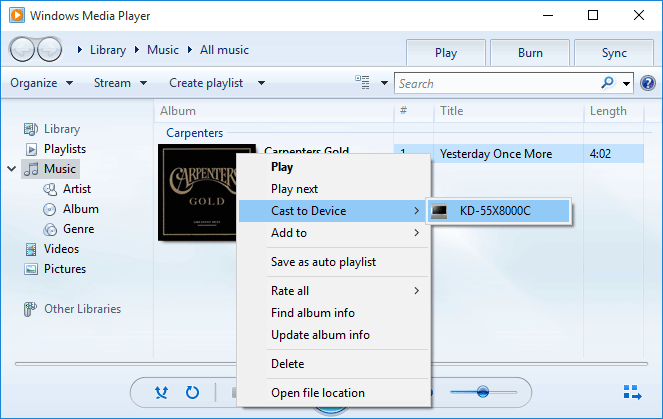
Right-click on the videos or audios you want to watch on TV, select “Cast to Device” and choose your TV from the menu.

cast-to-device

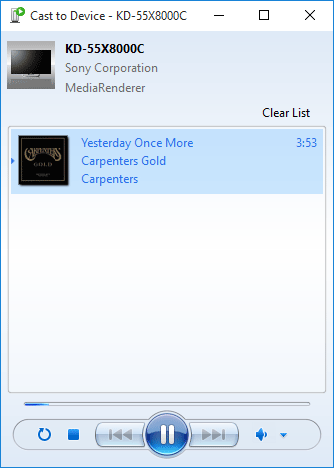
Once the “Cast to Device” remote control window is launched, you can reorder or delete items, add to the queue, or toggle repeat. It’s even possible to add new media items from Windows Media Player or Windows Explorer by dragging them into this window.

play-video-on-TV

So this is how you can stream a video or audio fro a Windows PC to TV over a wireless network. Enjoy it!

How to Turn On Media Streaming in Windows 10, 8 and 7

March 8th, 2016 by Admin

Is it possible to stream your favorite movies from a Windows PC to TV or Xbox 360? Nowadays most of new TVs support the DLNA feature, just turn on the Media Streaming in Windows, and you can then watch your videos on TV connected to LAN, without having to transfer the videos over a USB drive. In this tutorial we’ll show you 2 ways to turn on media streaming in Windows 10, 8 and 7.

Method 1: Turn On Media Streaming from Windows Media Player

  1. Launch Windows Media Player.
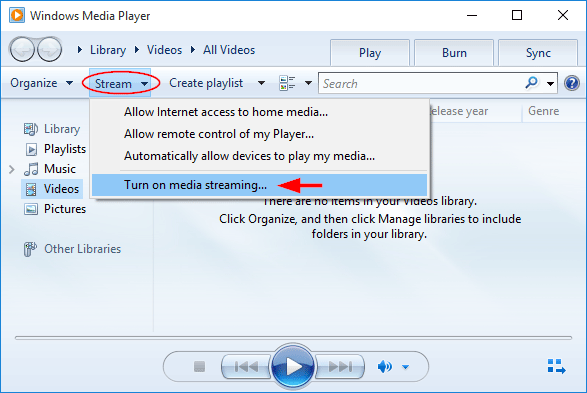
  2. From the Player Library view, click on Stream and choose “Turn on media streaming“.

    turn-on-media-stream

    If “More streaming options” is shown in the drop-down menu, it indicates media streaming is already turned on.

  3. Click on Turn on media streaming.

    turn-on-media-sharing

  4. Here you can give your media library a name. You’ll also see a list of detected media devices and players on your network. You can allow or block each player from accessing your media. Simply select “Local network” and click on “Allow All“, it will allow all devices on the LAN access to your media library.

    media-sharing-options

    If you want to turn off media streaming later, just click on “Block All“.

However, the “Turn on media streaming” option is not available in all versions of Windows Media Player, and you might have to turn on media streaming using the Control Panel.

Method 2: Turn on Media Streaming from Control Panel

  1. Open the Control Panel. If you’re running Windows 10 or 8, just press the Windows key + X to open the WinX menu and then select “Control Panel“.
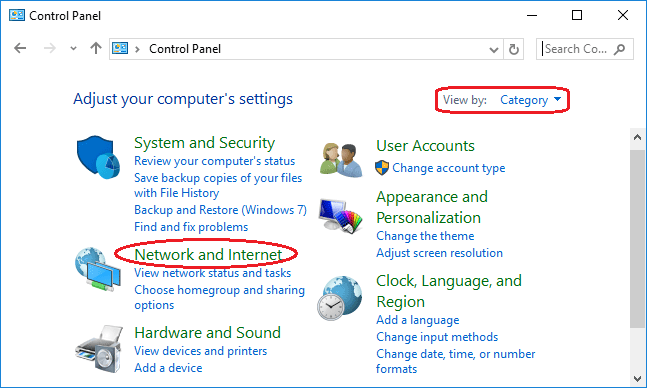
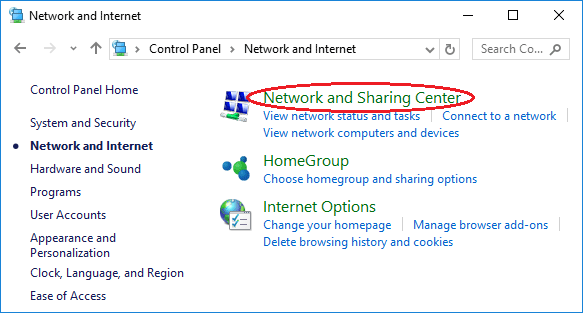
  2. By default, the Control Panel should open in Category view. Click Network and Internet.

    network-and-internet

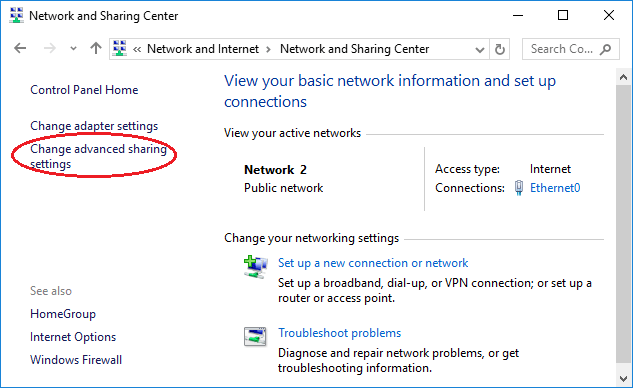
  3. Click Network and Sharing Center.

    network-sharing-center

  4. In the left pane, click Change advanced sharing settings.

    advanced-sharing-settings

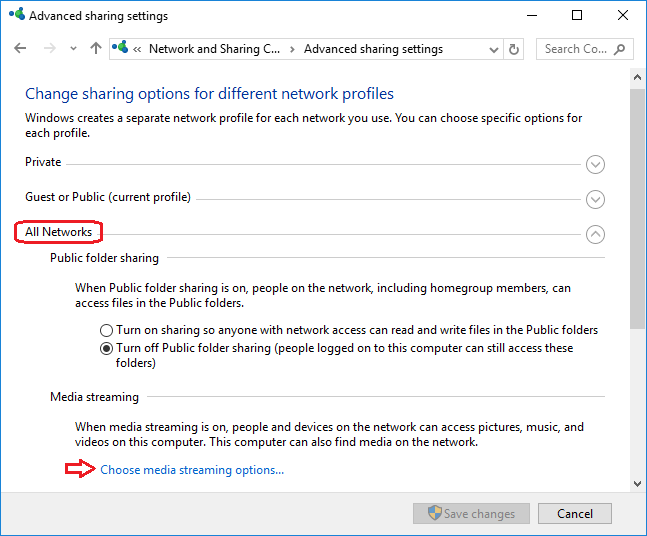
  5. To enable media streaming and other options, select “All Networks” type and click on “Choose media streaming options” as shown below.

    choose-media-sharing-option

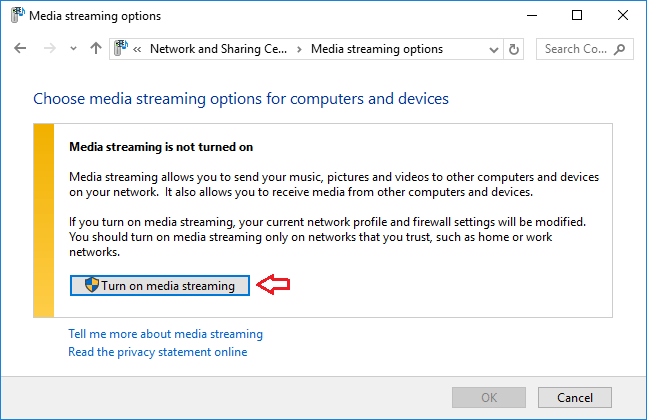
  6. Click on Turn on media streaming. If you don’t see that button, media streaming is already turned on. You’re done.

    turn-on-media-sharing

  7. On this screen, you’ll see all of the DLNA-compatible devices that Windows Media Player recognized on your local network. Click on Allow All and this will allow all networked machines access to your media library. (If you want to turn off media streaming later, just click on “Block All“.)

    media-sharing-options

Windows 10 Command Prompt: New Console vs. Legacy Console

March 4th, 2016 by Admin

If you have upgraded to Windows 10, you may have noticed that it features an improved Command Prompt. For years, we have suffered the limitations of the Command Prompt such as not able to paste text using Ctrl+V or resize the window. Now all these features are included with the new Command Prompt.

resize-command-prompt

The new Command Prompt also allows you to switch back to use only legacy console. In this article we’ll explain in detail the differences between new console and legacy console for Windows 10 Command Prompt.

Part 1: Enable / Disable Legacy Console in Windows 10 Command Prompt

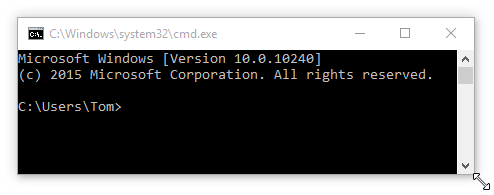
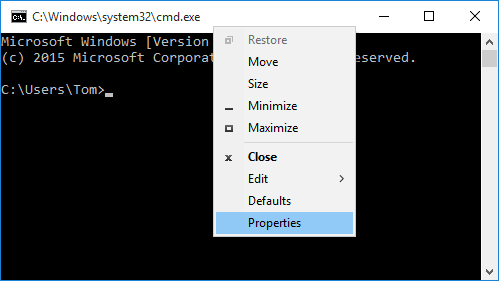
Open a Command Prompt. Right-click on the title bar and select Properties from the context menu that opens up..

cmd

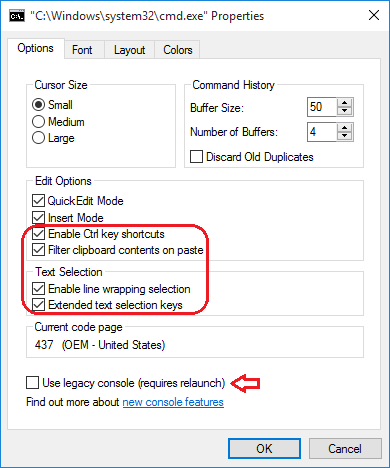
Go to the Options tab and you can see a new option called “Use legacy console (requires relaunch)“. In Windows 10, the new console is enabled by default so you should see the “Use legacy console” option is unchecked.

new-cmd-console

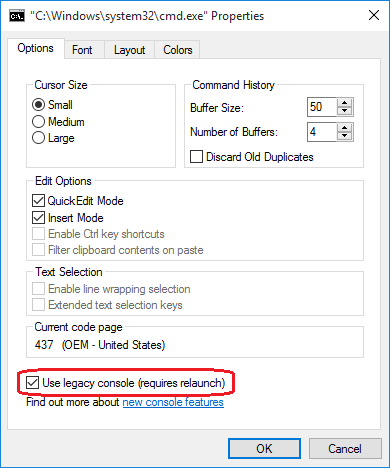
If you want to use an old legacy Command Prompt, just uncheck the “Use legacy console (requires relaunch)” option. When legacy console is enabled, only two edit options are available: QuickEdit Mode, Insert Mode. To access other edit options such as “Enable new Ctrl-key shortcuts“, you have to enable the new console by unchecking the “Use legacy console (requires relaunch)” option.

legacy-cmd-console

Part 2: List of Windows 10 Command Prompt Features

To help you understand the differences between new console and legacy console, we’ll go over the most important features available in Windows 10 Command Prompt:

QuickEdit Mode (available in both legacy console and new console)

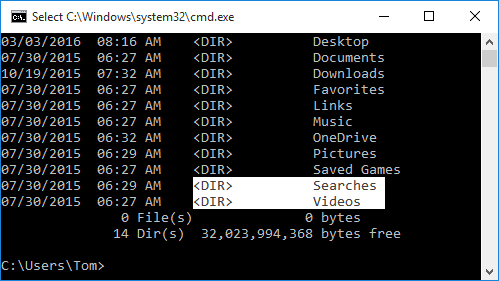
This option allows you to use the mouse to copy and paste text to and from the Command Prompt window. When QuickEdit Mode is disabled, you need to right-click the title bar of the Command Prompt, click Edit and then Mark, before you can drag the mouse to select the data you want to copy.

text-selection

Insert Mode (available in both legacy console and new console)

It has the same function as the Insert keyboard key: the cursor inserts a character at its current position, forcing all characters past it one position further. If Insert Mode is disabled, then when you type, what you’re typing overwrites any text that is present in your current location.

Enable Ctrl key shortcuts (available in new console only)

It lets you use a set of keyboard shortcuts like Ctrl + C or Ctrl + V inside the Command Prompt, which is something you couldn’t do in previous versions.

CTRL + A – Select all
CTRL + C – Copy
CTRL + F – Find
CTRL + M – Mark
CTRL + V – Paste
CTRL + ↑/↓ – Scroll (line) up/down
CTRL + PgUp/PgDn – Scroll (page) up/down

Filter clipboard contents on paste (available in new console only)

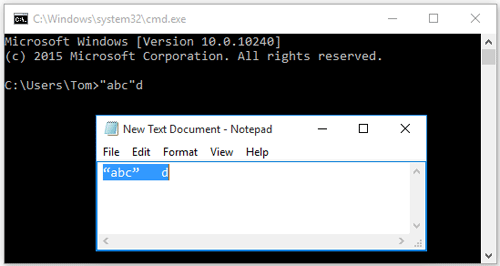
When you paste contents from the clipboard to the command prompt, tabs are automatically removed and smart quotes are converted to regular ones.

filter-clipboard-contents

Enable line wrapping selection (available in new console only)

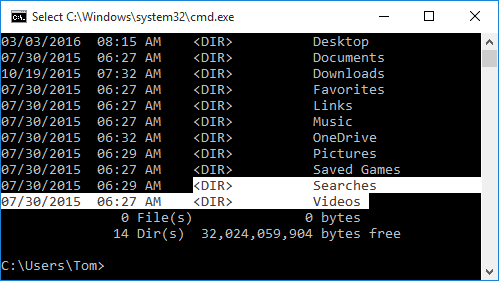
Previous versions of Command Prompt only allow you to use a square selection box for selecting text in block mode. After you copied the text, you have to correct the line wrapping with a text editor. In Windows 10, if you’ve enabled the “Enable line wrapping selection” option, you can select the text just like you select text in a regular text editor like Notepad.

line-wrapping-selection

Extended text selection keys (available in new console only)

This option allows you to use a set of common keyboard shortcuts in Command Prompt. For example, you can use Shift + Arrow keys to select characters or lines of text, or Ctrl+ A to select all the text on the command line or all the text in the window.

That’s it. Now you know about all new features in Windows 10 Command Prompt, and the differences between new console and legacy console.

2 Ways to Remove / Uninstall Built-in Apps in Windows 10

February 28th, 2016 by Admin

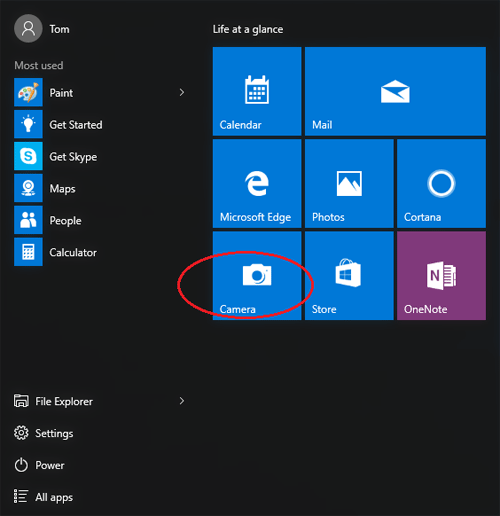
Windows 10 comes with many modern metro style apps installed by default. There are plenty of users who are never going to use modern apps such as Xbox, Weather, Sports, Store, OneNote, Skype, Calendar and Mail, Alarms and Clock, etc. Thankfully, there are ways to completely remove / uninstall pre-installed Windows 10 modern apps.
windows-apps

Method 1: Remove / Uninstall Windows 10 Apps from Settings Charm

  1. Press the Windows + I keys to open the Settings charm.
  2. Click System on the Settings menu.

    app-settings

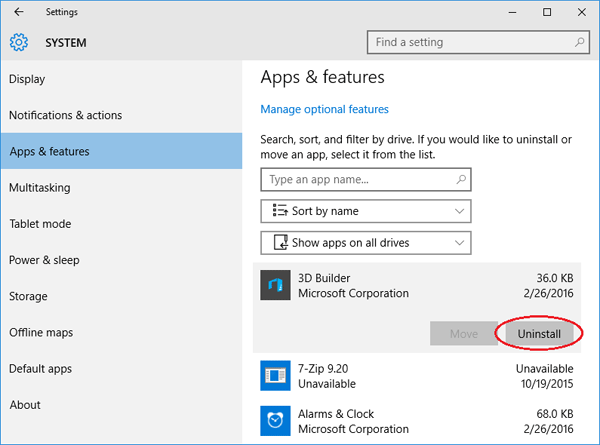
  3. Select Apps & features from the left pane. A list of all installed apps appears in the right pane. Select the app you want to remove, and click on Uninstall.
    uninstall-windows-apps

    If the Uninstall button is grayed out, this is a system app you cannot remove.

While a few of the built-in apps can be simply uninstalled from Settings charm, most of them don’t offer the Uninstall option. For uninstalling these apps, you might have to use Windows PowerShell described in method two.

Method 2: Remove / Uninstall Windows 10 Apps from PowerShell

Using PowerShell cmdlet you can remove / uninstall most of the built-in apps, excluding Cortana, Contact support, Windows Feedback and Microsoft Edge. If you try to remove Microsoft Edge browse, you’ll see an error message saying they can’t be removed.

Let’s see how to uninstall the built-in apps in Windows 10:

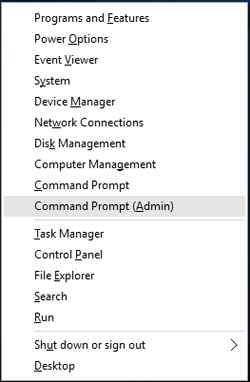
  1. Press the Windows logo key + X to open the WinX menu. Click on “Command Prompt (Admin)“.
    command-prompt-admin

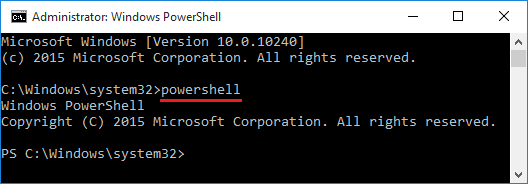
  2. At the Command Prompt, type powershell and hit Enter.
    powershell

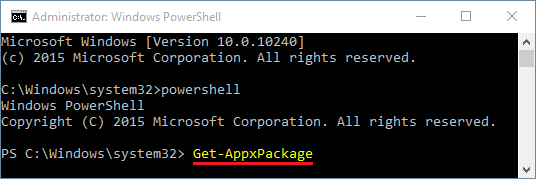
  3. Copy and paste the following command into the PowerShell prompt. Press Enter.
    Get-AppxPackage
    list-windows-apps

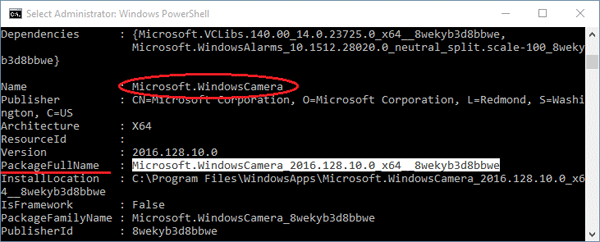
  4. Once you run the above command, PowerShell will display all modern apps installed on your computer. Scroll down to find the app you want uninstalled. You can easily identify it by looking at the Names of the apps from the list. For instance, the Camera app bears the name of Microsoft.WindowsCamera.
    windows-camera

  5. Run the following PowerShell command and you can remove a universal app:
    Remove-AppxPackage [PackageFullName]

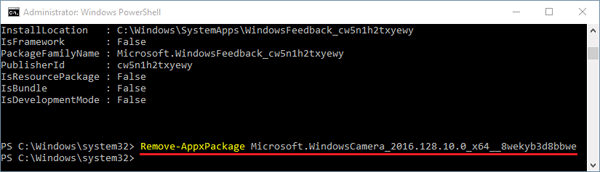
    In our example, we would like to remove the Camera app, so type the following command:
    Remove-AppxPackage Microsoft.WindowsCamera_2016.128.10.0_x64_8wekyb3d8bbwe
    remove-windows-app

    Tips: You can copy the package name by click the beginning of the name and drag your mouse to the end to highlight it then right click. Next right click to paste the package name you copied into the Command Prompt.

Fortunately, the Remove-AppxPackage command also allows you to use the wildcard characters (such as *) to find the package. So you can simply type the keywords of the app to uninstall it. Here is a list of PowerShell commands to uninstall the universal apps that are pre-installed in Windows 10:

Remove all Modern Apps for the current account only:
Get-AppXPackage | Remove-AppxPackage

Remove all Modern Apps from all the accounts on your Windows system:
Get-AppxPackage -AllUsers | Remove-AppxPackage

Uninstall 3D Builder:
Get-AppxPackage *3dbuilder* | Remove-AppxPackage

Uninstall Alarms and Clock:
Get-AppxPackage *windowsalarms* | Remove-AppxPackage

Uninstall Calculator:
Get-AppxPackage *windowscalculator* | Remove-AppxPackage

Uninstall Calendar and Mail:
Get-AppxPackage *windowscommunicationsapps* | Remove-AppxPackage

Uninstall Camera:
Get-AppxPackage *windowscamera* | Remove-AppxPackage

Uninstall Contact Support:
This app can’t be removed.

Uninstall Cortana:
This app can’t be removed.

Uninstall Get Office:
Get-AppxPackage *officehub* | Remove-AppxPackage

Uninstall Get Skype:
Get-AppxPackage *skypeapp* | Remove-AppxPackage

Uninstall Get Started:
Get-AppxPackage *getstarted* | Remove-AppxPackage

Uninstall Groove Music:
Get-AppxPackage *zunemusic* | Remove-AppxPackage

Uninstall Maps:
Get-AppxPackage *windowsmaps* | Remove-AppxPackage

Uninstall Microsoft Edge:
This app can’t be removed.

Uninstall Microsoft Solitaire Collection:
Get-AppxPackage *solitairecollection* | Remove-AppxPackage

Uninstall Money:
Get-AppxPackage *bingfinance* | Remove-AppxPackage

Uninstall Movies & TV:
Get-AppxPackage *zunevideo* | Remove-AppxPackage

Uninstall News:
Get-AppxPackage *bingnews* | Remove-AppxPackage

Uninstall OneNote:
Get-AppxPackage *onenote* | Remove-AppxPackage

Uninstall People:
Get-AppxPackage *people* | Remove-AppxPackage

Uninstall Phone Companion:
Get-AppxPackage *windowsphone* | Remove-AppxPackage

Uninstall Photos:
Get-AppxPackage *photos* | Remove-AppxPackage

Uninstall Store:
Get-AppxPackage *windowsstore* | Remove-AppxPackage

Uninstall Sports:
Get-AppxPackage *bingsports* | Remove-AppxPackage

Uninstall Voice Recorder:
Get-AppxPackage *soundrecorder* | Remove-AppxPackage

Uninstall Weather:
Get-AppxPackage *bingweather* | Remove-AppxPackage

Uninstall Windows Feedback:
This app can’t be removed.

Uninstall Xbox:
Get-AppxPackage *xboxapp* | Remove-AppxPackage
Windows 10: Create and Use A USB Recovery Drive

February 26th, 2016 by Admin

A Recovery Drive is a bootable USB drive that can be used to repair or recover your computer, in the event it won’t start normally. Like its predecessor, Windows 10 also lets users create a bootable USB recovery drive easily. In this tutorial we’ll show you how to create and use a Windows 10 USB Recovery Drive.

If you are creating a basic Recovery Drive, you can use a 1GB USB flash drive. However, if you choose to include the system files, which allows you to use the Recovery Drive to reinstall Windows, you’ll want at least a 16GB USB flash drive. Note that a Recovery Drive prepared on a 32-bit version of Windows 10 can’t be used on 64-bit Windows 10 and vice versa.

Part 1: Create A Windows 10 USB Recovery Drive?

  1. Press the Windows key + X to open the WinX menu. Click Control Panel.
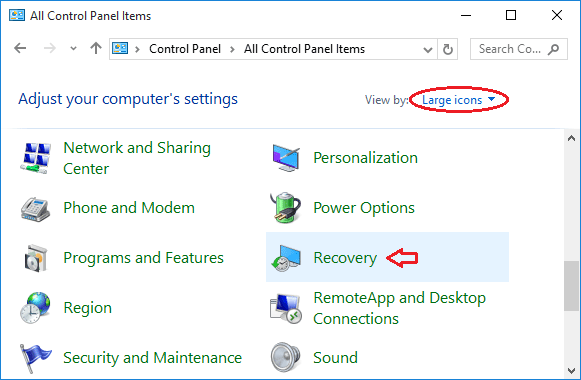
  2. Select the View by option at the top right of the Control Panel. Set it to Large icons. Next click Recovery.
    control-panel

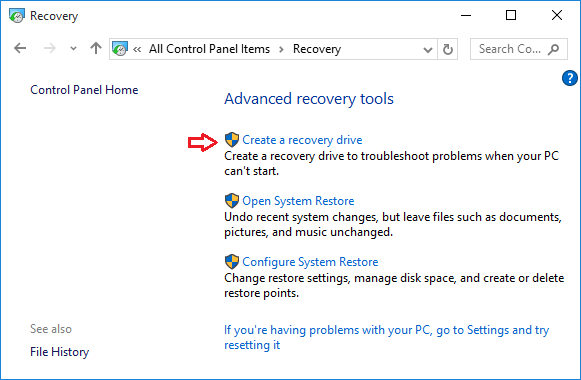
  3. Select “Create a recovery drive“.
    recovery

    Click Yes when you see the User Account Control prompt.

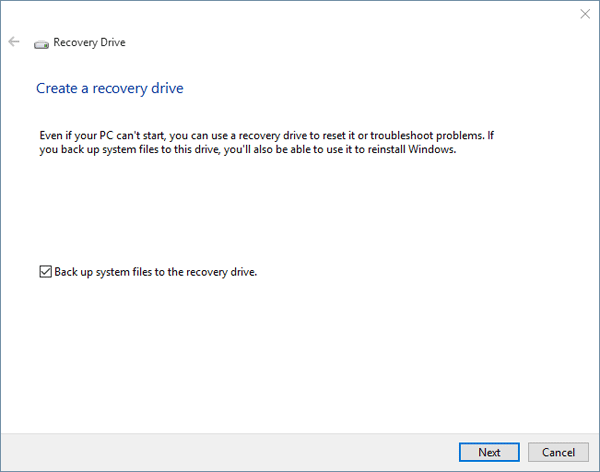
  4. The Recovery Drive Creation Wizard should open. Make sure the “Back up system files to the recovery drive” option is checked if you want to use the Recovery Drive for reinstalling Windows. Click Next.

    create-recovery-drive

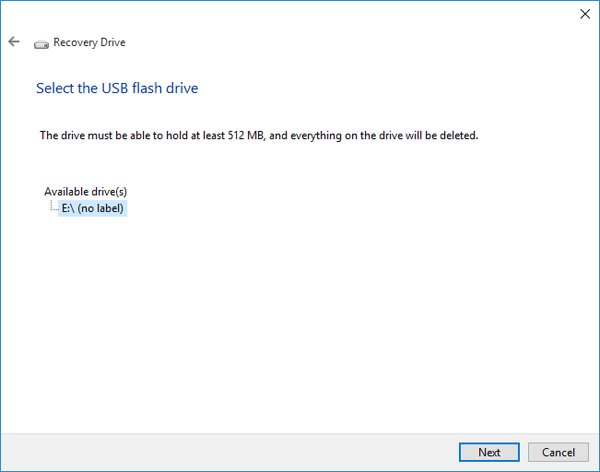
  5. Select the connected USB drive before clicking Next. Once again, we want to remind you that the selected drive will be completely erased.

    select-usb-flash-drive

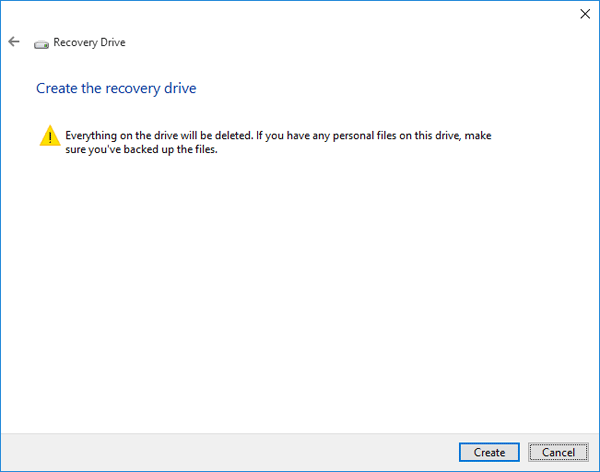
  6. When you see the confirmation screen, click Create button and it will format the drive and begin copying files to the drive.

    erase-usb-drive

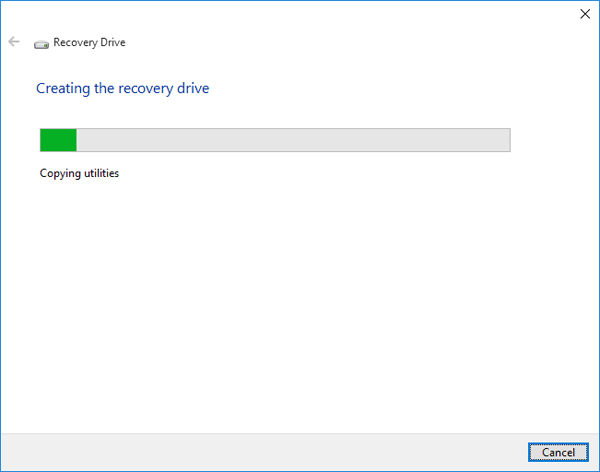
  7. If you’re creating a basic Recovery Drive, the process will take just a few minutes. If you create a dedicated Recovery Drive including the system files, it could take as long as an hour.

    creating-the-recovery-drive

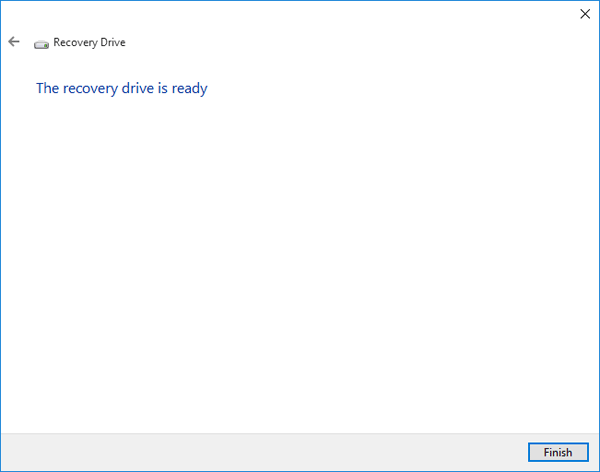
  8. When the process is complete, click Finish to close the Recovery Drive wizard.

    recovery-drive-ready

Part 2: Use A Windows 10 USB Recovery Drive

If your computer fails to boot, stuck on automatic repair loop, unable to restore or reset your PC to factory defaults due to forgotten password, you will need your Recovery Drive to fix it.

Insert your previously-created USB Recovery Drive into your computer and restart. Your computer should boot from the Recovery Drive automatically. (If it doesn’t, you may need to change its boot order.)

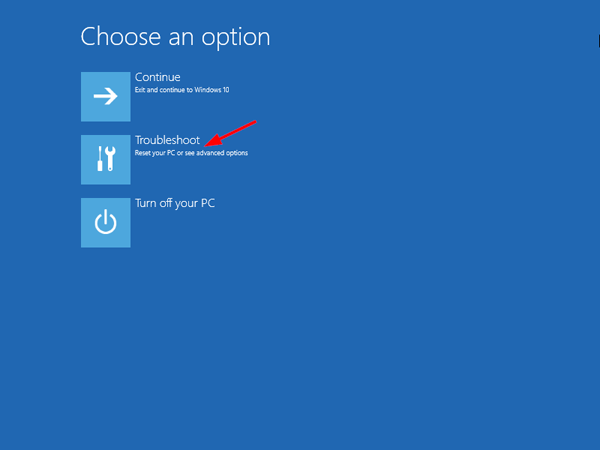
Once booted to the Recovery Drive, you can access to the Advanced Startup Tools. From here, you can do several things to help troubleshoot your computer, such as perform a factory reset, reset / refresh Windows, restore from a system image, launch a command line tool to repair your losing system files or fix the boot issues, etc.

Hide / Clear Most Used Programs in Windows 10, 8 and 7 Start Menu

February 1st, 2016 by Admin

My frequently used programs are missing from the Start menu. Can this be corrected and if so how? Thanks in advance.

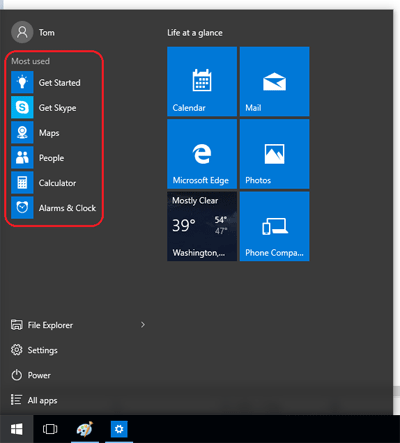
By default, Windows keeps track of programs you use frequently and puts them on the Start menu (or Start screen) for convenience. For privacy purposes, some of you may want to clear the most used programs from the list. In this tutorial we’ll show you how to hide / clear the most frequently / recently used programs in Windows 10, 8 and 7.

most-used-apps

The first part is for Windows 10 users and the second is for Windows 8 / 8.1 users, so you will have to scroll down if you use Windows 7 – the last part is for this operating system.

Part 1: Clear Most Used Programs from Windows 10 Start Menu

  1. Press the Windows key + I to bring up the Settings app. If you’re using a tablet without a keyboard, click the Start button and then select Settings.
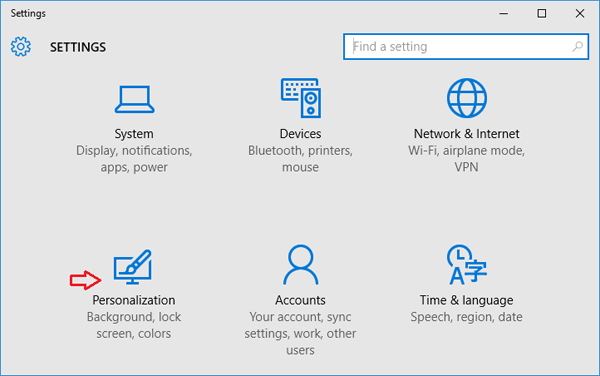
  2. Click on Personalization.

    settings

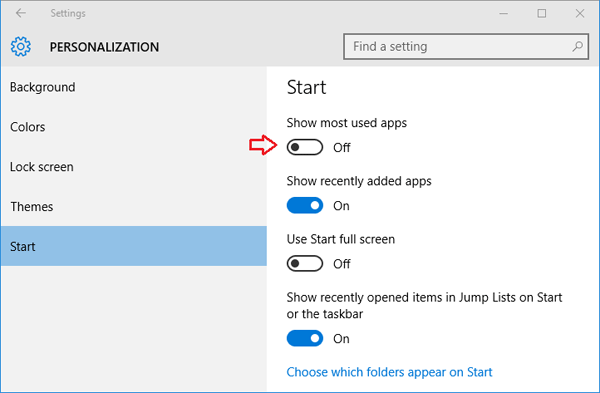
  3. At the Personalization window, click on the Start tab on the left-hand side. On the right pane, you’ll see a few options for configuring what is shown on the Start Menu and how the Start Menu is displayed.
  4. From there, set toggle button under “Show most used apps” to Off in order to make Start menu hide the apps you use often.

    hide-show-most-used-apps

Part 2: Clear Most Used Programs from Windows 8 Start Screen

  1. Right-click on an empty space on the Taskbar and select Properties.
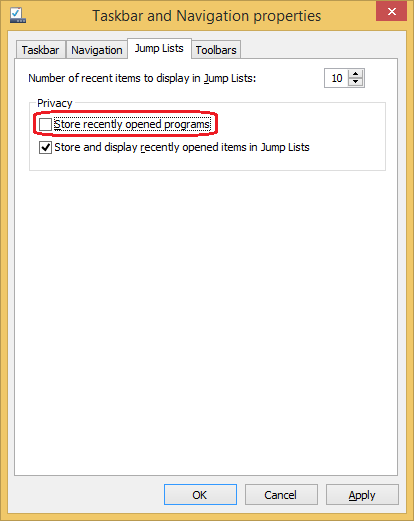
  2. Click on the Jump Lists tab, uncheck the “Store recently opened programs” box.

    jump-lists

  3. Click Apply and then click OK.

Part 3: Clear Most Used Programs from Windows 7 Start Menu

  1. Right-click on an empty space on the Taskbar and select Properties.
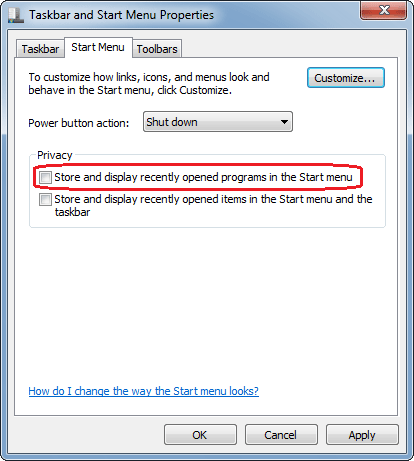
  2. Click on the Start Menu tab, uncheck the “Store and display recently opened programs in the Start menu” box.

    hide-recently-opened-apps

    If you also want to hide your recently opened documents/files from the Start menu, uncheck the “Store and display recently opened items in the Start menu and the taskbar” box as well.

  3. Click Apply and then click OK.

3 Ways to Change Computer Name in Windows 10

January 19th, 2016 by Admin

How can I change the name of my Windows 10 computer from Command Prompt? Whatever the reason you want to rename your computer, here’s our step-by-step tutorial on how to change computer name in Windows 10, from Control Panel, PC Settings and Command Prompt.

Method 1: Change Computer Name from Control Panel

  1. To begin, you have to open the Control Panel. Simply press the Windows key + X to open the Quick Access menu and click “Control Panel“.

    open-control-panel

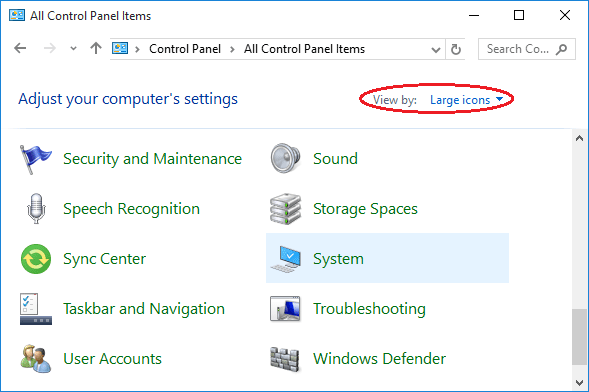
  2. Set the View by option to Large icons. Click on System.

    control-panel

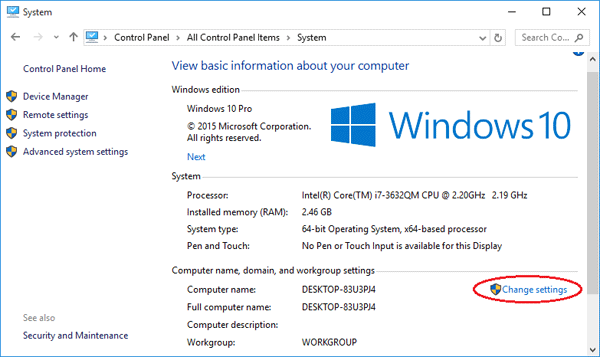
  3. Scroll down to the “Computer name, domain, and workgroup settings” section, click on Change settings.

    system-info

  4. The System Properties screen will open with the “Computer Name” tab already selected. Click on the Change… button.

    system-properties

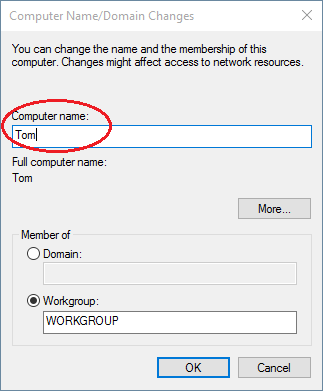
  5. Now type the new name you want in the “Computer name” box and click OK.

    change-computer-name

  6. A restart will be required to complete the name change, and after that, you’re all set!

Method 2: Change Computer Name from PC Settings

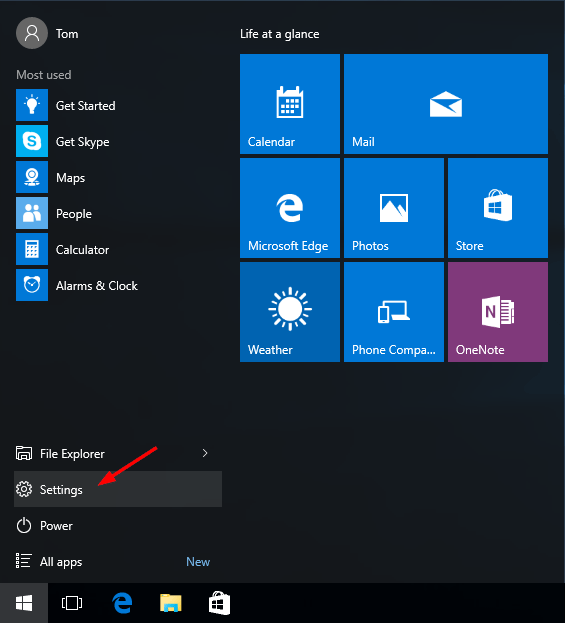
  1. Click on Start to access the Start Menu. Select Settings.

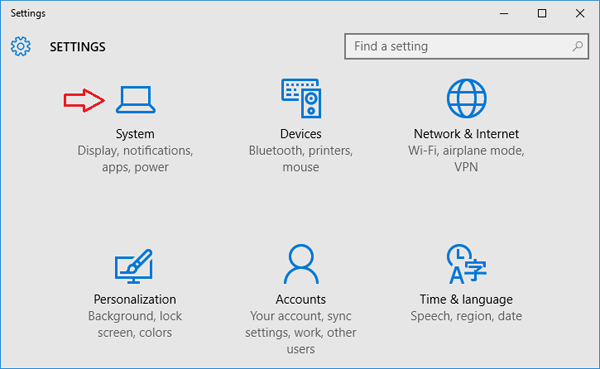
  2. When the PC Settings app opens, click on System.

    pc-settings

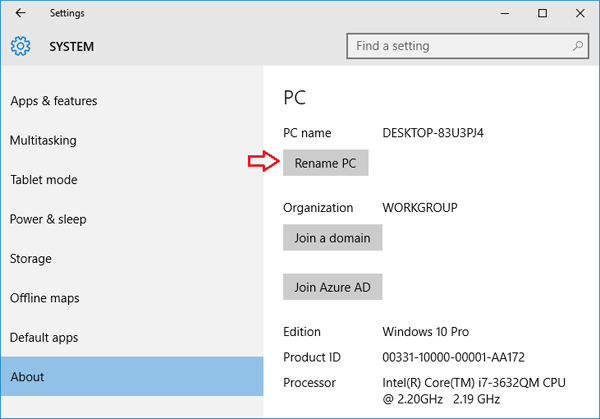
  3. Go to the About section and then click on “Rename PC“.

    about-system

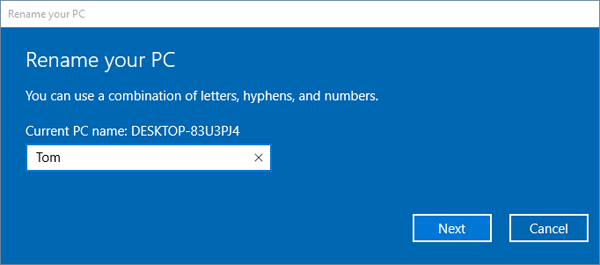
  4. Type the new name you want to use and click on Next.

    rename-your-pc

  5. You will be prompted to restart your PC to apply your new settings, click on Restart Now to proceed.

Method 3: Change Computer Name from Command Prompt

Looking for a way to change Windows 10 host name via command line? Here’s how to rename Windows 10 computer name from Command Prompt (cmd):

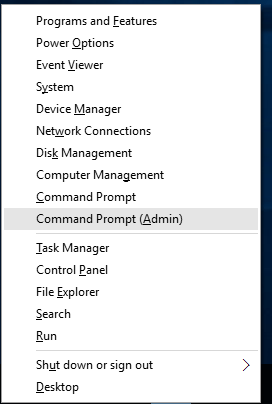
  1. Press the Windows key + X to open the Quick Access menu. Click on Command Prompt (Admin).

    command-prompt-admin

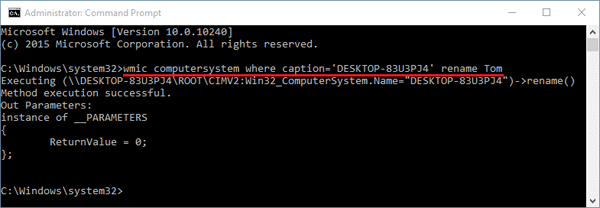
  2. In the Command Prompt, you can use the WMIC computersystem command to change your computer name easily, assuming you know the current computer name.
    WMIC computersystem where caption='current_pc_name' rename new_pc_name

    Replace current_pc_name with your current computer name, and new_pc_name with your desired new computer name.

    rename-pc-name-from-command

  3. After running the command, you need to reboot the computer to make the changes effective.

This method works on Windows 10, 8, 7, Vista, XP and Windows Server 2012/2008/2003. This command can also be used from a batch file to rename any Windows computer, including domain-joined machines.

Besides changing the name of a local computer, you can also use WMIC command to rename a remote computer on the same network. For example, if want to rename a remote PC named Jon-Laptop to Jon-Tech and you know the login credentials, then type this command in the Command Prompt:

WMIC /node:"Jon-Laptop" /user:Admin /password:password123 computersystem call rename "Jon-Tech"

The value following /node: indicates the name of the remote computer on the LAN. The value following /user: must be an admin account on the remote computer.

Reset Windows 10 Lost Password on Acer Aspire Switch Laptop

January 16th, 2016 by Admin

Forgot Windows 10 password on your Acer Aspire Switch laptop and have no idea how to reset it? How to bypass the password login screen without formatting your hard drive? The Acer Aspire is a secure boot system based on the the latest UEFI BIOS. In this tutorial we’ll explain how to create a UEFI compatible USB drive and boot off it to reset Windows 10 lost password on Acer Aspire Switch laptop.

Part 1: Create A UEFI Bootable USB Drive

Before resetting Windows 10 password, you need to prepare a UEFI compatible bootable disk, which can be done from another computer you have access to. Here’s how to make such a disk:

  1. Download the utility PCUnlocker Enterprise and save it to your local hard drive. PCUnlocker Enterprise comes in two architectures: 32-bit and 64-bit. If your Acer Switch laptop comes with Windows 10 32-bit, please use the 32-bit version of PCUnlocker Enterprise. Otherwise you have to use 64-bit version correspondingly.
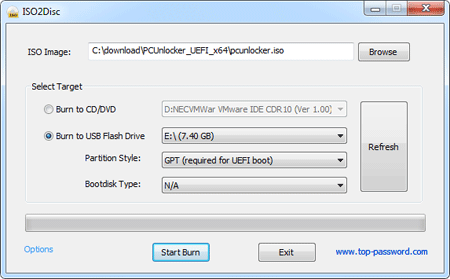
  2. The downloaded file comes as a .zip file. Decompress it and you’ll see two files: pcunlocker.iso and ReadMe.txt. Use the freeware ISO2Disc to burn the pcunlocker.iso file to your USB drive. Make sure you choose the “GPT (required for UEFI boot)” option as ISO2Disc will partition your USB drive with GPT partition table.

Part 2: Acer Aspire Switch Password Reset

  1. Use an OTG USB adapter to connect the USB drive to your Acer Aspire Switch laptop. When it’s powered off, press and hold the Volume Up button, then press the Power button. Release both when the laptop starts. Now you’re in the BIOS menu. Another way to access the BIOS is repeatedly press the F2 key when powering on the machine.
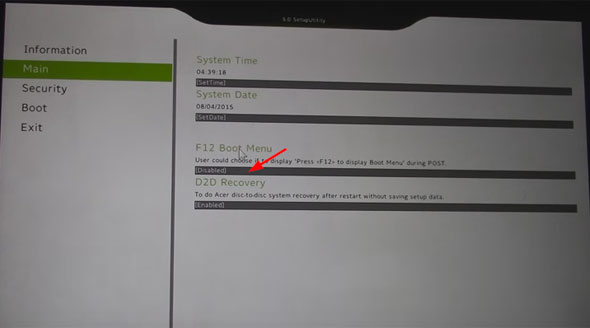
  2. Once in the BIOS, select the Main tab. click on “F12 Boot Menu” to set it to Enabled.

    acer-switch-uefi

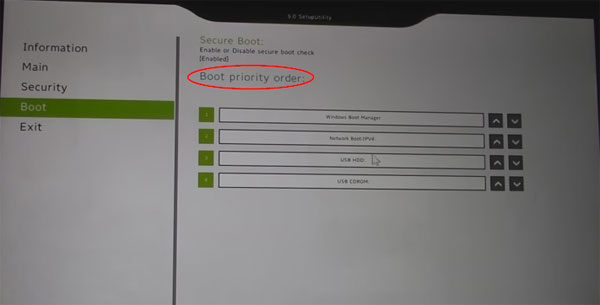
    Switch to the Boot tab, rearrange the boot priority order and set USB HDD as the first boot media. Save your changes and exit.

    acer-boot-order

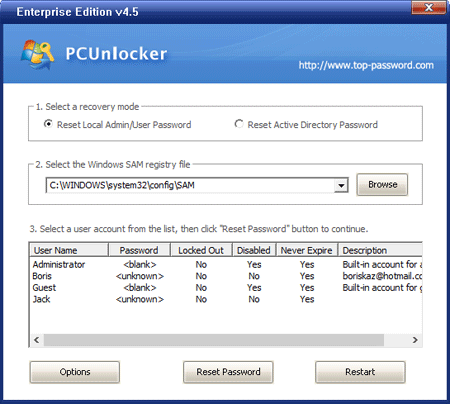
  3. Now the computer will reboot from your plugged USB drive. After loading, the PCUnlocker program will launch and you can see a list of Windows accounts for your system.

  4. Choose a local account and click on Reset Password. It will quickly unlock / remove your forgotten Windows 10 user password. If the local account is linked to your Microsoft account, the program will automatically switch your login back to local account so next time you can log in to Windows 10 without a password!

You can also use this method to reset lost Windows 10 or 8 password on the other brands of computers running with UEFI secure boot.