Archive for the ‘Others’ category

Enable Caret Browsing in Microsoft Edge Using F7 or Regedit

February 6th, 2017 by Admin

Caret browsing is a useful feature in Microsoft Edge, which allows you to copy a block of text from a web page using the keyboard, not the mouse. Just place your cursor anywhere on a body of text, then use the arrow keys to move the cursor to select the text you want to copy. In this tutorial we’ll show you 2 methods to enable / disable caret browsing in Microsoft Edge in Windows 10.
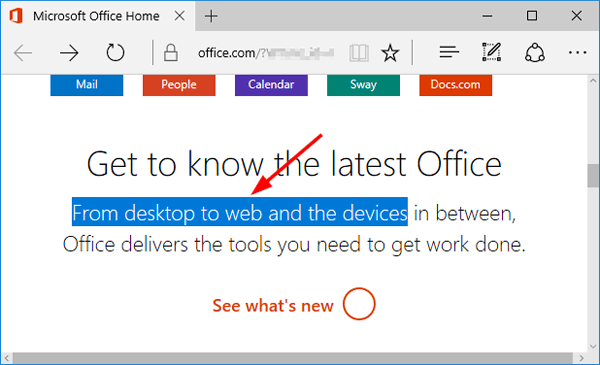
use-caret-browsing

The “Always use caret browsing” option seems to be gone from the Settings menu in Microsoft Edge. So you have to turn on/off caret browsing using the F7 shortcut or registry editor.

Method 1: Enable / Disable Caret Browsing in Microsoft Edge Using F7 Shortcut

Open Microsoft Edge and browse to a web page where you’d like to select text, press F7 key on your keyboard. This will bring up a confirmation window, asking you if you want to turn caret browsing on. Select Yes to turn it on.
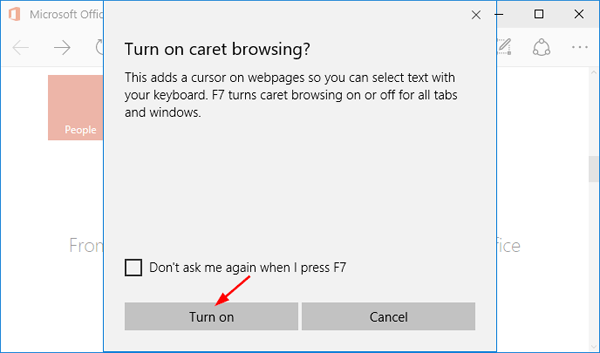
turn-on-caret-browsing

If you don’t want to be prompted the next time you press F7, just check the option “Don’t ask me again when I press F7“. When you want to turn off caret browsing, just hit F7 again.
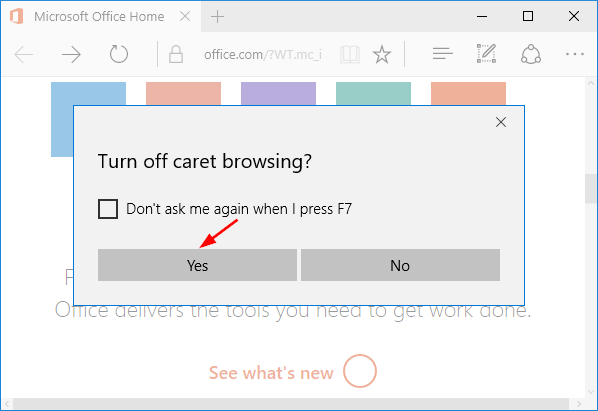
turn-off-caret-browsing

Method 2: Enable / Disable Caret Browsing in Microsoft Edge Using Regedit

  1. Press the Windows Key + R keys simultaneously, then type regedit in Run dialog box and press Enter.
  2. When the Registry Editor window opens, navigate to the following key:
    HKEY_CURRENT_USER\SOFTWARE\Classes\Local Settings\Software\Microsoft\Windows\CurrentVersion\AppContainer\Storage\microsoft.microsoftedge_8wekyb3d8bbwe\MicrosoftEdge\CaretBrowsing
  3. In the right pane, double-click the DWORD EnableOnStartup to modify. Set its value data to 1 if you want to enable caret browsing, or turn off caret browsing by resetting it to 0.
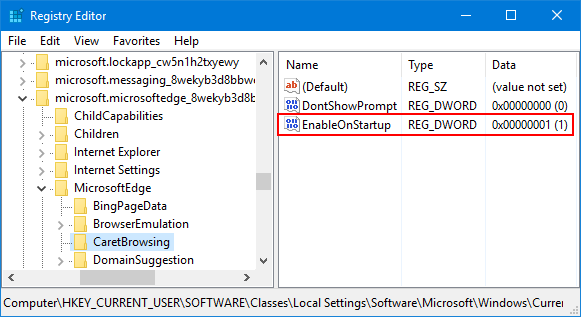
    enable-caret-browsing-in-edge

  4. When it’s done, close Registry Editor and relaunch Microsoft Edge to see results.

If you don’t want to use Registry Editor to make the registry changes above, just download one of these .reg files (enable-caret-browsing-in-edge.reg, disable-caret-browsing-in-edge.reg). After downloading, double-click the .reg file and apply the registry settings to your system.
Fix: Sleep Option Missing in Windows 10 / 8 / 7 Power Menu

February 5th, 2017 by Admin

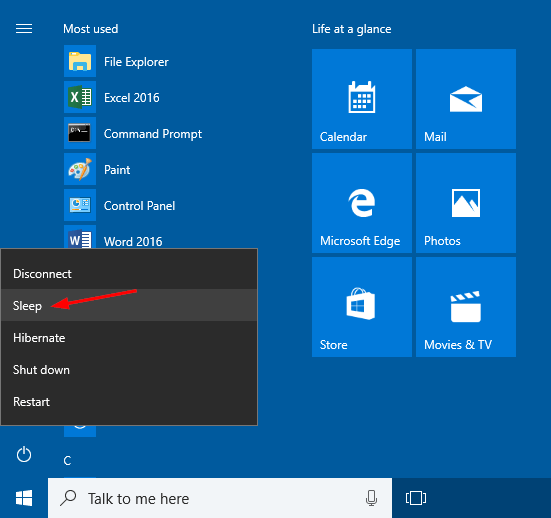
Missing sleep option in the power menu in Windows 10? When you click the Start button, then click the Power icon (or click the arrow next to shut down), you might find the Sleep option is missing or greyed out. In this tutorial we’ll show you how to fix the issue: Sleep option missing in Windows 10 / 8 / 7 Power menu.
sleep-in-power-options-menu

Method 1: Enable Sleep Mode in Control Panel

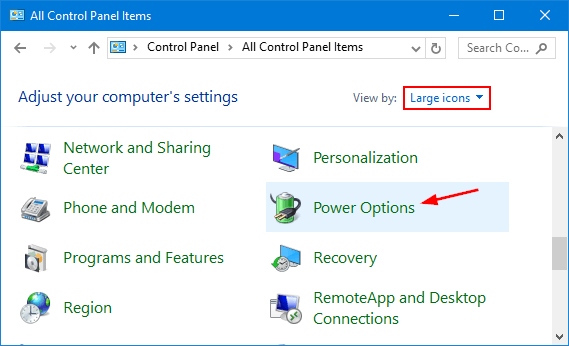
  1. Open the Control Panel in Large icons view. Click Power Options.

    power-options

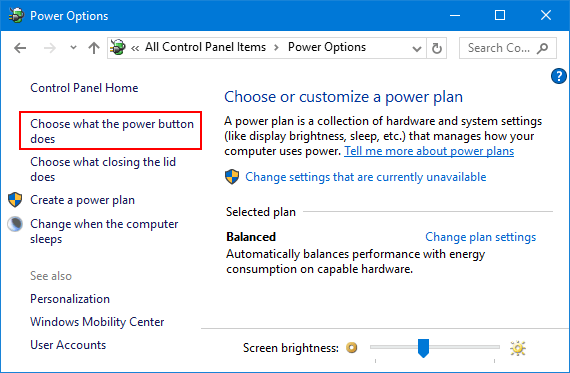
  2. Click the “Choose what the power button does” link on the left side of the window.

    choose-what-power-does

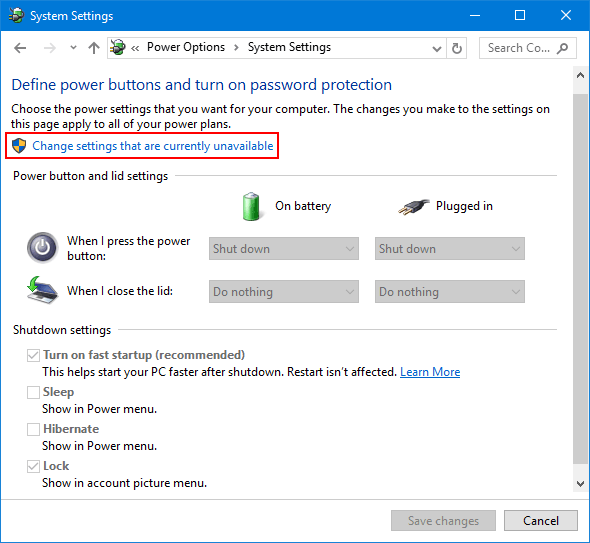
  3. Click the link that says “Change settings that are currently unavailable“.

    change-settings-unavailable

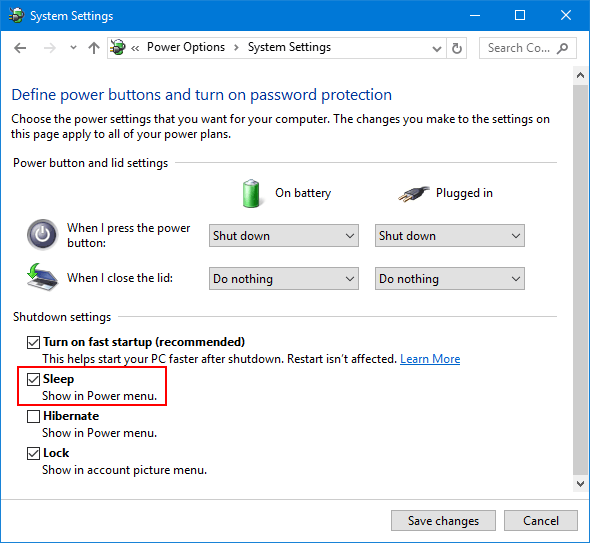
  4. Scroll down to the Shutdown settings section. Now check the Sleep checkbox and click Save changes button.

    enable-sleep-option

Method 2: Enable Sleep Mode Using Group Policy

  1. Open the Local Group Policy Editor. Navigate to Computer Configuration -> Administrative Templates -> Windows Components -> File Explorer.
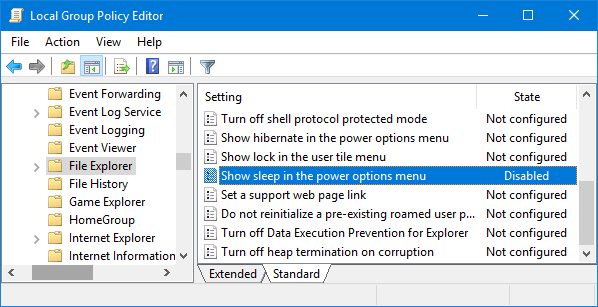
  2. On the right side panel, double-click on Show sleep in the power options menu settings in the list as shown.

    show-sleep-in-power-options-menu

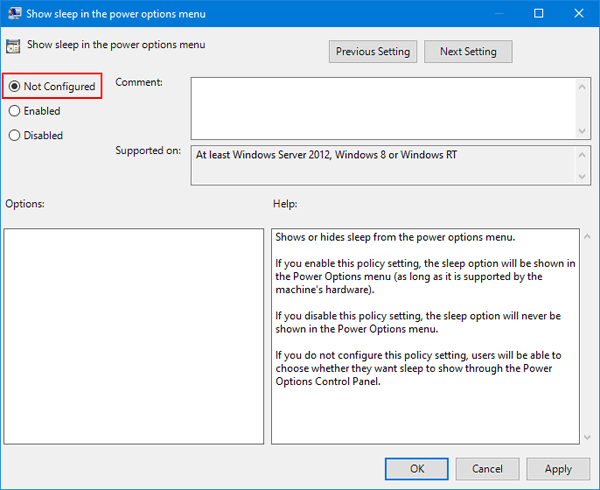
  3. In the next window that opens up, select either Enabled or Not Configured and then click OK.

    enable-sleep-via-group-policy

    This would add the Sleep option in the Power Options menu in Windows.

Method 3: Turn on Connected Standby (InstantGo)

InstantGo (previously called Connected Standby) is a smart feature in Windows 10/8 that allows your PC to maintain network connectivity when your screen is off in sleep mode. However, Any attempt to disable InstantGo may likely disable the regular Standby/Sleep mode too, as most devices supporting Connected Standby does not support traditional sleep options.

If you’ve disabled InstantGo, you have to turn it on again. Follow these steps:

  1. Open the Registry Editor. Navigate to the following key:
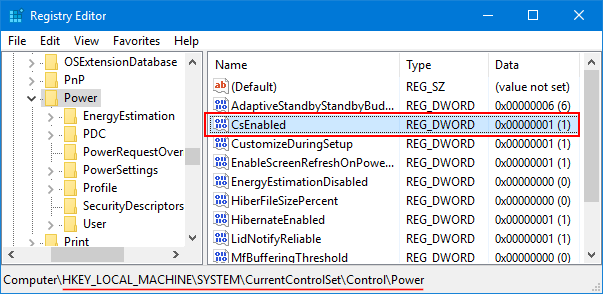
    HKEY_LOCAL_MACHINE\SYSTEM\CurrentControlSet\Control\Power
  2. On the right side pane, double-click CsEnabled and set its value to 1.

    enable-connected-standby-InstantGo

  3. When it’s done, close the Registry Editor and reboot your computer.

Method 4: Install the Latest Display Driver

If your system is using the generic display driver, the Sleep option might also disappear from the Power Options menu. You need to download and install latest display driver from the manufacturers website.

How to Export and Import Firewall Policy in Windows 10

January 23rd, 2017 by Admin

Windows Firewall allows you to create custom rules for allowing or blocking an app from accessing the network. If you don’t want to lose all your current firewall settings after reinstalling, or need to migrate the firewall exceptions to a new PC, it’s a good idea to make a backup of your firewall rules. In this tutorial we’ll explain how to export and import firewall policy in Windows 10.

Method 1: Using Windows Firewall with Advanced Security

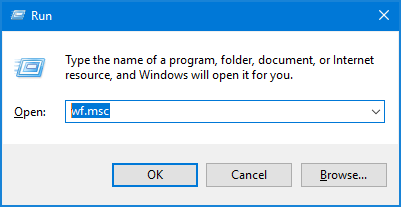
Just press the Windows key + R shortcut, then type wf.msc in the Run command box and press Enter.

wf-msc

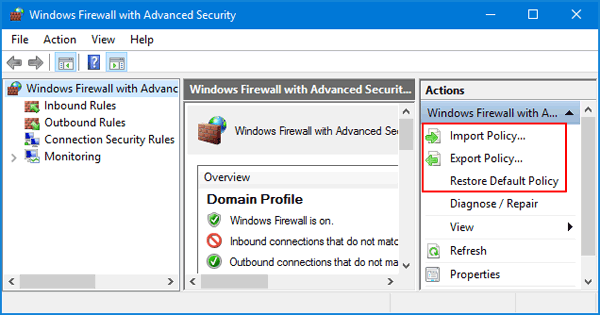
This will open the Windows Firewall with Advanced Security MMC snap-in. Under the Actions pane in the right side, you can click the corresponding link to export policy, import policy, or restore default policy.

windows-firewall

Just follow the step-by-step GUI wizard to export/import your firewall policy. The firewall policy will be exported to a single binary file with the .wfw extension.

Method 2: Using Command Prompt

If you prefer the command line, you can also backup or restore Windows Firewall rules using the netsh command. Here’s how:

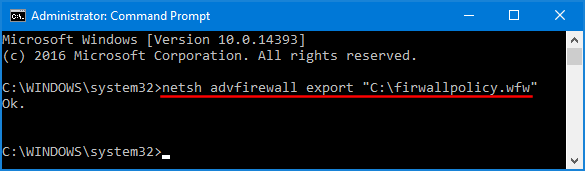
Open the Command Prompt in administrator mode. Type the following command and press Enter. This will export all your firewall policies to a file named firewallpolicy.wfw in the root path of C:\ drive.
netsh advfirewall export "C:\firwallpolicy.wfw"

export-firewall-rules-via-cmd

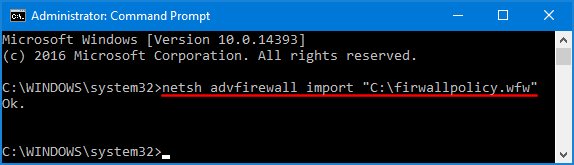
To import the firewall policy, just paste the following command and press Enter.
netsh advfirewall import "C:\firwallpolicy.wfw"

import-firewall-rules-via-cmd

If you want to restore the firewall policy to the defaults, just type:
netsh advfirewall reset

How to Enable Old / Vertical Volume Control in Windows 10

January 23rd, 2017 by Admin

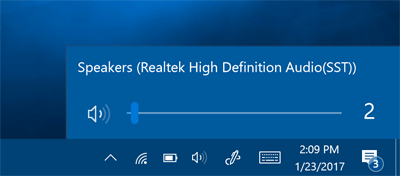
When you click the volume icon in the system tray, a new horizontal volume slider will appear on the screen. It just feels a little weird that you have to adjust the volume horizontally. Luckily there is simple registry hack that can help you get back the old / vertical volume control back in Windows 10.

new-volume-control

How to Enable Old / Vertical Volume Control in Windows 10?

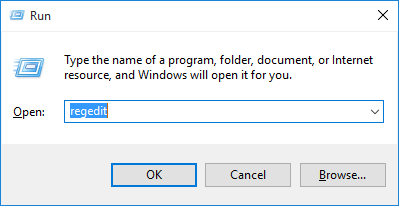
  1. Press the Windows key + R shortcut to open the Run command box. Type regedit and press Enter.

    regedit-via-run

  2. When the Registry Editor window opens, navigate to the following key:
    HKEY_LOCAL_MACHINE\SOFTWARE\Microsoft\Windows NT\CurrentVersion\MTCUVC

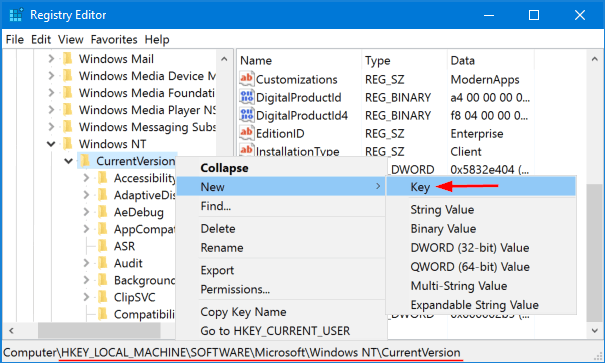
    If the MTCUVC key doesn’t exist, right-click on CurrentVersion and then choose New -> Key. Name the new key MTCUVC.

    new-registry-key

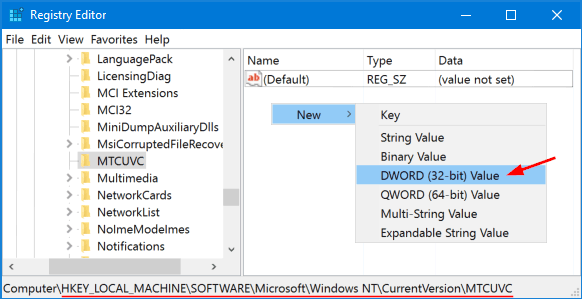
  3. Select the MTCUVC key on the left pane. Right-click any empty space on the right pane, then choose New -> DWORD (32-bit) Value.

    new-dword-value

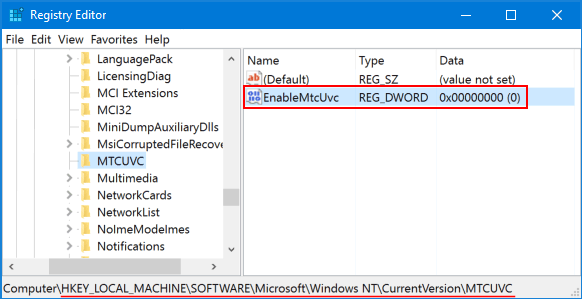
  4. Name this new DWORD EnableMtcUvc and leave the Value data to be 0. If you want to enable the new / horizontal Volume Control later, just change its data back to 1.

    EnableMtcUvc

  5. Log out of your Windows account and log back in. Click the Volume icon in the system tray and you should see your old vertical Windows mixer.

    old-volume-control

    Actually, this tweak might work instantly without having to log out or restart your PC.

4 Options to Rename One or Multiple Worksheet Tabs in Excel

January 23rd, 2017 by Admin

How can I rename multiple worksheets at one time using VBA code? In Excel, you can assign a unique name to each sheet tab in your workbook so you can easily find the tab you want. In this tutorial we’ll show you 4 simple methods to rename one or multiple worksheet tabs in Excel.

Note: The name of a worksheet tab can have a maximum of 30 characters only.

Option 1: Rename worksheet tab with the “Rename” shortcut menu

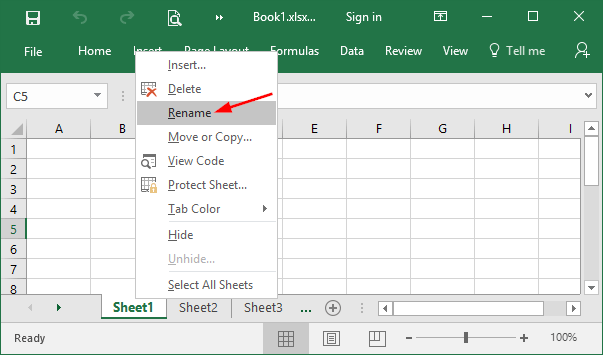
Right-click on a specific tab you want to rename. You can see many options coming up when you right click. From there, choose the Rename shortcut menu.

worksheet-rename-menu

Type a name that you want to give to the worksheet tab and press Enter. Repeat this procedure for each tab you want to rename.

type-new-name-for-worksheet

Option 2: Rename worksheet tab by double-clicking the tab

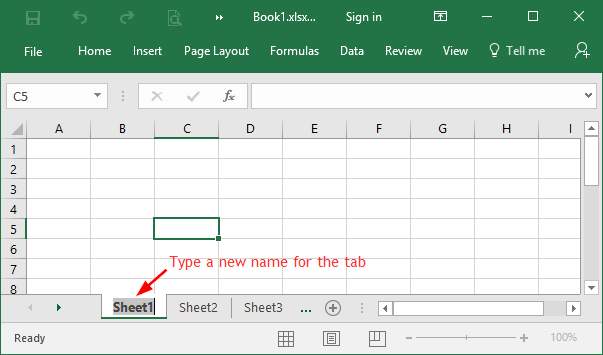
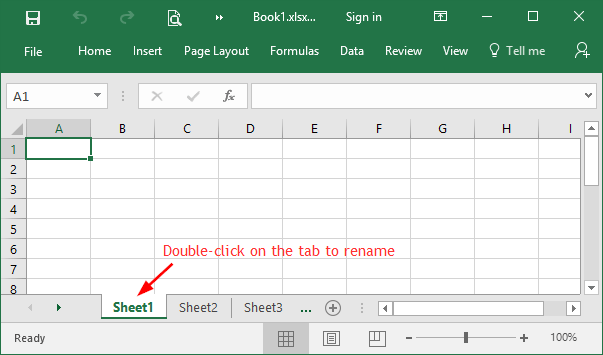
Another way to rename a worksheet tab in Excel is by double-clicking on the sheet tab. When you double-click on the worksheet tab at the bottom, the tab name (e.g. Sheet1) is highlighted. After that, you just have to type the new name.

double-click-sheet-to-rename

Option 3: Rename worksheet tab using keyboard shortcut

Select the worksheet tab that you want to rename, then press the keyboard shortcut Alt + O + H + R (Just press these 4 keys on the keyboard one by one in the sequence), type a name and press Enter.

Option 4: Rename multiple worksheet tabs using VBA code

It could be a time-consuming task if you use the above methods to rename lots of worksheet tabs. To simplify the job, you can rename multiple worksheet tabs using VBA code.

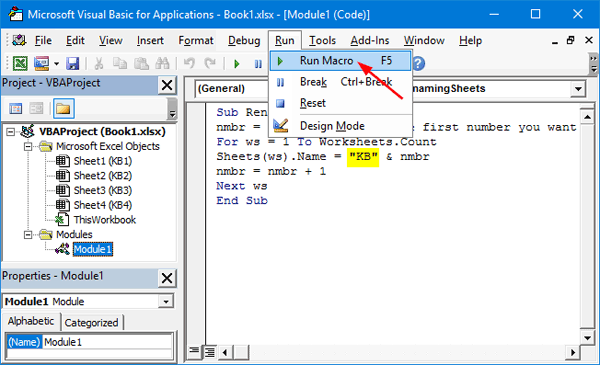
  1. After opening your Excel workbook, press the Alt + F11 shortcut to open Visual Basic Editor. Right-click on VBAProject on the left pane and choose Insert -> Module to insert a new module.
  2. Copy the following VBA code and paste it to the right pane of the VBA editor (“Module1” window). Click the Run menu, and select Run Macro.

    Sub RenamingSheets()
    nmbr = InputBox("What's the first number you want to name the sheets?", "Renaming Sheets")
    For ws = 1 To Worksheets.Count
    Sheets(ws).Name = "KB" & nmbr
    nmbr = nmbr + 1
    Next ws
    End Sub

    rename-sheet-with-vba

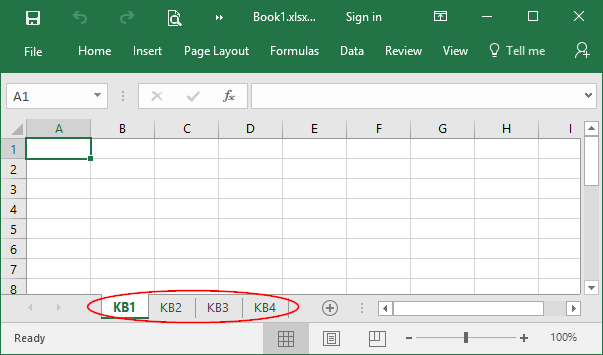
  3. All your worksheet tabs will be quickly renamed with new names like “KB1”. You can change the VBA code to rename worksheet to what you want.

    multiple-sheets-renamed

Restore Missing “Extract All” Option to ZIP Right-Click Menu

January 17th, 2017 by Admin

Windows has built-in native support for ZIP files. When you right-click on a .zip file in Windows Explorer, the “Extract All” option from context menu allows you to extract all contents of the zip file to a folder of your choice.

If the “Extract All” option is missing or overridden by third-party zip/unzip software, you can restore it with a registry hack in Windows 10 / 8 / 7 / Vista.

How to Restore Missing “Extract All” Option to ZIP Right-Click Menu?

This registry hack requires you to log into Windows as administrator. Follow these steps:

  1. Download this REG file (add_extract_all_context_menu.reg) and save it to a folder where you can find easily. Tips: the .reg file is actually a text file and you can view the content using NotePad.
  2. After the download is complete, double-click on the .REG file. Click Run if prompted by Security Warning.
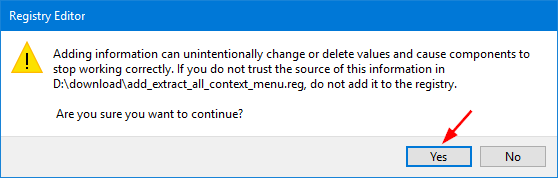
  3. Registry Editor will confirm if you want to import the registry settings in your .reg file, click Yes.

    add-extract-all-context-menu

  4. Once it’s done, right-click on a .zip file and the “Extract All” option will show up in the Explorer’s right-click context menu.

If you want to remove the “Extract All” option from Explorer’s right-click menu, you can run this .reg file (remove_extract_all_context_menu.reg) instead. That’s all there is to it.

6 Quick Ways to Open Settings App in Windows 10

January 12th, 2017 by Admin

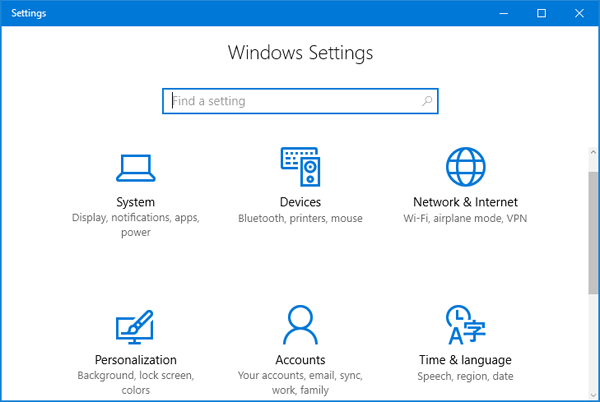
PC Settings is a touch-friendly app introduced since Windows 8, which is created to replace the classic Control Panel. The option to change Windows password is not available in Control Panel, and now you have to change it through PC Settings. In this tutorial we’ll show you 6 quickest ways to open Settings app in Windows 10.

windows-10-pc-settings

Method 1: Press WIN + I Hotkey to Open the Settings app

Just press the Windows + I shortcut keys together on your keyboard. This should be the fastest way to open the Settings app in Windows 10.

Method 2: Open the Settings app from Start Menu

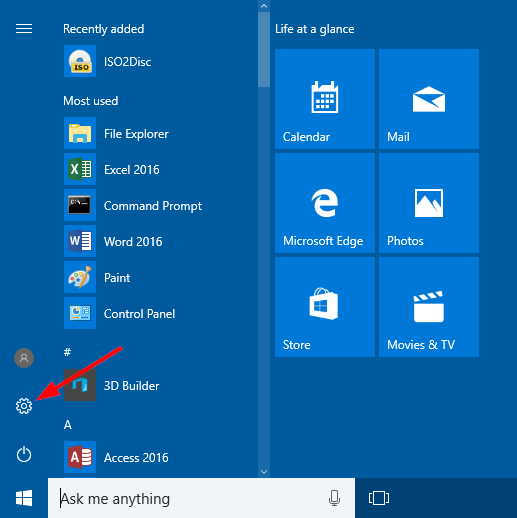
Click the Start button. When the Start Menu appears, click the Settings icon (a little gear icon directly above the Power icon) near the menu’s bottom-left corner. The Settings app will launch immediately.

open-settings-via-start-menu

Method 3: Open the Settings app via Cortana Search

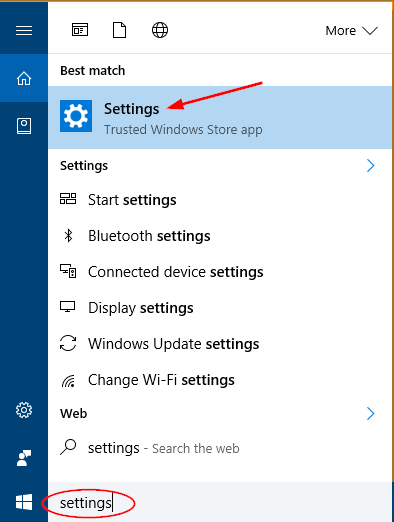
Click the Cortana Search box in the taskbar and type settings. Once the search results are loaded, click the Settings modern app.

open-settings-via-cortana

Method 4: Right-click Taskbar to Open the Settings app

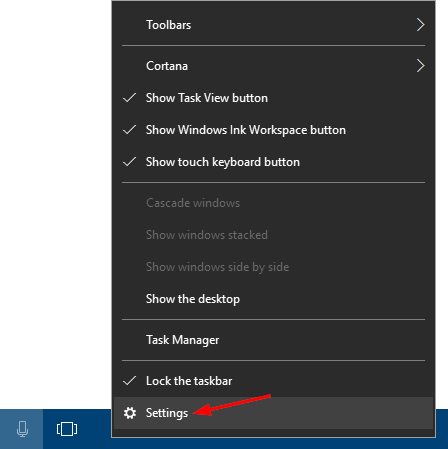
Right-click on any empty space on Windows 10 taskbar, and then select Settings from the context menu.

open-settings-via-taskbar

Method 5: Open the Settings app in Windows 10 from Command Prompt

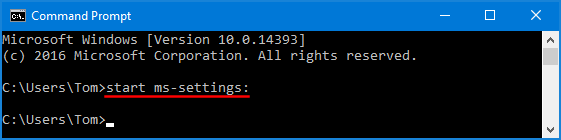
Open the Command Prompt (or PowerShell) in Windows 10. Type the following command at the Command Prompt.
start ms-settings:

open-settings-from-cmd

Once you press Enter, Windows 10 will instantly launch the Settings app.

Method 6: Open the Settings app in Windows 10 from Run

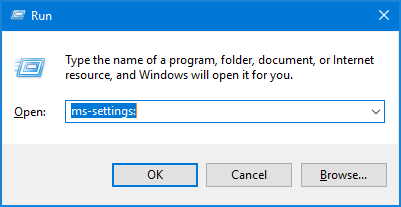
Press the Windows key + R to open the Run command box. Type ms-settings: and press Enter. This will open the Settings app immediately.

open-settings-via-run

How to Change Active / Inactive Title Bar Color in Windows 10

January 10th, 2017 by Admin

Don’t like white title bar in Windows 10? By default, the title bar is white for both active window and inactive window. In this tutorial we’ll show you how to change the active / inactive title bar color in Windows 10.

Part 1: Change Active Title Bar Color in Windows 10

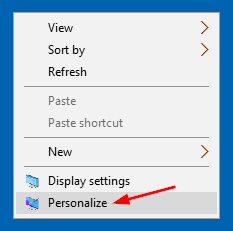
  1. Right-click on any empty space on the desktop, select Personalize from the context menu.

    personalize

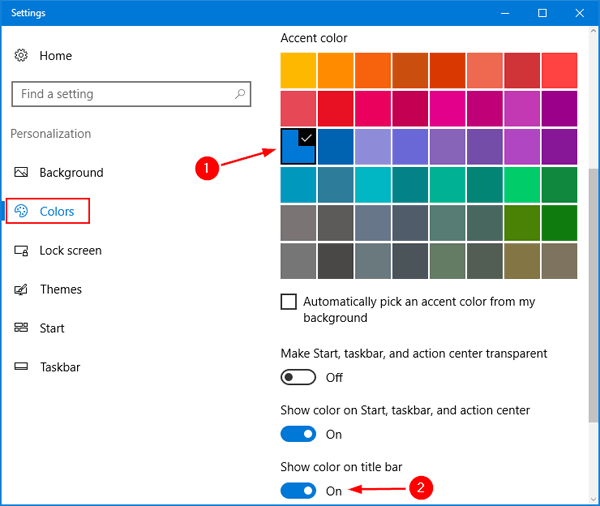
  2. When the Settings window opens, click Colors on the left side.
  3. On the right side, pick an accent color and turn on the “Show color on title bar” setting.

    show-color-on-title-bar

When it’s done, Windows 10 will display your selected color for the title bar of any active window. But inactive title bar remains white as usual.

Part 2: Change Inactive Title Bar Color in Windows 10

Unfortunately there is no option to change the color of inactive title bar in the Settings app, and you have to change it using this registry hack:

  1. Press the Windows key + R to open the Run command box. Type regedit and hit Enter.

    regedit-via-run

  2. Once the Registry Editor opens, navigate to the following key:
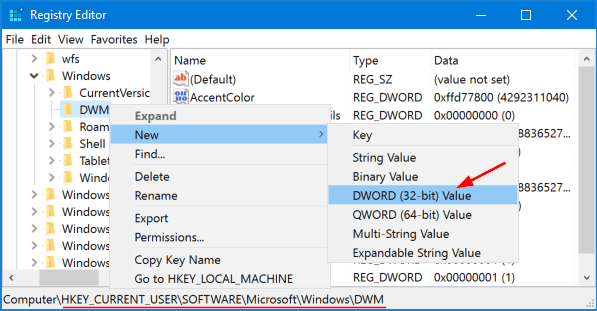
    HKEY_CURRENT_USER\SOFTWARE\Microsoft\Windows\DWM
  3. Right-click the DWM key on the left side, select New -> DWORD (32-bit) Value from the context menu.

    registry-new-dword

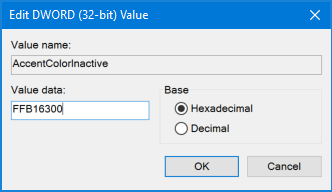
  4. Name the new DWORD value as AccentColorInactive. Then double-click on AccentColorInactive on the right side. In the popup window, type the RGB value of the color of your choice under Value data box and click OK. You may need to google the RGB value of your preferred color.

    AccentColorInactive

  5. Close Registry Editor. You’ve successfully changed the title bar color for inactive window.

How to View or Restrict the Number of Connections in SQL Server

December 30th, 2016 by Admin

SQL Server allows a maximum of 32,767 user connections. In this tutorial we’ll show you how to find out the number of connections to a database in SQL Server, and restrict the number of connections to a SQL Server instance.

Part 1: View Total Number of Connections in SQL Server

Need to check the number of active connections for each database? This can be done easily using the following script. The script displays the databaseName, the number of connections and the login name:

SELECT DB_NAME(dbid) as DBName,
loginame,
COUNT(dbid) as NumberOfConnections
FROM sys.sysprocesses
WHERE dbid > 0
GROUP BY dbid, loginame

If you’re running SQL Server 2012, 2014 or 2016, run this script instead:

SELECT DB_NAME(database_id) as DBName,
login_name,
COUNT(session_id) as NumberOfConnections
FROM sys.dm_exec_sessions
GROUP BY database_id, login_name

Part 2: Restrict Concurrent Database Connections in SQL Server

To configure the maximum user connections, open SQL Server Management Studio and connect to your database, then follow these steps:

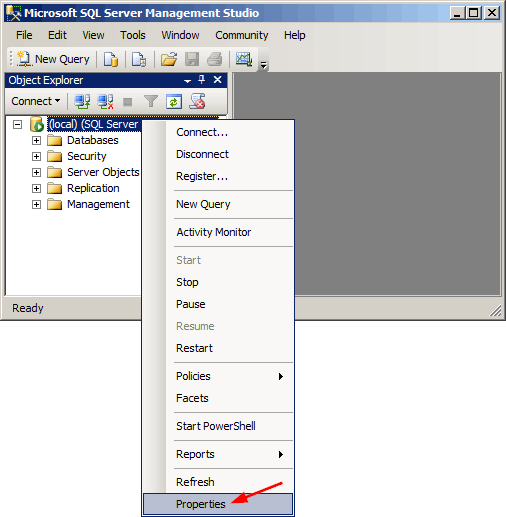
  1. In Object Explorer, right-click a server and click Properties.

    sql-server-properties

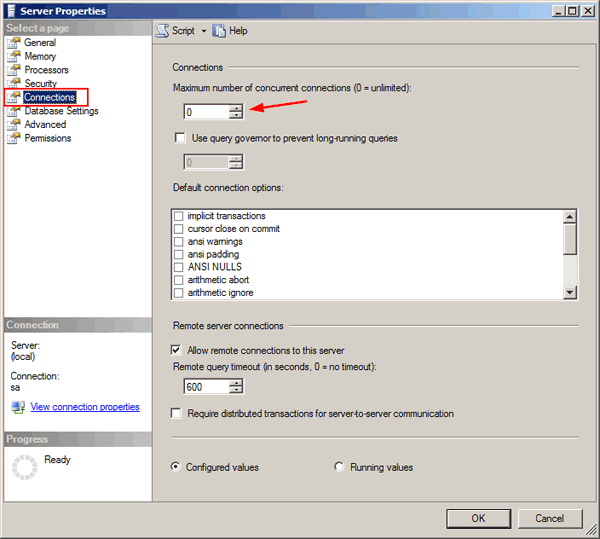
  2. Click the Connections node on the left page.
  3. Under Connections, in the Maximum number of concurrent connections box, type or select a value from 0 through 32767 to set the maximum number of users that are allowed to connect simultaneously to the instance of SQL Server.

    max-connections-in-sql-server

  4. Click OK. Restart SQL Server to apply your changes.