Microsoft did a huge change in upcoming Windows 8 and added so called Metro User Interface (UI) which is very good familiar to Windows mobile users. However not all of us like it or navigate through it very easily so that’s why many of you will want to restore the classic Start menu and desktop view. In this tutorial I will show what change you need to perform inside Windows registry and disable Windows 8 Metro UI.
To get started follow steps below:
Step 1: From your Windows 8 Metro Interface type regedit.
Step 2: As soon as you start typing a Search Apps filed will appear on right side with search results on right side.
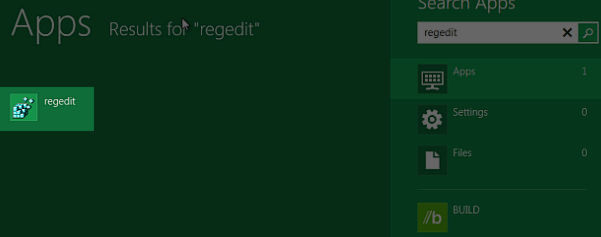
Step 3: From right side click regedit icon and if User Account Control dialog window appear click Yes.
Step 4: Now the registry window will open. Follow this path HKEY_CURRENT_USER\Software\Microsoft\Windows\CurrentVersion\Explorer.
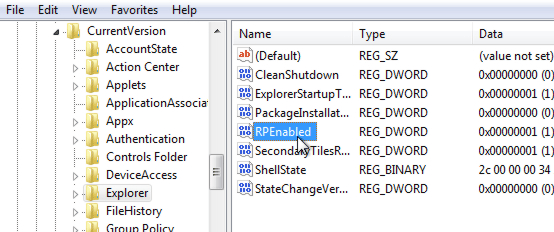
Step 5: Now double click on RPEnabled.
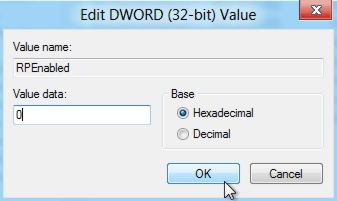
Step 6: Inside Edit DWORD (32-bit) Value window, under Value data filed change value 1 into 0 and click OK to save changes.
Step 7: Now close all windows and restart your computer.
Next time when you go back to Windows 8 there won’t be Metro style anymore. You can also re-enable the Metro UI by change the RPEnabled value back to 1.
 Twitter becomes most popular choice to connect with peoples right after Facebook. It has grown up to very large community and most of us have been using it everyday. Today I’ll show you an easy way to recover Twitter account password saved inside not only Firefox but also from Google Chrome, Opera, Apple Safari and Internet Explorer.