Archive for the ‘Tips & Tricks’ category

Fix: Cannot Change Desktop Background on Windows 10

August 4th, 2016 by Admin

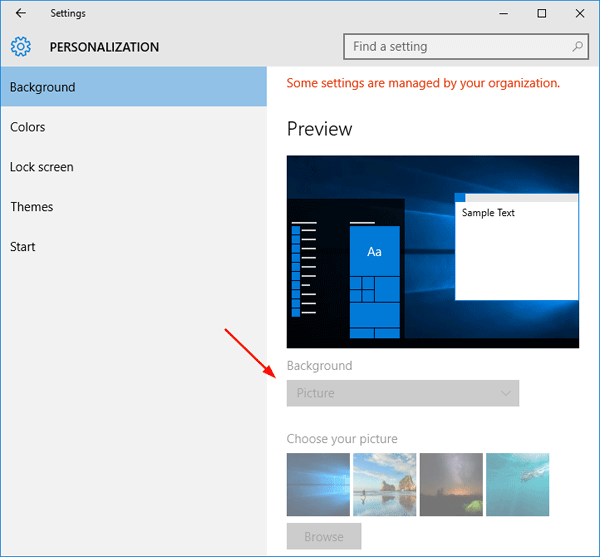
Have you tried different methods of changing the desktop background to no avail? The option to change desktop background image is greyed out? You can select the background picture but the desktop still doesn’t show it? In this tutorial we’ll show you 2 ways to fix the problem “Cannot change desktop background on Windows 10”.

unable-change-desktop

Method 1: Using Group Policy

  1. Open the Local Group Policy Editor in Windows 10.
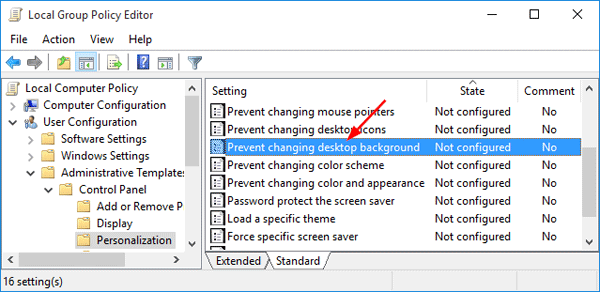
  2. Navigate to User Configuration -> Administrative Templates -> Control Panel -> Personalization. In the right pane, find the policy Prevent changing desktop background and double-click on it.

    personalization-policy

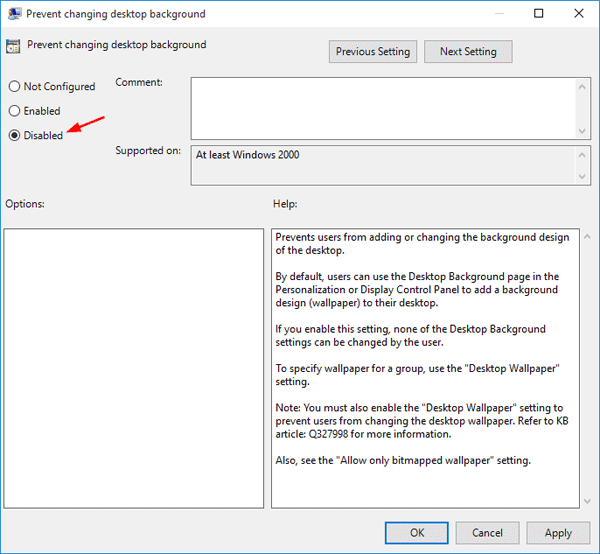
  3. In the Properties window select the Disable option, and save the changes by clicking OK.

    prevent-changing-desktop

  4. Restart your system and you should be able to browse and set your background image.

Method 2: Using Ease of Access Center

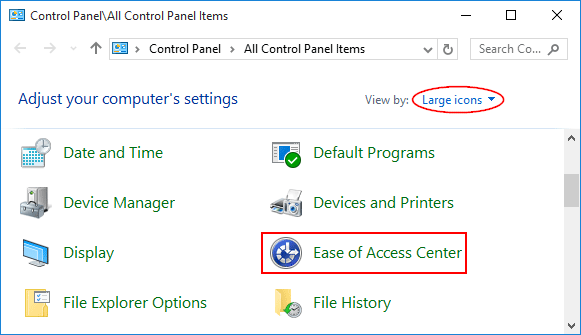
  1. Open the Control Panel in Windows 10. Set the View by option to Large icons. Click Ease of Access Center.

    ease-of-access-center

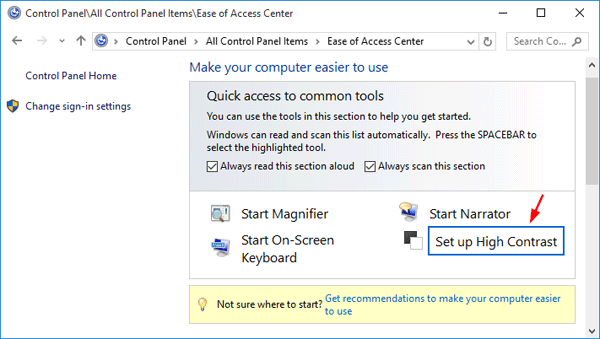
  2. Click Set up High Contrast to open the Make the computer easier to see menu.

    setup-high-contrast

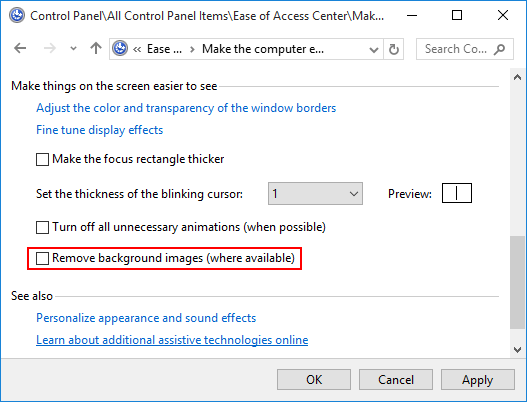
  3. Scroll down to the bottom and uncheck the “Remove background images (where available)” option. Click Apply and then OK to save your changes.

    remove-background-image

How to Change Default Location for Outlook Data File (PST & OST)

August 2nd, 2016 by Admin

Is there a way to change the default location of new .pst file when create a new e-mail account in Outlook? Different versions of Outlook use different default locations to store pst files. In this tutorial we’ll show you how to change default location for Outlook .PST & .OST data file using a registry trick. It works with all versions of Outlook, including Outlook 2016 / 2013 / 2010 / 2007 / 2003.

How to Change Default Location for Outlook PST/OST File?

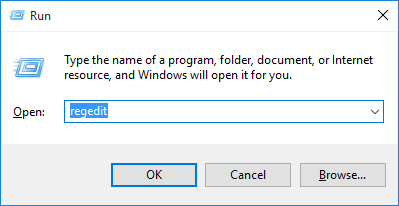
  1. Press the Win + R keys in a meanwhile to open the Run box. Type regedit and click OK.

    regedit

  2. When the Registry Editor launches, navigate to one of the following keys, depend on your Outlook version:

    • Outlook 2016:
      HKEY_CURRENT_USER\Software\Microsoft\Office\16.0\Outlook
    • Outlook 2013:
      HKEY_CURRENT_USER\Software\Microsoft\Office\15.0\Outlook
    • Outlook 2010:
      HKEY_CURRENT_USER\Software\Microsoft\Office\14.0\Outlook
    • Outlook 2007:
      HKEY_CURRENT_USER\Software\Microsoft\Office\12.0\Outlook
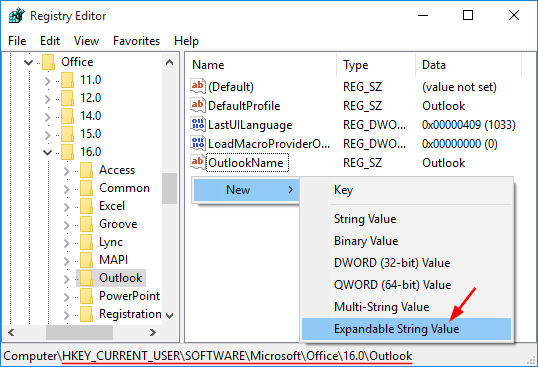
  3. At the right-side pane, right-click on any blank area and select New -> Expandable String Value.

    new-expandable-string

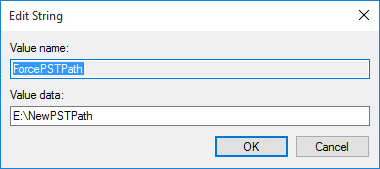
  4. Name the newly created value as ForcePSTPath, then double-click on it. On the Edit String dialog, enter the new default location where you wish to store the PST file for Outlook new profile, and click OK.

    ForcePSTPath

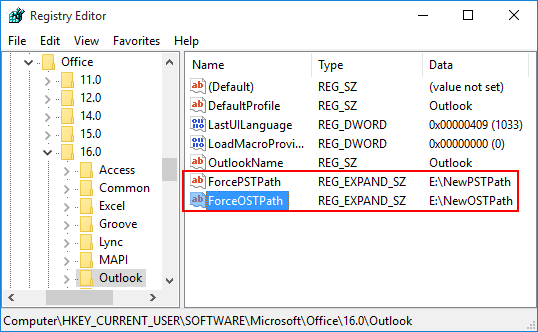
    Note: To change the default location folder of .ost files generated by exchange accounts, you can create an expandable string value and name it as ForceOSTPath.

    ForceOSTPath

  5. Close the Registry Editor and restart Microsoft Outlook application. From now on, when you set up a new email account, Outlook will automatically create a new PST file in the new default location.

This method won’t affect the location of existing .pst files. If you want to change the location of existing pst file, follow these steps:

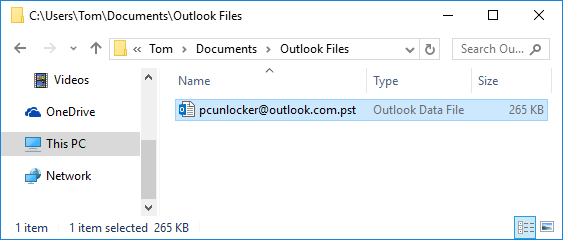
  1. Exit the Outlook application. Locate your .pst file in Windows Explorer and move it to a new location.

    outlook-pst-location

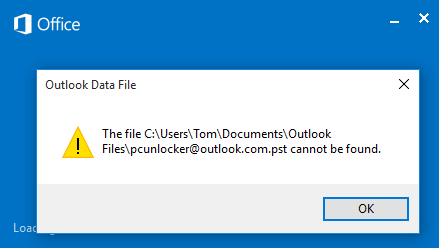
  2. Restart Outlook. An error dialog box appears that notifies you that an Outlook Data File (.pst) could not be found. Click OK.

    pst-file-cannot-be-found

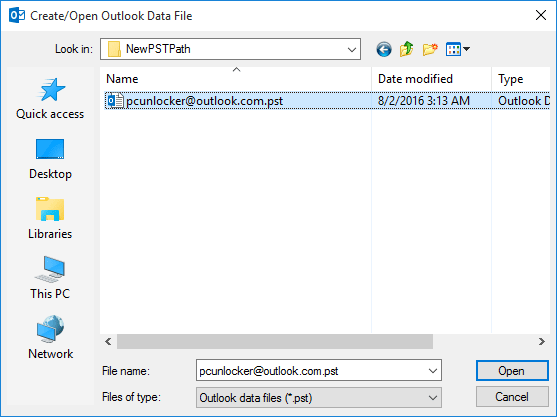
  3. It will open the Create/Open Outlook Data File dialog box. Browse to the new location, select the Outlook Data File (.pst) that you moved, and then click Open.

    open-outlook-data-file

  4. When you see a warning message, just ignore it by clicking OK. Now you’ve successfully moved your existing pst file to a new location.

    cannot-open-default-pst

Convert Any Document to PDF Format with Windows 10 Print to PDF

August 2nd, 2016 by Admin

Do you want to convert Microsoft Word, Excel, PowerPoint, image, web page or any other document into a PDF file? Microsoft Print to PDF is a new feature comes pre-installed in Windows 10 as a virtual printer. Instead of printing on paper, it creates a PDF document from any document within any application, just as if it was printed.
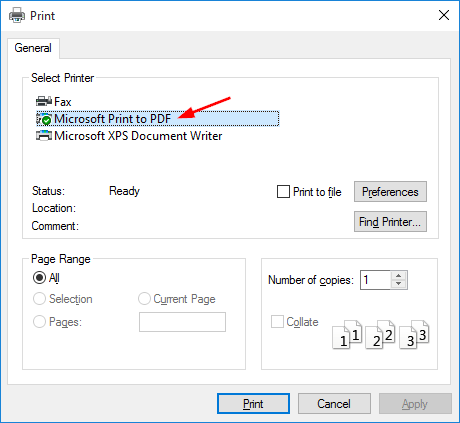
Just open your document in any application that has printing capability, press Ctrl + P keyboard shortcut (or use the Print option from the menu). Now you should see Microsoft Print to PDF available in list of printers. Select it and click on Print. Choose where you want to save your PDF file and you’re done.

select-pdf-printer

If the Microsoft Print to PDF option is missing from the list of printers, or you’ve deleted it accidentally, you can restore it by following these steps:

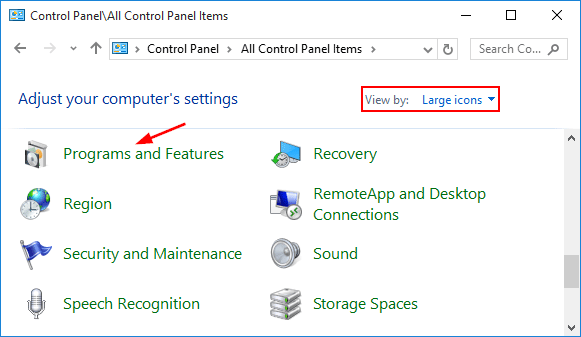
  1. Open the Control Panel in Large icons view. Click Programs and Features.

    programs-and-features

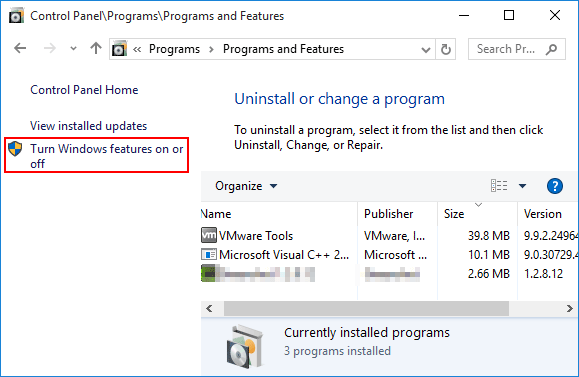
  2. From the left panel, click on Turn Windows features on or off.

    turn-windows-features-on-off

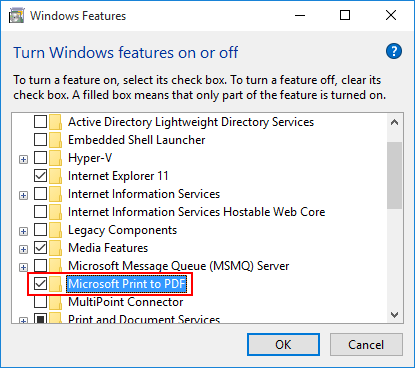
  3. In the Windows Features dialog, uncheck Microsoft Print to PDF and click OK.

    microsoft-print-to-pdf

  4. Reopen the Windows Features dialog, and this time check the Microsoft Print to PDF checkbox, and click OK. After reinstalling that feature, you should be able to see the Microsoft Print to PDF option on Windows 10.

Windows 10 Fix: “Compressed (zipped) Folder” missing from Send To Menu

July 31st, 2016 by Admin

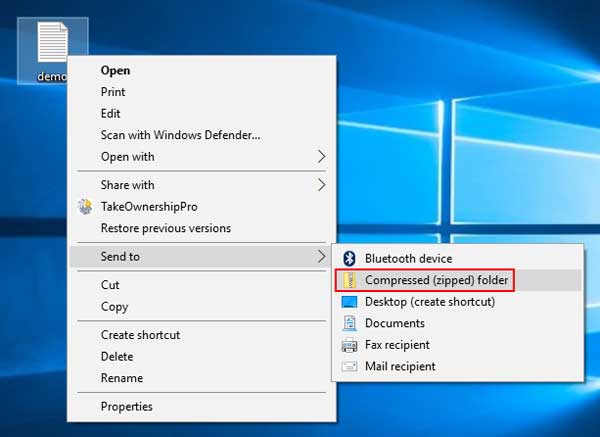
Windows 10 comes with native support for zip files. In File Explorer, select and right-click on the folders or files you want to zip, select “Send To” -> “Compressed (zipped) folder” from the context menu. This will compress your selected folders/files into a single .zip file.

send-to-compressed-folder

However, the “Compressed (zipped) folder” might be missing from the right-click context menu. In this tutorial we’ll show you how to restore the missing “Compressed (zipped) folder” option from the Send To menu in Windows 10.

Part 1: Restore Compressed (zipped) folder shortcut

There is a copy of this shortcut in the default user profile in Windows 10. You can just copy it from the default user profile back to your personal profile and you are done. Here is how.

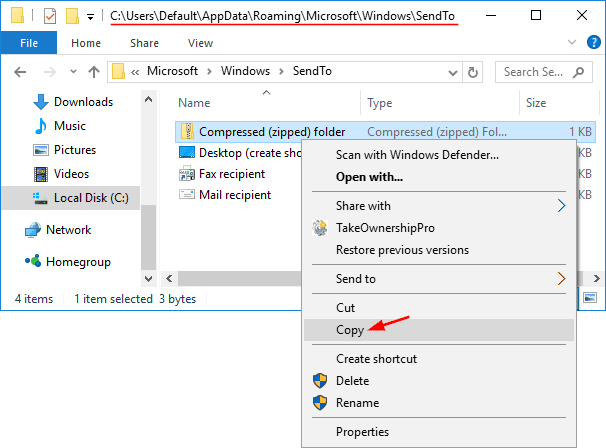
  1. Open the Send To folder of the default user profile. To do so, press Win + R to open the Run dialog, and type the following command and press Enter:
    %systemdrive%\Users\Default\AppData\Roaming\Microsoft\Windows\SendTo
  2. Right-click the Compressed (zipped) folder shortcut and select Copy from the context menu.

    copy-compressed-folder

  3. Now, type the following path in File Explorer’s address bar. This will open the Send To folder of your current user profile.
    %userprofile%\AppData\Roaming\Microsoft\Windows\SendTo
  4. Paste the shortcut you previously copied there.

Part 2: Fix the .ZFSendToTarget file association

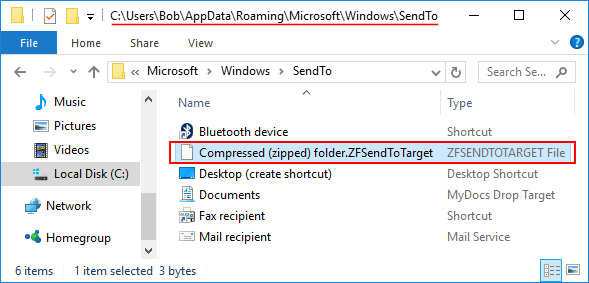
If the above method is still not working, it’s possible that the .ZFSendToTarget file association is corrupt. Normally, the “Compressed (zipped) folder” shortcut is shown with a zip icon. If its association settings are corrupt, it might show with a generic icon and display ZFSendToTarget in the Type column.

zfsendtotarget

Here’s how to fix it:

  1. Press Win + R and type regedit and press Enter.
  2. When the Registry Editor opens, navigate to:
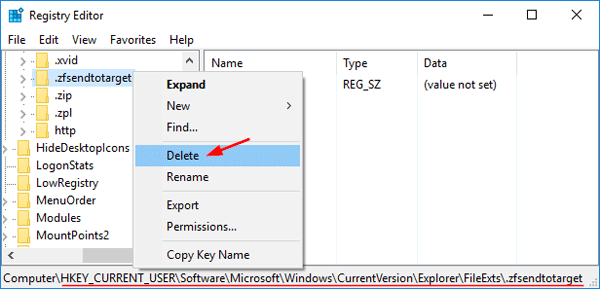
    HKEY_CURRENT_USER\Software\Microsoft\Windows\CurrentVersion\Explorer\FileExts\.zfsendtotarget
  3. Right-click on .zfsendtotarget key in the left pane and select Delete.

    del-zfsendtotarget

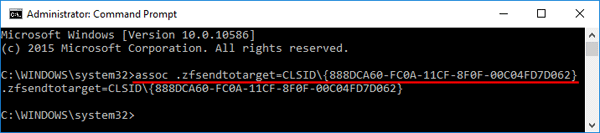
  4. Next open an elevated Command Prompt. This can be done by pressing Win + X and select “Command Prompt (Admin)” from the Power User Menu.
  5. Type the following command and press Enter.
    assoc .zfsendtotarget=CLSID\{888DCA60-FC0A-11CF-8F0F-00C04FD7D062}

    assoc

  6. Reboot your computer and the “Compressed (zipped) folder” shortcut should now appear in the Send to menu.

3 Ways to Stop Automatic Driver Updates in Windows 10

July 29th, 2016 by Admin

While plugging in a new device, Windows 10 automatically downloads and installs the device driver via Windows Update. Every time Windows 10 checks for OS updates, it will also update the device drivers. However, some drivers from Microsoft may not be fully compatible with the device driver you have installed and it might result in system instability.

In this tutorial we’ll show you 3 different ways to stop automatic driver updates in Windows 10. Note that the Local Group Policy Editor is not available to Windows 10 Home users.

Method 1: Stop Automatic Driver Updates Using Windows Settings

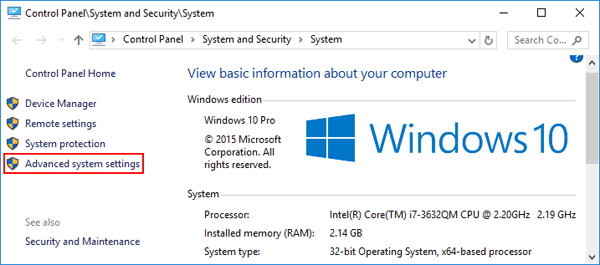
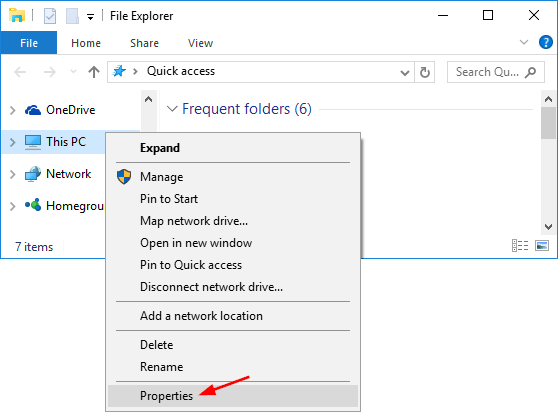
  1. Open a File Explorer window. Right-click This PC from the navigation pane and choose Properties.

    right-click-this-pc

  2. Click the Advanced system settings link located on the left hand side of the screen.

    advanced-system-settings

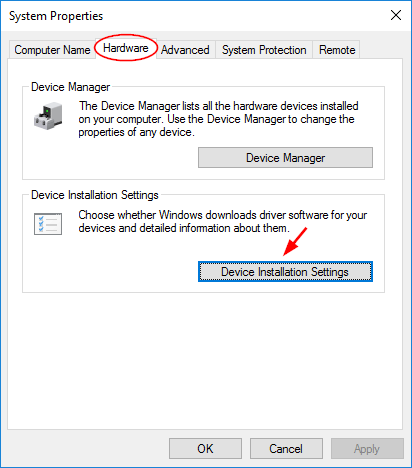
  3. When the System Properties window opens, select the Hardware tab, and click the Device Installation Settings button.

    device-installation-setting

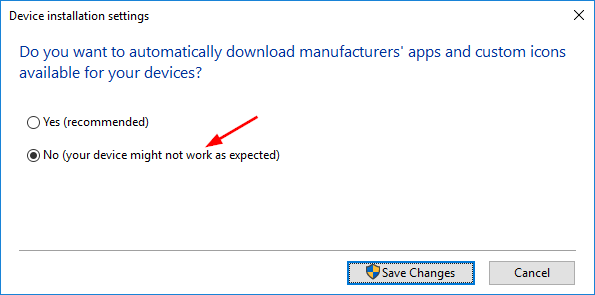
  4. You will be asked whether you want to automatically download manufacturers’ apps and custom icons available for your devices. Select No and click Save Changes.

    stop-automatic-driver-download

    This should stop Windows from automatically downloading and installing device drivers from Windows Update.

Method 2: Stop Automatic Driver Updates Using Group Policy

  1. Press Windows key + R, enter gpedit.msc, and hit Enter to open Local Group Policy Editor.
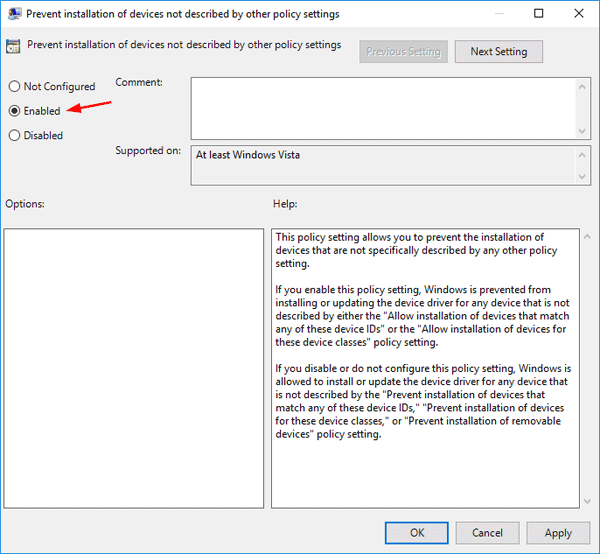
  2. Navigate to Computer Configuration –> Administrative Templates –> System –> Device Installation –> Device Installation Restrictions. In the right hand pane, find the “Prevent installation of devices not described by other policy settings” policy and double-click on it to modify.

    device-installation-restrict

  3. To turn off automatic driver updates, select Enabled and click OK. This will disable all driver updates.

    prevent-device-installation

Method 3: Stop Automatic Driver Updates Using Registry Editor

  1. Press Windows key + R to launch the Run dialog, enter regedit, and hit Enter to open Registry Editor.
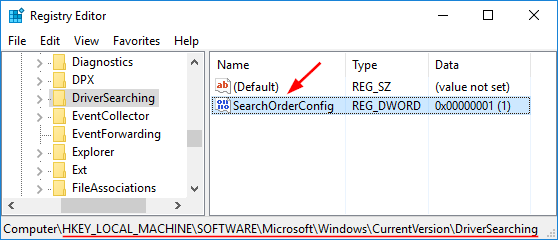
  2. Navigate to HKEY_LOCAL_MACHINE\SOFTWARE\Microsoft\Windows\CurrentVersion\DriverSearching. Double-click on the SearchOrderConfig entry on the right pane.

    driversearching

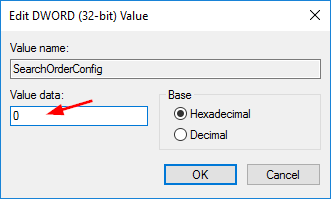
  3. Set the value data to 0 and it will turn off automatic driver updates. A value of 1 allows downloads of driver updates. Click OK and reboot your computer for the changes to take effect.

    searchorderconfig

3 Ways to Disable Windows Key Shortcuts (Hotkeys) in Windows 10

July 28th, 2016 by Admin

Did you ever play a game in full-screen mode and accidentally press the Windows key? This might cause your game to minimize or exit full-screen mode. What to do if the Windows keyboard shortcuts conflict with some software shortcuts? In this tutorial we’ll show you 3 simple ways to disable Windows key shortcuts (hotkeys) in Windows 10.

After testing, the first two methods seem to disable only these keyboard shortcuts: Windows + D, Windows + R, Windows + S, Windows + A. It won’t disable the shortcuts like Windows + X, Windows + L, Windows + PrntScr or Windows + Tab in Windows 10. If you want to disable the single Windows key on your keyboard, the 3th method is your choice.

Method 1: Disable WIN+ Keyboard Shortcuts in Using Group Policy

  1. Type edit group policy in the Search or Run box and press Enter. It will open Local Group Policy Editor.
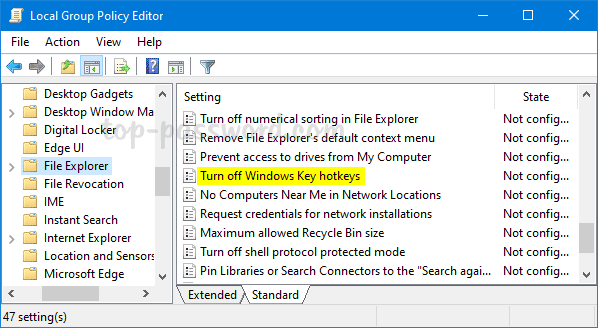
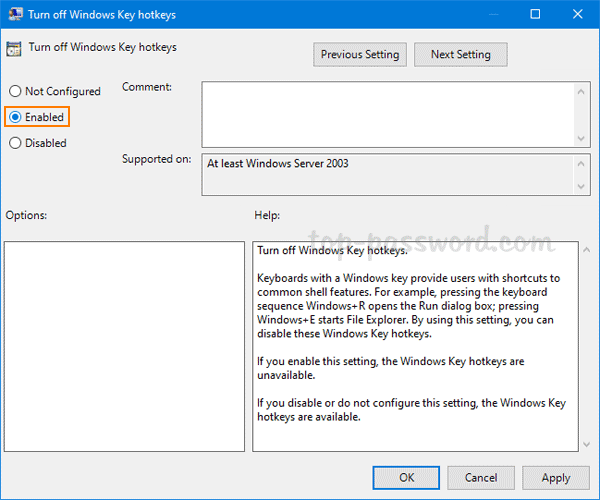
  2. Navigate to User Configuration -> Administrative Templates -> Windows Components -> File Explorer. In the right-side pane, double-click on the Turn off Windows Key hotkeys policy to edit it.

  3. Select the Enabled option and click Apply and then OK.

  4. Reboot the computer to apply the changes.

Method 2: Disable WIN+ Keyboard Shortcuts in Using Registry Editor

If you’re unable to access the Local Group Policy Editor, you can take help of Registry Editor for the same task. Just follow these steps:

  1. Type regedit in the Search or Run box and press Enter. It will open Registry Editor.
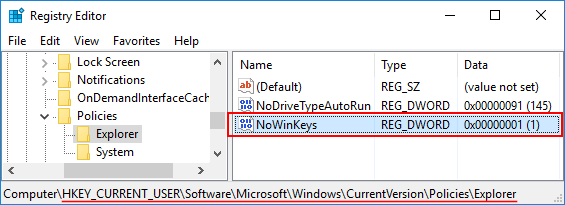
  2. Navigate to the following key: HKEY_CURRENT_USER\Software\Microsoft\Windows\CurrentVersion\Policies\Explorer. In right-side pane, right-click on the empty space and select New -> DWORD (32-bit) Value.
  3. Rename the newly created entry as NoWinKeys and set its value to 1.

    NoWinkeys

  4. Close Registry Editor and restart your system. After reboot the WIN+ hotkeys will be turned off in your system. If you want to re-enable the WIN+ keyboard shortcuts, just delete NoWinKeys entry.

Method 3: Disable Windows Key Completely

This method allows you to completely disable the Windows logo key for all users in Windows 10, 8, 8.1 and Windows 7. Follow these steps to disable Windows key virtually:

  1. Type regedit in the Search or Run box and press Enter. It will open Registry Editor.
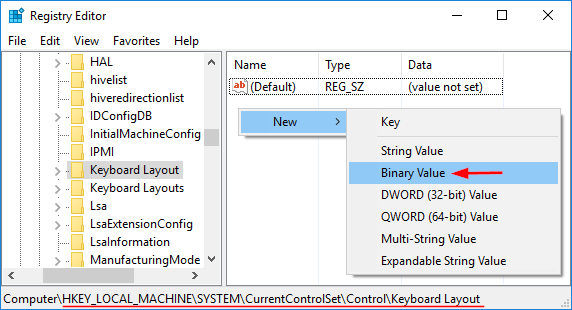
  2. Navigate to HKEY_LOCAL_ MACHINE\System\CurrentControlSet\Control\Keyboard Layout. In the right-side pane, right-click on the empty space and select New -> Binary Value.

    new-binary-value

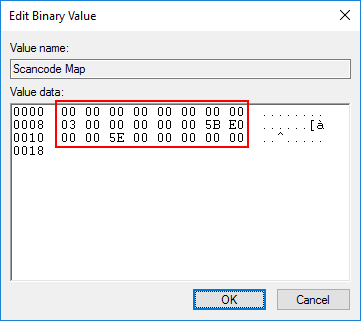
  3. Rename the newly created entry as Scancode Map. Right-click on Scancode Map and click Modify. Type in the following value as the value data manually (copying and pasting will not work), then click OK.

    00 00 00 00 00 00 00 00
    03 00 00 00 00 00 5B E0
    00 00 5C E0 00 00 00 00

    disable-windows-key

  4. Close Registry Editor and restart the computer. When you boot back into Windows 10, press the Windows key and nothing will happen. If you want to re-enable the Windows logo key, open the Registry Editor again and delete the Scancode Map entry.

How to Fix “Task Manager is Disabled or Greyed out” in Windows 10

July 27th, 2016 by Admin

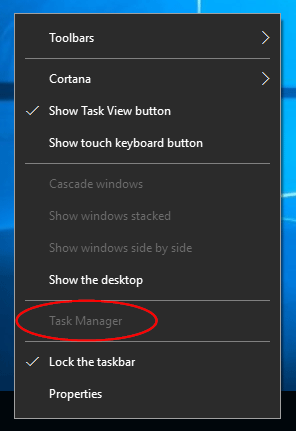
Unable to access Task Manager by pressing Ctrl+Shift+Esc? When you right-click on the taskbar, you might find that “Task Manager” option has been grayed out:

task-manager-greyed-out

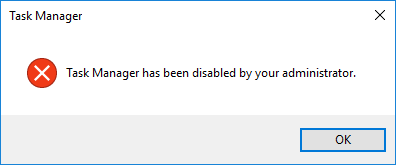
Also when you press the Windows key + R and type taskmgr, you’ll receive the following error message:

“Task Manager has been disabled by your administrator.”

task-manager-disabled

Task Manager is probably disabled by an administrator or a virus or spyware. In this tutorial we’ll show you how to fix “Task Manager is disabled or greyed out” in Windows 10, by using Group Policy, Registry Editor or Command Prompt. Either way, you need to log in as administrator before following the steps.

Method 1: Fix ‘Unable To Access Task Manager’ Using Group Policy

  1. Press Win+R to open Run box, and type gpedit.msc command to start the Local Group Policy Editor.
  2. Navigate down to the following:
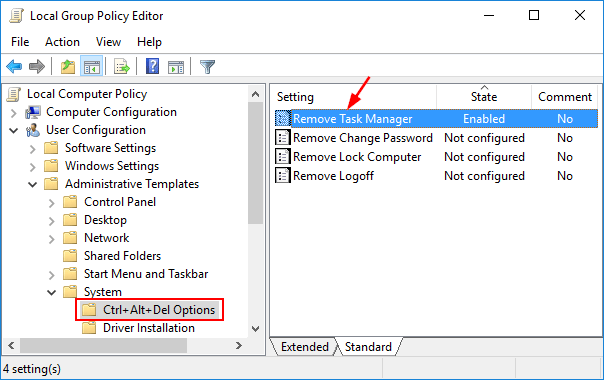
    User Configuration -> Administrative Templates -> System -> Ctrl+Alt+Delete Options
  3. Since you’re facing the issue that Task Manager has been disabled by administrator, you’ll see that the “Remove Task Manager” policy in the right pane is enabled. Double-click on it to modify.
    remove-task-manager

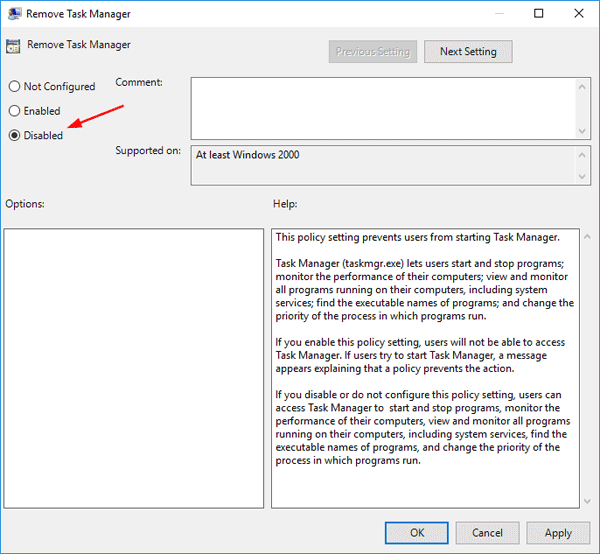
  4. To enable Task Manager, you should set this policy to Not Configured or Disabled.

    fix-disabled-task-manager

    Click Apply followed by OK. Reboot and your problem should be fixed now!

Method 2: Fix ‘Unable To Access Task Manager’ Using Registry Editor

  1. Press Win+R to open Run box, and type regedit command to start the Registry Editor.
  2. Navigate to the following keys:
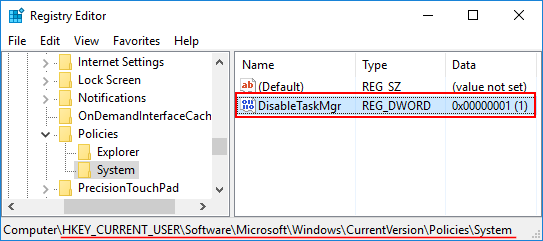
    HKEY_CURRENT_USER\Software\Microsoft\Windows\CurrentVersion\Policies\System

    DisableTaskMgr

  3. In the right side panel, you’ll see a 32-bit DWORD value named DisableTaskMgr. In order to re-enable Task Manager, double-click and change the value to 0. (If you want to disable Task Manager, just change its value data back to 1.)
  4. Go ahead and reboot your computer for the changes to take effect.

Method 3: Fix ‘Unable To Access Task Manager’ Using Command Prompt

  1. Press Win+X shortcut keys on the keyboard and select “Command Prompt (Admin)” from the Power User Menu.
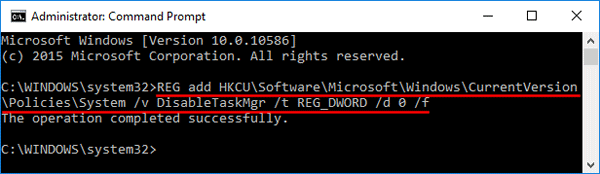
  2. At the Command Prompt, type the following command and press Enter. This will enable the Task Manager.
    REG add HKCU\Software\Microsoft\Windows\CurrentVersion\Policies\System /v DisableTaskMgr /t REG_DWORD /d 0 /f

    enable-task-manager-via-cmd

    If you want to disable Task Manager again, just run this command instead:
    REG add HKCU\Software\Microsoft\Windows\CurrentVersion\Policies\System /v DisableTaskMgr /t REG_DWORD /d 1 /f

Note: If you receive the “access denied” error, it’s likely that you’re running Command Prompt in non-Administrator mode.