Archive for the ‘Others’ category

How to Disable Automatic Updates or “Check for updates” in Windows 11

July 26th, 2025 by Admin

How can I stop Windows 11 from automatically updating? Every time when we suffer unexpected problems caused by automatic Windows updates, it’s really difficult to find out exactly which updates should be to blame and we have to roll back the problematic updates. To keep your PC to run steadily without being disturbed by Windows updates, you can choose to disable automatic Windows updates completely or prevent others from manually checking for updates in Windows 11.

How to Disable Automatic Updates or “Check for updates” in Windows 11

  1. Open the Registry Editor. Copy and paste the following path into the address bar at the top and press Enter, it will take you to that registry location at once.
    HKEY_LOCAL_MACHINE\SOFTWARE\Policies\Microsoft\Windows
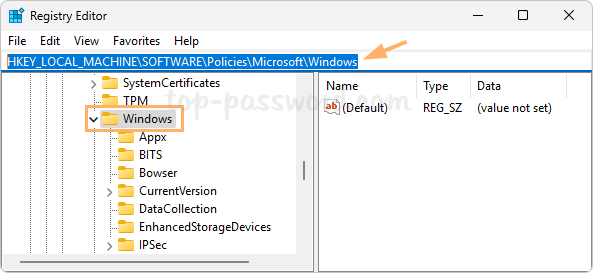
  2. Right-click the Windows key on the left-side pane, and choose New -> Key.
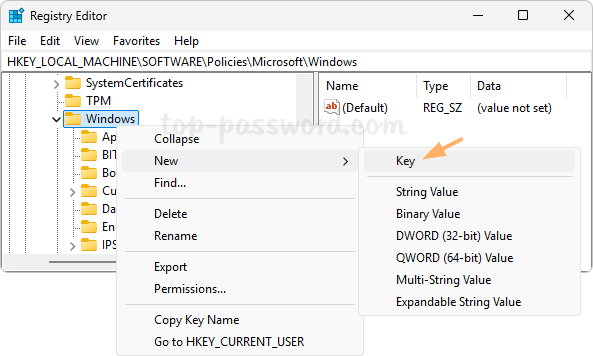
  3. Name the new key WindowsUpdate and press Enter.
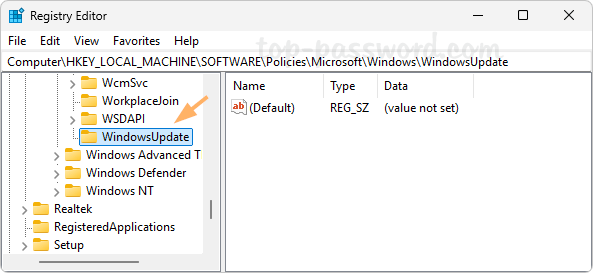
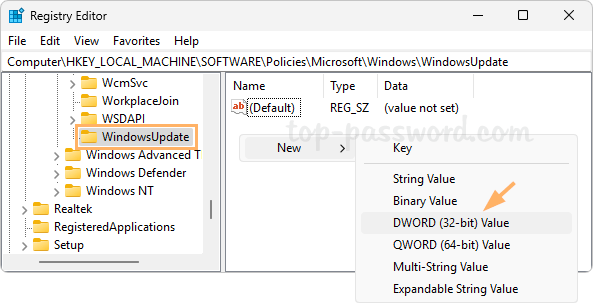
  4. When the WindowsUpdate key is selected, right-click the empty area on the right-side pane, and choose New -> DWORD (32-bit) Value.
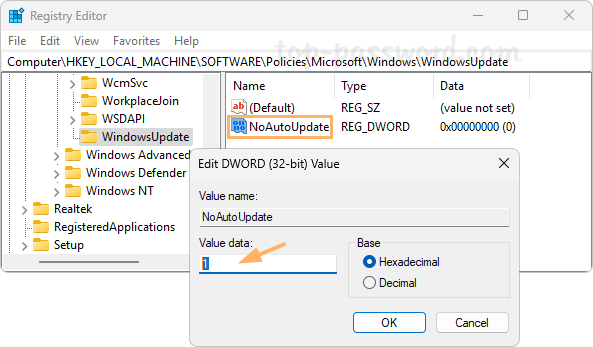
  5. Name the new DWORD NoAutoUpdate, and then double-click it to change its value data from 0 to 1. This will disable automatic Windows updates completely.
    However, you’re still allowed to open the Settings -> Windows Updates, and click the “Check for updates” button to download & install Windows updates.

  6. If you’d like to disable the “Check for updates” button as well, create a new DWORD called SetDisableUXWUAccess at the same registry location, and set its value data to 1.
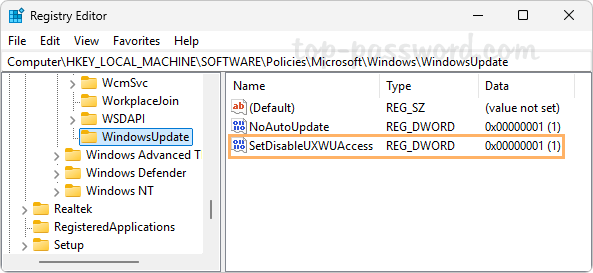
  7. Close Registry Editor and you’ll see that the “Check for updates” button is greyed out immediately.
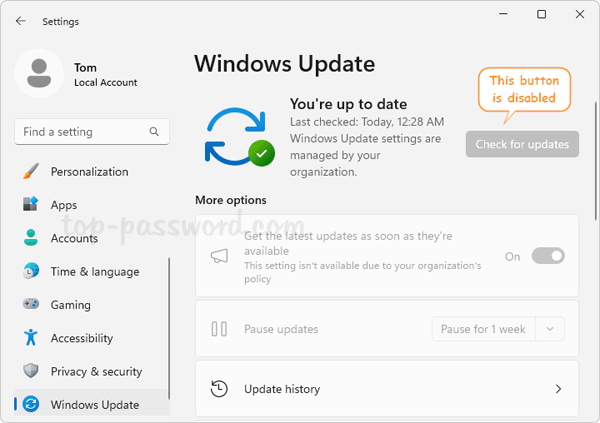
    Whenever you need to turn on automatic Windows 11 updates or enable the “Check for updates” button, just delete the corresponding DWORD entries we created.

That’s it!
Highlight or Drag without Holding the Mouse Button in Windows 11

July 2nd, 2025 by Admin

Is there any easy way to highlight a section of text when using the touch screen? If you are using a touchpad or trackpad, selecting a chunk of text or dragging an item will require you to hold down the mouse button or the SHIFT key at the same time. After turning on the ClickLock feature, it will become much easier to highlight, drag & drop a text or file, which can be easily done using just one finger. No need to hold down the mouse button or SHIFT key.

How to Turn on ClickLock for Easy Highlight or Drag in Windows 11

Previously we’ve covered a traditional way to enable ClickLock using the Control Panel, here is a new method to turn on ClickLock in Windows 11.

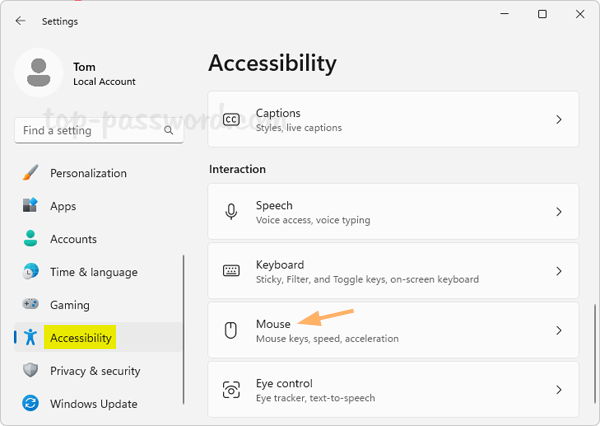
  1. Press the Windows key + I at the same time to start the Settings app. Select Accessibility on the left side and then click the Mouse option on the right panel under Interaction.

  2. Toggle the switch next to “Click lock” to the On position, and then you can drag the slider right under it to set how long you need to hold down a mouse or trackball button before your click is “locked”.

Conclusion

After turning on ClickLock in Windows 11, you will be able to easily scroll, select, drag and drop without having to hold down the mouse button or the SHIFT key.

Step-by-Step Tutorial: Change Mouse Cursor Color and Size in Windows 11

June 18th, 2025 by Admin

Is there a way to change the mouse pointer appearance? Do you find it hard to see the default mouse cursor against your desktop background? To make your cursor easier to see, you can customize the style of the mouse pointer with ease. In this tutorial we’ll walk you through the steps of changing mouse cursor color and size in Windows 11.

How to Change Mouse Cursor Color and Size in Windows 11

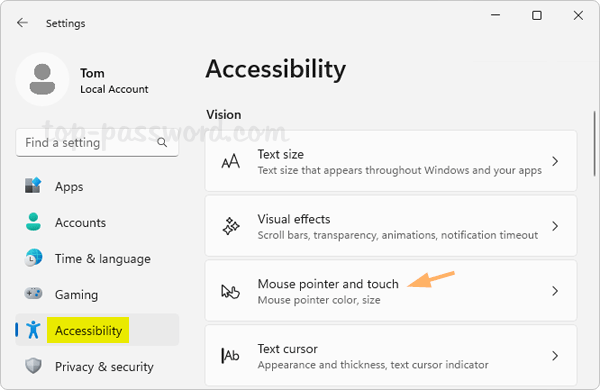
  1. Press the Windows key + I to open the Settings app. Choose the Accessibility category in the left column, and click Mouse pointer and touch on the right column.

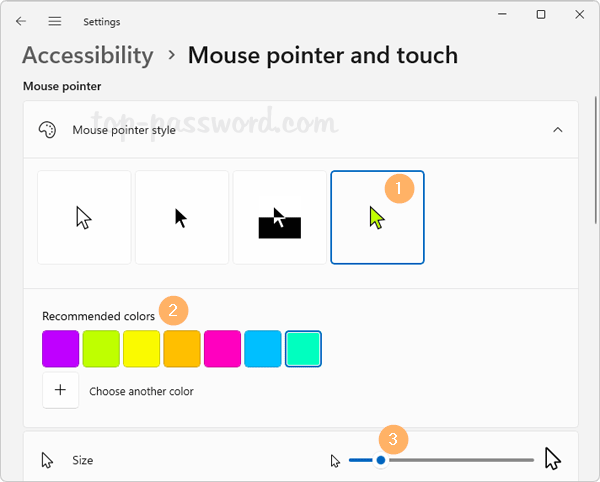
  2. Under the Mouse pointer style section, you can choose one of the classical themes including White, Black, and Inverted. If you want to have an eye-catching cursor, select the fourth option: Custom, which allows you to use the recommended colors or click the plus button to choose another color.

    Next, find the horizontal slider titled Size. Drag it to adjust the cursor size.

  3. Now you can move the mouse to see if you have problem tracking the cursor.

Conclusion

This tutorial shows you how to customize your mouse cursor the way you want in Windows 11, so you can easily keep track of where your mouse is. It’s very useful for people with eyesight problems to spot a small cursor on the screen.

How to Auto-Lock your Windows 11 Screen with Screensaver

June 11th, 2025 by Admin

Leaving your workstation unattended can lead to unauthorized access. It’s a good practice to configure your computer to automatically lock down the screen after inactivity, especially when you need to leave it in a rush. Previously we’ve taught you how to auto-lock Windows with a group policy called “Machine inactivity limit”, here we’ll show you a different method – using Screensaver to automatically lock your computer screen after inactivity time in Windows 11.

How to Auto-Lock your Windows 11 Screen with Screensaver

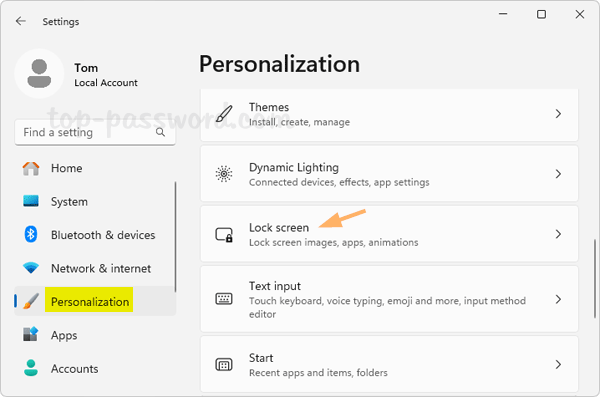
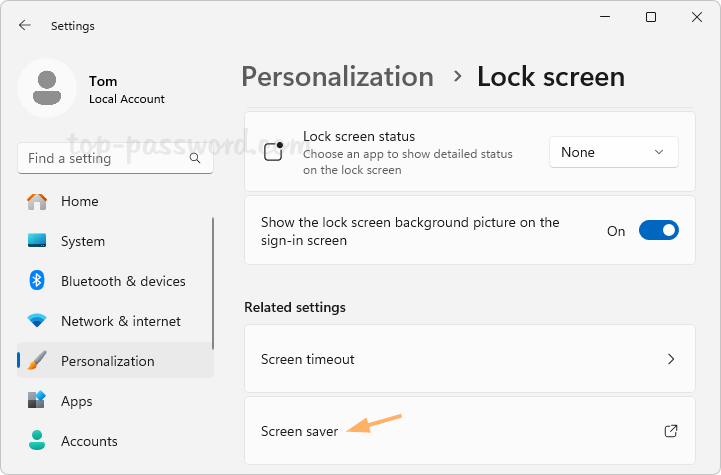
  1. Open the Settings app using the Windows key + I keyboard shortcut. Next, select Personalization on the left sidebar, and click Lock screen on the right pane.

  2. Scroll down to the “Related settings” section, click on the “Screen saver” option to bring up the Screen Saver Settings dialog.

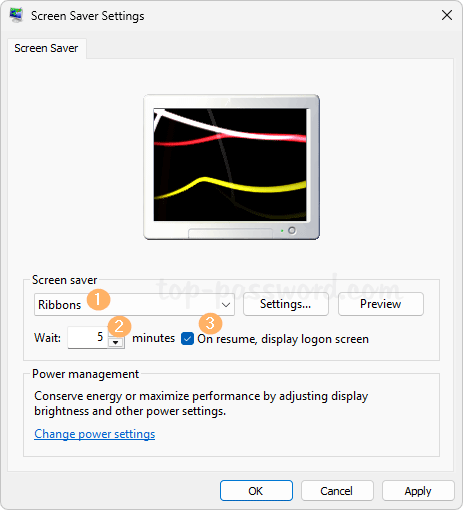
  3. By default, the “(None)” option is selected as the screen saver, which means the screen saver is disabled. You need to select other options from the list, and set the duration of inactivity time to wait before screen saver turns on. Check the box that says “On resume, display logon screen“.

  4. Click Apply and then OK. Windows 11 will automatically activate the screen saver after the specified inactivity time. In order to regain use of your computer after the screensaver activates, you will need to login with your Windows password.

That’s it!
Fix: Mouse scrolling the opposite direction in Windows 11

May 22nd, 2025 by Admin

Mouse scrolling wrong way? How can I reverse the mouse wheel scrolling direction? By default, if you scroll down with the mouse wheel, the page will go down and this is the natural way that we’ve got used to for decades. If your mouse scrolls the opposite way, you can reverse the scrolling direction easily. In this tutorial we’ll show you how to change the mouse scrolling direction in Windows 11.

How to Change Mouse Scrolling Direction in Windows 11

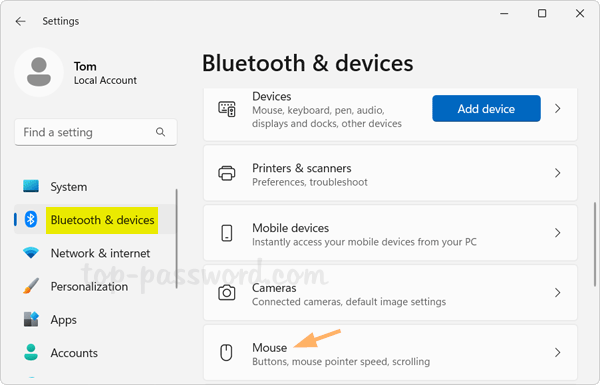
  1. Open the Settings app by pressing the Windows key + I keyboard shortcut. Select Bluetooth & devices on the left sidebar, then click Mouse on the right pane.

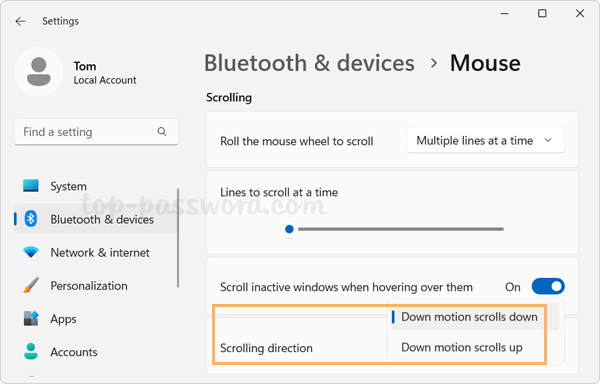
  2. Look for the “Scrolling” section, and you can then click the Scrolling direction drop-down menu to choose your preferred option:

    • Down motion scrolls up: Roll the mouse wheel down will move the page up.
      Down motion scrolls down (default): Roll the mouse wheel down will move the page down.
  3. The change will apply immediately. You can test the new settings to ensure you’re happy with the new scroll direction.

That’s it!
Step-by-Step Tutorial: Change Touchpad Scrolling Direction in Windows 11

May 14th, 2025 by Admin

Touchpad two-finger scroll not working as I expected? How can I reverse the direction of scrolling when I move two fingers up or down on the touchpad? If you have upgraded to Windows 11 and not used to the default scrolling direction, you can reverse the touchpad scroll direction with ease. In this tutorial we’ll walk you through the steps to change touchpad scrolling direction in Windows 11, without using third-party software or registry hack.

How to Change Touchpad Scrolling Direction in Windows 11

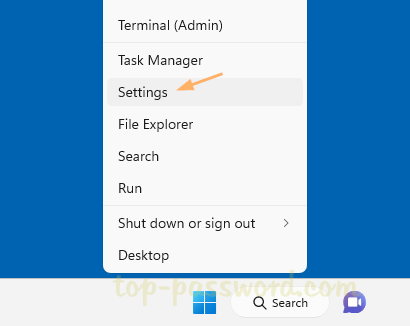
  1. To get started, open the Settings app by pressing the Windows + I keyboard shortcut, or you can right-click the Start button in the taskbar and then choose “Settings“.

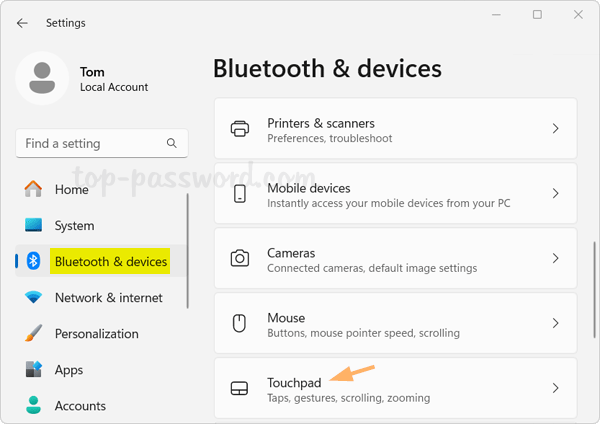
  2. Select Bluetooth & devices on the left side, and then click Touchpad on the right side.

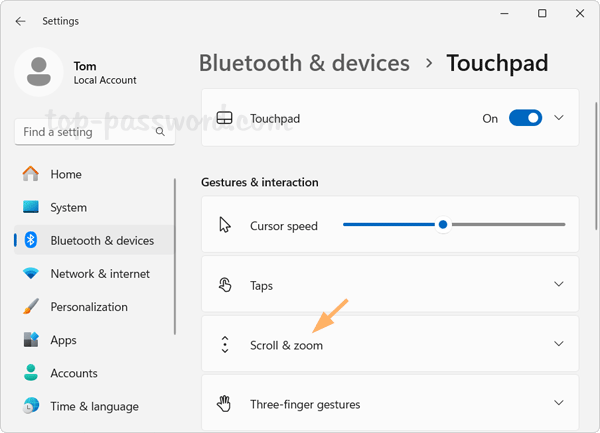
  3. Click the Scroll & zoom to expand its related settings.

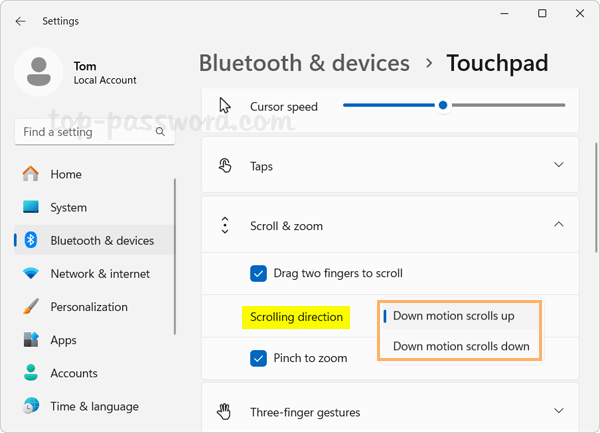
  4. You can then click the “Scrolling direction” drop-down menu to select your preferred option for two-finger scrolling: Down motion scrolls up or Down motion scrolls down.

    • Down motion scrolls up (default): When you swipe down with two fingers on the touchpad, the vertical scrollbar will move up.
    • Down motion scrolls down: When you swipe down with two fingers on the touchpad, the vertical scrollbar will move down. This is the “natural” scroll direction.
  5. Close the Settings app. Enjoy scrolling the way you’re happy with.

That’s it!
Easy Ways to Turn on ‘Do Not Disturb’ on Windows 11

April 27th, 2025 by Admin

‘Do Not Disturb’ is an useful feature in Windows 11, which can silence notifications from apps, system updates or alerts, so you can stay focused during a meeting or game without distractions. In this tutorial we’ll show you the most common ways to turn on ‘Do Not Disturb’ in Windows 11.

Method 1: Use System Tray to Turn on ‘Do Not Disturb’

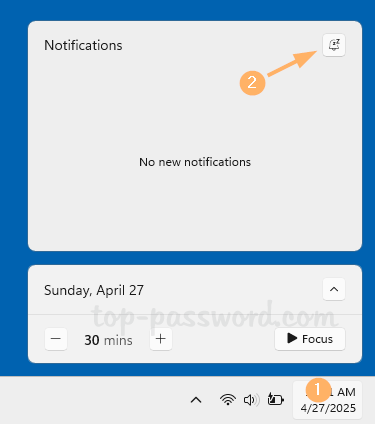
  1. Click on time and date in the system tray on the far right corner. When the notification center pops up, click the bell icon in the top-right corner.

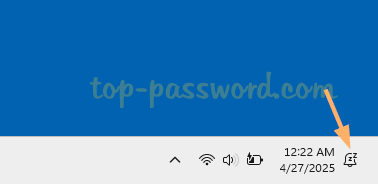
  2. It will enable the ‘Do Not Disturb’ mode immediately and you’ll see the bell icon on the right side of the taskbar. If there is no bell icon, Do Not Disturb is currently turned off.

Method 2: Use Settings App to Turn on ‘Do Not Disturb’

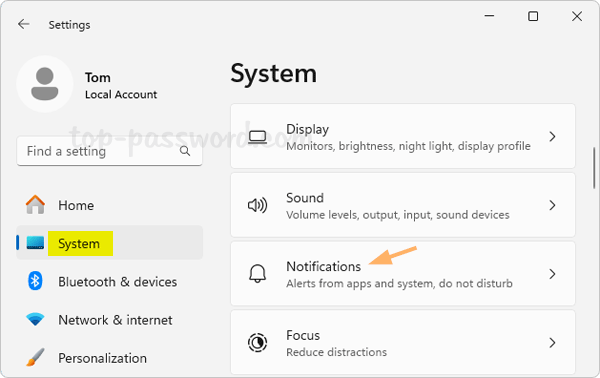
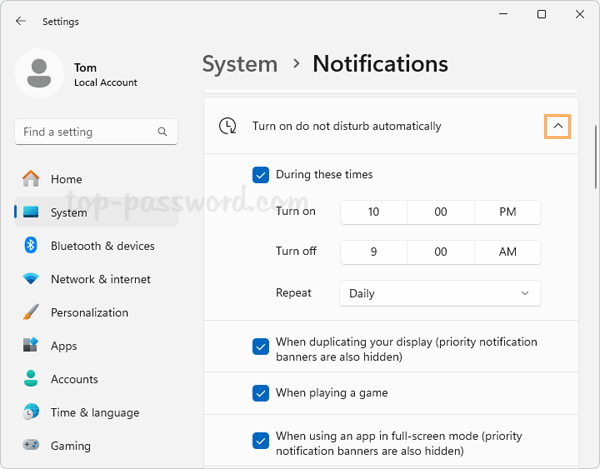
  1. Press the Windows key + I keyboard shortcut to open the Settings app. Choose System in the left sidebar and click Notifications on the right.

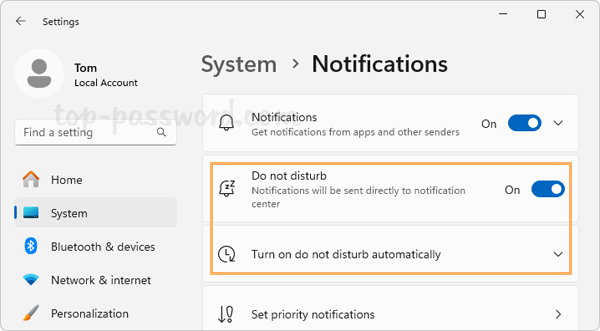
  2. You can either turn on ‘Do Not Disturb’ by flipping the “Do not disturb” setting to the On position,

    or click the “Turn on do not disturb automatically” to expand its settings. From there you can schedule quiet hours, or tick the box “When playing a game” or others to configure when the ‘Do Not Disturb’ should be activated automatically.

Conclusion

The above methods allows you to turn on ‘Do Not Disturb’ easily on your Windows 11 computer. In addition, you can also turn on “Do not disturb” by starting a Focus session.

Fix: Remote Desktop Frequently Disconnects after Windows 11 Update

March 26th, 2025 by Admin

Remote desktop sessions keep disconnecting after a while? Recently I ran into this issue on Windows 11 24H2 and the remote desktop connection frequently disconnected so I had to reconnect again and again. This is quite frustrating and many people who experienced the same problem reported that either KB5050094 or KB5051987 was to blame. Uninstalling those updates might solve the issue but eventually I found a better solution. In this tutorial we’ll show you how to tweak the group policy to fix the issue of remote desktop connection frequently disconnecting after Windows 11 update.

How to Fix: Remote Desktop Frequently Disconnects after Windows 11 Update

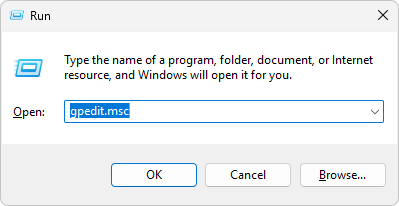
  1. Press the Windows key + R together to open the Run box, type gpedit.msc and hit Enter to launch the Local Group Policy Editor.

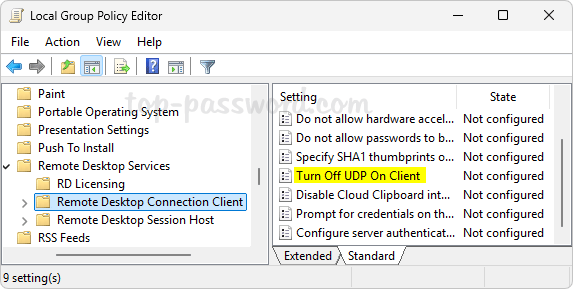
  2. Browse to: Computer Configuration -> Administrative Templates -> Windows Components -> Remote Desktop Services -> Remote Desktop Connection Client. On the right pane, double-click the “Turn Off UDP On Client” policy.

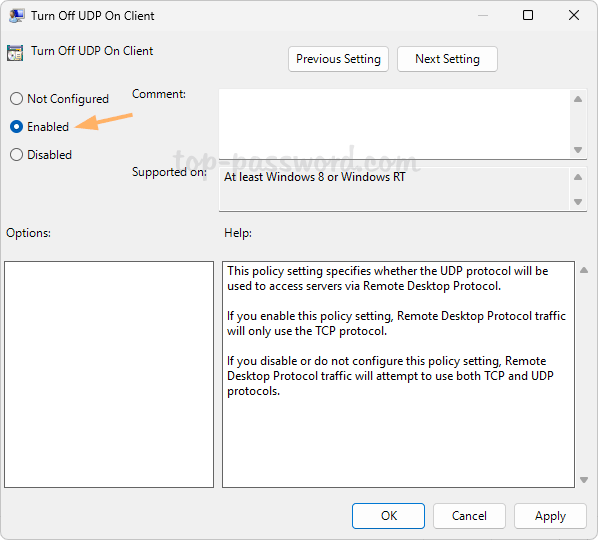
  3. Select the Enabled option. Click Apply and then OK.

  4. Close the Local Group Policy Editor and restart the computer to make this change to take effect. The next time you connect to this PC through RDP and your session won’t keep dropping or disconnect automatically.

After applying the above group policy tweak, remote desktop service will run on TCP protocol only instead of UDP protocol. Whenever Microsoft releases a new update to fix the remote desktop connection issues, you can then disable the above group policy.

How to Disable Notepad AI Rewrite in Windows 11

March 19th, 2025 by Admin

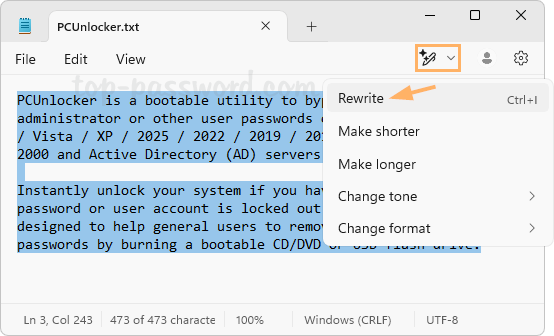
How can I turn off Rewrite AI in Notepad? The Rewrite feature is officially roll out to public users since Notepad version 11.2410.17.0, and it utilizes AI technology to help rewrite sentences or whole paragraphs based on your preferences.

To use Rewrite, you need to sign in to Notepad with Microsoft account, and Copilot AI credits are required. If you don’t have any AI credits, the Rewrite feature becomes useless. In this tutorial we’ll walk you through the steps to disable the Notepad AI Rewrite feature in Windows 11.

How to Disable Notepad AI Rewrite in Windows 11

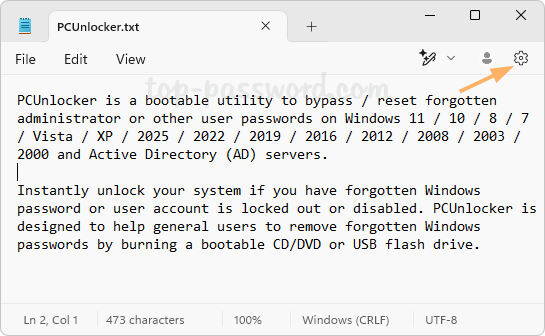
  1. Open any text file with Notepad, and then click the Gear icon in the top right corner.

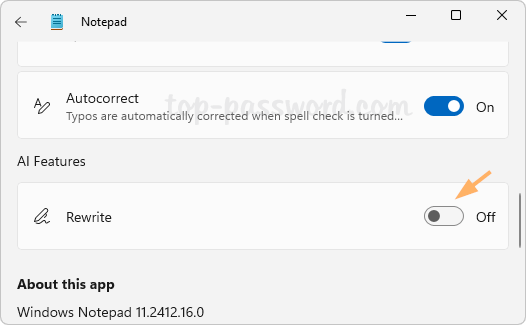
  2. You will be presented with different settings for Notepad. Under the “AI Features” section, you can toggle the “Rewrite” setting to OFF.

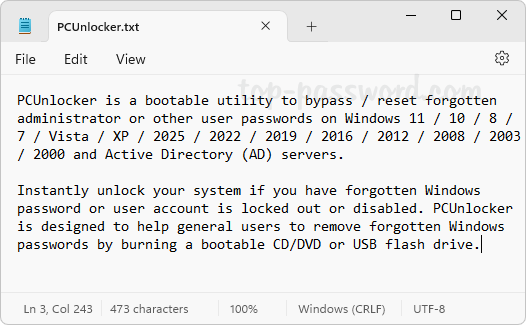
  3. Now you should see the Rewrite icon disappear from the upper right of the Notepad window.

Conclusion

This is how you can disable the Notepad AI Rewrite feature in Windows 11. Each time you rewrite the selected text, it will cost you one AI credit. If you’re unsure how many AI credits you have left, click the Profile icon in the top right of Notepad, you see the AI credit balance for your Microsoft account.

How to Remove “Edit in Notepad” Context Menu in Windows 11

February 26th, 2025 by Admin

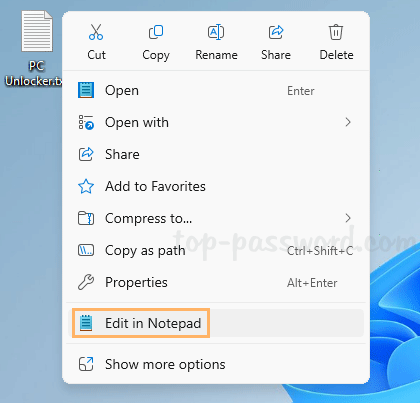
Is there a way to remove “Edit in Notepad” or other unnecessary entries from context menu? If you never choose to use Notepad to open text files, the “Edit in Notepad” context menu will become redundant and you can delete it to keep your context menu neat. In this tutorial we’ll show you an easy way to remove “Edit in Notepad”, “Edit with Photos” or “Edit with Paint” context menus in Windows 11.

How to Remove “Edit in Notepad” Context Menu in Windows 11

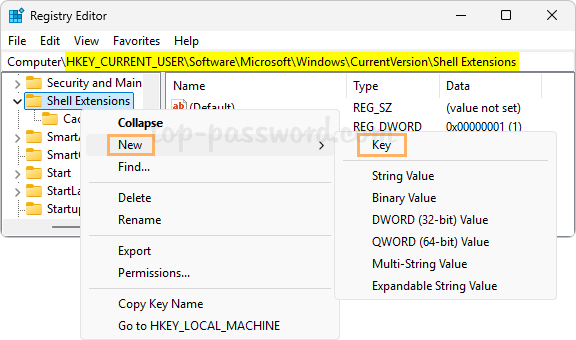
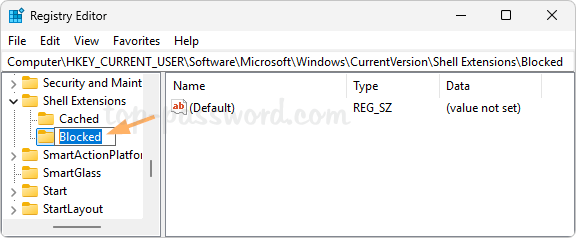
  1. Open Registry Editor and head to this location: HKEY_CURRENT_USER\Software\Microsoft\Windows\CurrentVersion\Shell Extensions. Right-click the “Shell Extensions” key and choose New -> Key.

  2. Name the new key Blocked.

  3. Highlight the “Blocked” key and then go to the right pane, right-click any blank area and choose New -> String Value.

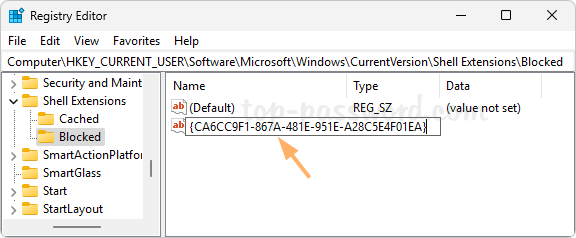
  4. To remove the “Edit in Notepad” context menu, name the new string {CA6CC9F1-867A-481E-951E-A28C5E4F01EA} and press Enter.

    You can also create a string named {BFE0E2A4-C70C-4AD7-AC3D-10D1ECEBB5B4} to remove the “Edit with Photos” context menu, or a string named {2430F218-B743-4FD6-97BF-5C76541B4AE9} to get rid of the “Edit with Paint” menu entry.

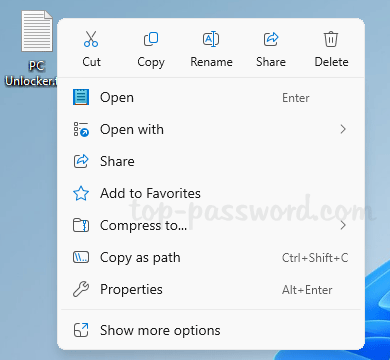
  5. Close Registry Editor. When you right-click any text file on your desktop, you’ll see that the “Edit in Notepad” entry has already disappeared from the context menu. Whenever you need to restore it, just delete the string you’ve created above in the Registry Editor.

Conclusion

The above method allows you to remove “Edit in Notepad”, “Edit with Photos” or “Edit with Paint” from the standard context menu, but these menu entries are still visible from the extended context menu when clicking “Show more options”.