Is it possible to create a hidden account in our home computer? If you share a computer, you might not want everyone who uses your PC to see your username at the login screen. In this tutorial we’ll show you 2 options to create a hidden administrator account in Windows 10 / 8 / 7 from the Command Prompt.
Option 1: Create a Hidden & Disabled Administrator Account
Every Windows installation has a set of predefined accounts, including the built-in Administrator account. By default, the built-in Administrator account is disabled so it does not appear on the login screen at startup. Here’s how you can create a similar hidden administrator account from Command Prompt:
- Open the Command Prompt with administrative rights.
- Copy and paste the code below in the Command Prompt. Replace 123 with your own password and pcunlocker with your administrator name.
net user pcunlocker 123 /add

net localgroup Administrators pcunlocker /add

net user pcunlocker /active:no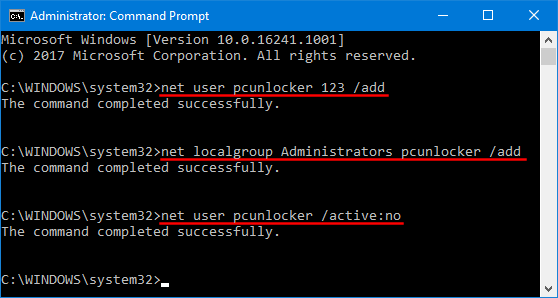
- Once you press Enter, a new administrator account will be created but it is set to be disabled. A disabled user will not show up at Windows login screen until you enable it.
If you want to unhide a disabled account, run the following command at Command Prompt:
net user pcunlocker /active:yes
Option 2: Create a Hidden & Enabled Administrator Account
- Open the Command Prompt with administrative rights.
- Copy and paste the following code in the Command Prompt. Replace 123 with your own password and pcunlocker with your administrator name.
net user pcunlocker 123 /add

net localgroup Administrators pcunlocker /add

reg add "HKEY_LOCAL_MACHINE\Software\Microsoft\Windows NT\CurrentVersion\Winlogon\SpecialAccounts\Userlist" /v pcunlocker /t REG_DWORD /d 0 /f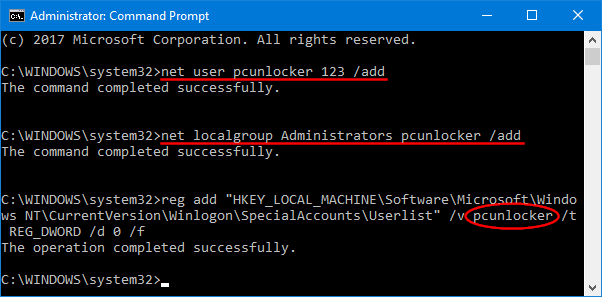
- This will create a hidden administrator account which is invisible in both your Windows login screen and Fast User Switch menu, though you’ll still be able to manually login via remote desktop.
This method is useful if you want to create a hidden account for remote access, but don’t let it show up on the login screen. If you want to unhide such a hidden account, just run this command at Command Prompt:
reg add "HKEY_LOCAL_MACHINE\Software\Microsoft\Windows NT\CurrentVersion\Winlogon\SpecialAccounts\Userlist" /v pcunlocker /t REG_DWORD /d 1 /f
That’s it!