Lost SA password? SA user is locked out and login fails with Windows Authentication. Now what? Here are some of the options I think you may do:
- You will try logging in as SA with all possible passwords you have in your mind.
- You will look for the SA password on your computer hard-drive or in your emails (If you had stored it in some file which is a bad practice).
- Try to restore MASTER database from database backup. However, this will not help because you will run in to the same issue as you don’t remember the SA password.
- Rebuild Master database. This may not help as you will lose all system/server level configurations and settings including logins, permissions and any server level objects.
- Re-install SQL Server 2012 and attach all user databases. This may not work as you may experience same issues that you would experience with the option above.
However, the best and fastest way is to unlock SA account with SQL Server Password Changer. Get instant control over locked databases no matter how many instances of Microsoft SQL Server are running. Follow the steps below and you can easily unlock SQL Server database in case you lost SA password or SA account is locked out.
- First of all, stop the SQL Server service to prevent it blocking access to the master.mdf file.
- Download and install the SQL Server Password Changer program. After you’ve installed it, launch the program.
- Click on the Open File button. In the file open dialog, select the master database (master.mdf). Usually the master.mdf file is located in
C:\Program Files\Microsoft SQL Server\MSSQL11.MSSQLSERVER\MSSQL\DATA\, where MSSQL11.MSSQLSERVER is the name of your SQL Server instance. - Once choosing the master.mdf file, the program shows you a list of SQL users.
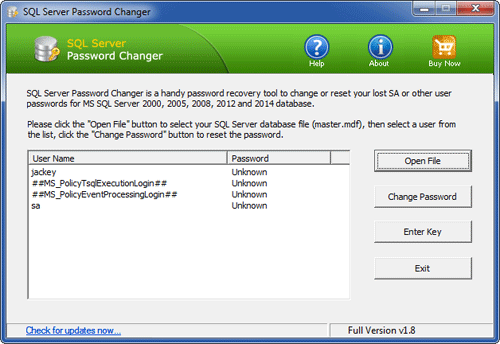
Select the SA account and click on Change Password. Set a new password and click OK.
- The program will replace the lost SA password and also unlock your SA account in no time.
- Restart your SQL Server service and you can then login to SA account successfully.