I have my Windows XP account password protected but now I can’t remember the password. I just set it up today but I forgot the password I chose. Is there a way to unlock or remove this password so I can use my computer?
Forgot the password to the only administrator account on your PC, or lock out of Windows user account after unsuccessful logon attempts? Well, these problems can be solved with a bootable PCUnlocker USB drive. Rather than cracking a Windows user account password, PCUnlocker removes it and unlock your locked-out Windows account instantly!
How to Unlock My Password Protected Windows 8/7/Vista/XP User Account?
- Download the zipped ISO image of PCUnlocker and save it on another PC you can log on. Double-click on the .zip file and the system will show you the contents inside. Drag the pcunlocker.iso file from that window to your desktop, then burn it to a USB flash drive using ISO2Disc program.
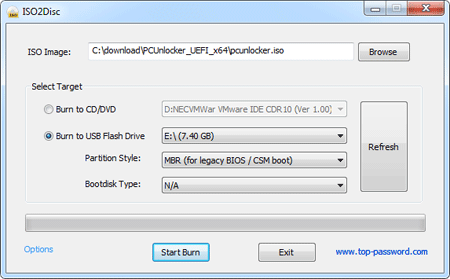
- Insert the bootable USB drive into your password-protected computer. When the computer is booting, you will need to press the correct key to get into the Boot Menu. It is usually F12 or Del key. Once in the Boot Menu, select your USB flash drive and press Enter.
- The computer will load the WinPE operating system from the bootable USB drive. After a while, you’ll see the PCUnlocker program. It will read the Security Accounts Manager (SAM) files of your Windows system and show you a list of local user accounts.
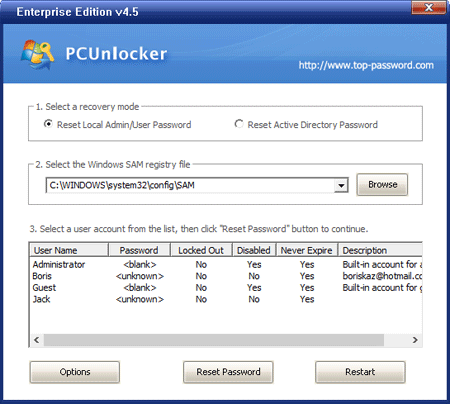
- Choose your user account and click on Reset Password. The program will reset your lost Windows account password and also unlock your user account if it is already disabled, locked out or expired.
- Click on Restart button and remove the bootable USB drive. The computer will then boot normally to the Windows login screen. Just leave the password box as blank and you can successfully log back into your Windows user account.
So this is how can you unlock any password protected Windows 8/7/Vista/XP user account. This method also works with both local user accounts and Active Directory user accounts on Windows Server 2012/2008/2003/2000.