A vulnerability has been discovered as a backdoor in all versions of Windows, including Windows 10, 8, 7 and Vista. A user can reset Windows password from an elevated Command Prompt on the Windows logon screen. Here’s how to plant a backdoor to your Windows system so that you can always reset a forgotten Windows password, or even create a new administrative account when you’re locked out.
Part 1: Create A Password Reset Backdoor in Windows
This method requires an administrator privilege to the computer in order to make changes to the system. Check out these step-by-step instructions:
- First, make sure you are logged in as an administrator.
- Download and install the freeware TakeOwnershipPro on your computer. Go to the folder c:\windows\system32. Right-click on sethc.exe and select TakeOwnershipPro from the context menu, this will grant full permissions of this file to your logged-on account. Proceed to take ownership of cmd.exe.
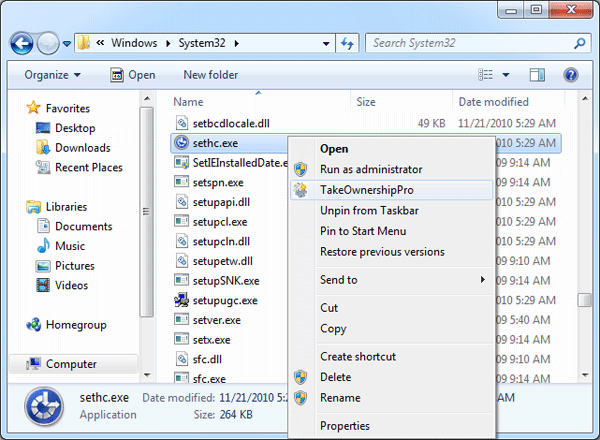
- Make a backup copy of the sticky key application (c:\windows\system32\sethc.exe), and then replace sethc.exe with cmd.exe. If you haven’t taken ownership of sethc.exe and you might get the “access denied” error.
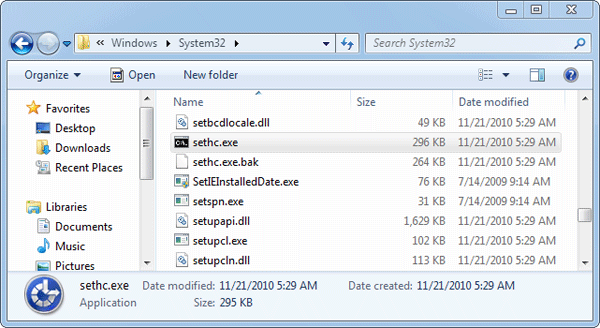
- Now you have successfully installed a Windows password reset backdoor.
Part 2: Reset Windows Password through Backdoor
In the event that you forgot your Windows user password afterwards, you can simply reset the password through the backdoor you installed. Here is how:
- When you are at the Windows login screen, press the SHIFT key continuously for 5 times and this will open a Command Prompt instead of the sticky key application.
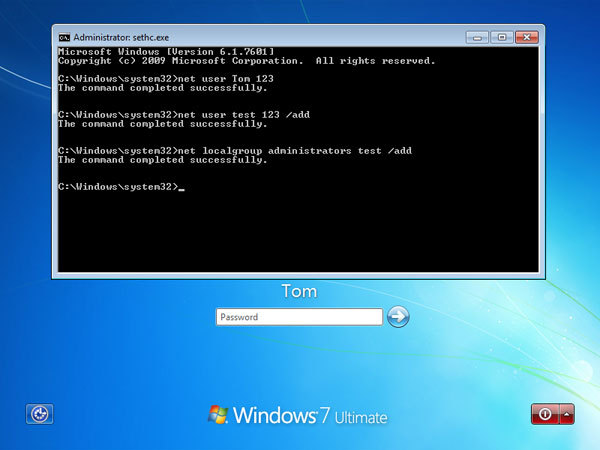
- At the Command Prompt, you can use the net user command to reset password of any existing account, or create a new user account.
- To reset the password, type the following command:
net user Tom 123
Replace Tom with the name of your Windows account, and 123 with your desired password. - To create a new user account and add it to administrators group, run the following commands one by one:
net user test 123 /add

net localgroup administrators test /add
These commands will create a test account and give it local administrative privileges.
- To reset the password, type the following command:
- Close the Command Prompt and you can then log into Windows with your new password, or newly-created user account. That’s it!