
Provide the best software to recover passwords for
Windows, SQL Server, PDF, Word, Excel, Outlook, FTP, Email, etc.




Load IDE/SATA/SCSI/RAID Drivers for Your Hard Drive
Although we've collected many IDE/SATA/SCSI/RAID drivers and built them into the ISO image of PCUnlocker, there are still plenty of hard disk drivers absent in the bootdisk you've created. If the bootdisk can't recognize your hard drive, you'll see the screen below:
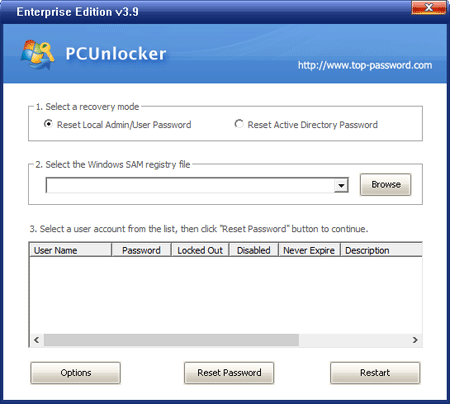
As shown above, there isn't any SAM registry hive in the drop-down list. To make the bootdisk to recognize your hard drive and detect your SAM registry hive, you need to manually load your hard disk drivers on the fly after you've booted. Follow the instructions below:
Preparing for Loading Drivers
Copy the driver setup files (*.inf, *.sys) of your hard disk to a USB flash drive. The drivers should be compatible with your bootdisk. For example, if you've made a bootdisk from PCUnlocker Enterprise (PCUnlocker_UEFI_x64.zip), you need to use the driver for Windows 8 64-bit or Windows Server 2008 64-bit. You can get driver setup files using one of the following methods:
- Normally when you buy a new PC you get loaded with a CD with the motherboard and hard disk drivers. Copy the corresponding driver setup files from the CD to a USB flash drive.
- If you don't have a drive installation CD, you can also go to the vendor's website of your computer to download the driver setup package. For example, if you want to get the hard disk driver for your HP laptop, please visit http://www8.hp.com/us/en/support-drivers.html. Double-click on the download file, and extract the driver setup files to your USB flash drive.
- For Dell computers, please refer to this article: How to Download and Extract Dell Drivers.
How to Load IDE/SATA/SCSI/RAID Drivers for Your Hard Drive
- Insert the USB flash drive which contains the driver setup files for your hard disk.
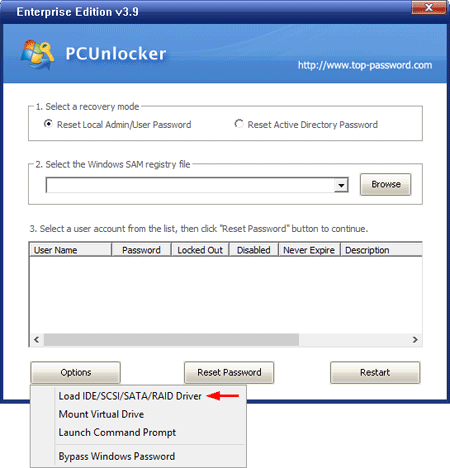
On the main window of PCUnlocker, click the Options button and select Load IDE/SCSI/SATA/RAID Driver from the drop-down menu.
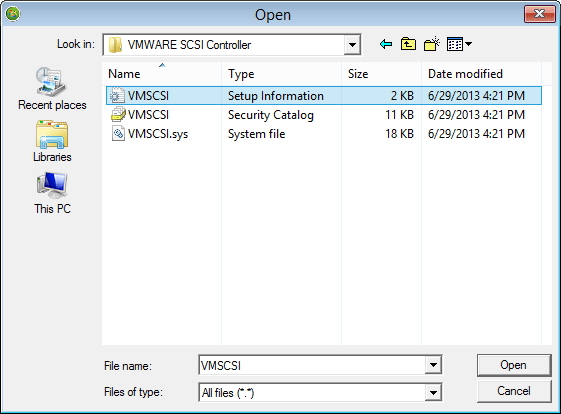
When the file open dialog appears, select the Driver Setup Information file (.inf) corresponding to your hard disk, and then click Open.
- The program will load your driver immediately, and display a list of local user accounts stored in your Windows SAM registry hive.
Next you're able to choose the user account whose password you forgot, then click Reset Password button to remove the password as blank.
Ready to try or buy?
Related Articles