
Provide the best software to recover passwords for
Windows, SQL Server, PDF, Word, Excel, Outlook, FTP, Email, etc.





PCUnlocker

Unlock, Bypass and Reset Windows Password Easily
PCUnlocker is a bootable utility to bypass / reset forgotten administrator or other user passwords on Windows 11 / 10 / 8 / 7 / Vista / XP / 2025 / 2022 / 2019 / 2016 / 2012 / 2008 / 2003 / 2000 and Active Directory (AD) servers. Instantly unlock your system if you have forgotten Windows password or user account is locked out or disabled. PCUnlocker is designed to help general users to remove forgotten Windows passwords by burning a bootable CD/DVD or USB flash drive.
PCUnlocker Family
Compare Editions>>
- Overview
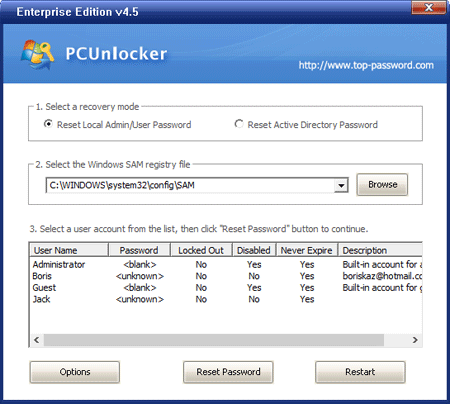
- Screenshot
- When to Use
- Testimonials
Key Features & Benefits
- 100% satisfaction guaranteed.
- Simple and intuitive graphic interface.
- Bypass, remove or reset Windows local administrator and user passwords.
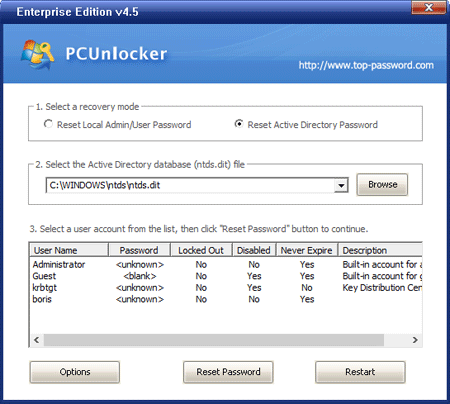
- Reset forgotten domain administrator and user passwords for Windows 2000, 2003, 2008, 2012, 2016, 2019, 2022 and 2025 AD (Active Directory) domain controller.
- Reset passwords to DSRM (Directory Services Restore Mode) accounts.
- Unlock / enable any Windows local account or Active Directory account that is locked out, disabled or expired.
- Promote any standard or limited Windows user account to administrator.
- New! Create new local admin account when Windows can't load the user profile of existing account.
- Ability to remove logon time restrictions on Windows local account and Active Directory account.
- Support password reset for Windows 11 / 10 / 8 local account and Microsoft account.
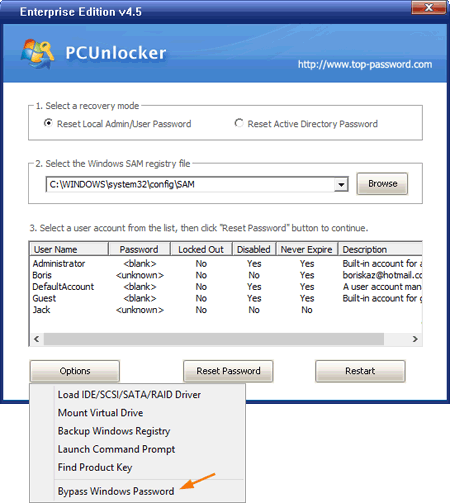
- New! Bypass the password of Windows local account without modifying the old password.
- Reset administrator password of virtual machine runs in VMware, Parallels, VirtualBox, Microsoft Virtual PC, Hyper-V (Gen2 & Gen1 VM).
- Reset passwords for Windows 11, 10, 8.1, 8, 7, Vista, XP, 2003, 2000, NT, Windows Server 2003 x64 Edition (64-bit), Windows 7 64-bit, Windows Server 2008 / 2012 / 2016 / 2019 / 2022 / 2025.
- Reset Windows passwords with a bootable CD, USB drive or network over PXE.
- Support Windows 11 / 10 / 8 computers with UEFI Secure Boot, including Microsoft Surface Pro, Apple Mac, ThinkPad Tablet 2, Dell Venue 8/11 Pro, Toshiba Encore.
- Support RAID/SCSI/SATA/NVMe hard drives (HDD, SSD).
- New! Mount virtual hard disk (*.vhd, *.vhdx, *.iso).
- Disable the "Force Smart Card Login" if your Smart Card is lost.
- FREE technical support.
Compare Editions
There are three editions of PCUnlocker - Standard Edition, Professional Edition and Enterprise Edition. Make sure you get the right edition to reset your lost Windows password.
| Features | Standard | Professional  |
Enterprise |
|---|---|---|---|
| Reset Windows local administrator password |  |
|
|
| Bypass the password of Windows local account without changing the current password | |
|
|
| Unlock disabled, locked or expired Windows local account | |
|
|
| Reset Windows domain administrator and user password |  |
|
|
| Unlock disabled, locked or expired Active Directory accounts | |
|
|
| Create new local admin account New! | |
|
|
| Burn a password reset CD/DVD | |
|
|
| Burn a password reset USB flash drive | |
|
|
| Boot UEFI-based computer from CD or USB drive and support Windows 11 New! | |
|
|
| Boot your locked PC from the network using PXE New! | |
|
|
| Support Windows 10/8/7/Vista/XP/2000/NT | |
|
|
| Reset passwords for local account and Microsoft account in Windows 10/8 | |
|
|
| Support Windows Server 2025/2022/2019/2016/2012/2008(R2)/2003/2000 | |
|
|
| Promote any standard or limited Windows user account to administrator | |
|
|
| Find product keys for Windows, Office, SQL Server, etc. | |
|
|
| Price | $19.95 | $29.95 | $49.95 |
| Purchase |  |
|
|
User Guide
Learn how to reset lost or forgotten Windows password instantly with a CD/DVD or USB flash drive.
System Requirement
- Windows 11, 10, 8, 7, Vista, XP, 2025, 2022, 2019, 2016, 2012, 2008, 2003 (32-bit & 64-bit)
- At least 512M physical RAM
- A CD/DVD or USB flash drive
Demo Limitation
- Display all Windows accounts on your PC, but cannot reset the passwords.
Ready to try or buy?