“I am unable to login with any account even local administrator, while login it shows ‘The sign-in method you are trying to use isn’t allowed. For more info, contact your network administrator‘. Please help me out on this problem.”
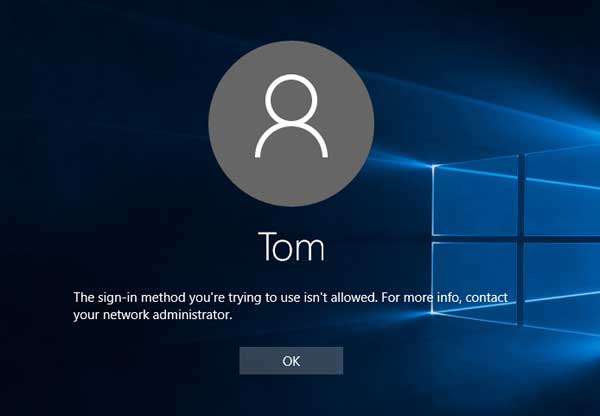
If your account is not granted the permission to log on locally, you’ll get such an error message at login. To fix this problem, we need to tweak the local security policy, or domain controller policy if you’re facing the same login issue with a domain user.
For Standardalone Computer:
- Press the Windows key + R and type secpol.msc in the Run box. Press Enter to open the Local Security Policy window.
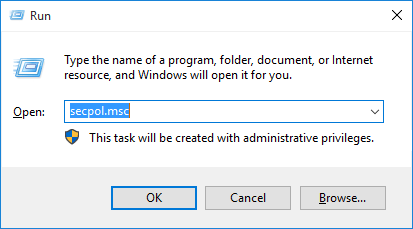
- Expand to Security Settings > Local Policies > User Rights Assignment. In the right pane, locate the policy named Deny log on locally. Double-click on it to modify.

- Check if your problematic user account or the user groups it belongs to is listed there. If it is there, select it and click on Remove.
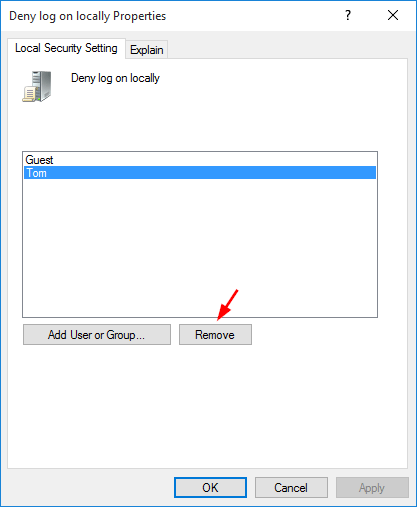
- When it’s done, click Apply and then OK. Reboot your computer and you should be allowed to log on to your account locally.
For Domain Controller:
There is also a corresponding security policy existing in domain controller that can cause the problem “The sign-in method you are trying to use isn’t allowed. For more info”. Follow these steps to fix it:
- To get started, open the Group Policy Management. In Windows Server 2008, you can click Start, then select All Programs > Administrative Tools > Group Policy Management.
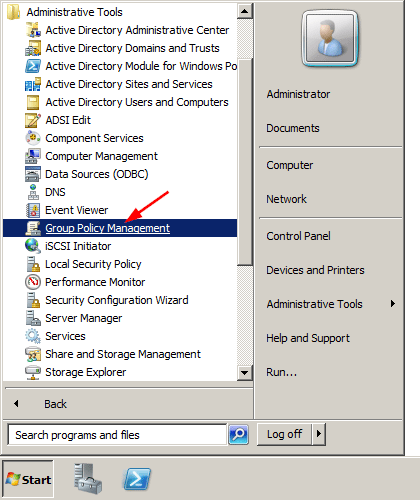
- On the left hand side of Group Policy Management, expand Forest > Domains > your domain name, and then click Group Policy Objects. In the right-hand window, double-click on Default Domain Controllers Policy and select Edit.
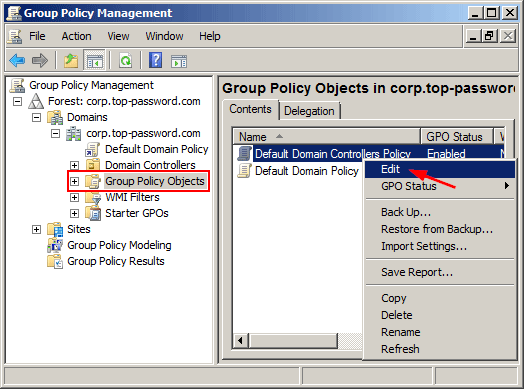
- This will open the Group Policy Management Editor window. Navigate to:
Computer Configuration > Policies > Windows Settings > Security Settings > Local Policies > User Rights Assignments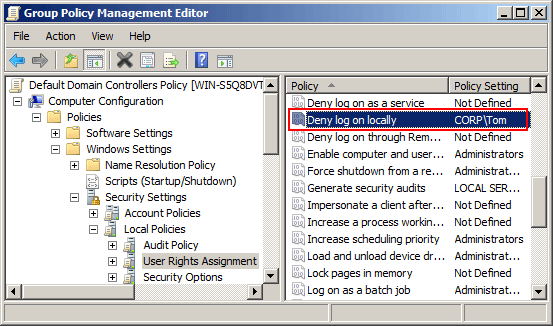
In the right pane, double-click on Deny log on locally.
- Check if your problematic domain account or the domain groups it belongs to is listed there. If it is there, select it and click on Remove.
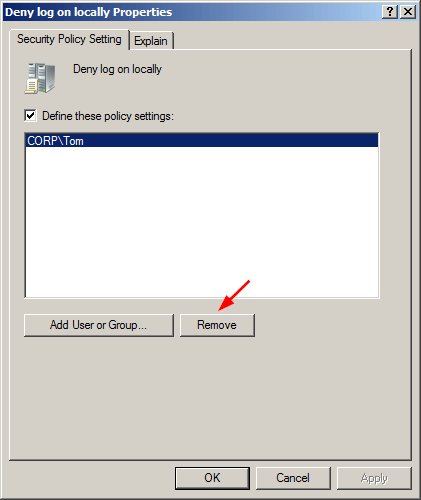
- Click Apply and OK to save your changes. Reboot your computer and you can then login without permission issues.