I’ve got an issue with Windows 7 logins. There is no user accounts appear when the computer boots to the Windows Welcome screen. How do I log into Windows? I also tried to boot up in safe mode and got the same thing. Is there a way to resolve this?
Cannot log into Windows because somehow the user accounts are gone from the Windows login screen? When you start the computer and reach the Welcome screen, there are no user accounts to click on to login. This is one of the most tricky computer problems faced by Windows users. Most of us have no other choices but to reinstall Windows. However, there is an easy fix to this problem.
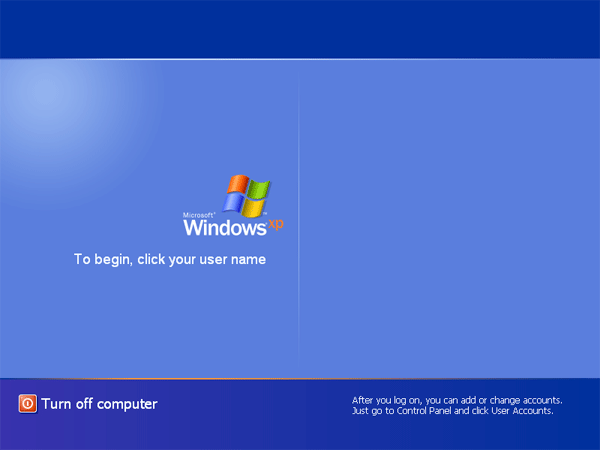
No user accounts at Windows Welcome screen? This usually happens when you disable or delete all of your Windows user accounts. It can also caused by inappropriate local group policy or registry settings. Reset Windows Password utility can help you fix all of these problems so your user account will show up again on Windows Welcome screen. Quickly log back into Windows Desktop without reinstalling Windows.
Solution to the Problem of “No User Accounts Show Up on Windows Welcome Screen”
Reset Windows Password utility is mainly designed for resetting forgotten Windows user account passwords. But it can also help you fix the login problems that might be caused by inappropriate local group policy, registry settings or others. Just go through the following steps to get your user account show up again at Windows Welcome screen.
Step #1: First, you need to find an alternative computer in order to make a bootable Live CD. Download the Reset Windows Password utility and save it on the computer. Unzip the download file and you’ll get an ISO image file called ResetWindowsPwd.iso. Burn the ISO file to a blank CD (or USB flash drive) using ISO2Disc program.
Step #2: Place the Live CD into the CD drive of your problematic computer and select CD/DVD as the first boot device in computer BIOS. If you don’t know how to get your computer to boot from CD, please refer to this article: How to Set Your Computer to Boot from CD or USB Drive.
Step #3: Once the computer boots from the Live CD, it will open up the Reset Windows Password program after one or two minutes. The program automatically searches your Windows installation and displays a list of user accounts existing inside Windows SAM registry file.
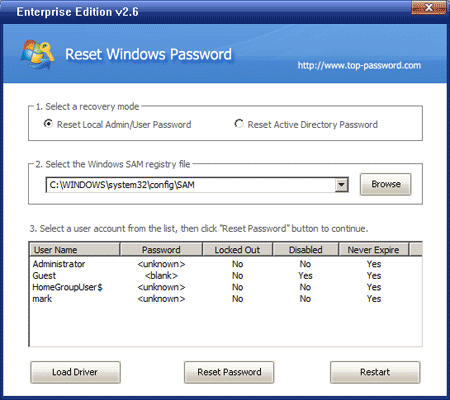
Step #4: Choose a user account and click on “Reset Password” button. The program will remove your user password and also fix any problem with your user account: enable the account if it was disabled, unlock the account when it was locked out, tweak your local group policy or registry settings which cause your account disappear from the Windows Welcome screen.
Step #5: Restart the computer and remove the Live CD. When booting to the Windows Welcome screen, you should see your user account show up again. Simply click on your user account and left the password field blank/empty, you can then log back into Windows Desktop.