If you are someone who uses more than one computing devices (desktop PC, laptop or even a tablet), do you find it irritating that you have to make separate personalization settings on each device? Microsoft has introduced a sync feature in Windows 8 that allows you to solve this particular problem. You can sync all your settings and data across multiple Windows 8 computers.
If you want to enable synchronization feature in Windows 8, you will need to use your Microsoft account instead of the local Windows account to login to Windows 8. Since Microsoft account is connected to the cloud storage of SkyDrive, you will be able to use the free storage of SkyDrive.
In this tutorial, I’ll show you how you can synchronize your PC settings in order to get a consistent and familiar environment on each of your devices.
How to Sync PC Settings in Windows 8?
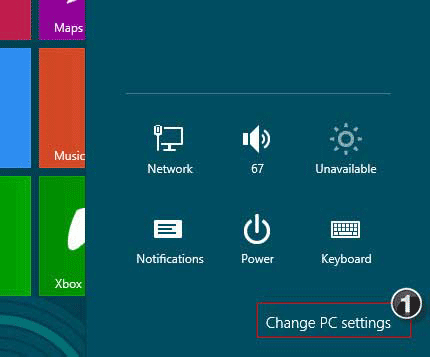
1. Bring the PC Settings interface by pressing Windows + I and click Change PC Settings.
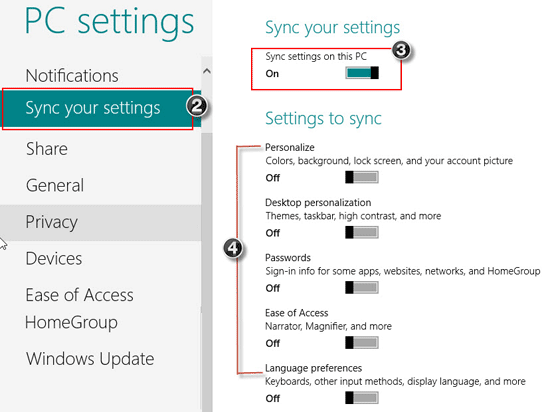
2. Once in PC Settings, navigate to Sync Your Settings.
3. Enable the sync feature by moving the Sync settings on this PC button to the right of the screen. Under sync settings you can turn on/ off colors, background pictures, lock screen and your account display picture etc. You can have a look at all the options and enable / disable according to your requirements.
4. When you login with your Microsoft account in another Windows 8 PC, you will get the same settings and personalization that you get in your own PC.
Windows 8 makes it possible to sync your PC settings between all the PCs and mobile devices you own that run Windows 8. Even if you just have one PC, it’s worth switching the feature on, as it backs up the settings to the internet via your Microsoft account. That way you’ve got a back-up if you need to re-install or restore Windows in the future.