How can I delete a Microsoft account profile from Windows without closing the online account itself? If you would like to use a local account instead, here are 2 simple methods to remove Microsoft account and profile data from Windows 11 PC.
Before Getting Started
Windows doesn’t allow deleting an account while you’re signed into it. Before removing Microsoft account from Windows 11, you need to log in with a local administrator account.
If the Microsoft account is the only account on your PC, you need to create a new local administrator account or activate the hidden built-in Administrator account by following these steps:
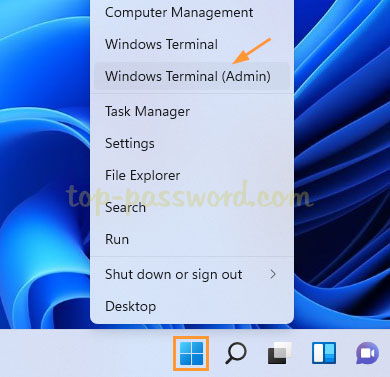
- Right-click the Start button in the taskbar and choose “Windows Terminal (Admin)”.
- Execute the following commands to activate the built-in local Administrator account and set up a new password:
net user Administrator /active:yes

net user Administrator *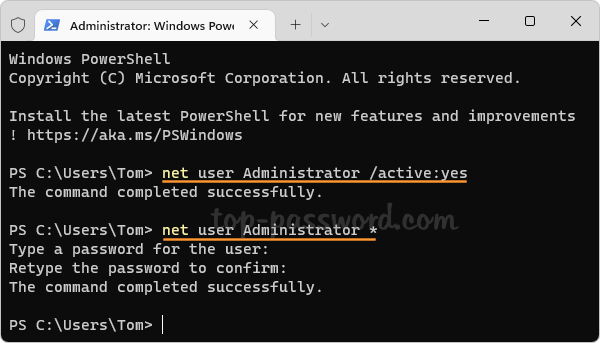
After preparing a local administrator account and logging into it, you can then use the below methods to remove Microsoft account.
Method 1: Remove Microsoft Account from Windows 11 Using Settings App
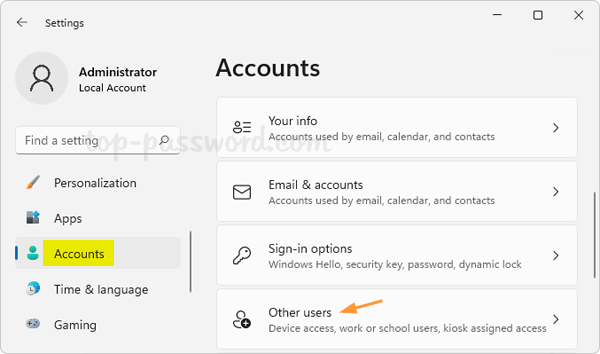
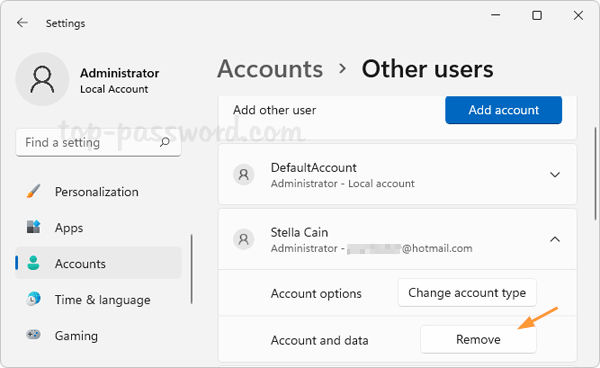
- Press the Windows key + I to open the Settings app. Choose Account in the left sidebar and click “Other users” on the right.
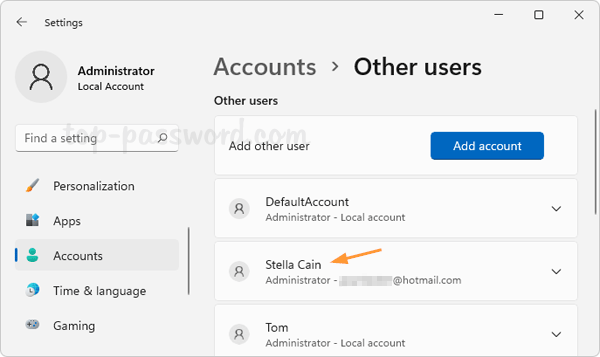
- Under the Other users section, you’ll see a list of user accounts available on your computer. Click the Microsoft account which you want to delete.
- Click the Remove button next to “Account and data”.
- In the pop-up dialog, click the “Delete account and data” button to confirm.
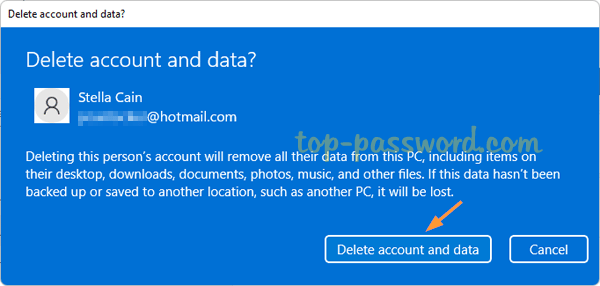
- It will immediately unlink your Microsoft account from current PC and delete its profile folder.
Method 2: Remove Microsoft Account from Windows 11 Using Control Panel
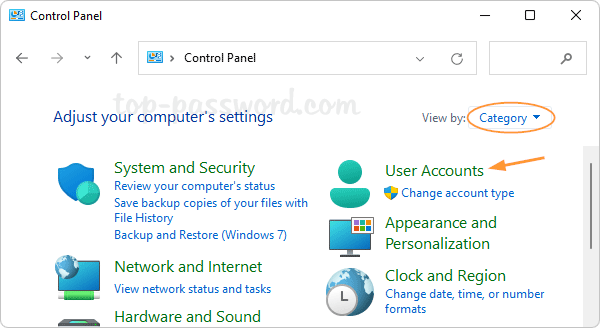
- Open the Control Panel in the Category view, and click User Accounts.
- Click “Remove user accounts” option under the “User Accounts” section.
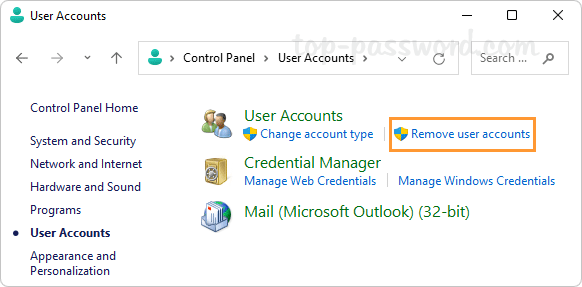
- It will display all the user accounts on the system. Choose the Microsoft account that you want to remove.
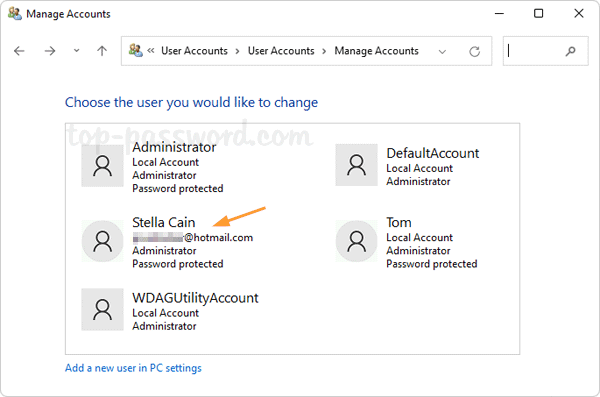
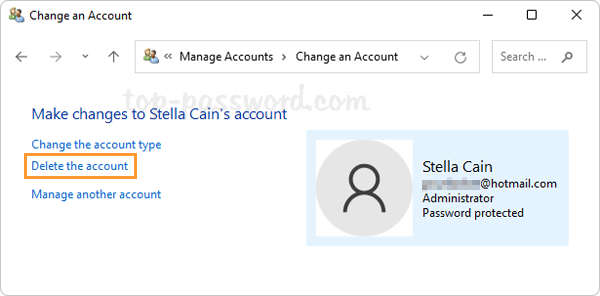
- Click the “Delete the account” link from the actions on the left.
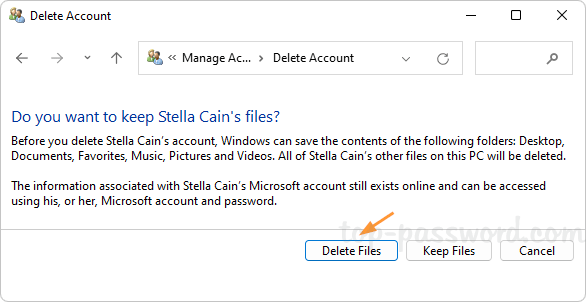
- The next window will ask whether you want to keep the profile folder for your Microsoft account. If you don’t want to keep anything stored in the profile folder, just click the “Delete Files” button.
Conclusion
There are many other methods of deleting a local & Microsoft account in Windows 11, but only the above methods can help you delete the profile data associated with your Microsoft account.