• Home
  • Content
  • RSS
  • Log in

Password Recovery

Provide useful password recovery tricks, guides and software
  • Home
  • Password Recovery Bundle
  • Reset Windows Password
  • Product Key Finder
  • Protect My Folders

How to Recover Auto Login Password in Windows 10, 8 and 7

July 9, 2016 updated by Admin Leave a reply »

After enabling automatic login, you don’t have to type in your password every time Windows starts up. What if you need to type the password somewhere but you forgot it? Here’s a simple way to recover auto login password in Windows 10, 8 and 7.

How to Recover Auto Login Password in Windows 10, 8 and 7?

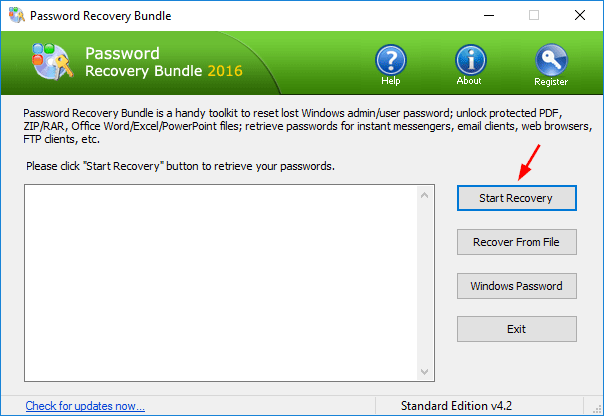
Download and install Password Recovery Bundle on your local computer. After installing, launch the program and click on Start Recovery.
password-recovery-bundle

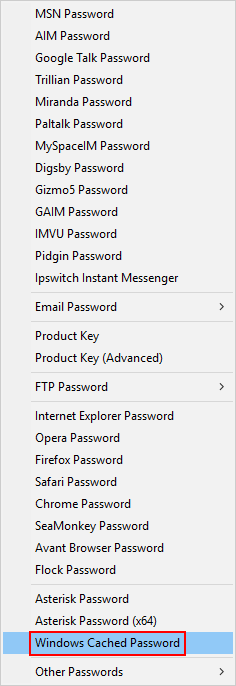
Choose Windows Cached Password from the long password list.
windows-cached-password

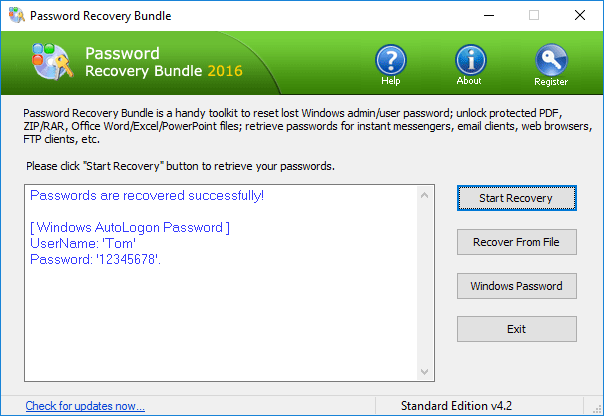
The program will decrypt and show you the login credentials (Windows account, password) immediately. It’s that simple!
windows-autologon-password

Related posts:

  • How to Recover Opera Mail Password Easily
  • How to Recover Firefox Saved Passwords from Logins.json
  • Set up Windows to Auto Login to Domain Account
  • Enable Auto Login When Windows Updates Require a Restart

  • Previous Post: How to Turn Off or Disable Touch Keyboard in Windows 10
  • Next Post: Tutorial: How to Encrypt Your iTunes Backup with Password

Posted in Tips & Tricks, Windows 10, Windows 7, Windows 8, Windows Vista

Tags: windows auto login password

    • Subscribe Subscribe to my blogs feed
    • Previous Entry How to Turn Off or Disable Touch Keyboard in Windows 10
    • Next Entry Tutorial: How to Encrypt Your iTunes Backup with Password

Back to Top

© 2025 top-password.com. Proudly powered by WordPress.