Forgot the login password in Windows 7/Vista/XP? There a couple of different approaches you can take to recover access to your computer, depending on your exact situation. In any event you have two basic choices: you must either crack the login password or forcefully reset it to something known. It seems obvious to me that resetting the password will take much less time that brute force cracking, so it’s a more cost effective way to get around the password forgotten problem.
Reset Windows Password is the powerful password reset bootdisk which comes with the ability of resetting login password in Windows 7/Vista/XP. Using the boot disk to remove a login password is much easier than re-installing Windows. No need to take your PC to a computer repair shop or call a technician to your home to fix the issue for you. You can reset forgotten Windows login password on your own.
How to Reset Login Password in Windows 7/Vista/XP?
- Download the zip archive of Reset Windows Password utility to an alternative computer. Once you download the zip file, just unzip it and burn the ResetWindowsPwd.iso file to a blank CD or USB flash drive using ISO2Disc.
- Insert the bootdisk you’ve created into the target computer whose login password you want to reset. Power on the computer and set it to boot from your bootdisk instead of the local hard drive.
- Shortly after loading the operating system inside the bootdisk, it will open up the Reset Windows Password program. You’ll see the Windows SAM registry hive and a list of Windows user accounts which are detected by the program.
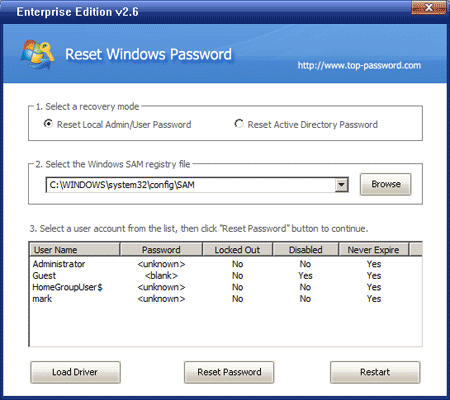
- Choose a user account and then click on Reset Password button, it will reset your login password immediately.
The last step is remove the bootdisk and restart the computer. You’ll find that you can log in to your desired account with a blank password. Additionally, you can use the same bootdisk to reset login password for domain user accounts in Windows Server 2008/2003/2000. I think every system/network administrators should have a copy of the password reset bootdisk in their toolbox.