Forgot your Windows password and can’t log into your computer? Or you can still remember your password but you are getting tired of typing the password every time you turn on your computer? How to login to Windows without a password? In this tutorial we’ll show you how to login to Windows 8/7/Vista/XP without password, no matter if you’ve forgotten Windows login password or not.
Option 1: How to Login to Windows without Password If You Remember the Password
Every time Windows is started it asks you to select the username and enter the password to access your system, there is no doubt that it is a very important security measure, but what if you are the only user of your system? In windows 8/7/Vista/XP, you can easily get rid of the login prompt window, go through the following steps to achieve it.
- Press Windows + R key combination to bring up the Run box. Type netplwiz or control userpasswords2and press Enter. The User Accounts dialogue box will be displayed as shown in following screenshot.
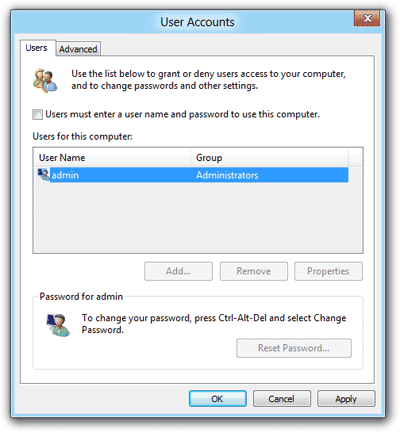
- Uncheck the box that says “Users must enter a user name and password to use this computer”, and then hit Apply. You’ll see a username and password box. Enter in the appropriate information here and hit OK:
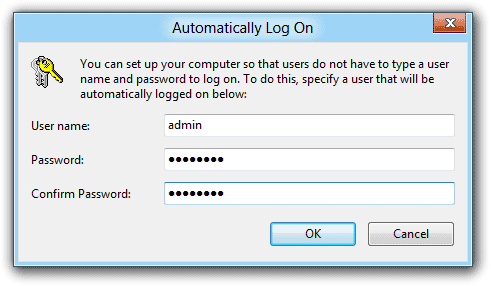
- That’s all, now reboot your system and you will never see the login window any more.
Option 2: How to Login to Windows without Password If You Forgot the Password
Can’t log into Windows and forgot your password? Are you always getting the error message that the password is wrong or incorrect on the logon screen? There is an easy way to login to Windows 8/7/Vista/XP without password using a password recovery software. Reset Windows Password utility allows you to remove lost or forgotten Windows login password quickly and easily! Let’s have a look how it works:
- Download the bootable CD image of Reset Windows Password utility to an alternate computer. After the download is complete, extract the ISO file from the Zip archive using WinZip, 7zip or WinRAR.
- Burn the ResetWindowsPwd.iso file to a blank CD using BurnCDCC, CDBurnerXP or other burning program you prefer.
- Simply insert the boot CD into the computer that you can’t login to and restart it. Change the boot order in BIOS to have the computer to boot from the CD drive.
- When the computer boots from the CD, it will load the WinPE operating system and open up the Reset Windows Password program inside the boot CD.
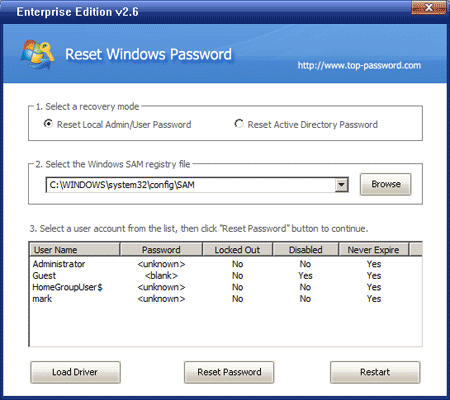
- Choose a user account whose password is forgotten or unknown, and click “Reset Pasword” button. It will remove/blank the login password in just a matter of seconds.
- Now take out the CD and restart the computer. You can then successfully login to Windows without typing a password.
Note that all these steps work perfectly on Windows 8, 7, Vista and XP, including both 32-bit and 64-bit operating systems.