• Home
  • Content
  • RSS
  • Log in

Password Recovery

Provide useful password recovery tricks, guides and software
  • Home
  • Password Recovery Bundle
  • Reset Windows Password
  • Product Key Finder
  • Protect My Folders

How to Install Windows 10 or 8.1 with Local Account (Skip Microsoft Account)

May 30, 2015 updated by Admin Leave a reply »

Can I install Windows 10 with a local account as now a Microsoft account is required? When installing Windows 10 or 8.1, you will not see an option to create a local account by default, and instead you have to log in to your Microsoft Account or be asked to create a new one. Here’s a workaround to skip the Microsoft account sign-in so you can install Windows 10/8.1 with a local account.

How to Install Windows 10 or 8.1 with Local Account?

  1. Start the installation of Windows 10/8.1 as you would usually do, and follow on-screen instruction to proceed.
  2. When you’re prompted to sign in to your Microsoft account, click on “Create a new account“.
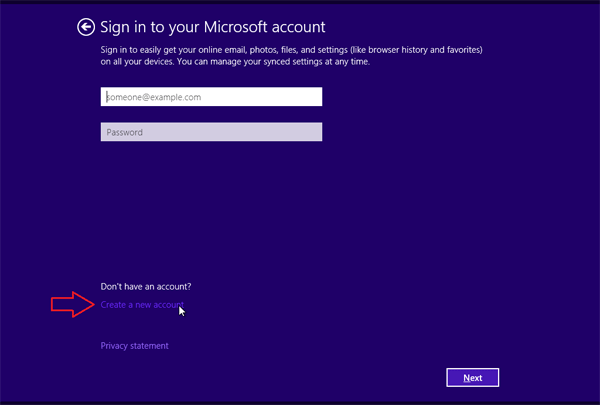
    create-a-new-account

  3. On the screen where you’re required to enter information to create a Microsoft account, scroll down to the bottom, and click on “Sign in without a Microsoft account“.
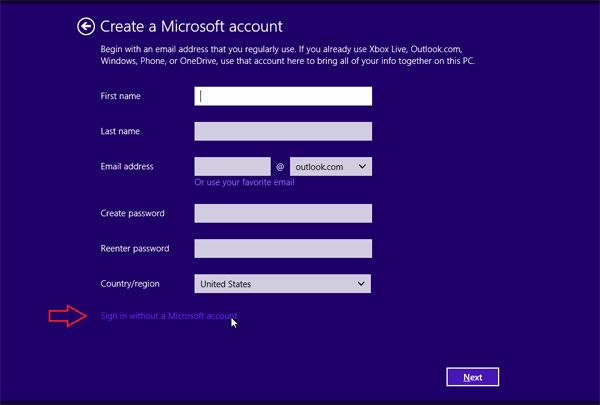
    install-without-ms-account

  4. Enter your desired user name, password and password hint for the local account to be used to login to Windows. Click on Finish to continue the installation as usual.

Related posts:

  • Switch Local Account to Microsoft Account in Windows 8
  • How to Setup Windows 8.1 without Microsoft Account
  • Install Windows 10 without Microsoft Live Account
  • Forgot Windows 8 Local Account or Microsoft Account Password

  • Previous Post: How to Fix “Your connection is not private” in Chrome
  • Next Post: Fix the Error “Windows cannot complete the extraction. The destination file could not be created”

Posted in Tips & Tricks, Windows 10, Windows 8

Tags: install windows 10 with local account install windows 10 without microsoft account install windows 8 without microsoft account install windows 8.1 with local account

    • Subscribe Subscribe to my blogs feed
    • Previous Entry How to Fix “Your connection is not private” in Chrome
    • Next Entry Fix the Error “Windows cannot complete the extraction. The destination file could not be created”

Back to Top

© 2025 top-password.com. Proudly powered by WordPress.