Forgot your Microsoft account password and Windows 10 login screen kept telling you the password is incorrect? Looking for a way to reset Windows 10 Microsoft account password so you can get back access to your files?
The credentials of Microsoft account are stored in Microsoft’s cloud, so if you forgot the password you can use Microsoft’s online password reset page to reset your password easily. However, if you’re unable to pass the security checks from Microsoft’s online form, that method won’t work. In this tutorial we’ll show you another way to log back into Windows 10 by offline switching your Microsoft account to local account. The procedure can be divided into 4 parts.
Part 1: Create A Bootable CD
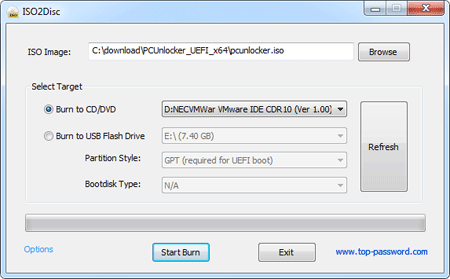
As you’re already locked out of Windows 10 PC, you have to use another computer to make a boot CD. Download the CD image (trial version) of PCUnlocker and save it to any folder on your local hard drive, then use the freeware ISO2Disc to burn the ISO file to a blank CD (or USB thumb drive).
Part 2: Boot from CD
Put the CD into the optical drive of your locked Windows 10 PC. To boot from the CD, you might have to enter into the BIOS (UEFI) Setup and set the boot sequence to use CD/DVD-ROM as the first boot media. If you don’t know how to access your BIOS, please check your computer’s manual or this article: How to Set Your Computer to Boot from CD or USB Drive
Part 3: Switch Microsoft Account to Local Account
After booting successfully from the CD, you’ll be taken to the PCUnlocker program. From there you will see a list of all the local accounts available on your computer. Please note that one of your local accounts was automatically associated with your Microsoft account, and you’ll find out your email address displayed under the Description column.
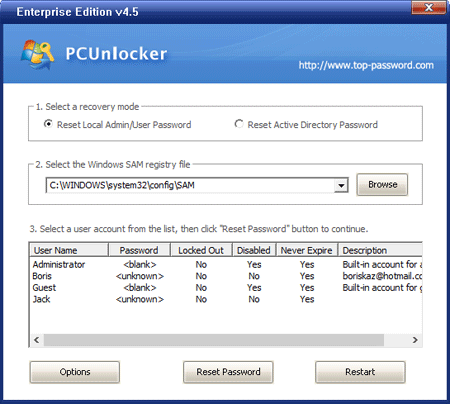
Select the associated local account and click on “Reset Password” button. The program will switch your Microsoft account to local account and afterwards reset the local user password.
Part 4: Login to Windows 10
Take out the CD and reboot your computer. When it boots to Windows 10, you can see the underlying local account shown at the login screen. Click on that account and you can login without typing a password! Once logging in, you can access any local files associated with your previous Microsoft account.