Passwords should be unique and complex, but then they’re hard to remember. Starting with Windows 10 build 18936, Microsoft brings passwordless sign-in experience so you can log in to Microsoft account with Windows Hello Face, Fingerprint, or PIN. In this tutorial we’ll show you 2 easy ways to enable or disable passwordless login for Microsoft account in Windows 10.
Method 1: Enable or Disable Passwordless Login for Microsoft Account via Settings App
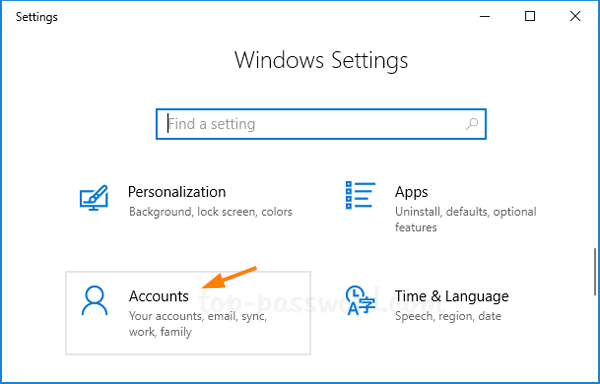
- Hold down the Windows Key on your keyboard, then press the I key to open the Settings app. Next, Click on Accounts.
- Choose Sign-in options on the left side. On the right, click the toggle button right under “Make your device passwordless” to enable or disable passwordless login for Microsoft accounts on your device.
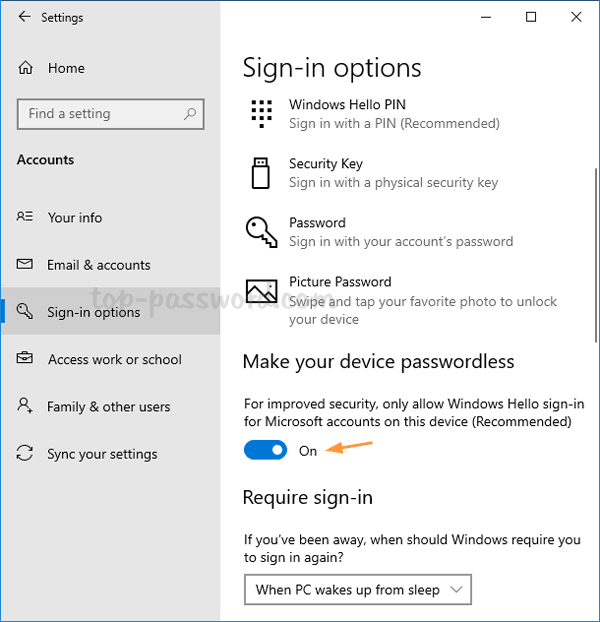
- If you’ve enabled the passwordless login feature, reboot your computer and you’ll have to complete the steps to set up Windows Hello Face, Fingerprint, or PIN at the login screen.
Method 2: Enable or Disable Passwordless Login for Microsoft Account via Registry Editor
- Open Registry Editor and browse to the key:
HKEY_LOCAL_MACHINE\SOFTWARE\Microsoft\Windows NT\CurrentVersion\PasswordLess\Device. Double-click the DWORD DevicePasswordLessBuildVersion on the right pane.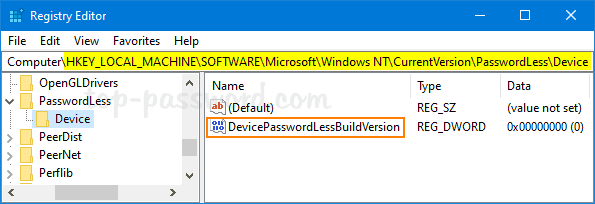
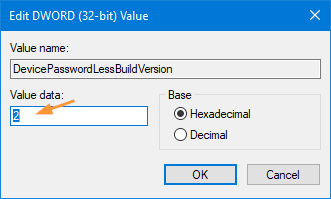
- In the Edit DWORD Value window, enter 2 into the Value data if you want to enable the passwordless sign-in feature for Microsoft account. To disable the passwordless login, just set its value to 0.
- Close Registry Editor and restart your computer to apply the changes.