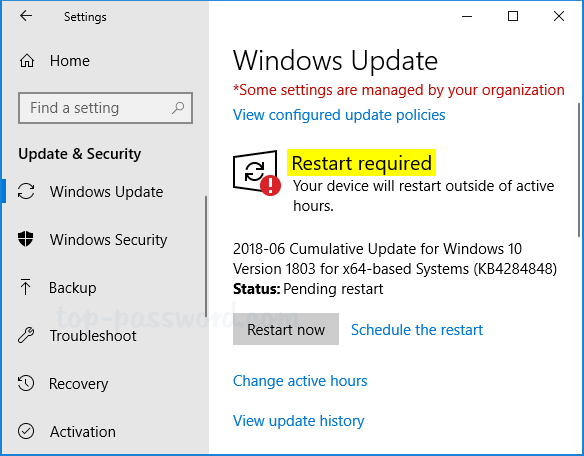
Some updates may require you to reboot your PC and sign in to Windows to complete the installation process. Since Windows 10 Fall Creators Update, there is a new setting that lets you auto log in to Windows temporarily when Windows Update initiates a restart. After finish setting up your PC, Windows Update will then lock your PC to help keep your account and personal info safe.
How to Enable Auto Login When Windows Updates Require a Restart
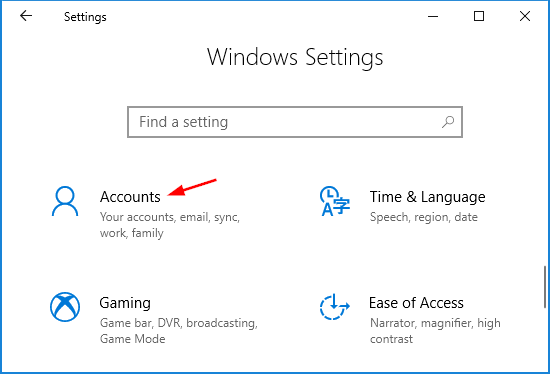
- Press the Windows key + I keyboard combination to open the Settings app. Click on the Accounts icon.
- Select the Sign-in options tab. On the right side, scroll down to the Privacy section and check the option labelled “Use my sign in info to automatically finish setting up my device and reopen my apps after an update or restart“.
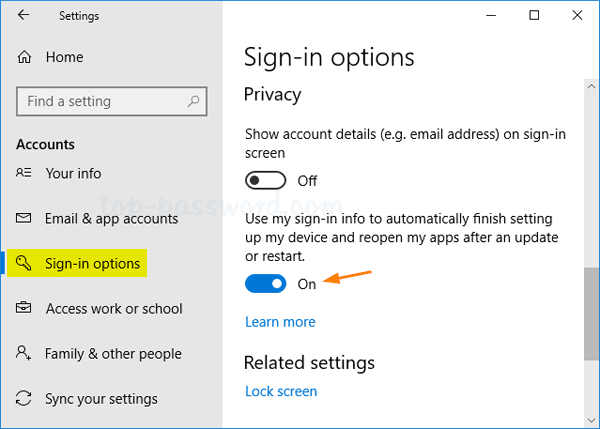
- Now, Windows 10 will automatically sign in to your last account every time you restart your PC after Windows Update initiates a reboot.
What to Do If You Can’t See the Above Option?
If the “Use my sign in info to automatically finish setting up my device and reopen my apps after an update or restart” option is missing from the Settings app, here’s how to get it back:
- Open the Local Group Policy Editor and navigate to: Computer Configuration > Administrative Templates > Windows Components > Windows Logon Options.
- Double-click on the “Sign-in last interactive user automatically after a system-initiated restart” policy on the right side to edit it.
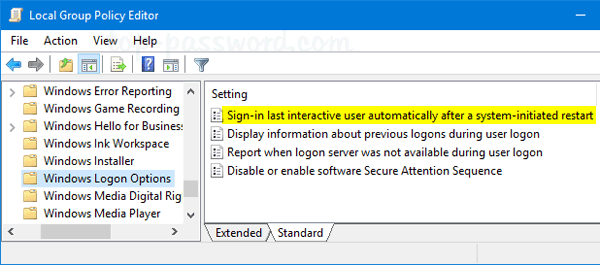
- Select Not Configured or Enabled, click OK.
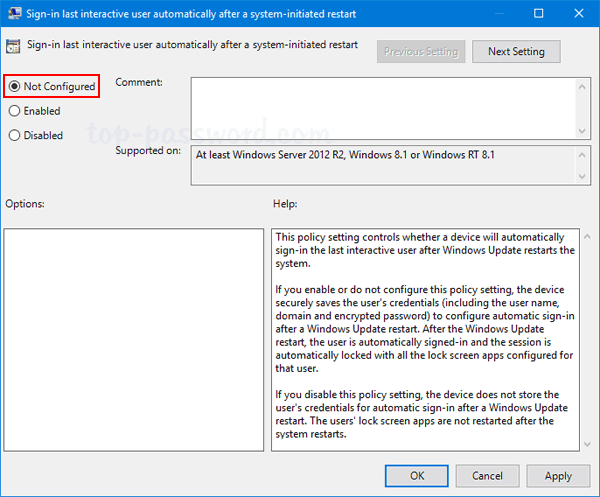
- After restarting your computer, the “Use my sign in info to automatically finish setting up my device and reopen my apps after an update or restart” option will be back in the Settings app.
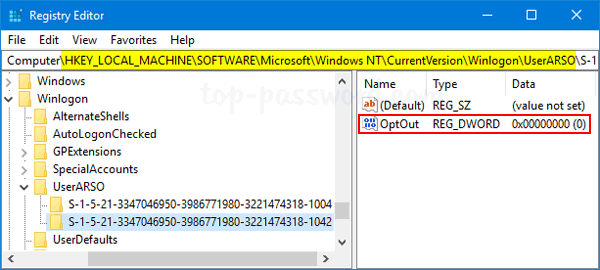
Additionally, you can also turn on “Use my sign in info to automatically finish setting up my device and reopen my apps after an update or restart” using a registry tweak. Just open Registry Editor and navigate to: HKEY_LOCAL_MACHINE\SOFTWARE\Microsoft\Windows NT\CurrentVersion\Winlogon\UserARSO, then expand the subkey named with the SID of your local account, change the DWORD OptOut to 0. 0: Turn on, 1: Turn off.
That’s it!