Picture password is new and innovative way to unlock your Windows 10 / 8 devices by drawing predefined gesture on a selected picture. It seems better suited for touch-screen tablet users, and PC users might choose to turn off picture password logon. In this tutorial we’ll show you 2 simple ways to disable / turn off Picture Password sign-in in Windows 10 and 8.
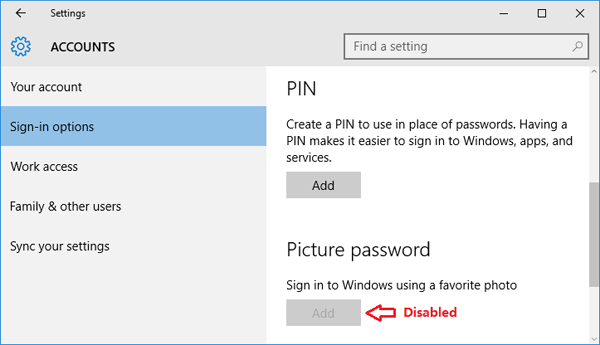
Once your Picture Password sign-in is disabled, you are unable to create / add a new Picture Password. There is also no option at the logon screen that allows you to sign in with Picture Password, even if you’ve already set up a Picture Password.
Option 1: Disable Picture Password Sign-in with Group Policy
If you are not using Windows 10 / 8 Professional or Enterprise, you will not have access to the Group Policy Editor. Instead you should skip to the Option 2.
- Press the Windows key + R to open the Run box. Type gpedit.msc and press Enter.
-
In the left pane of Local Group Policy Editor, navigate to:
Computer Configuration -> Administrative Templates -> System -> Logon -
In the right pane, you can see a policy named “Turn off picture password sign-in“, double-click on it and set it to Enabled. Finally, click Apply / OK and reboot to apply the changes.
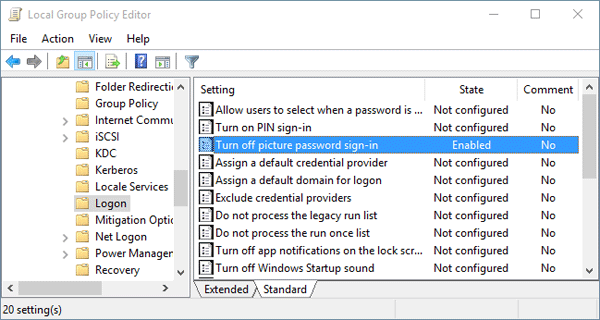
Though the policy description states that this will disable the Picture Password for domain users, it will also disable it for non-domain users.
Option 2: Disable Picture Password Sign-in with Register Editor
- Press the Windows key + R to open the Run box. Type regedit and press Enter. This will open the Registry Editor.
-
Next, navigate to following entry:
HKEY_LOCAL_MACHINE\SOFTWARE\Policies\Microsoft\Windows\SystemIf the System subkey doesn’t exist, you’ll have to create it.
- In right pane, look for an entry named BlockDomainPicturePassword. If it doesn’t exist, right-click on empty space and create a DWORD value and assign name as BlockDomainPicturePassword.
-
Double-click the BlockDomainPicturePassword value and set it to 1.
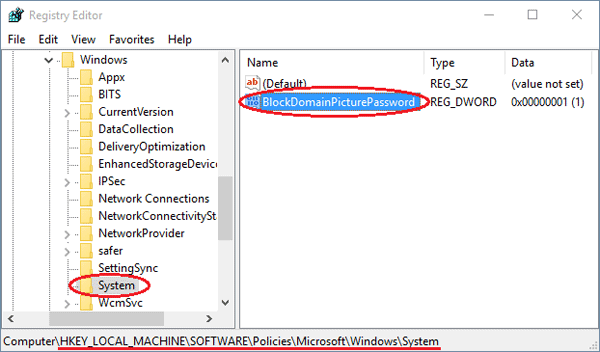
If you want to re-enable the Picture Password sign-in later, set the value back to 0.
- Close the Registry Editor and reboot the computer. Now Picture logon is disabled and a user can’t set up and use a picture password any longer.