When logging in to a new account in Windows 10, you’ll get a first sign-in animation that includes several messages like “Hi“, “We’re getting everything ready for you“, “This might take several minutes” and “Almost there“.
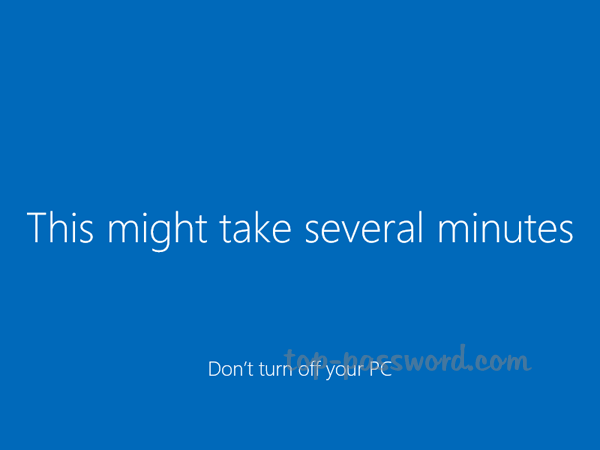
If you’re tired of waiting for this annoying animation to complete, here are 2 ways to disable first sign-in animation in Windows 10 so you can get the desktop environment loaded more quickly.
Method 1: Disable First Sign-in Animation Using Group Policy
- Open the Local Group Policy Editor (gpedit.msc) and browse to:
Computer Configuration -> Administrative Templates -> System -> Logon. In the right pane, find the “Show first sign-in animation” policy and double-click it.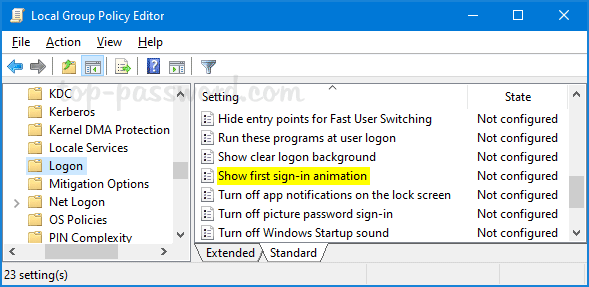
- To disable the first sign-in animation, set the policy to Disabled. Click Apply and then OK.
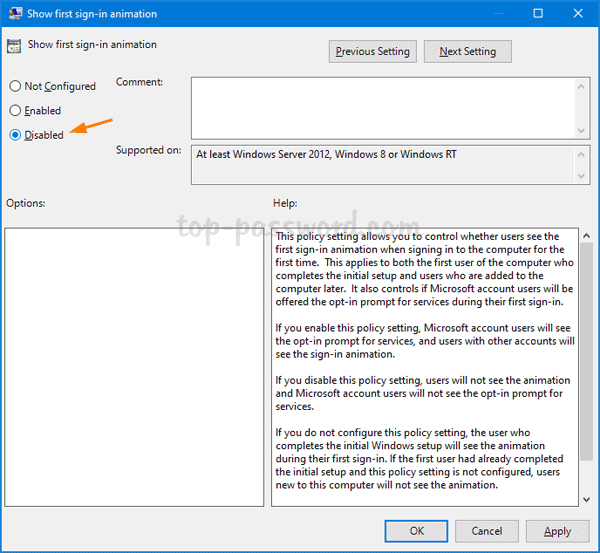
- Now, every time you sign in to a new account, the logon screen will no longer show the “Hi” animation.
Method 2: Disable First Sign-in Animation Using Registry Editor
- Open the Registry Editor (regedit) and navigate to:
HKEY_LOCAL_MACHINE\SOFTWARE\Microsoft\Windows\CurrentVersion\Policies\System. Right-click on the System key in the left pane and select New -> DWORD (32-bit) Value.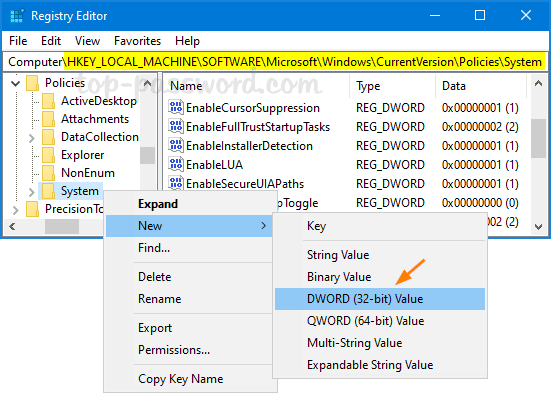
- Name the newly created DWORD “EnableFirstLogonAnimation” and make sure the value is set to 0.
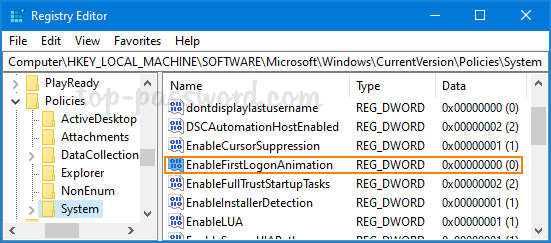
- 0: Disable first sign-in animation
- 1: Enable first sign-in animation
- Close Registry Editor. Now you’ve disabled first sign-in animation in Windows 10 and you can access new account more quickly.