How to recover Active Directory password when you forgot it? It is not so simple to recover the Active Directory user password than Windows local account. You can use the freeware Ophcrack to reset your forgotten Windows local account password but it doesn’t work for Active Directory user account due to its superior security characteristics.
Actually, you can also recover forgotten Active Directory password easily if you pick up the right solution. Here we’ll recommend the Password Recovery Bundle, which allows you to create a bootable recovery CD or USB and use it to recover Active Directory password on Windows Server 2008/2003/2000. Let’s see how it works!
Active Directory Password Recovery Procedure:
- Download and install Password Recovery Bundle on another computer that you can log in.
- Prepare a blank CD and insert it into the computer. If your computer doesn’t come with CD drive, you can use USB flash drive instead.
- Launch Password Recovery Bundle and click on Windows Password button, it will display the ISO burning window.
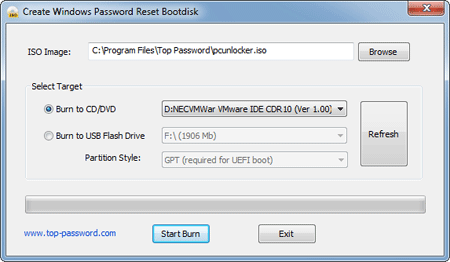
- Choose your CD you’ve plugged in and then click on Start Burn button to create a bootable recovery CD.
- After you have the recovery CD, put it into the CD drive of your domain controller whose password you want to recover.
- Turn on the domain controller and have it boot from the recovery CD. You may need to go into BIOS and set CD/DVD as the first boot device.
- After booting from the recovery CD, it will load the Windows PE operating system inside the recovery CD and start the Reset Windows Password program.
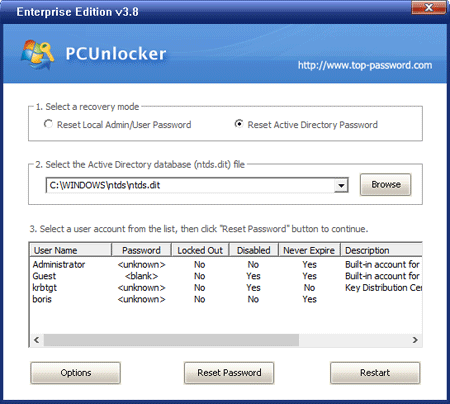
- Choose the Active Directory NTDS.dit database, it will display a list of domain user accounts inside the NTDS.dit database.
- Choose a domain user account from the list, then click on Reset Password button, the program will replace the forgotten/unknown password with a new password: Password123.
Take out the recovery CD and reboot your domain controller. You can then log in to your Active Directory user account with the new password. The Active Directory password recovery solution works on both 32-bit and 64-bit domain controller.