• Home
  • Content
  • RSS
  • Log in

Password Recovery

Provide useful password recovery tricks, guides and software
  • Home
  • Password Recovery Bundle
  • Reset Windows Password
  • Product Key Finder
  • Protect My Folders

How to Unlink (Sign Out) OneDrive from Windows 10

August 6, 2017 updated by Admin Leave a reply »

How to stop syncing OneDrive files to your PC? Need to unlink OneDrive and sign in with a different Microsoft account? If you use the same Microsoft account on multiple computers, you may not want to synchronize OneDrive on every PC. In this tutorial we’ll show you how to easily unlink (sign out) OneDrive from Windows 10.

How to Unlink (Sign Out) OneDrive from Windows 10?

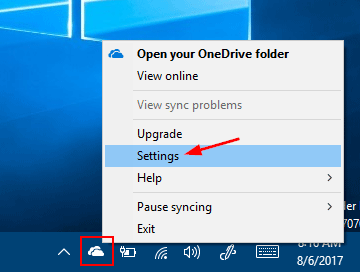
Right-click on the OneDrive icon in the system tray of Windows 10 taskbar, and then click Settings.
onedrive-settings

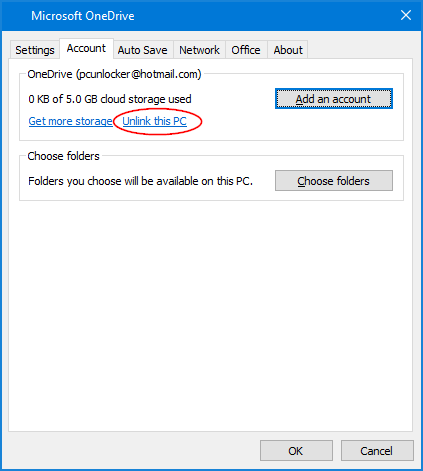
The Microsoft OneDrive Settings dialog should now come up. Click the Account tab at the top, and then click the Unlink this PC link.
microsoft-onedrive-settings

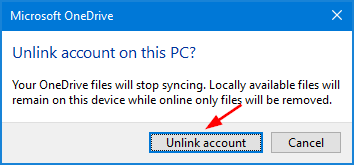
A pop-up dialog box will open for the confirmation if you want to unlink account on this PC. Click the “Unlink account” button.
unlink-onedrive-account

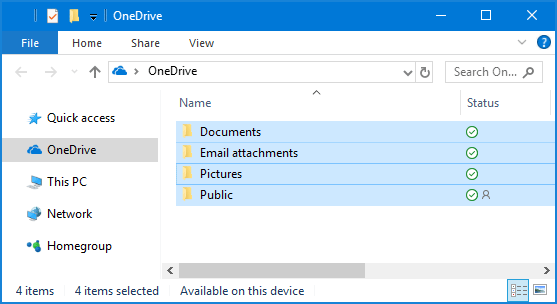
Now you’ve successfully unlinked OneDrive from your current Microsoft account, and Windows 10 will no longer sync your OneDrive files. However, all your previous OneDrive files will remain on this PC. If you want to delete them, just open File Explorer and delete all files located in C:\Users\account_name\OneDrive\.
onedrive-files

That’s it!

Related posts:

  • Fix: OneDrive Icon Missing from Windows 10 Taskbar
  • Turn On / Off Automatically Pause OneDrive Sync on Metered Network
  • How to Install / Uninstall OneDrive in Windows 10
  • 2 Options to Disable or Remove OneDrive in Windows 10

  • Previous Post: Fix: OneDrive Icon Missing from Windows 10 Taskbar
  • Next Post: Add / Remove OneDrive Icon from Windows 10 Desktop

Posted in Tips & Tricks, Windows 10

Tags: how to unlink onedrive windows 10 sign out of onedrive windows 10 unlink onedrive account windows 10

    • Subscribe Subscribe to my blogs feed
    • Previous Entry Fix: OneDrive Icon Missing from Windows 10 Taskbar
    • Next Entry Add / Remove OneDrive Icon from Windows 10 Desktop

Back to Top

© 2025 top-password.com. Proudly powered by WordPress.