Is there any way to run a program on Windows 10 logon screen? How do I take a screenshot of Windows login screen? You might want to start some programs (e.g. Command Prompt) before a user logs on to the system. In this tutorial we’ll show you a simple way to run desired app from Windows 10 / 8 / 7 login screen.
How to Run Any App from Windows Login Screen?
- Open Registry Editor and navigate to the following key:
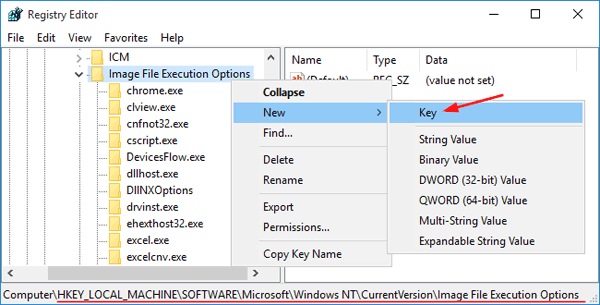
HKEY_LOCAL_MACHINE\SOFTWARE\Microsoft\Windows NT\CurrentVersion\Image File Execution Options - In the left pane, right-click on Image File Execution Options and then choose New -> Key.
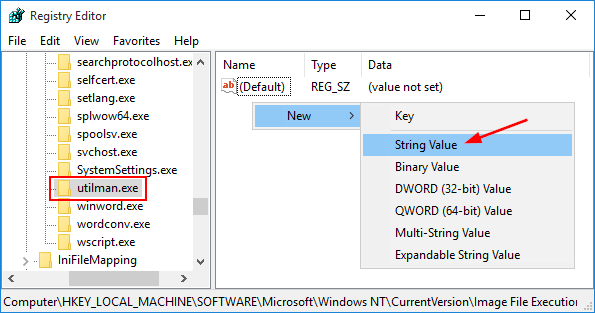
- Name the new key utilman.exe, and then select it. Right-click on the empty space in the right pane, and then select New -> String.
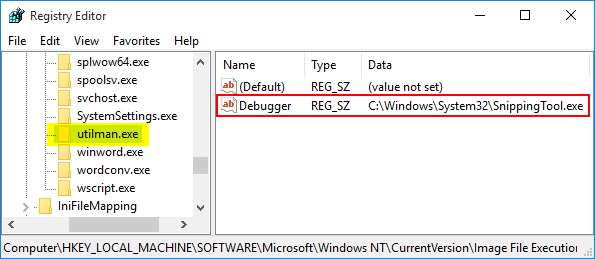
- Name the new value Debugger. Double-click Debugger to modify. In the Value data field, type the path of the app you want to run on Windows logon screen. For example, If you want to run Snipping Tool on login screen, set Debugger value as C:\Windows\System32\SnippingTool.exe.
- Now sign out or restart your computer. When you get to Windows login screen, click the Ease of Access icon. It should open the app that you have set in registry.
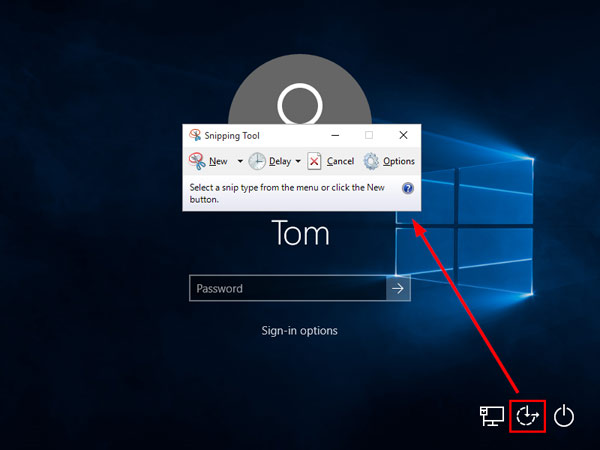
In my example, the Snipping Tool is launched. I can use it to take full screenshot of the login screen.
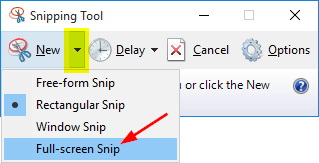
This registry trick makes it easier to open any app on Windows login screen. If you want to restore the functions of the Ease of Access button, just delete the utilman.exe registry key and you’re done.