Just upgraded to Windows 10 and skipped the sign up process at the beginning. But now when I click on the “Sign in with a Microsoft account instead” link, nothing happens at all. I can’t even make the sign up dialog box appear. Please help!
Unable to sign into Microsoft account in Windows 10? Or it won’t accept your credentials? In this article we’ll show you 4 possible ways to fix the issue “cannot log in to your Microsoft account in Windows 10”.
Method 1: Disable All Non-Microsoft Services
- Press the Windows + R key combination, type msconfig and press Enter.
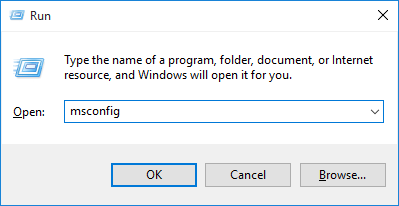
- When the System Configuration dialog opens, click the Services tab. Put a tick in the “Hide all Microsoft services” box at the bottom left, and then click Disable all.

- Click Apply and then OK. Restart your computer and try to sign in to Microsoft account.
Method 2: Enable Microsoft Account Sign-in Assistant Service
- Press the Windows + R key combination, type services.msc and press Enter.
- In the Services window, scroll down and look for the “Microsoft Account Sign-in Assistant” service. Double-click on it to modify.
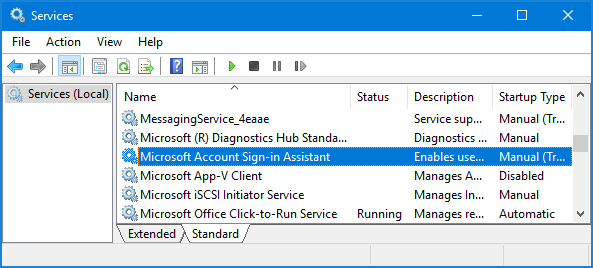
- When the Properties window opens, set the Startup type to Automatic. If the service status is Stopped, click Start button there. Click Apply followed by OK.
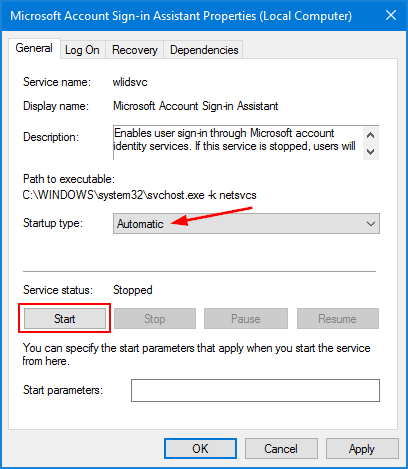
- Restart your computer and then try to sign in Windows 10 with Microsoft account.
Method 3: Turn Off Group Policy Which Blocks Microsoft Account
- Press the Windows + R key combination, type gpedit.msc and press Enter.
- In the Local Group Policy Editor window, navigate to:
Computer Configuration > Windows Settings > Security Settings > Local Polices > Security Options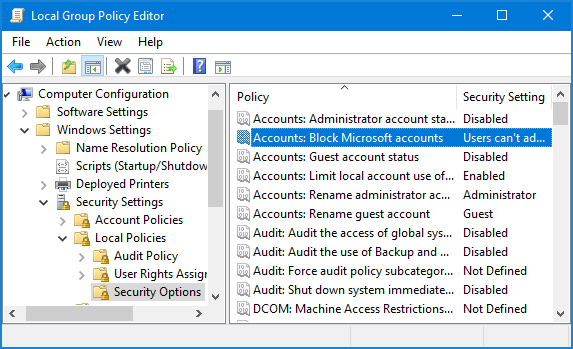
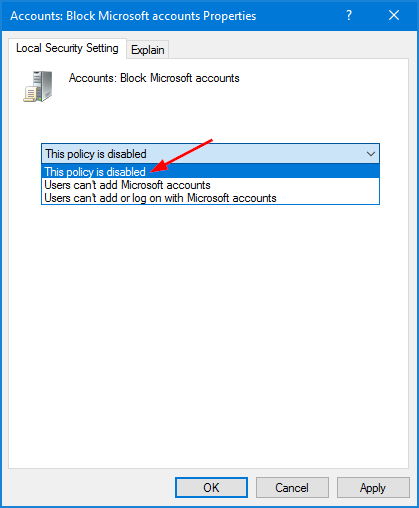
Find the policy “Accounts: Block Microsoft accounts” in the right pane, and then double-click on it to modify.
- From the drop-down menu select “This policy is disabled“, and then click Apply and OK.
- Reboot Windows 10 and check if you can sign into Microsoft account later.
Method 4: Clear Cached Microsoft Account Credentials
When you try to sign into Microsoft account, Windows 10 might not accept your credentials. That is because the cached logon credentials are out of update. If you’re that case, you need to clear the cached Microsoft account credentials in Windows 10:
- Press the Windows + R key combination, type regedit and press Enter.
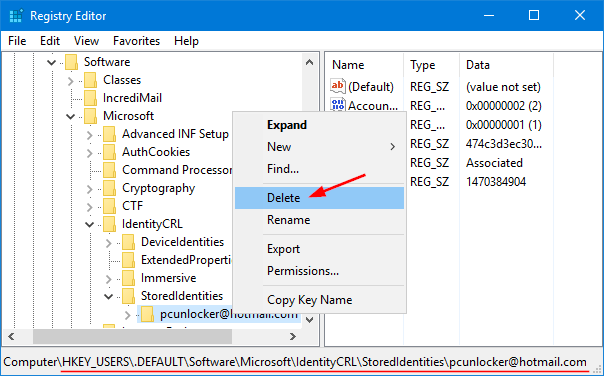
- When the Registry Editor opens, navigate to the following key:
HKEY_USERS\.DEFAULT\Software\Microsoft\IdentityCRL\StoredIdentities - You’ll find your Microsoft account there. Right-click on it and select Delete.
- Now close Registry Editor, and head to Settings -> Accounts -> Sign-in options. Try to add your Microsoft account again.
If you forgot the password of an existing Microsoft account and locked out of Windows 10, please refer to this tutorial: 2 Options to Reset Windows 10 Microsoft Account Password.