Unlike Windows Server operating system, there is a shutdown/power button on Windows 10, 8 and 7 logon screen which lets you to shutdown the system without ever logging in.
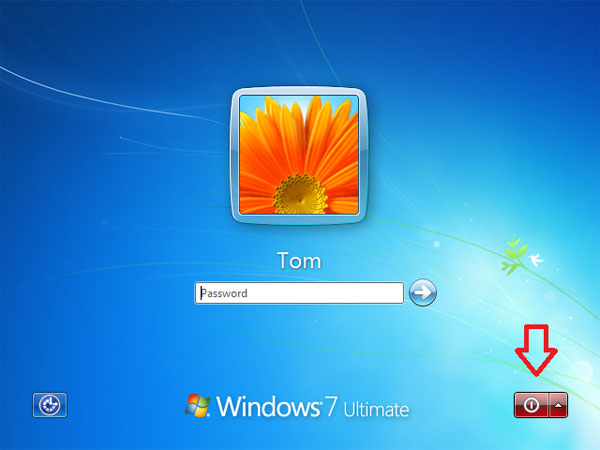
Sometimes you might have a shared / public computer where you want to prevent others from shutting down or restarting. In this tutorial we’ll show you two methods to remove the shutdown button from the login screen in Windows 10, 8 and 7.
Method 1: Remove Shutdown Button with Group Policy
- Press the Windows key + R to bring up the Run box. Type gpedit.msc and press Enter to open the Local Group Policy Editor.
- In left-side pane, navigate to Computer Configuration -> Windows Settings -> Security Settings -> Local Policies -> Security Options.
- In the right pane select the “Shutdown: Allow system to be shut down without having to log on” policy and double-click on it. Select Disable and click Apply and OK.
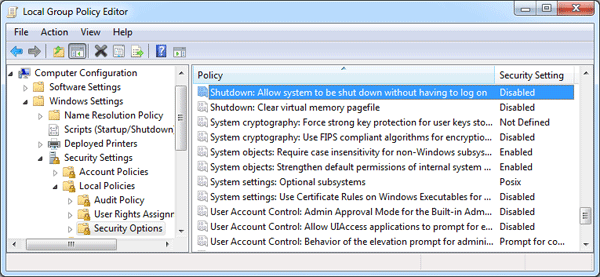
- Now restart your computer. The shutdown button will disappear from your Windows login screen.
Method 2: Remove Shutdown Button with Registry Trick
However, the Group Policy Editor is not included in every edition of Windows, such as Windows 7 Home Premium, Home Basic and Starter editions. If you can’t use Group Policy Editor, here is a registry hack for you to remove the shutdown button from the login screen:
- Press the Windows key + R to bring up the Run box. Type regedit and press Enter to open the Registry Editor.
- In left-side pane, navigate to
HKEY_LOCAL_MACHINE\SOFTWARE\Microsoft\Windows\CurrentVersion\Policies\System. - In the right pane, double-click on shutdownwithoutlogon and set its value to 0 as shown in screenshot below:
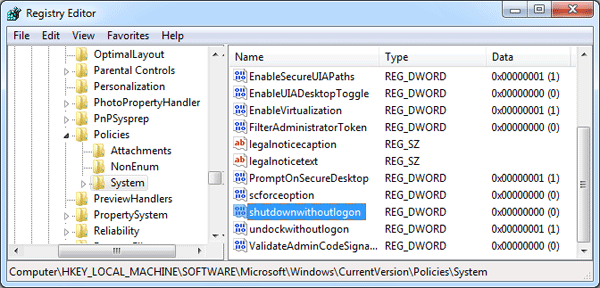
- That’s it! Reboot your PC to see logon screen without the shutdown button.