I just received a new computer with Windows 8.1. When I boot it up, I set up a Microsoft account login. I am the only user on this computer. However, my Microsoft account has a secure (long, hard to type/remember) password. I don’t want to type in my password each time that I restart the computer. Is there some way to override this feature?
Luckily, even with the Microsoft account, you can configure Windows 8 to login automatically. If you’re the only user on the system you may want to speed up the logon process by enabling automatic logon feature. This tutorial will show you how to bypass Windows 8 login screen and thus sign into Microsoft account automatically without entering a password.
Tips: If you’ve forgotten your Microsoft account password and unable to reset the password online, you can bypass Windows 8 Microsoft account password with PCUnlocker, so you can still log back into your system and regain access to all your files.
How to Login to Windows 8 Microsoft Account Automatically?
Before you begin, you must be logged into an administrator level account for you Windows 8 PC for these steps to work.
- Press the Windows + R keyboard combination to bring up a Run box, when it appears type
netplwizand hit Enter.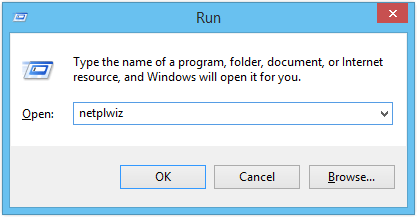
- This will open the User Accounts dialog box, which will display a list of all the users on your computer, including both local accounts and Microsoft accounts.
- Next click on the username in the bottom window, which should be your email address if you are using the Microsoft account to log into your Windows 8 PC. Uncheck the Users must enter a username and password to use this computer checkbox.
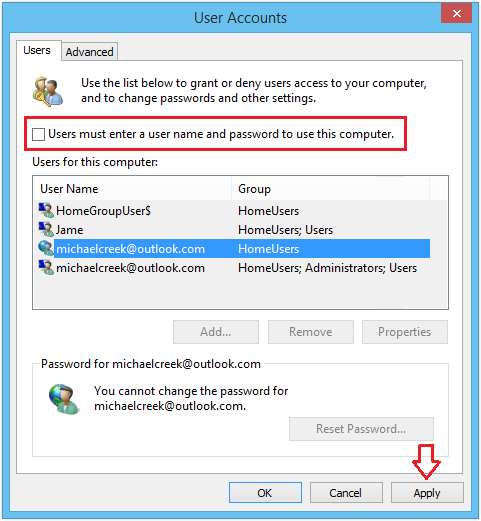
- Click Apply and you’ll get a pop up dialog that asks you to enter your login credentials. Just type in your Microsoft account password twice and click OK.
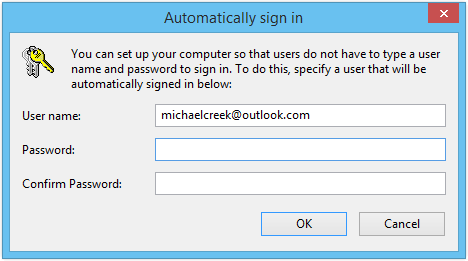
- Now go ahead and restart your computer and Windows 8 should automatically boot up to the Start Screen, without prompting you to enter a Microsoft account password.
However, we don’t recommend to enable automatic login if your PC is accessible by multiple users or while you’re traveling. To re-enable the log-in screen, simply return to the User Accounts dialog box using the steps above and click on the check-box for the “Users must enter a user name and password to use this computer” option.