Forgot Windows 8 login password on your Surface Pro? If you’ve created a password reset disk before you forgot it, you can use it to reset your lost password easily. Otherwise you will have to reset/refresh your Surface Pro to factory settings, which will delete all your files. In this article we’ll show you an easy way to reset forgotten local/Microsoft account password on Surface Pro, so you can log back into your PC without losing your files.
How to Reset Forgotten Login Password on Surface Pro?
- First, you need to make a bootable USB flash drive on another PC that you can log in as an administrator account. Download the zip archive of Reset Windows Password utility and save it to your desktop. Unzip the download file to extract the ResetWindowsPwd.iso file. Next burn this ISO image to a USB flash drive using ISO2Disc program. After burning, you can use this bootable USB flash drive to reset your forgotten Surface Pro password.
- Connect the bootable USB flash drive to your Surface Pro. Hold the volume-up (+) rocker and press the power button. When UEFI settings menu is shown, release the volume rocker and disable the Secure Boot option. Now power off your Surface Pro again.
- Hold the volume-down (-) rocker. Press and release the power button. When the Surface logo appears, release the volume rocker. Surface Pro will boot from the USB flash drive. After a while, the PC will start the Reset Windows Password program. The program automatically locates your Windows 8 SAM registry file and display a list of local user accounts on your Surface Pro.
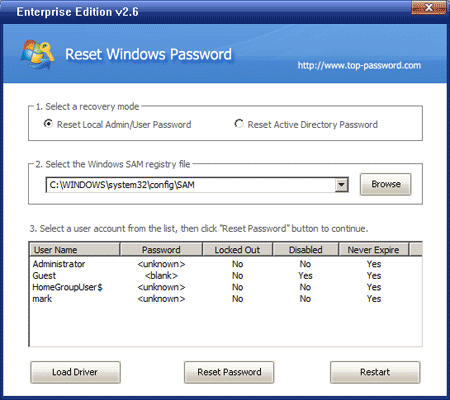
- Choose a local user account (If you are using a Microsoft account to sign into your PC, please choose the local account which is linked to your Microsoft account), and then click on Reset Password button. The program will unlock the user account and reset your Windows 8 login password in no time.
- After successfully resetting your forgotten Surface Pro password, unplug the USB flash drive and restart the PC. You can then log back into your Surface Pro without being asked to enter a password. It’s that easy!
Besides resetting Surface Pro password, you can use the bootable USB flash drive to reset Windows 8/7/Vista/XP administrator password on both laptop and desktop computers.