Set up a password on your Windows user account so others can’t access your programs and files without knowing your password. Although you may be the only person who makes regular use of your computer, it’s still a big security concern if you left your Windows password blank/empty. Setting a Windows password is quick and easy process that will greatly increase the security of your computer. Here’s how to set Windows 8/7/Vista/XP password.
Set Windows 8 Password
- To change your local account password, open the Settings charm (press Windows Key + I to quickly open the Settings charm) and select Change PC settings.
- Select the Users category and click the Create a password button. You’ll be asked to type a new password and enter a password hint.

- After setting your Windows password, you’ll be prompted to enter your password next time you turn on your computer.
Set Windows 7/Vista/XP Password
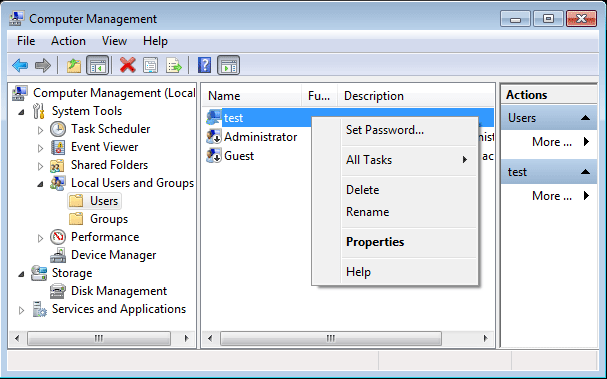
- Right-click on My Computer icon from your desktop or Windows Explorer, and select Manage.
- Navigate to the Local Users and Groups option and click Users.
- Right-click on the user account and select Set Password or Change the Password from the context menu.
- Enter the new password twice (to confirm it) and optionally enter a password hint. Click Change Password to complete the task.
If you want to set a new Windows password because you’ve forgotten your current one and can’t get in to Windows, please use the third-party Windows password removal bootdisk such as Reset Windows Password, which enables you to remove forgotten Windows 8/7/Vista/XP password using a bootable CD/USB flash drive.