If you plan to set up a Windows 8 system to be shared by more than one person, you’ll want to know how to add a second user account. As with many aspects of the Windows operating system, things have changed in Windows 8, and you’ll have to learn how to get around in the new OS.
This tutorial will explain the process involved for creating a new account in Windows 8 for an individual with a Microsoft account, and someone who just wants to use a local account.
How to Add a Local or Microsoft Account in Windows 8?
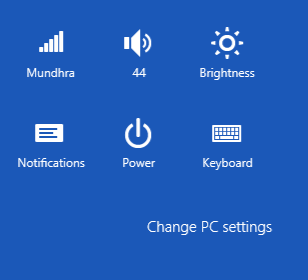
- Slide your cursor to the bottom-right corner of the screen to activate the Charms and click the Settings.
- click on the option Change PC Settings to open Windows 8 PC Settings.
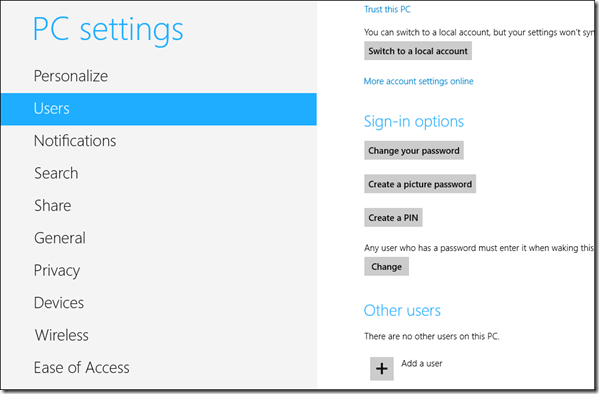
- When the PC Settings menu loads, click on the option Users and select the option Add a user located at the bottom.
- Windows 8 will start the new user creation wizard and will ask you to provide an email address to create a new online Microsoft account for the new user. If you don’t want to go for an online account click on the option Sign in without a Microsoft account and continue.
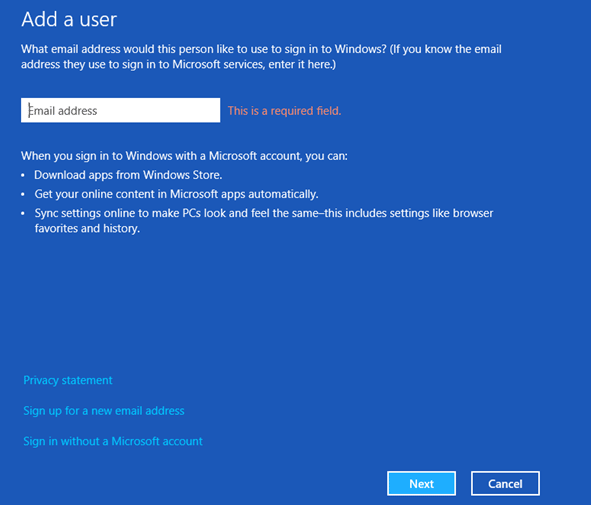
- If you go for an online account you will have to provide your email address, security questions and other important details like address, date of birth, etc. Local account does not require much of these details and takes just a few minutes to complete the process.
- After the account is added successfully, you will be able to sign in to Windows 8 using your newly created local account or Microsoft account.
So that was how you can add a local or Microsoft account in Windows 8. Afterwards you can switch from Microsoft account to local account or switch from local account to Microsoft account, which depends on your choices.