Forgot Windows login password? Or someone change the password on your computer and you can’t log in now? Password Recovery Bundle is the only risk-free solution to safely remove a forgotten Windows login password, so you can log back into Windows without losing any important files.
What you need to do is download the software onto an alternative computer and create a password removal CD. Boot the target computer from the CD and it enables you to remove Windows login password easily.
How to Remove Windows Login Password Which You Have Forgotten?
1. Download Password Recovery Bundle and save it onto an alternative computer. Install the software on the computer.
2. Start Password Recovery Bundle program and click on Windows Password button. This will bring up a new dialog which allows you to create a bootable password removal CD ( You can create a password removal USB drive if your computer doesn’t come with a CD/DVD-ROM ).
3. Set your locked computer to boot from the password removal CD. To boot from the CD-ROM drive, you may need to press a key such as F8 or F12 while your computer is starting up and set CD/DVD as the first boot device in BIOS.
4. After the CD boots, you will have a mini operating system loaded into memory which will launch Reset Windows Password utility. It will not install anything to your hard drive.
5. Click on the Reset Windows Local Admin/User Password option, the program will automatically detect the Windows SAM registry hive and local user accounts existing in your local computer.
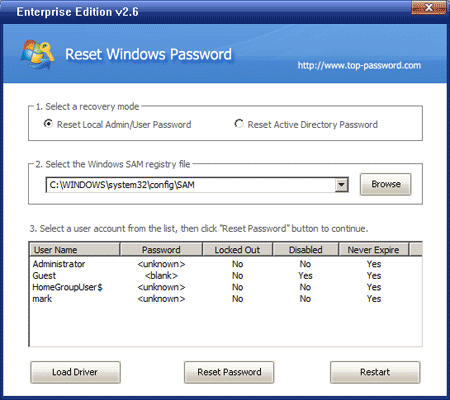
6. Choose the use account whose password you want to remove, and then click on Reset Password button, it will remove your forgotten Windows login password in a short time.
Take out the password removal CD and restart the computer, you’ll be able to login without a password. It’s essential to keep a password removal CD on hand for emergency situations, which allows you to remove Windows 8/7/Vista/XP login password quickly and easily.