If you have lost and forgotten login password of your Windows computer, but you can still log in to the system when automatic logon is enabled, then there are two ways you can recover Windows login password.
The first option is to use Ophcrack. This is a Windows password cracking tool that reads the NT/LM hashed (encrypted) copies of the passwords from the system, and then uses dictionary and/or brute force methods to find the password that matches the hash. The stronger the password (the longer it is, whether it uses random letters and numbers or words and names) the longer this will take.
The second option is to use Reset Windows Password utility. If you have lost the administrator password and are unable to log in to the computer at all then you must reset the password to something known. This is achieved by booting the computer from a bootable CD/USB and remove the login password as blank. Here are detailed steps:
How to Recover Windows Login Password?
1. Download the zip archive of Reset Windows Password utility to an alternative computer. Once you download the zip file, just unzip it and burn the ResetWindowsPwd.iso file to a blank CD or USB flash drive using ISO2Disc.
2. Insert the bootable CD/USB drive into the target computer with a forgotten administrator password. Power on the computer and set it to boot from CD or USB, not your local hard drive.
3. Shortly after loading the operating system inside the CD/USB drive, it will launch the Reset Windows Password program. You’ll see the Windows SAM registry hive and a list of Windows user accounts which are detected by the program.
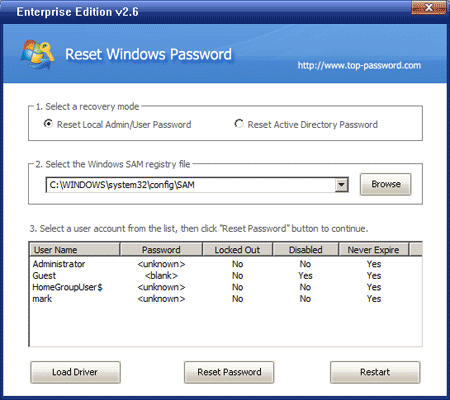
4. Choose a user account and then click on Reset Password button, it will remove your Windows login password immediately.
5. Remove the bootable CD or USB drive. Restart the computer and you can then log in to Windows with a blank password.
With Reset Windows Password utility you can easily recover Windows login password for Windows 8/7/Vista/XP and Windows Server 2008/2003/2000.