Starting with Windows 10 May 2019 Update (version 1903), the sign-in screen looks blurry. If you need to make Windows 10 show clear logon background, here are 3 ways to disable acrylic blur effect on the sign-in background picture.
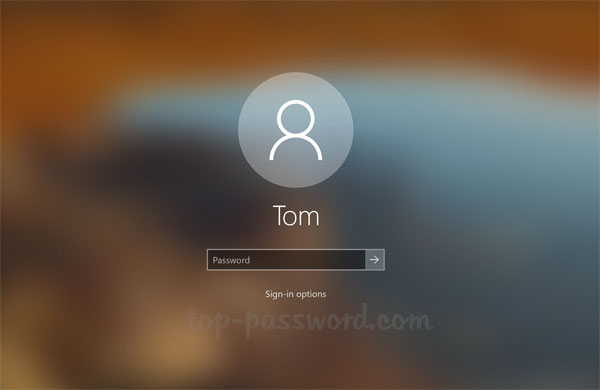
Method 1: Disable Blur Effect on Sign-in Screen Background by Turning off Transparency
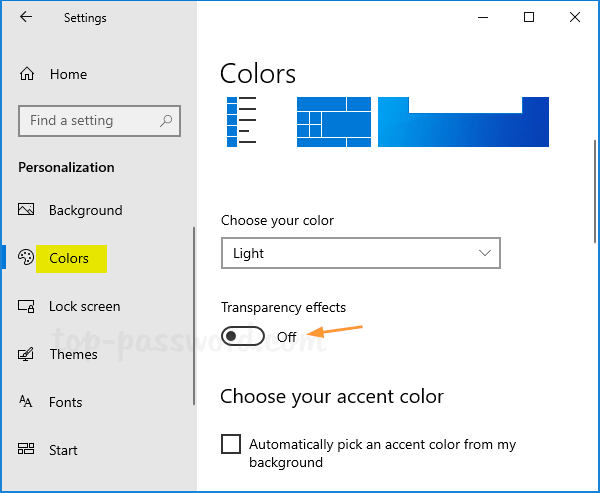
- Open the Settings app and navigate to Personalization -> Colors. On the right side, turn off the Transparency effects toggle switch.
- Log off your user account and the sign-in screen will show a clear background picture. But you’ll lose the transparency effects across the desktop and apps.
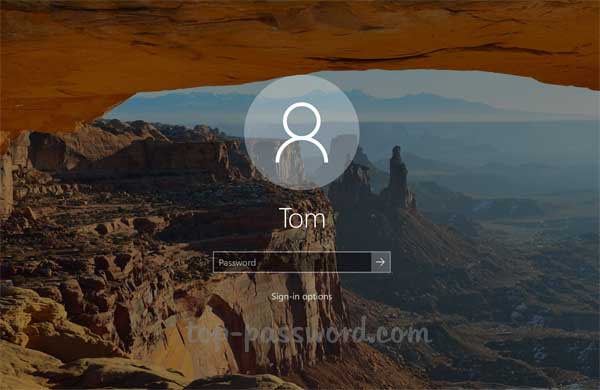
If you just want to turn off acrylic blur effect for the sign-in screen without disabling the transparency effects across the system, then use the following methods.
Method 2: Disable Blur Effect on Sign-in Screen Background via Group Policy
- Open Local Group Policy Editor and navigate to:
Computer Configuration\Administrative Templates\System\Logon. On the right side, double-click the “Show clear logon background” policy to edit it.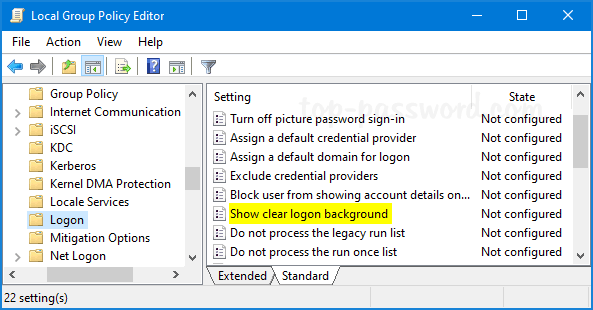
- Select the Enabled option. Click Apply and then OK.
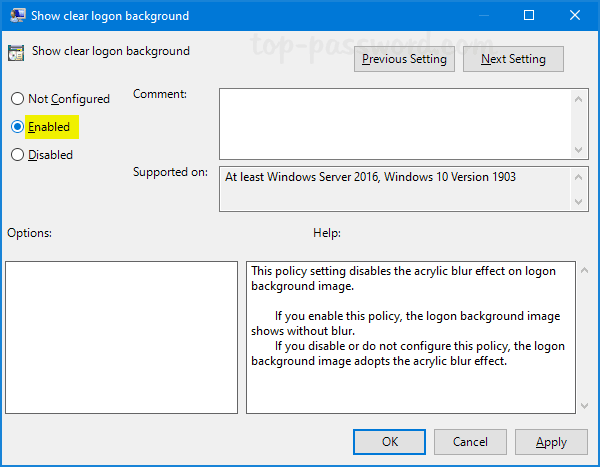
- Restart your computer. The Sign-in screen will show a clear background without enabling the blur effect.
Method 3: Disable Blur Effect on Sign-in Screen Background via Registry Editor
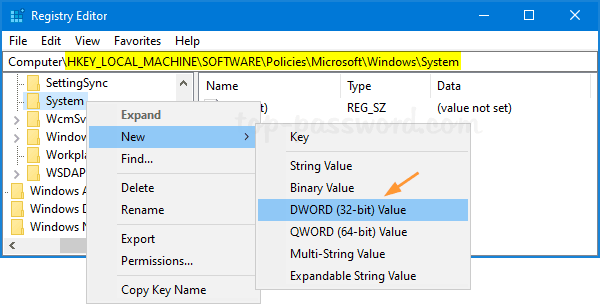
- Open Registry Editor and browse to the following location:
HKEY_LOCAL_MACHINE\SOFTWARE\Policies\Microsoft\Windows\System. If you do not have the System key, then just create it. - In the left pane, right-click on the System key, select New, and click on DWORD (32-bit) Value.
- Name the newly created DWORD DisableAcrylicBackgroundOnLogon and set the value from 0 to 1.
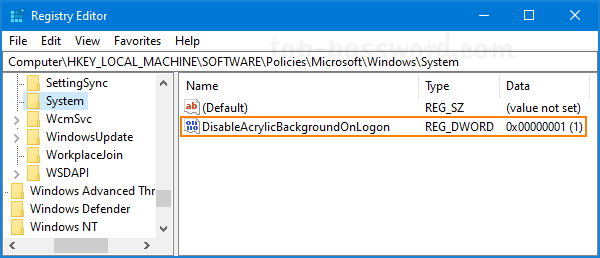
- Close Registry Editor and reboot your system. The next time you see the sign-in screen, you should see a clear background. If you want to enable blur effect for the logon background later on, just change the value of DisableAcrylicBackgroundOnLogon back to 0.
That’s it!