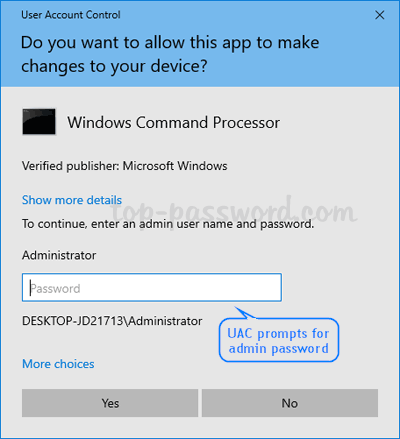
UAC requires password even for admin? How can I make UAC not ask for password every time I try to run program as administrator? In order to bypass the UAC password, you have to log in to Windows with an administrator account so you have sufficient privileges to change UAC prompt behavior.
Method 1: Make UAC not ask for admin password using group policy
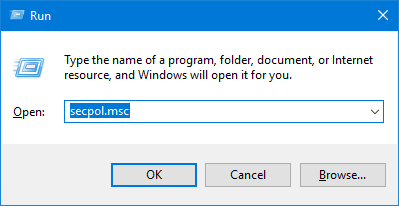
- Hold down the Windows key on your keyboard and then press the R key. In the Run box, type in secpol.msc and hit Enter.
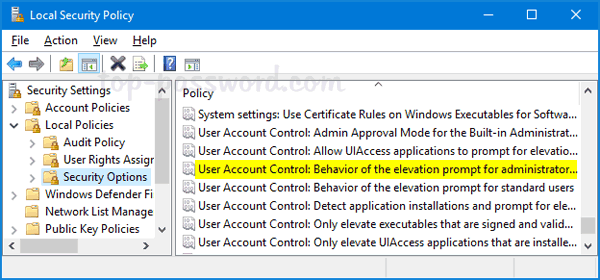
- When the Local Security Policy window opens, navigate to Security Settings –> Local Policies –> Security Options. On the right panel, double-click on the option “User Account Control: Behavior of the elevation prompt for administrators in Admin Approval Mode“.
- Click the drop-down box and select “Prompt for consent for non-Windows binaries” and click OK.
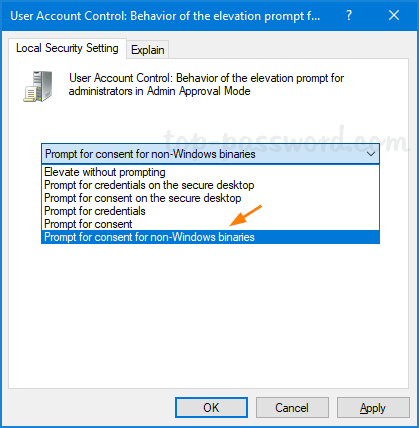
Of course, you can select “Elevate without prompting” to totally bypass UAC prompt for admin accounts, but you won’t get notifications whenever a program is silently installed or run with elevated permissions.
Method 2: Make UAC not ask for admin password using Registry Editor
- Open the Registry Editor and browse to the following key:
HKEY_LOCAL_MACHINE\SOFTWARE\Microsoft\Windows\CurrentVersion\Policies\System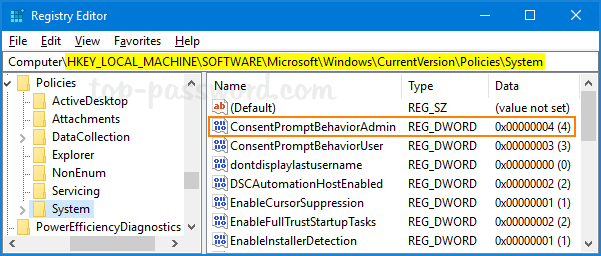
On the right side, double-click on ConsentPromptBehaviorAdmin and change the value to 5.
- 0 = Elevate without prompting
- 1 = Prompt for credentials on the secure desktop
- 2 = Prompt for consent on the secure desktop
- 3 = Prompt for credentials
- 4 = Prompt for consent
- 5 = Prompt for consent for non-Windows binaries (default)
- Close Registry Editor. Restart your computer and log back into your admin account. Whenever you tries to run program as administrator, the UAC prompt will appear but it doesn’t ask you to enter password any longer. You can simply click Yes to allow the app/program to run with admin rights.
Note that it’s impossible to bypass UAC prompt if you’re logged into Windows with a standard account. When UAC admin password is lost, you can either promote your standard account into an administrator, or reset your forgotten password with PCUnlocker Live CD/USB.