You can set up multiple Windows user accounts on your computer, which helps you save and access specific user settings and provide privacy for each user’s files with passwords. You don’t have to turn off your computer each time you want to switch between multiple user accounts. All you need to know is your user password.
If you forget your password and try to switch users without entering one, Windows shows your password hint. You created this password hint, which is designed to help you remember your password, when you assigned a password. If you still can’t recall your password, you can always use the Reset Windows Password utility to remove your forgotten user account passwords.
To switch user account in Windows, follow these steps:
- Click Start and then click the arrow on the side of the Shut Down button.
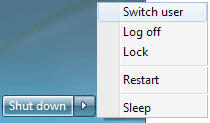
- Choose Switch User. A dialog box appears.
- Click the user you want to log in as. If the user account is password-protected, a box appears for you to enter the password.
- Type the password and then click the arrow button to log in. Windows logs you in with the specified user’s settings.