How can I configure Windows 11 to unlock using facial recognition as the default sign-in option? Is there any way to force Windows Hello to use FACE instead of PIN? If you don’t want to type any PIN or password in the Windows login screen, facial recognition would be a good choice. In this tutorial we’ll show you how to set Windows Hello default to FACE instead of PIN in Windows 11.
How to set facial recognition as the default sign-in option in Windows Hello
Here is a simple registry tweak you can use to set facial recognition as the default sign-in option for your currently logged-in account.
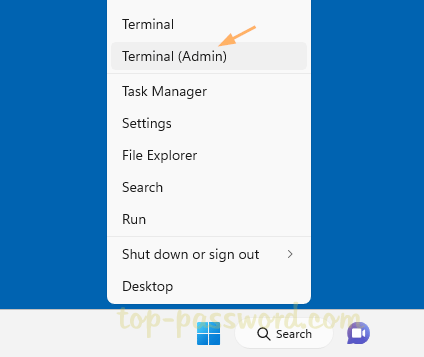
- Press the Windows Key + X together and then select “Terminal (Admin)“.
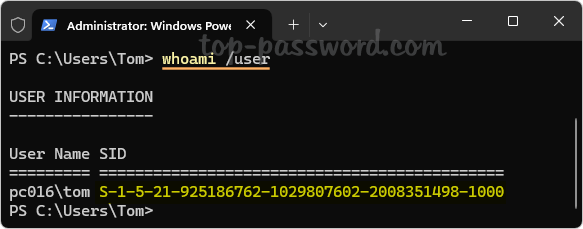
- Run the “whoami /user” command to find the SID of your current account, which will be used in the next step.
- Open Registry Editor and navigate to:
HKEY_LOCAL_MACHINE\SOFTWARE\Microsoft\Windows\CurrentVersion\Authentication\LogonUI\UserTile. In the right pane, find the string named the same as the SID you found above and then double-click it to modify.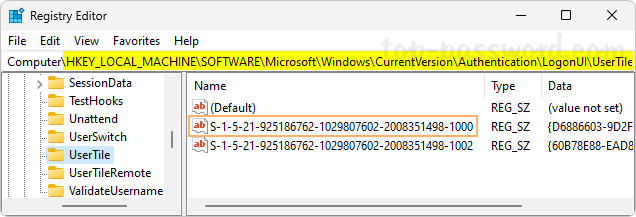
- Depending on your desired sign-in option, enter one of the following GUIDs in the Value data box and click OK. If you want to set Windows Hello facial recognition as default, enter
{8AF662BF-65A0-4D0A-A540-A338A999D36F}.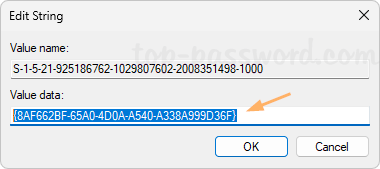
- Password: {60B78E88-EAD8-445C-9CFD-0B87F74EA6CD}
- Microsoft Account: {F8A0B131-5F68-486C-8040-7E8FC3C85BB6}
- Windows Hello PIN: {D6886603-9D2F-4EB2-B667-1971041FA96B}
- Windows Hello Fingerprint: {BEC09223-B018-416D-A0AC-523971B639F5}
- Windows Hello facial recognition: {8AF662BF-65A0-4D0A-A540-A338A999D36F}
- Picture Logon: {2135F72A-90B5-4ED3-A7F1-8BB705AC276A}
- Close Registry Editor. After restarting your computer, Windows 11 should prompt you to log in with Windows Hello facial recognition by default.
That’s it!