So if you forget Windows 7 guest or user password then you can reset it by using the administrator account. But what if you’re the only administrator account got locked and unable to login? As long as you have a PCUnlocker boot media, you can use it to bypass Windows 7 password easily. This tutorial will walk through the steps to bypass Windows 7 login password from scratch.
How to Bypass Windows 7 Login Password from Scratch?
Before we can do anything, we need to make a PCUnlocker Live CD (or USB drive) using a computer with internet connection. Download the self-extracting archive of PCUnlocker which contains a bootable ISO image. Burn the ISO file to a CD or USB drive with ISO2Disc, ImgBurn, Rufus or other similar burning programs.
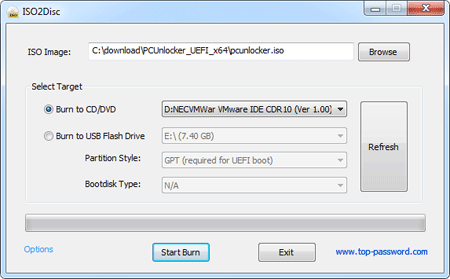
Insert PCUnlocker Live CD into your optical drive and then restart your locked computer. If you have either on a USB flash drive, that will work too. As your computer boots there should be a splash screen, and in some corner of a screen, there is usually a message that will flash telling you which key is used to enter “Setup” or something similar.
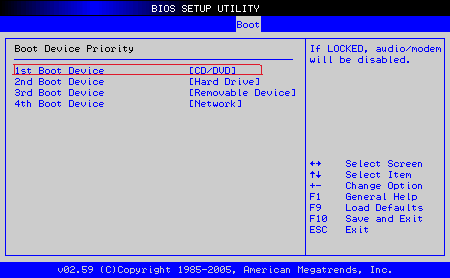
Once in BIOS Setup, look for a section labeled “Boot Priority” or “Boot Order” and follow the on-screen instructions for changing it such that CD/DVD-ROM is a higher priority than the hard drive. After changing the boot order, you should now be able to boot into the PCUnlocker Live CD that we’ve just created.
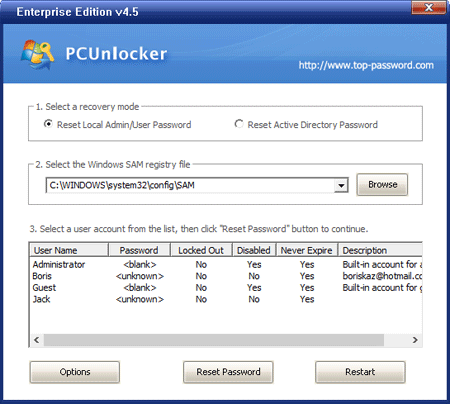
When presented with the PCUnlocker screen, select your desired user account and click on “Reset Password” button. This will reset lost Windows 7 login password as well as unlocking your disabled or locked-out account.
Remove the PCUnlocker Live CD and then restart your computer. This time your computer will boot up from the local hard drive and it allows you to login to Windows 7 without a password!