When you turn on your Windows 10 machine it shows your account name or email address on the login screen. Many users might want to remove or hide the email address for privacy and security reasons. In this tutorial we’ll show you how to hide your user name and email address from Windows 10 login screen using Group Policy or Registry Editor.
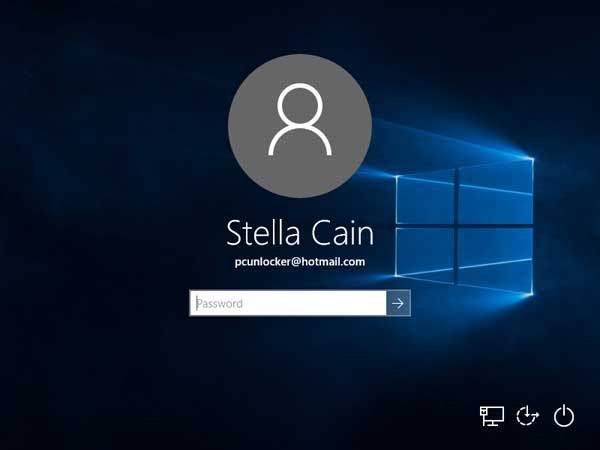
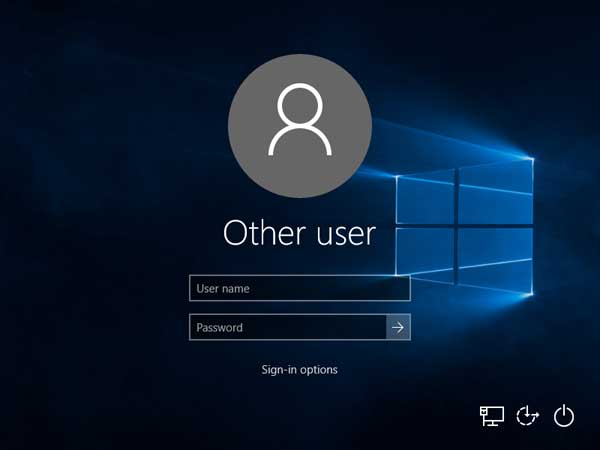
Note: After making Windows 10 not show your name and email address on sign-in screen, you need to fill in both your username (or email address) and password in order to login.
Method 1: Hide User Name or Email Address on Windows 10 Sign-in Screen Using Group Policy
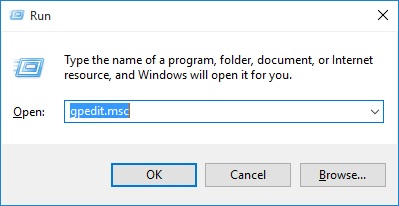
- Press the Windows key + R keyboard shortcut to open the Run box, type gpedit.msc and click OK to open Local Group Policy Editor.
- Navigate to:
Computer Configuration > Windows Settings > Security Settings > Local Policies > Security Options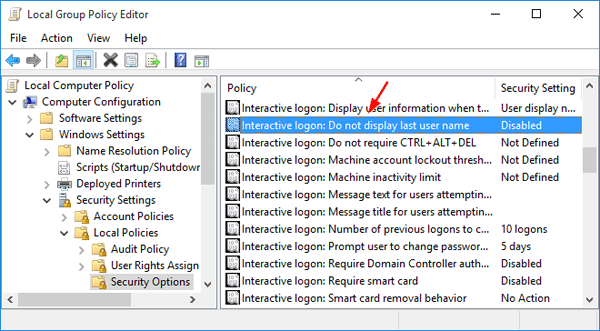
In the right pane, find the policy Interactive logon: Do not display last user name and double-click on it.
- In the Settings window select the Enabled radio button, and save the changes by clicking OK.
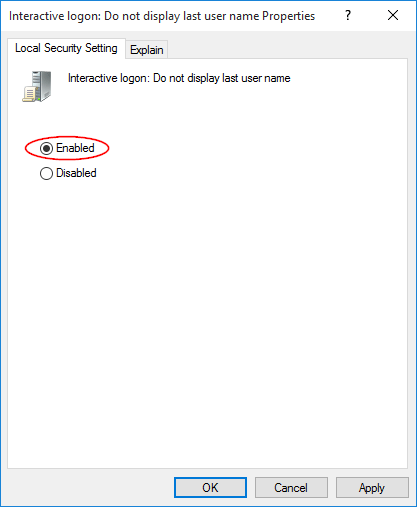
- Just restart your computer. You should no longer see the last used username or other details like the email address on the login / logon screen. One thing to keep in mind while using this is that it will also hide all your accounts from the login screen.
Method 2: Hide User Name or Email Address on Windows 10 Sign-in Screen Using Registry Editor
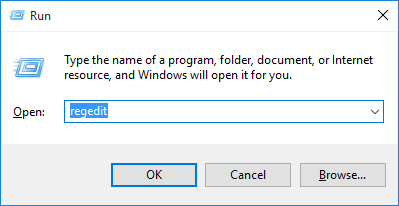
- Press the Windows key + R keyboard shortcut to open the Run box, type regedit and click OK to open Registry Editor.
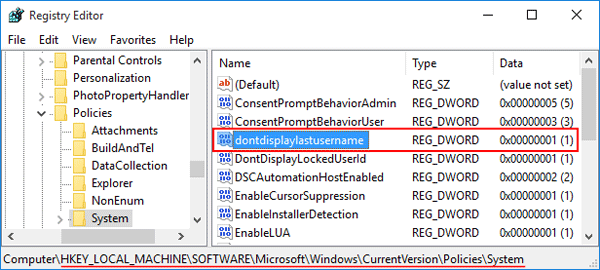
- Navigate to the following key:
HKEY_LOCAL_MACHINE\SOFTWARE\Microsoft\Windows\CurrentVersion\Policies\System - Find the entry “dontdisplaylastusername” on the right pane and double-click on it. This action will open the Edit Value Data window. Change the value data from 0 to 1, and click OK.
- Just restart your PC, and you will no longer see the user name or email address on the Windows 10 login screen. If you want to revert back, simply change the value data of dontdisplaylastusername to 0.