How do I have File Explorer display Recycle Bin? How can I access the Recycle Bin without using the desktop icon? Previously we’ve covered a way to add Recycle Bin to the navigation pane of File Explorer, which continues to work with with latest version of Windows 11. Here you’ll learn how to pin Recycle Bin to Quick Access or the “This PC” location on Windows 11.
Method 1: Pin Recycle Bin to Quick Access
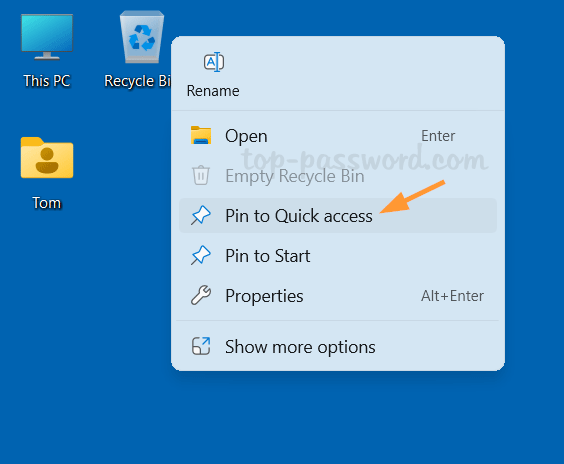
- Right-click the Recycle Bin icon on the desktop and select “Pin to Quick access” from the context menu.
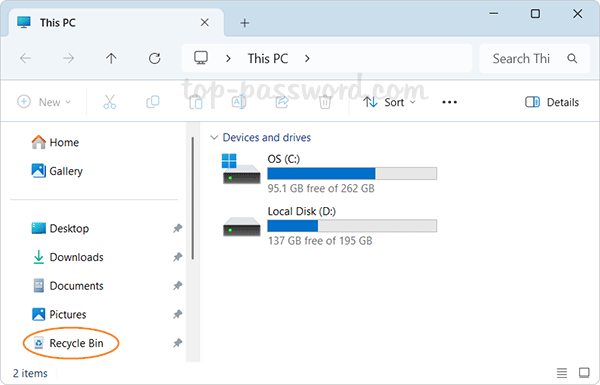
- You’ll immediately see the “Recycle Bin” option appear in the left panel of File Explorer.
Method 2: Add Recycle Bin to This PC
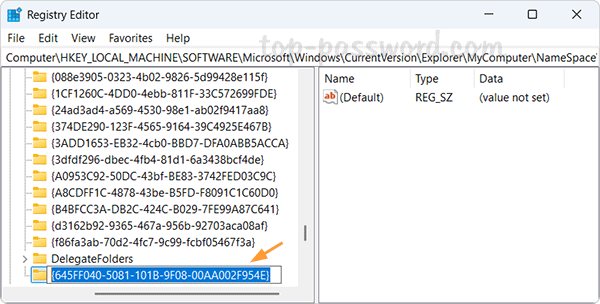
- Open Registry Editor, copy and paste the following path in the address bar at the top, and press Enter.
HKEY_LOCAL_MACHINE\SOFTWARE\Microsoft\Windows\CurrentVersion\Explorer\MyComputer\NameSpace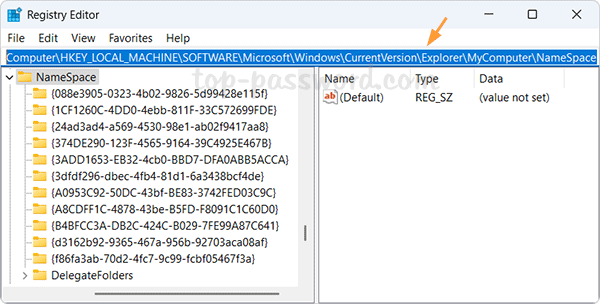
- Right-click NameSpace in the left panel and choose New -> Key.
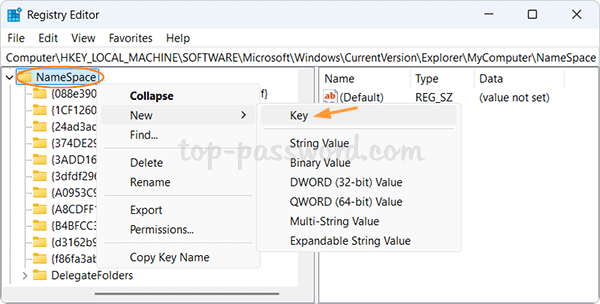
- Give the new key the name: {645FF040-5081-101B-9F08-00AA002F954E}.
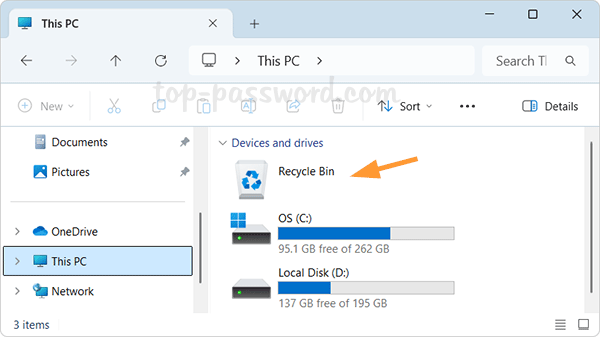
- Close out of Registry Editor. Click This PC icon on your desktop to open File Explorer, and you’ll see the Recycle Bin icon listed next to your drives.
That’s it!