By default, Windows 10 will show a flashy background picture on the sign-in screen, where you type your password. If you’d rather use a flat color instead of a background image, you can remove the sign-in background image easily. In this tutorial we’ll show you 2 simple ways to show or disable sign-in background picture in Windows 10.
Method 1: Show or Disable Sign-in Background Picture from Settings
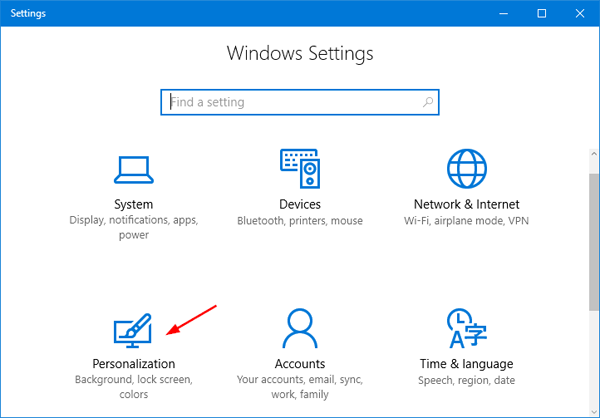
- Press the Windows key + I keyboard shortcut to open the Settings app, and then click Personalization.
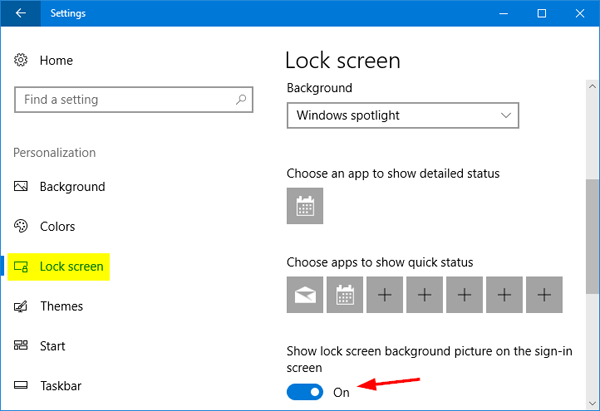
- Select Lock screen on the left-hand side. Scroll down until you see Show lock screen background picture on the sign-in screen. Toggle this setting to Off if you want to disable sign-in background picture.
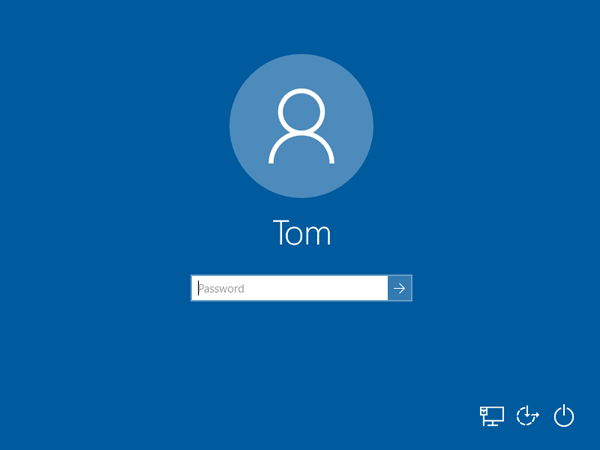
- Now, log out or restart your PC. Instead of the default black and blue Windows 10 wallpaper on the sign-in screen, you’ll see the solid color matching your theme.
Method 2: Show or Disable Sign-in Background Picture Using Registry Editor
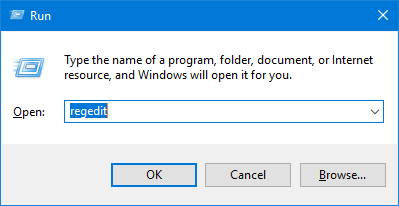
- Open Registry Editor by pressing Windows key + R keyboard shortcut and then typing regedit.
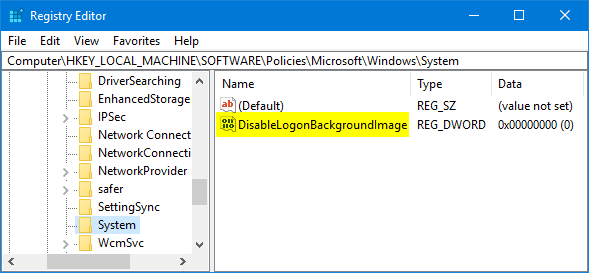
- Browse to the following registry location:
HKEY_LOCAL_MACHINE\Software\Policies\Microsoft\Windows\SystemRight-click on the System key on the left side, and then select New -> DWORD (32-bit) Value.

- Label this new DWORD DisableLogonBackgroundImage, and then double-click it to modify.
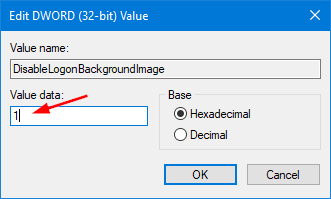
- Under the Value data box, type 1 and click OK. This will disable the sign-in screen background image. (To enable the default Windows 10 sign-in background picture, change this value back to 0.)
- Close Registry Editor and restart your computer. You should have solid color instead of background image when Windows boots to the sign-in screen.