How do I stop windows 10 from asking for a password when waking up from sleep? In this tutorial we’ll show you 2 simple ways to disable being prompted for password when your Windows 10 PC wakes up from Hibernate / Sleep.
Method 1: Disable Windows 10 Require Sign-in on Wakeup from Settings
In previous versions of Windows, you can turn off require a password on wakeup from Control Panel. In Windows 10, this option is moved to the Settings app. Follow these steps:
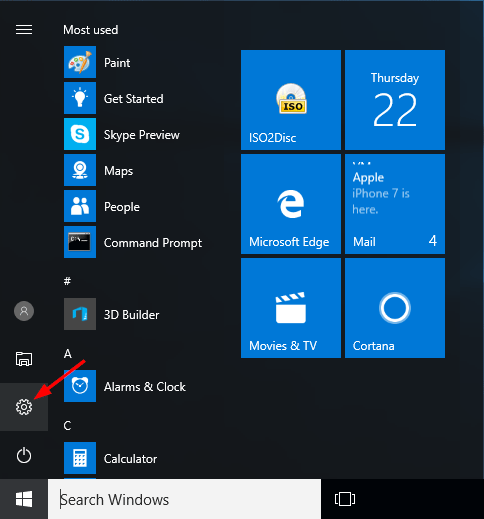
- Open Settings app by clicking its icon in Start menu or pressing Windows logo + I keyboard shortcut.
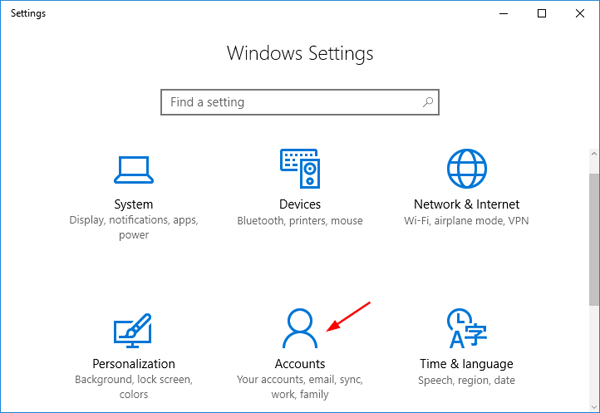
- Click on Accounts.
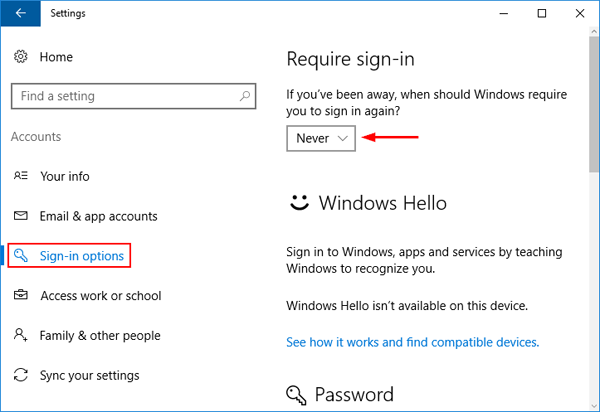
- Click Sign-in options in the left hand side, and then select Never for the “Require sign-in” option if you want to stop Windows 10 from asking for password after it wakes up from sleep.
Method 2: Disable Windows 10 Require Sign-in on Wakeup Using Group Policy
- Press Windows Key + R combination, type gpedit.msc in the Run dialog box and hit Enter to open the Local Group Policy Editor.
- In the left pane, navigate to Computer Configuration > Administrative Templates > System > Power Management > Sleep Settings.
- In the right pane, you’ll see two policies labeled “Require a Password when the computer wakes (plugged in)” and “Require a Password when the computer wakes (on battery)“. Double-click on them to modify and set the policies to Disabled.
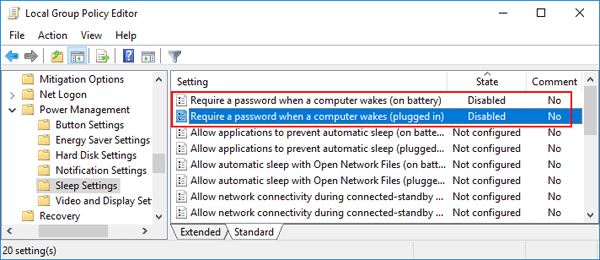
- Reboot your computer for the policies to take effect. Windows 10 should never require a password the next time your PC wakes up from sleep.
Note: The Local Group Policy Editor is not available in Windows 10 Home. But you can add Local Group Policy Editor by following this method: How to Add Group Policy Editor to Windows 10 Home.
Windows 10 Still Asks for Password after Sleep?
If you’ve tried the above methods but to no avail, turn off the Lock screen in Windows 10 and it might fix your issue, by following this tutorial: How to Disable Windows 8 or 10 Lock Screen