There is no doubt that all of the new security features in the modern versions of Windows will help keep your computer more secure. However, these features become less valuable when they are not turned on by default. One feature, known as user account auditing, is not turned on by default. With this feature is turned off, anyone with physical access or remote access to through a hole in your firewall (such an opening for Remote Desktop) can use a brute force attack against your user account for as long as they want without getting noticed at all. How? The default audit security policy is configured to not log any account logon events, successful or failed.
This allows an attacker to try to hack your accounts for as long as it takes to break in. There are a few ways to protect against this by setting up a Account Lockout policy. But first, it is important to turn on this account auditing so that you can see who may be trying to break into your accounts. After you have adjusted the auditing security policy, you will be able to see any account attacks including the account that they tried to logon with and where the request came from.
Let’s get started and turn on audition for failed logon events:
- Click on the Start button and type in secpol.msc in the box and hit Enter.
- Navigate through Local Policies and Audit Policy.
- Right click on Audit account logon events policy and select Properties.
- Check the Failure box and hit OK.
- Right click on Audit logon events policy and select Properties.
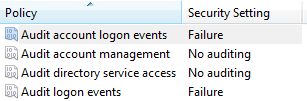
- Check the Failure box and hit OK. Your screen should now look like the figure below:
- Close Local Security Policy editor.
Your computer has now been configured to log all failed user account logon attempts.
Once you have turned on account auditing, you can view the logs in Event Viewer (run eventvwr.msc) under Windows Logs and Security.